WriteMag Documentation

Introduction

WriteMag is a clean and elegant 3-column WordPress theme for news blogs or magazine websites. It features a responsive and mobile-friendly design, Customizer theme options, 2 navigation menus, full-width templates for posts and pages, sticky menu and sticky sidebars, compact or full post summaries, left and right sidebars, a 4-column footer, 60+ social icons, post share buttons, RTL language support, a scroll-to-top button, and more. The theme is very starter-friendly and easy to set up.

Quick Start Guide

  1. Install & activate the theme via Appearance → Themes → Add New.
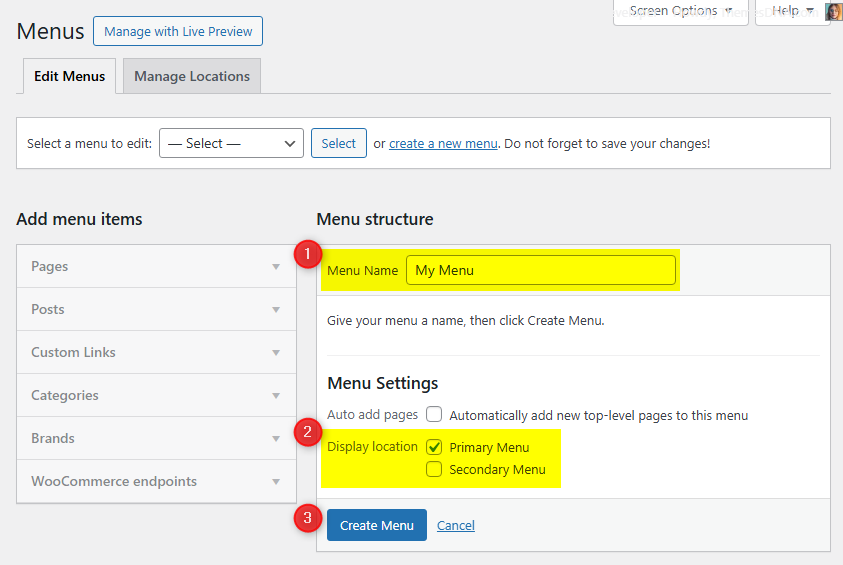
  2. Set up your menus by going to Appearance → Menus. Create a menu and assign it to one of the available menu locations.
  3. Configure widgets by going to Appearance → Widgets. Add widgets to the available widget areas.
  4. Customize by going to Appearance → Customize → Theme Options. Set up your social links, menu options, posts summaries options, and more.

Theme Features

  • Responsive Design
  • 3-Column Layout (Left Sidebar, Content, Right Sidebar)
  • Sticky Menu and Sticky Sidebars
  • 2 Navigation Menus (Primary and Secondary)
  • 2 Sidebars and 4 Footer Widget Columns
  • Multiple Full-Width Widget Areas
  • 60+ Social Profile Links
  • Post Share Buttons (X, Facebook, Pinterest, Linkedin)
  • Compact or Full Posts Styles
  • Custom Logo Support
  • Custom Header Image
  • Custom Background
  • Author Bio Box
  • Full-Width Templates for Posts and Pages
  • RTL Language Support
  • Translation Ready
  • Back to Top Button
  • Loading Animation
  • FitVids.JS for Responsive Videos
  • WP-PageNavi Support

Theme Installation

Method 1: Install via WordPress Dashboard (Recommended)

  1. Log in to your WordPress Dashboard.
  2. Navigate to Appearance → Themes → Add New.
  3. Search for WriteMag in the search box.
  4. Click Install on the WriteMag theme, then click Activate.

Method 2: Upload via WordPress Dashboard

  1. Download the writemag.zip theme file from WordPress.org.
  2. Log in to your WordPress Dashboard.
  3. Navigate to Appearance → Themes → Add New → Upload Theme.
  4. Click Choose File, select the writemag.zip file, and click Install Now.
  5. After installation, click Activate.

Method 3: Upload via FTP/File Manager

  1. Download the writemag.zip theme file and extract it.
  2. Connect to your server via FTP (FileZilla) or use your hosting File Manager.
  3. Upload the extracted writemag folder to /wp-content/themes/.
  4. Go to your WordPress Dashboard → Appearance → Themes and activate WriteMag.

Troubleshooting Installation Issues

  • "The uploaded file exceeds the upload_max_filesize directive" – Your hosting limits file uploads. Increase the limit via php.ini, .htaccess, or contact your host. Alternatively, use FTP.
  • "The package could not be installed. The theme is missing the style.css stylesheet" – You may be uploading the wrong file. Make sure you upload only the writemag.zip file.

Import Demo Content

You can import the demo content, widgets, and Customizer settings shown in the WriteMag theme demo.

Manual Demo Import

Step 1: Import Main Site Content

This includes: Posts, pages, menus, media, categories, tags, comments, and custom fields.

  1. Download: XML File
  2. Go to Tools → Import.
  3. Under "WordPress", click Install Now if not installed.
  4. Click Run Importer.
  5. Select the XML file and click Upload file and import.
  6. Check "Download and import file attachments", click Submit.

Step 2: Import Widgets

  1. Install the Widget Importer & Exporter plugin.
  2. Go to Tools → Widget Importer & Exporter.
  3. Copy content from: Widgets .wie File and paste into the box.
  4. Click Import Widgets.

Step 3: Import Customizer Settings

  1. Download: Customizer File
  2. Install the Customizer Export/Import plugin.
  3. Go to Appearance → Customize → Export/Import.
  4. Select the .dat file, check "Download and import image files?", click Import.

Regenerate Thumbnails

If your website already has existing posts with featured images, it's highly recommended to regenerate thumbnails after activating the WriteMag theme. This ensures that all images match the new theme's layout and display sizes.

Regenerating thumbnails is optional if your site is completely new and doesn't have any uploaded images yet.

However, if you imported the demo content, regenerating thumbnails is essential to display images correctly across the site.

  1. Install and activate the Regenerate Thumbnails plugin.
  2. Go to Tools → Regenerate Thumbnails.
  3. Click the "Regenerate Thumbnails for All x Attachments" button to start the process.
  4. Wait until all images are regenerated. This may take a few minutes depending on your media library size.
  5. If you want, you can deactivate and delete the plugin once the process is complete.

This step ensures clean image alignment and sharp visuals throughout your website using the WriteMag theme.

Header Image

Use the WordPress Customizer to add or manage the header image that appears at the top of your site.

How to add a header image

  1. Go to Appearance → Customize → Theme Options → Header Image.
  2. Click Add new image and choose/upload your image (recommended width: 1920px or larger).
  3. Crop if prompted, then click Publish.

Useful options

  • Hide Header Image from Everywhere – remove the header image globally.
  • Remove Link from Header Image – keep the image but remove the homepage link.
  • Hide both Title and Description – hide the overlaid title/description text.
  • Hide Description – hide only the description text from the header image.
  • Custom Title/Description – enter your own text for the header image area.
  • Header Image Destination URL – set a custom link target when the image is clicked.
  • Header Image Alt Text – set the alt text for the header image.

The header image area displays the site title and description by default. You can override these with custom text or hide them entirely using the header image options in the Customizer.

Widget Areas

There are 19 widget areas in the WriteMag theme. The free version does not bundle custom widgets; use WordPress core widgets or plugins of your choice inside these areas.


  1. Header Right Widgets

    Right-hand side of the header; ideal for a "Custom HTML" widget with your banner ad code.

  2. Sidebar 1 Widgets

    Left-hand sidebar for your pages/posts.

  3. Sidebar 2 Widgets

    Right-hand sidebar for your pages/posts.

  4. Above Content Widgets (Everywhere)

    Above main content (above posts), shown on every page.

  5. Above Content Widgets (Default HomePage)

    Above main content (above posts), shown on the default homepage (latest posts).

  6. Below Content Widgets (Everywhere)

    Below main content (below posts), shown on every page.

  7. Below Content Widgets (Default HomePage)

    Below main content (below posts), shown on the default homepage (latest posts).

  8. Top Full Width Widgets (Everywhere)

    Full-width area after the primary menu, shown on every page.

  9. Top Full Width Widgets (Default HomePage)

    Full-width area after the primary menu, shown only on the default homepage (latest posts).

  10. Bottom Full Width Widgets (Everywhere)

    Full-width area before the footer, shown on every page.

  11. Bottom Full Width Widgets (Default HomePage)

    Full-width area before the footer, shown on the default homepage (latest posts).

  12. Single Post Bottom Widgets

    Appears at the bottom of single posts (all post types except pages/attachments).

  13. Footer Top

    Full-width area above the footer columns.

  14. Footer 1

    Footer column 1.

  15. Footer 2

    Footer column 2.

  16. Footer 3

    Footer column 3.

  17. Footer 4

    Footer column 4.

  18. Footer Bottom

    Full-width area below the footer columns.

  19. 404 Page Widgets

    Appears on the 404 (not found) page.

Page Templates

WriteMag includes two custom page templates you can use for full-width layouts without sidebars.

  • Full Width, no sidebar (Page) — Template for pages (template-full-width-page.php)
  • Full Width, no sidebar (Post) — Template for posts (template-full-width-post.php)

How to apply a template

  1. Edit a page or post in the WordPress editor.
  2. In the Page Attributes (or Post Attributes) panel, open the Template dropdown.
  3. Select Full Width, no sidebar and update/publish.

Use featured images with sufficient width (e.g., 1218px+) for best presentation in full-width layouts.

Customizer Theme Options

To see available WordPress Customizer theme options:

  1. Go to your WordPress Dashboard.
  2. Navigate to Appearance → Customize.
  3. Click on Theme Options.

Site Identity Options

Below is the complete list of Site Identity Options available:

Option ID Option Name Description Control Type Accepted Value Default
custom_logo Logo Image ID of the custom logo uploaded through the Customizer. Media Uploader Integer (attachment ID) 0 (none)
logo_location Logo Location Select how you want to display the site logo with site title and tagline. Dropdown
  • Before Site Title and Tagline
  • Above Site Title and Tagline
Above Site Title and Tagline
blogname Site Title Main title of the website shown in the header, browser-tabs, and search-results. Text A string "My WordPress Site" (installer-set)
blogdescription Tagline Short descriptive sentence (appears next to or below the title when supported by the theme). Text A string "Just another WordPress site"
display_header_text Display Site Title & Tagline Toggles whether the title/tagline are printed on the front-end. When off they remain in the markup for accessibility but are hidden with CSS. Toggle Switch true / false true
site_icon Site Icon (Favicon) Image ID for the favicon/app-icon (512 × 512 px recommended). Used in browser tabs, bookmark tiles and WP mobile app. Media Uploader Integer (attachment ID) 0 (none)

Colors Options

Below is the complete list of Colors Options available:

Option ID Option Name Description Control Type Accepted Value Default
background_colorBackground ColorPick the site Background Color. To change Background Color, need to remove background image first.Color PickerHex color code (e.g. #ffffff)#e4e6e9
header_textcolorHeader Text ColorPick the Header Text Color for the site title and tagline.Color PickerHex color code (e.g. #ffffff)#ffffff

Header Image Options

Below is the complete list of Header Image Options available:

Option ID Option Name Description Control Type Accepted Value Default
header_imageHeader ImageUpload or select a header image. Suggested width is 1920 pixels.Media UploaderImage URL(none)
hide_header_imageHide Header Image from EverywhereToggle to hide the header image from all pages.Checkboxtrue / falsefalse
remove_header_image_linkRemove Link from Header ImageRemove the clickable link from the header image.Checkboxtrue / falsefalse
hide_header_image_detailsHide both Title and Description from Header ImageIf checked, header image title and description will be hidden from all screen sizes.Checkboxtrue / falsefalse
hide_header_image_descriptionHide Description from Header ImageIf checked, header image description will be hidden from all screen sizes. This option has no effect if you have checked "Hide both Title and Description from Header Image".Checkboxtrue / falsefalse
header_image_custom_titleHeader Image Custom TitleEnter a custom title to display on the header image. If empty, the site title is displayed.TextA string(empty)
header_image_custom_descriptionHeader Image Custom DescriptionEnter a custom description to display on the header image. If empty, the site tagline is displayed.TextA string(empty)
header_image_destinationHeader Image Destination URLEnter the URL a visitor should go when clicking on the header image. If empty, links to homepage.TextA valid URL(empty)
header_image_alt_textHeader Image Alt TextEnter the alt text for the header image.TextA stringSite title

Background Image Options

Below is the complete list of Background Image Options available:

Option ID Option Name Description Control Type Accepted Value Default
background_imageBackground ImageUpload or select a background image for the site.Media UploaderImage URLassets/images/background.png
background_presetPresetChoose a preset for how the background image is displayed.DropdownDefault / Fill Screen / Fit to Screen / Repeat / CustomDefault
background_position_xImage Position (Horizontal)Horizontal position of the background image.RadioLeft / Center / RightLeft
background_position_yImage Position (Vertical)Vertical position of the background image.RadioTop / Center / BottomTop
background_sizeImage SizeHow the background image is sized.DropdownAuto / Contain / CoverAuto
background_repeatRepeat Background ImageWhether the background image repeats.CheckboxRepeat / No RepeatRepeat
background_attachmentScroll with PageWhether the background image scrolls with the page or is fixed.CheckboxScroll / FixedFixed

Menu Options

Below is the complete list of Menu Options available:

Option ID Option Name Description Control Type Accepted Value Default
primary_menu_textPrimary Menu Mobile TextText displayed for the primary menu toggle on mobile devices.TextA stringMenu
disable_primary_menuDisable Primary MenuCompletely disable the primary menu.Checkboxtrue / falsefalse
center_primary_menuCenter Primary MenuCenter the primary menu items.Checkboxtrue / falsefalse
secondary_menu_textSecondary Menu Mobile TextText displayed for the secondary menu toggle on mobile devices.TextA stringMenu
disable_secondary_menuDisable Secondary MenuCompletely disable the secondary menu.Checkboxtrue / falsefalse
secondary_menu_locationSelect Secondary Menu LocationSelect where you want to display the secondary menu.Dropdown
  • Before Header
  • After Header
  • Before Footer
  • After Footer
Before Header
center_secondary_menuCenter Secondary MenuCenter the secondary menu items.Checkboxtrue / falsefalse

Header Options

Below is the complete list of Header Options available:

Option ID Option Name Description Control Type Accepted Value Default
hide_taglineHide TaglineHide the site tagline from the header.Checkboxtrue / falsefalse
hide_header_contentHide Header ContentHide the header content area entirely.Checkboxtrue / falsefalse

Post Summaries Options

Below is the complete list of Post Summaries Options available:

Option IDOption NameDescriptionControl TypeAccepted ValueDefault
hide_posts_headingHide HomePage Posts HeadingHide the heading above the posts on the homepage.Checkboxtrue / falsefalse
posts_headingHomePage Posts HeadingCustom heading text for the homepage posts area.TextA stringRecent Posts
posts_per_pageNumber of Posts per PageSet the maximum number of posts displayed on each blog page.TextA positive integer(WordPress default)
post_stylePosts StyleSelect the post style you want for home/categories/tags/archive/search-results pages.Dropdown
  • Compact
  • Full
Compact
read_more_lengthAuto Post Summary LengthNumber of words to display in the post summary. Default is 20 words.TextA positive integer20
show_read_more_buttonShow Read More Buttons on Posts SummariesShow a "Read More" button under each post summary.Checkboxtrue / falsefalse
read_more_textRead More TextText for the Read More button on posts summaries.TextA stringContinue Reading
hide_thumbnail_homeHide Featured Images from Posts SummariesHide featured images from posts summaries.Checkboxtrue / falsefalse
hide_default_thumbnail_homeHide Default Images from Posts SummariesHide the default thumbnail image shown when there is no featured image.Checkboxtrue / falsefalse
hide_post_title_homeHide Post Titles from Posts SummariesHide post titles from posts summaries.Checkboxtrue / falsefalse
hide_post_author_homeHide Post Authors from Posts SummariesHide author names from posts summaries.Checkboxtrue / falsefalse
hide_posted_date_homeHide Posted Dates from Posts SummariesHide posted dates from posts summaries.Checkboxtrue / falsefalse
hide_comments_link_homeHide Comment Links from Posts SummariesHide comment count links from posts summaries.Checkboxtrue / falsefalse
hide_post_categories_homeHide Post Categories from Posts SummariesHide post categories from posts summaries. This option is only for the "Full" post style.Checkboxtrue / falsefalse
cat_links_textPost Categories Pre TextEnter a text to display before post categories.TextA stringPosted in:
hide_post_tags_homeHide Post Tags from Posts SummariesHide post tags from posts summaries. This option is only for the "Full" post style.Checkboxtrue / falsefalse
tag_links_textPost Tags Pre TextEnter a text to display before post tags.TextA stringTagged:
separate_taxonomiesDisplay Post Categories and Post Tags on Separate LinesShow post categories and post tags on separate lines in posts summaries.Checkboxtrue / falsefalse
hide_post_snippetHide Post Snippets from Posts SummariesHide post snippets/excerpts from posts summaries.Checkboxtrue / falsefalse
display_full_post_contentDisplay Full Post Content with Fullview Posts StyleDisplay the full post content instead of the summary when the "Full" post style is selected.Checkboxtrue / falsefalse

Singular Post Options

Below is the complete list of Singular Post Options available:

Option IDOption NameDescriptionControl TypeAccepted ValueDefault
thumbnail_linkFeatured Image LinkWhether the featured image in a single post should link to its post.Dropdown
  • Yes
  • No
Yes
hide_thumbnail_singleHide Featured Image from Single PostsHide the featured image on single posts.Checkboxtrue / falsefalse
hide_post_titleHide Post Header from Single PostsHide the post header (title and meta data) from single posts.Checkboxtrue / falsefalse
remove_post_title_linkRemove Link from Single Post TitlesRemove the clickable link from the single post title.Checkboxtrue / falsefalse
hide_posted_dateHide Posted Date from Single PostsHide the posted date on single posts.Checkboxtrue / falsefalse
hide_post_authorHide Post Author from Single PostsHide the author name on single posts.Checkboxtrue / falsefalse
hide_post_categoriesHide Post Categories from Single PostsHide categories from single posts.Checkboxtrue / falsefalse
hide_post_tagsHide Post Tags from Single PostsHide tags from single posts.Checkboxtrue / falsefalse
hide_comments_linkHide Comment Link from Single PostsHide the comment link on single posts.Checkboxtrue / falsefalse
hide_comment_formHide Comments/Comment Form from Single PostsHide comments and the comment form on single posts.Checkboxtrue / falsefalse
hide_post_editHide Post Edit Link from Single PostsHide the edit link on single posts (for logged-in users with permission).Checkboxtrue / falsefalse
hide_author_bio_boxHide Author Bio Box from Single PostsHide the author biography box on single posts.Checkboxtrue / falsefalse
no_underline_content_linksDo not Underline the Links within the ContentRemove underline styling from links inside the post content.Checkboxtrue / falsefalse

Post/Posts Navigation Options

Below is the complete list of Post/Posts Navigation Options available:

Option IDOption NameDescriptionControl TypeAccepted ValueDefault
hide_post_navigationHide Post Navigation from Single PostsHide the previous/next post navigation on single posts.Checkboxtrue / falsefalse
hide_posts_navigationHide Posts Navigation from Home/Archive/Search PagesHide the posts navigation on listing pages.Checkboxtrue / falsefalse
posts_navigation_typePosts Navigation TypeSelect the type of navigation for post listings. If WP-PageNavi plugin is active, it will replace this navigation.Dropdown
  • Link Navigation
  • Numbered Navigation
Numbered Navigation

Page Options

Below is the complete list of Page Options available:

Option IDOption NameDescriptionControl TypeAccepted ValueDefault
thumbnail_link_pageFeatured Image LinkWhether the featured image in a page should link to its page.Dropdown
  • Yes
  • No
Yes
hide_thumbnail_pageHide Featured Image from Single PagesHide the featured image on single pages.Checkboxtrue / falsefalse
hide_page_titleHide Page Header from Single PagesHide the page header (title and meta data) from single pages.Checkboxtrue / falsefalse
remove_page_title_linkRemove Link from Single Page TitlesRemove the clickable link from the page title.Checkboxtrue / falsefalse
hide_page_dateHide Posted Date from Single PagesHide the posted date on single pages.Checkboxtrue / falsefalse
hide_page_authorHide Page Author from Single PagesHide the author name on single pages.Checkboxtrue / falsefalse
hide_page_commentsHide Comment Link from Single PagesHide the comment link on single pages.Checkboxtrue / falsefalse
hide_page_comment_formHide Comments/Comment Form from Single PagesHide comments and the comment form on single pages.Checkboxtrue / falsefalse
hide_page_editHide Edit Link from Single PagesHide the edit link on single pages.Checkboxtrue / falsefalse
hide_static_page_titleHide Page Header from Static HomepageHide the page header on the static homepage.Checkboxtrue / falsefalse
hide_static_page_metaHide Page Meta Data from Static HomepageHide page date, page author, and comment link from the static homepage.Checkboxtrue / falsefalse

Share Buttons Options

Below is the complete list of Share Buttons Options available. Share buttons (X, Facebook, Pinterest, Linkedin) can be displayed on single posts and on posts summaries with the "Full" post style.

Option IDOption NameDescriptionControl TypeAccepted ValueDefault
hide_share_buttons_homeHide Share Buttons from "Full" Posts SummariesHide all share buttons from posts summaries with the "Full" post style.Checkboxtrue / falsefalse
hide_share_text_homeHide Share Text from Posts SummariesHide the share text from posts summaries.Checkboxtrue / falsefalse
share_text_homeShare Text for Posts SummariesCustom share text for posts summaries.TextA stringShare:
hide_share_twitter_homeHide X Share Button from Posts SummariesHide the X share button from posts summaries.Checkboxtrue / falsefalse
hide_share_facebook_homeHide Facebook Share Button from Posts SummariesHide the Facebook share button from posts summaries.Checkboxtrue / falsefalse
hide_share_pinterest_homeHide Pinterest Share Button from Posts SummariesHide the Pinterest share button from posts summaries. The Pinterest button is only displayed when the post has a featured image.Checkboxtrue / falsefalse
hide_share_linkedin_homeHide Linkedin Share Button from Posts SummariesHide the Linkedin share button from posts summaries.Checkboxtrue / falsefalse
hide_share_buttonsHide Share Buttons from Single PostsHide all share buttons from single posts.Checkboxtrue / falsefalse
hide_share_textHide Share Text from Single PostsHide the share text from single posts.Checkboxtrue / falsefalse
share_textShare Text for Single PostsCustom share text for single posts.TextA stringShare:
hide_share_twitterHide X Share Button from Single PostsHide the X share button from single posts.Checkboxtrue / falsefalse
hide_share_facebookHide Facebook Share Button from Single PostsHide the Facebook share button from single posts.Checkboxtrue / falsefalse
hide_share_pinterestHide Pinterest Share Button from Single PostsHide the Pinterest share button from single posts. The Pinterest button is only displayed when the post has a featured image.Checkboxtrue / falsefalse
hide_share_linkedinHide Linkedin Share Button from Single PostsHide the Linkedin share button from single posts.Checkboxtrue / falsefalse

Search and 404 Pages Options

Below is the complete list of Search and 404 Pages Options available:

Option IDOption NameDescriptionControl TypeAccepted ValueDefault
hide_search_results_headingHide Search Results HeadingHide the heading above the search results.Checkboxtrue / falsefalse
search_results_headingSearch Results HeadingEnter a sentence to display before the search query.TextA stringSearch Results for:
no_search_headingNo Search Results HeadingEnter a heading to display when no search results are found.TextA stringNothing Found
no_search_resultsNo Search Results MessageEnter a message to display when no search results are found.TextareaA stringSorry, but nothing matched your search terms. Please try again with some different keywords.
error_404_heading404 Error Page HeadingEnter the heading for the 404 error page.TextA stringOops! That page can not be found.
error_404_messageError 404 MessageEnter a message to display on the 404 error page.TextareaA stringIt looks like nothing was found at this location. Maybe try one of the links below or a search?
hide_404_searchHide Search Box from 404 PageHide the search box from the 404 error page.Checkboxtrue / falsefalse

Other Options

Below is the complete list of Other Options available:

Option IDOption NameDescriptionControl TypeAccepted ValueDefault
enable_widgets_block_editorEnable Gutenberg Widget Block EditorEnable the Gutenberg block-based widget editor instead of the classic widget editor.Checkboxtrue / falsefalse
disable_loading_animationDisable Site Loading AnimationDisable the loading animation that appears when the site is loading.Checkboxtrue / falsefalse
disable_fitvidsDisable FitVids.JSDisable the FitVids.js script for fluid width videos.Checkboxtrue / falsefalse
disable_backtotopDisable Back to Top ButtonDisable the back to top button that appears when scrolling down the page.Checkboxtrue / falsefalse

Translation & RTL

WriteMag is fully translation-ready and supports Right-to-Left (RTL) languages like Arabic, Hebrew, and Persian out of the box.

🌐 Translating the Theme

The theme includes a writemag.pot file located in the /languages folder inside the theme directory. You can use this file to create translations in your own language using any of the following tools:

After translating, save your files as:

  • writemag-[language_code].po
  • writemag-[language_code].mo

Place them inside the /languages folder in the theme.

↔️ RTL Language Support

WriteMag includes built-in RTL support. If your WordPress site language is set to an RTL language, the theme will automatically adjust layout direction, alignment, and spacing accordingly. No extra setup required.

If you're customizing your site with RTL content, make sure your text widgets, menus, and custom styles are also RTL-compatible for best results.

Performance & SEO Tips

Here are some best practices to improve your site's performance and SEO when using WriteMag:

  • Use a caching plugin — Install W3 Total Cache, WP Super Cache, or LiteSpeed Cache to improve page load times.
  • Optimize images — Use plugins like Imagify or EWWW Image Optimizer to compress images.
  • Use a CDN — A Content Delivery Network (e.g., Cloudflare) serves your content from servers closest to your visitors.
  • Install an SEO plugin — Use Yoast SEO or Rank Math to manage meta tags, sitemaps, and structured data.
  • Keep WordPress updated — Always use the latest versions of WordPress, themes, and plugins.
  • Minimize plugins — Only keep the plugins you actually use.
  • Use quality hosting — A good hosting provider makes a significant difference in performance.
  • Set featured images — Always set a featured image for posts to ensure proper display in post summaries and when sharing on social media.

FAQ

In this section, you'll find quick answers to the most frequently asked questions about using the WriteMag theme. If you can't find your answer here, you can contact our support team for more help.

My menus disappeared after theme activation. What should I do?

Go to Appearance → Menus → Manage Locations and reassign your existing menus to the correct theme locations.

How do I change the posts style of post summaries?

Go to Appearance → Customize → Theme Options → Post Summaries Options and choose Compact or Full using the Posts Style option.

How do I add social media links?

Go to Appearance → Customize → Theme Options → Social Links Options and enter your profile URLs for each social network. The social icons appear in the selected menu area (primary or secondary menu).

How do I change the footer copyright text?

Go to Appearance → Customize → Theme Options → Footer Options and enter your custom text in the Footer Copyright Notice field.

How do I use a static page as my homepage?

  1. Create at least two pages (one for the homepage, one for the blog).
  2. Go to Settings → Reading.
  3. Select A static page under "Your homepage displays".
  4. Choose your homepage and posts page from the dropdowns.
  5. Click Save Changes.

How do I enable sticky sidebars?

The WriteMag theme has sticky sidebars enabled by default using the Theia Sticky Sidebar library. No additional configuration is needed.

Troubleshooting

This section covers common technical problems you may encounter. If your issue isn't listed, reach out to our support team.

Post thumbnails are missing when sharing on social media

Install an SEO plugin like Yoast SEO or Rank Math and enable Open Graph tags. Always set a featured image for each post.

I get "The uploaded file exceeds the upload_max_filesize directive" error

Increase the upload limit via php.ini, .htaccess, or contact your hosting provider. Alternatively, use FTP.

Post summaries look broken or images are misaligned

Run Regenerate Thumbnails from Tools → Regenerate Thumbnails to ensure all images match the theme's expected sizes. Make sure posts have featured images set.

Widgets are not appearing

Go to Appearance → Widgets and make sure widgets are added to the correct widget areas. Consider disabling "Enable Gutenberg Widget Block Editor" in Theme Options → Other Options.

Support & Licensing

The WriteMag theme is released under the GNU General Public License v2.0 (GPL v2). You can use the theme on unlimited websites and modify the code.

What's included in free support:

  • Help with theme installation and setup
  • Bug fixes and troubleshooting related to the theme
  • Guidance on using built-in theme features

What's not included in free support (but available as paid tasks):

  • Theme customization or resolving third-party plugin conflicts
  • Custom coding or feature implementation requests
  • Performance tuning, SEO setup, or server configuration assistance

If you need help, please contact us. We typically respond within 24-48 hours on working days.

Contact Support

Upgrade to WriteMag PRO

For more features including color options, font options, news ticker, related posts, and much more, consider upgrading to WriteMag PRO.

Changelog & Versioning

The following is a log of all updates and changes made to WriteMag. We recommend always using the latest version.

= Version 1.0.4 =

  • Cleanup: Removed obsolete IE polyfills (assets/js/html5shiv*.js, assets/js/respond*.js).

= Version 1.0.3 =

  • Fixed coding issues.
  • Theme Customizer updated.
  • Many improvements.

= Version 1.0.2 =

  • Fixed coding issues.
  • Theme Customizer updated.
  • Many improvements.

= Version 1.0.1 =

  • Fixed coding issues.
  • Theme Customizer updated.
  • Many improvements.

= Version 1.0.0 =

  • Initial Release.

Date Formats

You can use the following date format values to control how dates appear in various places such as custom widgets, post metadata, news tickers, and more. These formats follow the standard PHP date formatting rules used by WordPress. Refer to the table below to choose a format that best fits your design and content style.

Format KeyExample Output
H:i00:50
g:i a12:50 am
g:i A12:50 AM
g:i:s a12:50:48 am
g:i:s A12:50:48 AM
d.m.y27.11.10
Y.m.d2010.11.27
Y-m-d2010-11-27
Y/m/d2010/11/27
m.d.Y11.27.2010
m-d-Y11-27-2010
m/d/Y11/27/2010
d.m.Y27.11.2010
d-m-Y27-11-2010
d/m/Y27/11/2010
m/d/Y g:i:s a11/27/2010 12:50:48 am
m/d/Y g:i:s A11/27/2010 12:50:48 AM
Y/m/d \a\t g:i a2010/11/27 at 12:50 am
Y/m/d \a\t g:i A2010/11/27 at 12:50 AM
d F27 November
F, YNovember, 2010
F j, YNovember 27, 2010
d M Y27 Nov 2010
M j, YNov 27, 2010
M j, Y @ H:iNov 27, 2010 @ 0:50
l, F j, YSaturday, November 27, 2010
l, F jS, YSaturday, November 27th, 2010