PowerWP PRO Documentation

Introduction

Thank you for purchasing PowerWP PRO — a powerful, flexible, and feature-rich WordPress theme by ThemesDNA. PowerWP PRO is designed for blogs, magazines, and content-rich websites with multiple post styles, extensive customization options, and built-in widgets.

Quick Start Guide

  1. Install and activate the theme via Appearance → Themes → Add New → Upload Theme.
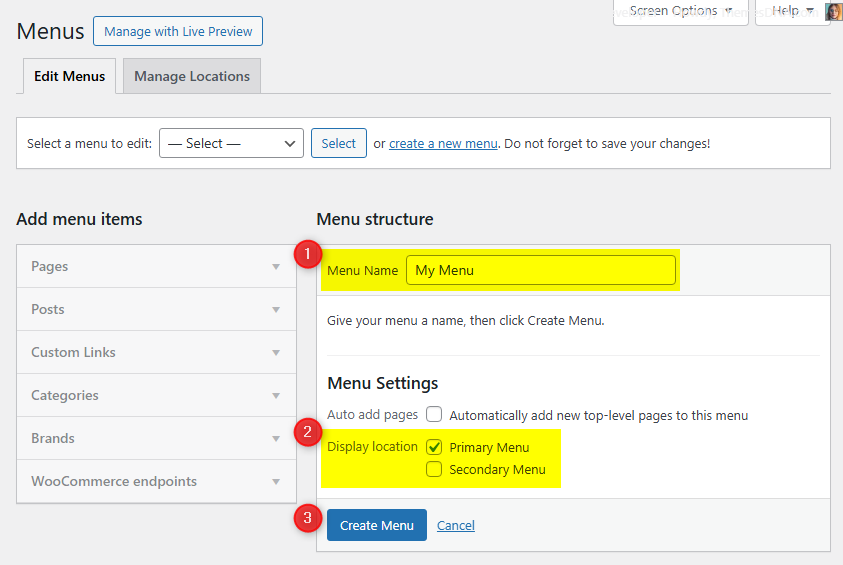
  2. Set up your navigation menu via Appearance → Menus.
  3. Configure widgets via Appearance → Widgets.
  4. Customize theme options via Appearance → Customize → Theme Options (choose layout/post style, colors, fonts, header/footer, social, etc.).

What's Included in this Documentation

  • Theme installation
  • Header image configuration
  • Navigation menu setup
  • Custom widgets and widget areas
  • Page templates
  • Full customizer options reference (layout, posts, colors, fonts, social profiles, footer, 404, search, and more)
  • Performance tips, FAQ, and troubleshooting

Theme Installation

After purchasing the PowerWP PRO WordPress Theme, you'll receive a download link via email. Check your email inbox (or spam folder) for the product delivery email. Click the provided download link to download the theme's .zip file to your computer. Follow one of a method given below to install the theme on your website.

Upgrading from the Free PowerWP Theme?

PowerWP PRO is a separate theme. Whether or not you're currently using the free PowerWP theme, you need to install PowerWP PRO using one of the methods below.

If you're upgrading from the free version, most of your existing WordPress Customizer settings will remain in place. So you don't need to reconfigure everything from scratch. However, you will need to reupload a few images and reapply specific color settings.

After activating PowerWP PRO, go to Appearance → Customize and reupload the following:

  • Site Logo
  • Site Icon (favicon)
  • Header Image
  • Background Image

If you changed below color options in the free version, reapply them in Appearance → Customize → Theme Options → Colors:

  • Header Text Color
  • Background Color

Tip: You can install PRO without deleting the free theme. Use Live Preview to confirm your layout, then click Activate & Publish.

Method 1: Install Using the WordPress Dashboard (Easiest and Fastest)

This is the easiest and fastest method to install this WordPress theme.

  1. Go to "WordPress Dashboard" → "Appearance" → "Themes" and click on "Add New" button.
  2. Click on "Upload Theme" button and choose the zip file you have downloaded.
  3. Click on "Install Now" button.
  4. Activate the theme.
  5. Now go to "Appearance" → "Customize" to configure theme options.

Method 2: Install using cPanel File Manager

In some cases, you may not be able to install a WordPress theme through the WordPress dashboard—especially if the theme's ZIP file exceeds the maximum upload size limit. When this happens, you can install the theme using cPanel's File Manager, which is often simpler than using FTP. Follow the steps below to install your theme via the File Manager in cPanel.

  1. Log in to your cPanel account. Your cPanel URL will be https://yourdomain.com/cpanel or a similar URL.
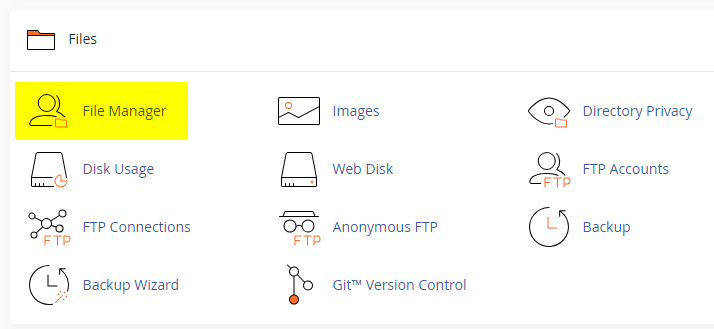
  2. Click on the "File Manager" icon. It's usually under the "Files" section.
  3. You are now in the "File Manager". Open the public_html folder, which is your website's root directory.
  4. Locate the wp-content folder inside "public_html," then open the themes folder inside of it.
  5. In the File Manager interface, click the "Upload" button and choose the theme's .zip file from your local drive.
  6. After it has been uploaded, right-click the .zip file and choose "Extract" or "Unzip".
  7. You can now delete the uploaded .zip file, but it's optional.
  8. Log in to your WordPress dashboard through your web browser.
  9. Go to Appearance → Themes. Now you will see the newly extracted theme.
  10. Make it your active theme by clicking the "Activate" button next to it.

Note: If your hosting provider doesn't offer cPanel, look for a File Manager option in your hosting dashboard (like DirectAdmin, Plesk, or CyberPanel). The process is usually very similar—just find the wp-content/themes folder and upload/extract the theme ZIP file there.

Method 3: Install using FTP

Installing a WordPress theme via FTP is straightforward, though it involves a few more steps compared to using the built-in theme uploader. Here's how to install a WordPress theme using FTP:

  1. Unzip the theme's .zip file you have downloaded.
  2. Connect to your hosting account using an FTP client such as "FileZilla" or "Core FTP".
  3. Navigate to the /wp-content/themes folder in the "Remote site" section.
  4. In the "Local site" section, locate the unzipped theme folder.
  5. Drag and drop the unzipped theme folder from the "Local site" section to the "Remote site" section.
  6. Be patient and let the transfer finish.
  7. Once the transfer is complete, log in to your WordPress dashboard and navigate to Appearance > Themes.
  8. Find the theme you just uploaded and click Activate.

Troubleshooting Tips

  • Didn't receive the download email? Wait 5–10 minutes or check your spam/junk folder. But if you still can not find this email or download link is broken, please inform us. we will send it ASAP.
  • "The uploaded file exceeds the upload_max_filesize directive in php.ini." - If you get this error when following the "Method 1", follow this tutorial: https://themesdna.com/blog/increase-maximum-file-upload-size-wordpress/
  • My menus disappeared or look different. Go to Appearance → Menus → Manage Locations and reassign your menus to the correct locations.
  • My header text or background color looks different after activating PRO. Reapply your colors in Appearance → Customize → Theme Options → Colors for Header Text Color and Background Color. Then publish.
  • Still can't install the theme? Contact us for help.

Import Demo Content

You can import the demo content, widgets, and Customizer settings shown in the PowerWP PRO theme demo.

Manual Demo Import

Step 1: Import Main Site Content

This includes: Posts, pages, menus, media, categories, tags, comments, and custom fields.

  1. Download: XML File
  2. Go to Tools → Import.
  3. Under "WordPress", click Install Now if not installed.
  4. Click Run Importer.
  5. Select the XML file and click Upload file and import.
  6. Check "Download and import file attachments", click Submit.

Step 2: Import Widgets

  1. Install the Widget Importer & Exporter plugin.
  2. Go to Tools → Widget Importer & Exporter.
  3. Copy content from: Widgets .wie File and paste into the box.
  4. Click Import Widgets.

Step 3: Import Customizer Settings

  1. Download: Customizer File
  2. Install the Customizer Export/Import plugin.
  3. Go to Appearance → Customize → Export/Import.
  4. Select the .dat file, check "Download and import image files?", click Import.

Regenerate Thumbnails

If your website already has existing posts with featured images, it's highly recommended to regenerate thumbnails after activating the PowerWP PRO theme. This ensures that all images match the new theme's layout and display sizes.

Regenerating thumbnails is optional if your site is completely new and doesn't have any uploaded images yet.

However, if you imported the demo content, regenerating thumbnails is essential to display images correctly across the site.

  1. Install and activate the Regenerate Thumbnails plugin.
  2. Go to Tools → Regenerate Thumbnails.
  3. Click the "Regenerate Thumbnails for All x Attachments" button to start the process.
  4. Wait until all images are regenerated. This may take a few minutes depending on your media library size.
  5. If you want, you can deactivate and delete the plugin once the process is complete.

This step ensures clean image alignment and sharp visuals throughout your website using the PowerWP PRO theme.

Header Image

PowerWP PRO supports a custom header image that can be displayed prominently at the top of your site.

How to Add a Header Image?

  1. Go to Appearance → Customize → Header Image.
  2. Click Add new image.
  3. Select or upload your desired header image.
  4. Click Publish to save.

Custom Widgets

PowerWP PRO includes several custom widgets to enhance your site. To add widgets, go to Appearance → Widgets and drag the desired widget to any widget area.

PowerWP Recent Posts Widget

Displays a list of recent posts with optional thumbnails, dates, comment counts, and post snippets.

Option ID Option Name Description Control Type Accepted Value Default
titleTitleWidget title displayed above the posts list.TextAny text"Recent Posts"
numberNumber of posts to showHow many recent posts to display.NumberPositive integer5
show_thumbnailDisplay Post Thumbnail?Show or hide the post thumbnail image.Checkboxtrue / falsetrue
show_dateDisplay Post Date?Show or hide the post publication date.Checkboxtrue / falsetrue
show_commentsDisplay Number of Comments?Show or hide the comment count.Checkboxtrue / falsetrue
show_snippetDisplay Post Snippet?Show or hide a short excerpt of the post.Checkboxtrue / falsetrue

PowerWP Random Posts Widget

Displays a list of random posts with optional thumbnails, dates, comment counts, and post snippets.

Option ID Option Name Description Control Type Accepted Value Default
titleTitleWidget title displayed above the posts list.TextAny text"Random Posts"
numberNumber of posts to showHow many random posts to display.NumberPositive integer5
show_thumbnailDisplay Post Thumbnail?Show or hide the post thumbnail image.Checkboxtrue / falsetrue
show_dateDisplay Post Date?Show or hide the post publication date.Checkboxtrue / falsetrue
show_commentsDisplay Number of Comments?Show or hide the comment count.Checkboxtrue / falsetrue
show_snippetDisplay Post Snippet?Show or hide a short excerpt of the post.Checkboxtrue / falsetrue

PowerWP Social Buttons Widget

Displays social media profile buttons. You can input profile URLs for a wide array of social media platforms.

Option ID Option Name Description Control Type Accepted Value Default
titleTitleWidget title.TextAny text"Social Buttons"
round_buttonsRound Buttons?Display social buttons as round icons.Checkboxtrue / falsefalse
facebookFacebook URLLink to Facebook profile/page.URLValid URLEmpty
twitterTwitter URLLink to Twitter profile.URLValid URLEmpty
pinterestPinterest URLLink to Pinterest profile.URLValid URLEmpty
linkedinLinkedIn URLLink to LinkedIn profile.URLValid URLEmpty
instagramInstagram URLLink to Instagram profile.URLValid URLEmpty
flickrFlickr URLLink to Flickr profile.URLValid URLEmpty
youtubeYouTube URLLink to YouTube channel.URLValid URLEmpty
vimeoVimeo URLLink to Vimeo profile.URLValid URLEmpty
soundcloudSoundCloud URLLink to SoundCloud profile.URLValid URLEmpty
lastfmLast.fm URLLink to Last.fm profile.URLValid URLEmpty
githubGitHub URLLink to GitHub profile.URLValid URLEmpty
bitbucketBitbucket URLLink to Bitbucket profile.URLValid URLEmpty
tumblrTumblr URLLink to Tumblr blog.URLValid URLEmpty
diggDigg URLLink to Digg profile.URLValid URLEmpty
deliciousDelicious URLLink to Delicious profile.URLValid URLEmpty
stumbleuponStumbleUpon URLLink to StumbleUpon profile.URLValid URLEmpty
redditReddit URLLink to Reddit profile.URLValid URLEmpty
dribbbleDribbble URLLink to Dribbble profile.URLValid URLEmpty
behanceBehance URLLink to Behance profile.URLValid URLEmpty
codepenCodepen URLLink to Codepen profile.URLValid URLEmpty
jsfiddleJSFiddle URLLink to JSFiddle profile.URLValid URLEmpty
stackoverflowStack Overflow URLLink to Stack Overflow profile.URLValid URLEmpty
stackexchangeStack Exchange URLLink to Stack Exchange profile.URLValid URLEmpty
buyselladsBuySellAds URLLink to BuySellAds profile.URLValid URLEmpty
slideshareSlideShare URLLink to SlideShare profile.URLValid URLEmpty
skypeSkype UsernameYour Skype username.TextTextEmpty
envelopeEmail AddressEmail address to link.EmailValid emailEmpty
rssRSS Feed URLLink to RSS feed.URLValid URLEmpty

PowerWP About Widget

Displays an "About Me" section with a profile image, description, and social media links. This widget combines personal info with social media buttons in one widget.

Option ID Option Name Description Control Type Accepted Value Default
titleTitleWidget title.TextAny text"Social Buttons"
round_buttonsRound Buttons?Display social buttons as round icons.Checkboxtrue / falsefalse
facebookFacebook URLLink to Facebook profile/page.URLValid URLEmpty
twitterTwitter URLLink to Twitter profile.URLValid URLEmpty
pinterestPinterest URLLink to Pinterest profile.URLValid URLEmpty
linkedinLinkedIn URLLink to LinkedIn profile.URLValid URLEmpty
instagramInstagram URLLink to Instagram profile.URLValid URLEmpty
flickrFlickr URLLink to Flickr profile.URLValid URLEmpty
youtubeYouTube URLLink to YouTube channel.URLValid URLEmpty
vimeoVimeo URLLink to Vimeo profile.URLValid URLEmpty
soundcloudSoundCloud URLLink to SoundCloud profile.URLValid URLEmpty
lastfmLast.fm URLLink to Last.fm profile.URLValid URLEmpty
githubGitHub URLLink to GitHub profile.URLValid URLEmpty
bitbucketBitbucket URLLink to Bitbucket profile.URLValid URLEmpty
tumblrTumblr URLLink to Tumblr blog.URLValid URLEmpty
diggDigg URLLink to Digg profile.URLValid URLEmpty
deliciousDelicious URLLink to Delicious profile.URLValid URLEmpty
stumbleuponStumbleUpon URLLink to StumbleUpon profile.URLValid URLEmpty
redditReddit URLLink to Reddit profile.URLValid URLEmpty
dribbbleDribbble URLLink to Dribbble profile.URLValid URLEmpty
behanceBehance URLLink to Behance profile.URLValid URLEmpty
codepenCodepen URLLink to Codepen profile.URLValid URLEmpty
jsfiddleJSFiddle URLLink to JSFiddle profile.URLValid URLEmpty
stackoverflowStack Overflow URLLink to Stack Overflow profile.URLValid URLEmpty
stackexchangeStack Exchange URLLink to Stack Exchange profile.URLValid URLEmpty
buyselladsBuySellAds URLLink to BuySellAds profile.URLValid URLEmpty
slideshareSlideShare URLLink to SlideShare profile.URLValid URLEmpty
skypeSkype UsernameYour Skype username.TextTextEmpty
envelopeEmail AddressEmail address to link.EmailValid emailEmpty
rssRSS Feed URLLink to RSS feed.URLValid URLEmpty

Widget Areas

PowerWP PRO includes 11 widget areas where you can place widgets. Go to Appearance → Widgets to manage your widgets.

#Widget AreaLocationDisplay
1Header BannerLocated in the header area of the site.Every page
2Sidebar 1Left-hand side sidebar.Every page (depends on layout)
3Sidebar 2Right-hand side sidebar.Every page (depends on layout)
4Top Widgets (Home Page Only)Above the main content area, homepage only.Homepage only
5Top Widgets (Every Page)Above the main content area.Every page
6Bottom Widgets (Home Page Only)Below the main content area, homepage only.Homepage only
7Bottom Widgets (Every Page)Below the main content area.Every page
8Footer 1Left section of the footer area.Every page
9Footer 2Middle-left section of the footer area.Every page
10Footer 3Middle-right section of the footer area.Every page
11Footer 4Right section of the footer area.Every page

8.1. How to Control Widget Visibility by Location

By default, widgets placed in "Every Page" widget areas will display on all pages. If you want to control which widgets appear on specific pages, you can use one of these free plugins:

Custom Page/Post Templates

PowerWP PRO includes a set of custom templates for pages and posts to control sidebar layout or output a sitemap.

Available Templates

Page Templates (choose in Page Attributes → Template):

  • Full Width, no sidebar — Single column, no sidebar.
  • Full Width, bottom sidebar — Single column with widgets below content.
  • Sitemap — Outputs a sitemap (uses widgets for lists).
  • Content + Sidebar 1 — Main content with Sidebar 1 on the right.
  • Content + Sidebar 2 — Main content with Sidebar 2 on the right.
  • Sidebar 1 + Content — Sidebar 1 on the left, content on the right.
  • Sidebar 2 + Content — Sidebar 2 on the left, content on the right.
  • Content + Sidebar 1 + Sidebar 2
  • Content + Sidebar 2 + Sidebar 1
  • Sidebar 1 + Content + Sidebar 2
  • Sidebar 2 + Content + Sidebar 1
  • Sidebar 1 + Sidebar 2 + Content
  • Sidebar 2 + Sidebar 1 + Content

Post Templates (choose in Post Attributes → Template): same layouts as above for posts: Full Width (no sidebar), Full Width (bottom sidebar), Content+Sidebar variations (single or dual sidebars) matching the page templates.

Template Name (selector)FileApplies ToLayout / Sidebars
Full Width, no sidebartemplate-full-width-page.phpPageSingle column, no sidebar.
Full Width, bottom sidebartemplate-full-width-page-sidebar.phpPageSingle column; widgets area below content.
Sitemaptemplate-sitemap.phpPageOutputs sitemap lists using widgets.
Content + Sidebar 1template-c-s1-page.phpPageContent left, Sidebar 1 right.
Content + Sidebar 2template-c-s2-page.phpPageContent left, Sidebar 2 right.
Sidebar 1 + Contenttemplate-s1-c-page.phpPageSidebar 1 left, content right.
Sidebar 2 + Contenttemplate-s2-c-page.phpPageSidebar 2 left, content right.
Content + Sidebar 1 + Sidebar 2template-c-s1-s2-page.phpPageContent left, Sidebar 1 middle, Sidebar 2 right.
Content + Sidebar 2 + Sidebar 1template-c-s2-s1-page.phpPageContent left, Sidebar 2 middle, Sidebar 1 right.
Sidebar 1 + Content + Sidebar 2template-s1-c-s2-page.phpPageSidebar 1 left, content middle, Sidebar 2 right.
Sidebar 2 + Content + Sidebar 1template-s2-c-s1-page.phpPageSidebar 2 left, content middle, Sidebar 1 right.
Sidebar 1 + Sidebar 2 + Contenttemplate-s1-s2-c-page.phpPageSidebar 1 left, Sidebar 2 middle, content right.
Sidebar 2 + Sidebar 1 + Contenttemplate-s2-s1-c-page.phpPageSidebar 2 left, Sidebar 1 middle, content right.
Full Width, no sidebartemplate-full-width-post.phpPostSingle column, no sidebar.
Full Width, bottom sidebartemplate-full-width-post-sidebar.phpPostSingle column; widgets area below content.
Sidebar 1 + Contenttemplate-s1-c-post.phpPostSidebar 1 left, content right.
Sidebar 2 + Contenttemplate-s2-c-post.phpPostSidebar 2 left, content right.
Content + Sidebar 1template-c-s1-post.phpPostContent left, Sidebar 1 right.
Content + Sidebar 2template-c-s2-post.phpPostContent left, Sidebar 2 right.
Sidebar 1 + Content + Sidebar 2template-s1-c-s2-post.phpPostSidebar 1 left, content middle, Sidebar 2 right.
Sidebar 2 + Content + Sidebar 1template-s2-c-s1-post.phpPostSidebar 2 left, content middle, Sidebar 1 right.
Content + Sidebar 1 + Sidebar 2template-c-s1-s2-post.phpPostContent left, Sidebar 1 middle, Sidebar 2 right.
Content + Sidebar 2 + Sidebar 1template-c-s2-s1-post.phpPostContent left, Sidebar 2 middle, Sidebar 1 right.
Sidebar 1 + Sidebar 2 + Contenttemplate-s1-s2-c-post.phpPostSidebar 1 left, Sidebar 2 middle, content right.
Sidebar 2 + Sidebar 1 + Contenttemplate-s2-s1-c-post.phpPostSidebar 2 left, Sidebar 1 middle, content right.

How to Create a Sitemap Page

  1. Go to Pages → Add New in your WordPress dashboard.
  2. Enter a title for the page (e.g., "Sitemap").
  3. In the Page Attributes panel on the right side, find the Template dropdown.
  4. Select "Sitemap" from the template dropdown.
  5. Click Publish.
  6. The page will automatically display a sitemap of your site's content.

Customizer Theme Options

PowerWP PRO provides extensive customization options through the WordPress Customizer. Go to Appearance → Customize → Theme Options to access all settings.

Site Identity Options

Below is the complete list of Site Identity Options available:

Option ID Option Name Description Control Type Accepted Value Default
logo Logo Upload a custom logo for your site header. Image PNG/JPG/WebP None
blogname Site Title Text shown as your site name. Text Any text Current site title
blogdescription Tagline Short description displayed with the site title. Text Any text Current site tagline
display_title_and_tagline Display Site Title and Tagline Show or hide the text for site title and tagline. Checkbox true / false true
site_icon Site Icon Upload a site icon (favicon), at least 512×512 pixels. Image PNG/JPG/WebP ≥512px None

Colors Options

Below is the complete list of Colors Options available:

Option ID Option Name Description Control Type Accepted Value Default
body_text_colorMain Text ColorColor of general body text.Color pickerHex color#555555
link_colorMain Link ColorColor of standard hyperlinks.Color pickerHex color#666666
link_hover_colorMain Link Hover ColorColor of links on hover.Color pickerHex color#000000
headings_colorGeneral Headings ColorColor for headings (H1–H6).Color pickerHex color#111111
header_bg_colorHeader Background ColorBackground color of the site header.Color pickerHex color#ffffff
menu_bg_colorMenu Background ColorBackground color of the navigation menu.Color pickerHex color#333333
menu_bd_colorMenu Border ColorBorder color of the navigation menu.Color pickerHex color#555555
menu_colorMenu Link ColorColor of menu links.Color pickerHex color#ffffff
menu_hover_colorMenu Link Hover ColorColor of menu links on hover.Color pickerHex color#ffffff
menu_hover_bg_colorMenu Link Hover Background ColorBackground color for menu links on hover.Color pickerHex color#000000
submenu_one_bg_colorSub Menu Background ColorBackground color of dropdown submenus.Color pickerHex color#444444
submenu_one_bd_colorSub Menu Border ColorBorder color of dropdown submenus.Color pickerHex color#555555
menu_icon_colorResponsive Menu Icon ColorColor of the mobile menu icon.Color pickerHex color#ffffff
post_title_colorPost Title ColorColor of post titles.Color pickerHex color#000000
post_title_hover_colorPost Title Hover ColorColor of post titles on hover.Color pickerHex color#333333
post_body_link_colorPost Content Link ColorLink color inside post content.Color pickerHex color#409BD4
post_body_link_hover_colorPost Content Link Hover ColorHover color for links inside post content.Color pickerHex color#08ACD5
postcats_colorPost Categories ColorText color of category badges.Color pickerHex color#ffffff
postcats_bg_colorPost Categories Background ColorBackground of category badges.Color pickerHex color#8c2828
postcats_hover_colorPost Categories Hover ColorCategory text color on hover.Color pickerHex color#ffffff
postcats_bg_hover_colorPost Categories Hover BackgroundCategory background color on hover.Color pickerHex color#000000
post_meta_colorPost Meta ColorColor of meta info (date, author, comments).Color pickerHex color#666666
post_meta_hover_colorPost Meta Hover ColorHover color for meta links.Color pickerHex color#000000
rmore_colorRead More Button ColorText color of the Read More button.Color pickerHex color#ffffff
rmore_bg_colorRead More Button Background ColorBackground color of the Read More button.Color pickerHex color#333333
rmore_hover_colorRead More Button Hover ColorText color of the Read More button on hover.Color pickerHex color#ffffff
rmore_bg_hover_colorRead More Button Hover BackgroundBackground color of the Read More button on hover.Color pickerHex color#000000
main_content_bg_colorMain Content Background ColorBackground color of the main content area.Color pickerHex color#ffffff
sidebar_one_bg_colorSidebar One Background ColorBackground color of the first sidebar.Color pickerHex color#e0e0e0
sidebar_two_bg_colorSidebar Two Background ColorBackground color of the second sidebar.Color pickerHex color#e0e0e0
sidebar_title_colorSidebar Title ColorText color of sidebar widget titles.Color pickerHex color#ffffff
sidebar_title_bg_colorSidebar Title Background ColorBackground color for sidebar widget titles.Color pickerHex color#000000
sidebar_text_colorSidebar Text ColorColor of text within sidebars.Color pickerHex color#333333
sidebar_link_colorSidebar Link ColorColor of links within sidebars.Color pickerHex color#333333
sidebar_link_hover_colorSidebar Link Hover ColorHover color for sidebar links.Color pickerHex color#658db5
sidebar_list_bd_colorSidebar List Border ColorBorder color for sidebar lists.Color pickerHex color#cccccc
tag_cloud_colorTag Cloud Link ColorText color for tag cloud items.Color pickerHex color#ffffff
tag_cloud_bg_colorTag Cloud Link BackgroundBackground color for tag cloud items.Color pickerHex color#888888
tag_cloud_hover_colorTag Cloud Link Hover ColorText color for tag cloud items on hover.Color pickerHex color#ffffff
tag_cloud_hover_bg_colorTag Cloud Link Hover BackgroundBackground color for tag cloud items on hover.Color pickerHex color#000000
footer_bg_colorFooter Background ColorBackground color of the footer area.Color pickerHex color#222222
footer_bd_colorFooter Border ColorBorder color of the footer area.Color pickerHex color#222222
footer_title_colorFooter Title ColorText color of footer widget titles.Color pickerHex color#ffffff
footer_title_bg_colorFooter Title Border ColorBackground/border color around footer titles.Color pickerHex color#222222
footer_text_colorFooter Text ColorBody text color in the footer.Color pickerHex color#ffffff
footer_link_colorFooter Link ColorLink color in the footer.Color pickerHex color#ffffff
footer_link_hover_colorFooter Link Hover ColorHover color for footer links.Color pickerHex color#dddddd
cp_bg_colorCopyrights Background ColorBackground color of the copyright strip.Color pickerHex color#0D0D0D
cp_bd_colorCopyrights Border ColorBorder color of the copyright strip.Color pickerHex color#222222
cp_colorCopyrights Text ColorText/link color in the copyright strip.Color pickerHex color#ffffff

Font Options

Below is the complete list of Font Options available:

Option ID Option Name Description Control Type Accepted Value Default
font_subsetsFont SubsetsSelect which font subsets to load.Multi-selectLatin, Latin-ext, Cyrillic, Greek, Vietnamese, etc.Latin
body_fontsBody Font-FamilyPick a font for body text.SelectPredefined font listDomine
body_font_sizeBody Font-SizeChoose body font size.Select8px–72px13px
body_font_weightBody Font-WeightChoose body font weight.Select400 / 700400
body_font_styleBody Font-StyleChoose body font style.Selectnormal / italicnormal
body_line_heightBody Line-HeightEnter body line height.TextNumeric (e.g., 1.6)1.6
site_title_fontsSite Title Font-FamilyPick a font for the site title.SelectPredefined font listPlayfair Display
site_title_font_sizeSite Title Font-SizeChoose site title font size.Select8px–72px24px
site_title_font_weightSite Title Font-WeightChoose site title font weight.Select400 / 700700
site_title_font_styleSite Title Font-StyleChoose site title font style.Selectnormal / italicnormal
site_title_line_heightSite Title Line-HeightEnter site title line height.TextNumeric1
site_desc_fontsSite Description Font-FamilyPick a font for site description.SelectPredefined font listDomine
site_desc_font_sizeSite Description Font-SizeChoose site description font size.Select8px–72px13px
site_desc_font_weightSite Description Font-WeightChoose site description font weight.Select400 / 700400
site_desc_font_styleSite Description Font-StyleChoose site description font style.Selectnormal / italicnormal
site_desc_line_heightSite Description Line-HeightEnter site description line height.TextNumeric1
menu_fontsMenu Font-FamilyPick a font for the navigation menu.SelectPredefined font listOswald
menu_font_sizeMenu Font-SizeChoose menu font size.Select8px–72px13px
menu_font_weightMenu Font-WeightChoose menu font weight.Select400 / 700400
menu_font_styleMenu Font-StyleChoose menu font style.Selectnormal / italicnormal
hpost_title_fontsHome/Featured Post Title Font-FamilyFont for featured/home post titles.SelectPredefined font listPoppins
hpost_title_font_sizeHome/Featured Post Title Font-SizeSize for featured/home post titles.Select8px–72px20px
hpost_title_font_weightHome/Featured Post Title Font-WeightWeight for featured/home post titles.Select400 / 700700
hpost_title_font_styleHome/Featured Post Title Font-StyleStyle for featured/home post titles.Selectnormal / italicnormal
hpost_title_line_heightHome/Featured Post Title Line-HeightLine height for featured/home post titles.TextNumeric1.2
hpost_title_sm_fontsHome/Featured Small Post Title Font-FamilyFont for small featured post titles.SelectPredefined font listPoppins
hpost_title_sm_font_sizeHome/Featured Small Post Title Font-SizeSize for small featured post titles.Select8px–72px16px
hpost_title_sm_font_weightHome/Featured Small Post Title Font-WeightWeight for small featured post titles.Select400 / 700700
hpost_title_sm_font_styleHome/Featured Small Post Title Font-StyleStyle for small featured post titles.Selectnormal / italicnormal
hpost_title_sm_line_heightHome/Featured Small Post Title Line-HeightLine height for small featured post titles.TextNumeric1.2
hpost_cats_fontsHome/Featured Post Categories Font-FamilyFont for featured post category labels.SelectPredefined font listOswald
hpost_cats_font_sizeHome/Featured Post Categories Font-SizeSize for featured post category labels.Select8px–72px12px
hpost_cats_font_weightHome/Featured Post Categories Font-WeightWeight for featured post category labels.Select400 / 700400
hpost_cats_font_styleHome/Featured Post Categories Font-StyleStyle for featured post category labels.Selectnormal / italicnormal
hpost_meta_fontsHome/Featured Post Meta Font-FamilyFont for featured post meta.SelectPredefined font listOswald
hpost_meta_font_sizeHome/Featured Post Meta Font-SizeSize for featured post meta.Select8px–72px12px
hpost_meta_font_weightHome/Featured Post Meta Font-WeightWeight for featured post meta.Select400 / 700400
hpost_meta_font_styleHome/Featured Post Meta Font-StyleStyle for featured post meta.Selectnormal / italicnormal
read_more_fontsRead More Button Font-FamilyFont for Read More buttons.SelectPredefined font listOswald
read_more_font_sizeRead More Button Font-SizeSize for Read More button text.Select8px–72px12px
read_more_font_weightRead More Button Font-WeightWeight for Read More button text.Select400 / 700400
read_more_font_styleRead More Button Font-StyleStyle for Read More button text.Selectnormal / italicnormal
post_title_fontsPost Title Font-FamilyFont for single post titles.SelectPredefined font listOswald
post_title_font_sizePost Title Font-SizeSize for single post titles.Select8px–72px28px
post_title_font_weightPost Title Font-WeightWeight for single post titles.Select400 / 700400
post_title_font_stylePost Title Font-StyleStyle for single post titles.Selectnormal / italicnormal
post_title_line_heightPost Title Line-HeightLine height for single post titles.TextNumeric1.2
widget_title_fontsMain/Sidebar Widget Title Font-FamilyFont for sidebar widget titles.SelectPredefined font listOswald
widget_title_font_sizeMain/Sidebar Title Font-SizeSize for sidebar widget titles.Select8px–72px16px
widget_title_font_weightMain/Sidebar Title Font-WeightWeight for sidebar widget titles.Select400 / 700400
widget_title_font_styleMain/Sidebar Title Font-StyleStyle for sidebar widget titles.Selectnormal / italicnormal
sidebar_title_line_heightMain/Sidebar Title Line-HeightLine height for sidebar widget titles.TextNumeric1
footer_title_fontsFooter Widget Title Font-FamilyFont for footer widget titles.SelectPredefined font listOswald
footer_title_font_sizeFooter Title Font-SizeSize for footer widget titles.Select8px–72px15px
footer_title_font_weightFooter Title Font-WeightWeight for footer widget titles.Select400 / 700400
footer_title_font_styleFooter Title Font-StyleStyle for footer widget titles.Selectnormal / italicnormal
footer_title_line_heightFooter Title Line-HeightLine height for footer widget titles.TextNumeric1
headings_fontsGeneral Headings Font-FamilyFont for general headings.SelectPredefined font listPlayfair Display
headings_line_heightGeneral Headings Line-HeightLine height for general headings.TextNumeric1
h1_font_sizeH1 Font-SizeSize for H1 headings.Select8px–72px32px
h1_font_weightH1 Font-WeightWeight for H1 headings.Select400 / 700700
h1_font_styleH1 Font-StyleStyle for H1 headings.Selectnormal / italicnormal
h2_font_sizeH2 Font-SizeSize for H2 headings.Select8px–72px28px
h2_font_weightH2 Font-WeightWeight for H2 headings.Select400 / 700700
h2_font_styleH2 Font-StyleStyle for H2 headings.Selectnormal / italicnormal
h3_font_sizeH3 Font-SizeSize for H3 headings.Select8px–72px24px
h3_font_weightH3 Font-WeightWeight for H3 headings.Select400 / 700700
h3_font_styleH3 Font-StyleStyle for H3 headings.Selectnormal / italicnormal
h4_font_sizeH4 Font-SizeSize for H4 headings.Select8px–72px20px
h4_font_weightH4 Font-WeightWeight for H4 headings.Select400 / 700700
h4_font_styleH4 Font-StyleStyle for H4 headings.Selectnormal / italicnormal
h5_font_sizeH5 Font-SizeSize for H5 headings.Select8px–72px18px
h5_font_weightH5 Font-WeightWeight for H5 headings.Select400 / 700700
h5_font_styleH5 Font-StyleStyle for H5 headings.Selectnormal / italicnormal
h6_font_sizeH6 Font-SizeSize for H6 headings.Select8px–72px16px
h6_font_weightH6 Font-WeightWeight for H6 headings.Select400 / 700700
h6_font_styleH6 Font-StyleStyle for H6 headings.Selectnormal / italicnormal

Header Image Options

Below is the complete list of Header Image Options available:

Option ID Option Name Description Control Type Accepted Value Default
header_imageHeader ImageUpload or select a header image.ImagePNG/JPG/WebPNone

Header Options

Below is the complete list of Header Options available:

Option ID Option Name Description Control Type Accepted Value Default
enable_fullwidth_headerEnable Full Width HeaderMake the header span the full browser width.Checkboxtrue / falsefalse
hide_header_contentHide Header ContentHide the header content area (logo, title, description, etc.).Checkboxtrue / falsefalse

Layout Options

Below is the complete list of Layout Options available:

Option ID Option Name Description Control Type Accepted Value Default
layout_styleLayout StyleSelect the site layout (content and sidebar order).Radioc-s1, c-s1-s2, c-s2, c-s2-s1, s1-c, s1-c-s2, s1-s2-c, s2-c, s2-c-s1, s2-s1-c, c100s1-c-s2
hide_sidebar_one_columnHide Sidebar from Full Width LayoutHide sidebars when the full width layout is selected.Checkboxtrue / falsefalse

Post Options

Below is the complete list of Post Options available:

Option ID Option Name Description Control Type Accepted Value Default
posts_headingHomePage Posts HeadingHeading text displayed above homepage posts.TextAny textRecent Posts
thumbnail_linkThumbnail LinkWhether single post thumbnails link to the post.Selectyes, noyes
post_styleNon-Singular Posts StylePost style for home/category/tag/archive/search pages.Selectstandard, list, grid, full, featuredlist
read_more_lengthAuto Post Summary LengthNumber of words shown in generated post summaries.TextInteger25
read_more_textRead More TextLabel shown on the read more link/button.TextAny textContinue Reading...
hide_posted_dateHide Posted DateHide the post publication date.Checkboxtrue / falsefalse
hide_post_authorHide Post AuthorHide the post author name.Checkboxtrue / falsefalse
hide_post_categoriesHide Post CategoriesHide the categories list on posts.Checkboxtrue / falsefalse
hide_post_tagsHide Post TagsHide the tags list on posts.Checkboxtrue / falsefalse
hide_comments_linkHide Comment LinkHide the comments link/count.Checkboxtrue / falsefalse
hide_post_editHide Post Edit LinkHide the edit link for posts.Checkboxtrue / falsefalse
hide_thumbnailHide Thumbnails from Every PageHide featured images across the site.Checkboxtrue / falsefalse
hide_thumbnail_singleHide Thumbnails from Posts/PagesHide featured images on single posts and pages.Checkboxtrue / falsefalse
hide_post_snippetHide Post SnippetHide the automatic post excerpt/snippet.Checkboxtrue / falsefalse
hide_read_more_buttonHide Read More ButtonHide the read more link/button on posts.Checkboxtrue / falsefalse
hide_share_buttonsHide Share ButtonsHide built-in social share buttons on posts.Checkboxtrue / falsefalse
hide_author_bio_boxHide Author Bio BoxHide the author bio box below posts.Checkboxtrue / falsefalse
hide_related_postsHide Related PostsHide the related posts section.Checkboxtrue / falsefalse
related_posts_numberNumber of Related PostsSelect how many posts appear in the related posts section.Select4, 8, 12, 164

404 Page Options

Below is the complete list of 404 Page Options available:

Option ID Option Name Description Control Type Accepted Value Default
error_404_heading404 Error Page HeadingHeading text for the 404 page.TextareaHTML allowedOops! That page can not be found.
error_404_messageError 404 MessageMessage shown on the 404 page.TextareaHTML allowedIt looks like nothing was found at this location. Maybe try one of the links below or a search?

Other Options

Below is the complete list of Other Options available:

Option ID Option Name Description Control Type Accepted Value Default
disable_backtotopDisable Back to Top ButtonTurn off the back-to-top button on the site.Checkboxtrue / falsefalse
enable_widgets_block_editorEnable Gutenberg Widget Block EditorUse the block-based widget editor instead of classic widgets screen.Checkboxtrue / falsefalse

Reset Settings Options

Below is the complete list of Reset Settings Options available:

Option ID Option Name Description Control Type Accepted Value Default
reset_settingsReset all theme optionsButton to restore all theme options to their default values.PowerWP Reset ButtonButtonEmpty

Performance & SEO Tips

  • Use a caching plugin — Install a caching plugin like W3 Total Cache or WP Super Cache to speed up page load times.
  • Optimize images — Use an image optimization plugin like Imagify or EWWW Image Optimizer to reduce file sizes without losing quality.
  • Use a CDN — A Content Delivery Network (CDN) like Cloudflare or StackPath can significantly improve load times for visitors around the globe.
  • Install an SEO plugin — Use Yoast SEO or All in One SEO to manage meta tags, sitemaps, and search engine visibility.
  • Keep WordPress and plugins updated — Regular updates ensure better security, performance, and compatibility.
  • Minimize plugins — Only keep the plugins you actually need. Deactivate and delete unused plugins to reduce overhead.
  • Choose a reliable host — A quality hosting provider with good server resources makes a big difference in site performance.

Translation & RTL

PowerWP PRO is fully translation-ready and supports Right-to-Left (RTL) languages like Arabic, Hebrew, and Persian out of the box.

🌐 Translating the Theme

The theme includes a powerwp-pro.pot file located in the /languages folder inside the theme directory. You can use this file to create translations in your own language using any of the following tools:

After translating, save your files as:

  • powerwp-pro-[language_code].po
  • powerwp-pro-[language_code].mo

Place them inside the /languages folder in the theme.

↔️ RTL Language Support

PowerWP PRO includes built-in RTL support. If your WordPress site language is set to an RTL language, the theme will automatically adjust layout direction, alignment, and spacing accordingly. No extra setup required.

If you're customizing your site with RTL content, make sure your text widgets, menus, and custom styles are also RTL-compatible for best results.

FAQ

Q: Will I lose my customizations when updating?

Customizer settings are stored in the database, so they are preserved during updates. However, if you have directly modified theme files, those changes will be lost. Always use a child theme for custom code modifications.

Q: How do I set a static homepage?

Go to Settings → Reading and select "A static page" under "Your homepage displays." Then choose your desired page as the homepage and another page as the posts page.

Q: Can I use this theme with WooCommerce?

Yes, PowerWP PRO includes WooCommerce support with product gallery zoom, lightbox, and slider features.

Q: How do I change post styles?

Go to Appearance → Customize → Theme Options → Post Options and change the "Post Style" setting. Available styles include Standard, List, Grid, Full, and Featured.

Q: How do I add social media buttons?

You can add social profile buttons in two ways: (1) Use the Social Profiles options in the Customizer (Appearance → Customize → Theme Options → Social Links), or (2) Use the PowerWP Social Buttons widget in Appearance → Widgets.

Troubleshooting

Images not displaying correctly

After importing demo content or switching themes, regenerate thumbnails using the Regenerate Thumbnails plugin. See Section 4 for instructions.

Menu not showing

Ensure you have created a menu and assigned it to the "Primary Menu" location under Appearance → Menus → Menu Settings.

Widgets not appearing

Make sure you have placed widgets in the correct widget areas via Appearance → Widgets. Also check that the widget area is not hidden by theme options (e.g., "Hide Footer Widgets").

Theme options not saving

Clear your browser cache and any WordPress caching plugins. Ensure you click "Publish" in the Customizer to save changes. If the issue persists, check for plugin conflicts by temporarily deactivating all plugins.

White screen or PHP errors

This is typically caused by a PHP version incompatibility or a plugin conflict. Enable WordPress debug mode by adding define('WP_DEBUG', true); to your wp-config.php file to identify the error.

Support & Licensing

All our WordPress themes, including PowerWP PRO, are released under the 100% GPL (General Public License). You can use the theme on unlimited websites and modify the code to suit your needs.

What’s included in free support:

  • Help with theme installation and setup
  • Bug fixes and troubleshooting related to the theme
  • Guidance on using built-in theme features

What’s not included in free support (but available as paid tasks):

  • Theme customization or resolving third-party plugin conflicts
  • Custom coding or feature implementation requests
  • Performance tuning, SEO setup, or server configuration assistance

If you need help or would like to request a paid customization, please contact us. We typically respond within 24–48 hours on working days.

Contact Support

Changelog & Versioning

The following is a log of all updates and changes made to PowerWP PRO. We recommend always using the latest version to benefit from improvements and new features.

= Version 1.1.1 =

  • Fixed coding issues.
  • Theme Customizer updated.
  • Many improvements.

= Version 1.1.0 =

  • Fixed coding issues.
  • Theme customizer updated.

= Version 1.0.8 =

  • Fixed coding issues.
  • Theme customizer updated.

= Version 1.0 =

  • Initial Release.

Date Formats

You can use the following date format values to control how dates appear in various places such as custom widgets, post metadata, news tickers, and more. These formats follow the standard PHP date formatting rules used by WordPress. Refer to the table below to choose a format that best fits your design and content style.

Format KeyExample Output
H:i00:50
g:i a12:50 am
g:i A12:50 AM
g:i:s a12:50:48 am
g:i:s A12:50:48 AM
d.m.y27.11.10
Y.m.d2010.11.27
Y-m-d2010-11-27
Y/m/d2010/11/27
m.d.Y11.27.2010
m-d-Y11-27-2010
m/d/Y11/27/2010
d.m.Y27.11.2010
d-m-Y27-11-2010
d/m/Y27/11/2010
m/d/Y g:i:s a11/27/2010 12:50:48 am
m/d/Y g:i:s A11/27/2010 12:50:48 AM
Y/m/d \a\t g:i a2010/11/27 at 12:50 am
Y/m/d \a\t g:i A2010/11/27 at 12:50 AM
d F27 November
F, YNovember, 2010
F j, YNovember 27, 2010
d M Y27 Nov 2010
M j, YNov 27, 2010
M j, Y @ H:iNov 27, 2010 @ 0:50
l, F j, YSaturday, November 27, 2010
l, F jS, YSaturday, November 27th, 2010