GridWP PRO Documentation

Introduction

GridWP PRO is a responsive, visually-appealing, gallery/grid style WordPress theme developed by ThemesDNA, designed to help you build a strong online presence. Building on the solid foundation of its free counterpart, GridWP PRO introduces an extensive range of advanced features that enhance both the aesthetic appeal and functional versatility of your site.

With options for 2 to 5 columns in post grids and thumbnail styles including horizontal, square, vertical, and auto-height, this theme accommodates a wide spectrum of content display needs. It includes a news ticker and custom widgets (featured posts styles, tabbed, social profile, about me) that keep your front end engaging without extra plugins.

It supports social sharing buttons and social profile links in the header. GridWP PRO also offers granular control with 3 header layouts (Logo + Menu, Logo + Banner, Full Width), multiple layout options for singular and non-singular pages, and customizable color and font schemes. Whether you prefer a content + sidebar, sidebar + content, or a full one-column layout, the theme ensures design flexibility without compromising on user experience.

Additional professional-grade features include sticky menus and sidebars, related posts with thumbnails, author bio boxes, share buttons for post summaries and single posts, a built-in contact form, WooCommerce support, and a multitude of widget areas. The theme supports both Classic and Gutenberg editors and offers a rich assortment of custom page and post templates for specialized content types.

Current Theme Version: 1.0.4

Theme Installation

After purchasing the GridWP PRO WordPress Theme, you'll receive a download link via email. Check your email inbox (or spam folder) for the product delivery email. Click the provided download link to download the theme's .zip file to your computer. Follow one of a method given below to install the theme on your website.

Upgrading from the Free GridWP Theme?

GridWP PRO is a separate theme. Whether or not you're currently using the free GridWP theme, you need to install GridWP PRO using one of the methods below.

If you're upgrading from the free version, most of your existing WordPress Customizer settings will remain in place. So you don't need to reconfigure everything from scratch. However, you will need to reupload a few images and reapply specific color settings.

After activating GridWP PRO, go to Appearance → Customize and reupload the following:

  • Site Logo
  • Site Icon (favicon)
  • Header Image
  • Background Image

If you changed below color options in the free version, reapply them in Appearance → Customize → Theme Options → Colors:

  • Header Text Color
  • Background Color

Tip: You can install PRO without deleting the free theme. Use Live Preview to confirm your layout, then click Activate & Publish.

Method 1: Install Using the WordPress Dashboard (Easiest and Fastest)

This is the easiest and fastest method to install this WordPress theme.

  1. Go to "WordPress Dashboard" → "Appearance" → "Themes" and click on "Add New" button.
  2. Click on "Upload Theme" button and choose the zip file you have downloaded.
  3. Click on "Install Now" button.
  4. Activate the theme.
  5. Now go to "Appearance" → "Customize" to configure theme options.

Method 2: Install using cPanel File Manager

In some cases, you may not be able to install a WordPress theme through the WordPress dashboard—especially if the theme's ZIP file exceeds the maximum upload size limit. When this happens, you can install the theme using cPanel's File Manager, which is often simpler than using FTP. Follow the steps below to install your theme via the File Manager in cPanel.

  1. Log in to your cPanel account. Your cPanel URL will be https://yourdomain.com/cpanel or a similar URL.
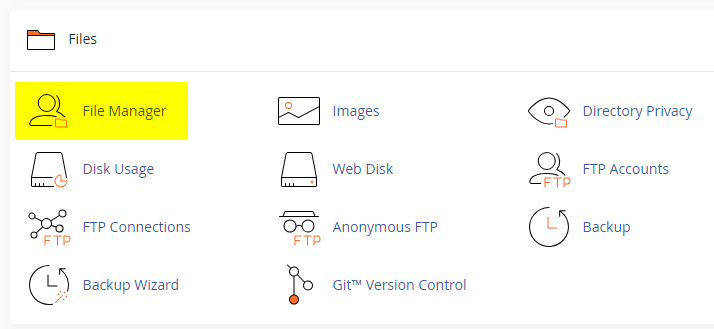
  2. Click on the "File Manager" icon. It's usually under the "Files" section.
  3. You are now in the "File Manager". Open the public_html folder, which is your website's root directory.
  4. Locate the wp-content folder inside "public_html," then open the themes folder inside of it.
  5. In the File Manager interface, click the "Upload" button and choose the theme's .zip file from your local drive.
  6. After it has been uploaded, right-click the .zip file and choose "Extract" or "Unzip".
  7. You can now delete the uploaded .zip file, but it's optional.
  8. Log in to your WordPress dashboard through your web browser.
  9. Go to Appearance → Themes. Now you will see the newly extracted theme.
  10. Make it your active theme by clicking the "Activate" button next to it.

Note: If your hosting provider doesn't offer cPanel, look for a File Manager option in your hosting dashboard (like DirectAdmin, Plesk, or CyberPanel). The process is usually very similar—just find the wp-content/themes folder and upload/extract the theme ZIP file there.

Method 3: Install using FTP

Installing a WordPress theme via FTP is straightforward, though it involves a few more steps compared to using the built-in theme uploader. Here's how to install a WordPress theme using FTP:

  1. Unzip the theme's .zip file you have downloaded.
  2. Connect to your hosting account using an FTP client such as "FileZilla" or "Core FTP".
  3. Navigate to the /wp-content/themes folder in the "Remote site" section.
  4. In the "Local site" section, locate the unzipped theme folder.
  5. Drag and drop the unzipped theme folder from the "Local site" section to the "Remote site" section.
  6. Be patient and let the transfer finish.
  7. Once the transfer is complete, log in to your WordPress dashboard and navigate to Appearance > Themes.
  8. Find the theme you just uploaded and click Activate.

Troubleshooting Tips

  • Didn't receive the download email? Wait 5–10 minutes or check your spam/junk folder. But if you still can not find this email or download link is broken, please inform us. we will send it ASAP.
  • "The uploaded file exceeds the upload_max_filesize directive in php.ini." - If you get this error when following the "Method 1", follow this tutorial: https://themesdna.com/blog/increase-maximum-file-upload-size-wordpress/
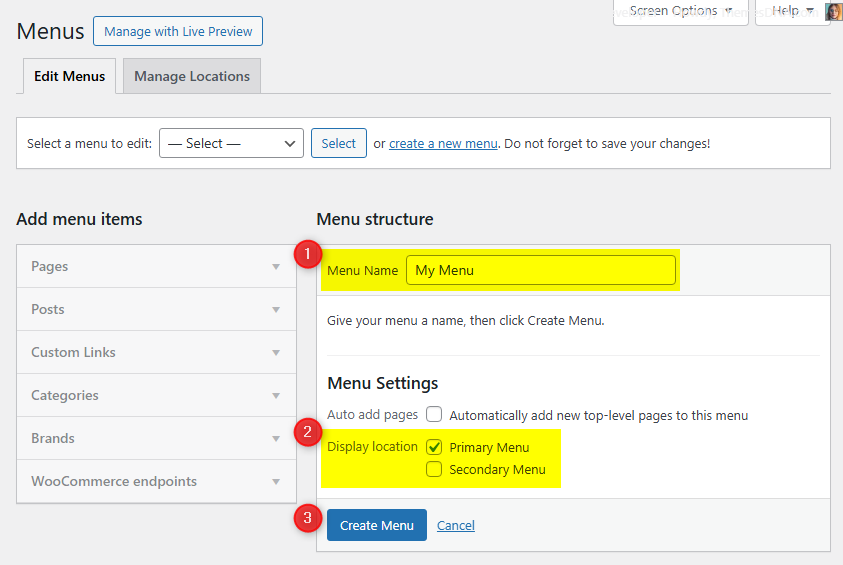
  • My menus disappeared or look different. Go to Appearance → Menus → Manage Locations and reassign your menus to the correct locations.
  • My header text or background color looks different after activating PRO. Reapply your colors in Appearance → Customize → Theme Options → Colors for Header Text Color and Background Color. Then publish.
  • Still can't install the theme? Contact us for help.

Import Demo Content

You can import the demo content, widgets, and Customizer settings shown in the GridWP PRO theme demo.

Manual Demo Import

Step 1: Import Main Site Content

This includes: Posts, pages, menus, media, categories, tags, comments, and custom fields.

  1. Download: XML File
  2. Go to Tools → Import.
  3. Under "WordPress", click Install Now if not installed.
  4. Click Run Importer.
  5. Select the XML file and click Upload file and import.
  6. Check "Download and import file attachments", click Submit.

Step 2: Import Widgets

  1. Install the Widget Importer & Exporter plugin.
  2. Go to Tools → Widget Importer & Exporter.
  3. Copy content from: Widgets .wie File and paste into the box.
  4. Click Import Widgets.

Step 3: Import Customizer Settings

  1. Download: Customizer File
  2. Install the Customizer Export/Import plugin.
  3. Go to Appearance → Customize → Export/Import.
  4. Select the .dat file, check "Download and import image files?", click Import.

Regenerate Thumbnails

If your website already has existing posts with featured images, it's highly recommended to regenerate thumbnails after activating the GridWP PRO theme. This ensures that all images match the new theme's layout and display sizes.

Regenerating thumbnails is optional if your site is completely new and doesn't have any uploaded images yet.

However, if you imported the demo content, regenerating thumbnails is essential to display images correctly across the site.

  1. Install and activate the Regenerate Thumbnails plugin.
  2. Go to Tools → Regenerate Thumbnails.
  3. Click the "Regenerate Thumbnails for All x Attachments" button to start the process.
  4. Wait until all images are regenerated. This may take a few minutes depending on your media library size.
  5. If you want, you can deactivate and delete the plugin once the process is complete.

This step ensures clean image alignment and sharp visuals throughout your website using the GridWP PRO theme.

Header Image

Quick Start Guide

GridWP PRO allows users to upload a custom header image for a personalized look. The recommended header image size is 1250 x 350 pixels. Upload and manage it in Appearance → Customize → Header Image. You can disable the featured header image in Appearance → Customize → Theme Options → Header Options.

How to Add a Header Image?

  1. Go to AppearanceCustomizeHeader Image
  2. Upload your header image using Add new image button.
  3. The recommended image dimensions are 1250 x 350 pixels.

News Ticker

The News Ticker in GridWP PRO is a lightweight, eye-catching feature that displays your posts in a smooth, horizontal scrolling format at the top of your site. It's perfect for highlighting breaking news, trending updates, or featured content. Fully customizable via the WordPress Theme Customizer, you can enable or disable the ticker, set a custom heading label, define the number of posts to display, and filter content by recent posts, popular posts, random posts, a specific category, or a specific tag.

Step 1: Access the News Ticker Options

  1. Go to your WordPress Dashboard.
  2. Navigate to Appearance → Customize.
  3. Click on Theme Options → News Ticker.

Step 2: Enable the News Ticker

Find the option Enable News Ticker and check the checkbox to activate the news ticker on your site.

Step 3: Configure Ticker Options

Check the complete list of "News Ticker Options" available

Step 4: Save Changes

Click the Publish button at the top of the Customizer to apply the changes.

Tips

  • Use Category Posts or Tag Posts for automated updates within a topic.
  • Use Popular Posts to display posts sorted by comment count.
  • Use Random Posts to keep the ticker fresh with varied content.

Custom Widgets

Quick Start Guide

To see available widgets and widget areas please navigate to WordPress DashboardAppearanceWidgets. You can drag and drop widgets into widget areas you like.

There are 5 custom widgets bundled with the GridWP PRO theme:

  1. GridWP Featured Posts - Style 1
  2. GridWP Featured Posts - Style 2
  3. GridWP Tabbed Widget
  4. GridWP About Widget
  5. GridWP Social Buttons

GridWP Featured Posts - Style 1

This widget displays a list of posts from recent posts, popular posts (by comments), random posts, or posts from a selected category or tag. Sorting is determined by the chosen source (comments, date, or random).

Key Features

  • Multiple Post Sources - Display posts from recent posts, popular posts, random posts, specific categories, or tags
  • Flexible Sorting - Popular (comments), Recent (date), or Random
  • Customizable Display - Control thumbnails, titles, metadata, and snippets

Below is the complete list of options available:

Option IDOption NameDescriptionControl TypeAccepted ValueDefault
titleTitleWidget heading text.TextPlain textFeatured Posts - Style 1
post_typeChoose the Post Type to displaySource of posts.SelectRecent Posts / Popular Posts / Random Posts / Category Posts / Tag PostsRecent Posts
featured_catSelect a CategoryCategory to show when using Category Posts.SelectAny category(empty)
featured_tagSelect a TagTag to show when using Tag Posts.SelectAny tag(empty)
numberNumber of posts to showTotal posts displayed.TextPositive whole number5
snippet_lengthSnippet length (words)Length of the content snippet.TextPositive whole number20
show_thumbnailDisplay Post Thumbnail?Show/hide featured images.Checkboxtrue / falsetrue
show_authorDisplay Post Author?Show/hide author name.Checkboxtrue / falsefalse
show_dateDisplay Post Date?Show/hide published date.Checkboxtrue / falsetrue
show_commentsDisplay Number of Comments?Show/hide comment count.Checkboxtrue / falsetrue
show_snippetDisplay Post Snippet?Show/hide excerpt snippet.Checkboxtrue / falsetrue

GridWP Featured Posts - Style 2

This widget displays a grid of posts from recent posts, popular posts (by comments), random posts, or posts from a selected category or tag. Sorting follows the chosen source (comments, date, or random).

Key Features

  • Customizable grid layout with 2-5 column options
  • Multiple post sources: Recent, Popular, Random, Category, or Tag
  • Multiple thumbnail styles: Horizontal, Square, Vertical, Auto Height
  • Comprehensive display controls for all post elements
  • Social sharing buttons integration

Usage Notes

  • Default shows 6 posts; adjust "Number of posts to show" as needed.
  • Select thumbnail style and column count to suit your layout.

Below is the complete list of options available:

Option IDOption NameDescriptionControl TypeAccepted ValueDefault
titleTitleWidget heading text.TextPlain textFeatured Posts - Style 2
post_columnChoose Posts Columns StyleNumber of columns in the grid.Select2 Columns / 3 Columns / 4 Columns / 5 Columns3 Columns
thumb_styleChoose Thumbnail StyleFeatured image aspect ratio.SelectHorizontal / Square / Vertical / Auto HeightSquare
post_typeChoose the Post Type to displaySource of posts.SelectRecent Posts / Popular Posts / Random Posts / Category Posts / Tag PostsRecent Posts
featured_catSelect a CategoryCategory used when Category Posts is chosen.SelectAny category(empty)
featured_tagSelect a TagTag used when Tag Posts is chosen.SelectAny tag(empty)
numberNumber of posts to showTotal posts displayed in the grid.TextPositive whole number6
show_thumbnailDisplay Featured Images?Show/hide featured images.Checkboxtrue / falsetrue
show_catsDisplay Post Categories?Show/hide categories under each post.Checkboxtrue / falsetrue
show_authorDisplay Post Authors?Show/hide author name.Checkboxtrue / falsetrue
show_dateDisplay Post Dates?Show/hide published date.Checkboxtrue / falsetrue
show_commentsDisplay Number of Comments?Show/hide comment count.Checkboxtrue / falsetrue
show_shareDisplay Share Buttons?Show/hide inline share buttons.Checkboxtrue / falsetrue

GridWP Tabbed Widget

This widget displays three tabs—Popular (by comments), Recent (latest posts), and Random—with toggleable visibility and shared display settings.

Key Features

  • Tabs for Popular (by comments), Recent (by date), and Random posts
  • Toggle visibility of individual tabs
  • Customizable display elements (thumbnails, titles, metadata, snippets)

Usage Notes

  • Sources are fixed: Popular = most commented, Recent = latest posts, Random = random posts.
  • Post count and display toggles (thumbnail, author, date, comments, snippet) apply to all tabs.
  • Tab labels can be renamed for Popular, Recent, and Random.

Each tab shares the same global settings for post count and display toggles and allows renaming of each tab label.

Option ID Option Name Description Control Type Accepted Value Default
titleTitleWidget heading text.TextPlain textTabbed Widget
show_popular_postsDisplay Tab 1 (Popular Posts)Show/hide the Popular tab.Checkboxtrue / falsetrue
show_recent_postsDisplay Tab 2 (Recent Posts)Show/hide the Recent tab.Checkboxtrue / falsetrue
show_random_postsDisplay Tab 3 (Random Posts)Show/hide the Random tab.Checkboxtrue / falsetrue
tab_one_nameTab 1 NameCustom label for Popular tab.TextPlain textPopular
tab_two_nameTab 2 NameCustom label for Recent tab.TextPlain textRecent
tab_three_nameTab 3 NameCustom label for Random tab.TextPlain textRandom
numberNumber of posts to showTotal posts shown per tab.TextPositive whole number3
show_thumbnailDisplay Post Thumbnail?Show/hide featured images.Checkboxtrue / falsetrue
show_authorDisplay Post Author?Show/hide author name.Checkboxtrue / falsefalse
show_dateDisplay Post Date?Show/hide published date.Checkboxtrue / falsetrue
show_commentsDisplay Number of Comments?Show/hide comment count.Checkboxtrue / falsetrue
show_snippetDisplay Post Snippet?Show/hide excerpt snippet.Checkboxtrue / falsetrue
snippet_lengthPost snippet length (number of words)Length of snippet per post.TextPositive whole number20

GridWP About Widget

This widget displays a profile section with an image, description, and social media links. It supports many popular platforms (see options table) with customizable button styles (round or normal).

Key Features

  • Displays a profile image and customizable description
  • Supports many popular social platforms (listed below)
  • Option to display round or normal social buttons
  • Uses Font Awesome icons for social media buttons
  • Responsive design

Usage Notes

  • For the profile image, provide a direct URL to the image file
  • The description field supports HTML formatting
  • Leave any social media field empty to hide that particular button
  • The "round_buttons" option changes the appearance from square to circular
  • Skype field requires just the username, not a full URL
  • Email field requires a valid email address, not a mailto: link
  • All social media URLs should be complete links (e.g., https://facebook.com/username)
Option ID Option Name Description Control Type Accepted Value Default
titleTitleWidget heading text.TextPlain textAbout Me
imageProfile Image URLImage shown above the description.TextValid image URL(empty)
descriptionDescriptionAbout text displayed under the image.TextareaHTML/plain text(empty)
round_buttonsDisplay round social buttons?Toggle between square and round icons.Checkboxtrue / falsefalse
facebookFacebook URLLink to Facebook profile/page.TextValid URL(empty)
twitterTwitter (X) URLLink to Twitter/X profile.TextValid URL(empty)
googleplusGoogle Plus URLLegacy Google Plus link (optional).TextValid URL(empty)
pinterestPinterest URLLink to Pinterest profile.TextValid URL(empty)
linkedinLinkedIn URLLink to LinkedIn profile.TextValid URL(empty)
instagramInstagram URLLink to Instagram profile.TextValid URL(empty)
flickrFlickr URLLink to Flickr profile.TextValid URL(empty)
youtubeYouTube URLLink to YouTube channel.TextValid URL(empty)
vimeoVimeo URLLink to Vimeo profile.TextValid URL(empty)
soundcloudSoundCloud URLLink to SoundCloud profile.TextValid URL(empty)
lastfmLast.fm URLLink to Last.fm profile.TextValid URL(empty)
githubGitHub URLLink to GitHub profile.TextValid URL(empty)
bitbucketBitbucket URLLink to Bitbucket profile.TextValid URL(empty)
tumblrTumblr URLLink to Tumblr blog/profile.TextValid URL(empty)
diggDigg URLLink to Digg profile.TextValid URL(empty)
deliciousDelicious URLLink to Delicious profile.TextValid URL(empty)
stumbleuponStumbleUpon URLLink to StumbleUpon profile.TextValid URL(empty)
redditReddit URLLink to Reddit profile.TextValid URL(empty)
dribbbleDribbble URLLink to Dribbble profile.TextValid URL(empty)
behanceBehance URLLink to Behance profile.TextValid URL(empty)
vkVK URLLink to VK profile.TextValid URL(empty)
codepenCodePen URLLink to CodePen profile.TextValid URL(empty)
jsfiddleJSFiddle URLLink to JSFiddle profile.TextValid URL(empty)
stackoverflowStack Overflow URLLink to Stack Overflow profile.TextValid URL(empty)
stackexchangeStack Exchange URLLink to Stack Exchange profile.TextValid URL(empty)
buyselladsBuySellAds URLLink to BuySellAds profile.TextValid URL(empty)
slideshareSlideShare URLLink to SlideShare profile.TextValid URL(empty)
skypeSkype UsernameSkype username (not a URL).TextUsername(empty)
envelopeEmail AddressEmail used for contact link.TextValid email(empty)
rssRSS Feed URLLink to RSS feed.TextValid URL(empty)

GridWP Social Buttons

This widget displays social media profile links with icons. It includes the same social URL fields as the About Widget but without the profile image and description.

Key Features

  • Supports a wide set of popular social platforms (see options table)
  • Round or normal button styles
  • Font Awesome icon integration
  • Lightweight social links widget
Option ID Option Name Description Control Type Accepted Value Default
titleTitleWidget heading text.TextPlain textSocial Buttons
round_buttonsDisplay round buttons?Toggle between square and round icons.Checkboxtrue / falsefalse
facebookFacebook URLLink to Facebook profile/page.TextValid URL(empty)
twitterTwitter (X) URLLink to Twitter/X profile.TextValid URL(empty)
googleplusGoogle Plus URLLegacy Google Plus link (optional).TextValid URL(empty)
pinterestPinterest URLLink to Pinterest profile.TextValid URL(empty)
linkedinLinkedIn URLLink to LinkedIn profile.TextValid URL(empty)
instagramInstagram URLLink to Instagram profile.TextValid URL(empty)
flickrFlickr URLLink to Flickr profile.TextValid URL(empty)
youtubeYouTube URLLink to YouTube channel.TextValid URL(empty)
vimeoVimeo URLLink to Vimeo profile.TextValid URL(empty)
soundcloudSoundCloud URLLink to SoundCloud profile.TextValid URL(empty)
lastfmLast.fm URLLink to Last.fm profile.TextValid URL(empty)
githubGitHub URLLink to GitHub profile.TextValid URL(empty)
bitbucketBitbucket URLLink to Bitbucket profile.TextValid URL(empty)
tumblrTumblr URLLink to Tumblr blog/profile.TextValid URL(empty)
diggDigg URLLink to Digg profile.TextValid URL(empty)
deliciousDelicious URLLink to Delicious profile.TextValid URL(empty)
stumbleuponStumbleUpon URLLink to StumbleUpon profile.TextValid URL(empty)
redditReddit URLLink to Reddit profile.TextValid URL(empty)
dribbbleDribbble URLLink to Dribbble profile.TextValid URL(empty)
behanceBehance URLLink to Behance profile.TextValid URL(empty)
vkVK URLLink to VK profile.TextValid URL(empty)
codepenCodePen URLLink to CodePen profile.TextValid URL(empty)
jsfiddleJSFiddle URLLink to JSFiddle profile.TextValid URL(empty)
stackoverflowStack Overflow URLLink to Stack Overflow profile.TextValid URL(empty)
stackexchangeStack Exchange URLLink to Stack Exchange profile.TextValid URL(empty)
buyselladsBuySellAds URLLink to BuySellAds profile.TextValid URL(empty)
slideshareSlideShare URLLink to SlideShare profile.TextValid URL(empty)
skypeSkype UsernameSkype username (not a URL).TextUsername(empty)
envelopeEmail AddressEmail used for contact link.TextValid email(empty)
rssRSS Feed URLLink to RSS feed.TextValid URL(empty)

Widget Areas

There are 23 widget areas in the GridWP PRO theme.


  1. Header Banner

    Located on the header. Drag a "Custom HTML" widget here and add your 728x90 banner ad code. You need to select "Header Style" as "Logo + Banner" from header options to display this widget area.

  2. Main Sidebar

    Located on the left or right-hand side depending on the layout style you choose.

  3. Top Full Width Widgets (Home Page Only)

    Full-width widget area at the top of homepage only (first page).

  4. Top Full Width Widgets (Posts Only)

    Full-width widget area at the top of single posts.

  5. Top Full Width Widgets (Posts/Pages Only)

    Full-width widget area at the top of single posts/pages.

  6. Top Full Width Widgets (Every Page)

    Full-width widget area at the top of every page.

  7. Bottom Full Width Widgets (Home Page Only)

    Full-width widget area at the bottom of homepage.

  8. Bottom Full Width Widgets (Posts Only)

    Full-width widget area at the bottom of single posts.

  9. Bottom Full Width Widgets (Posts/Pages Only)

    Full-width widget area at the bottom of single posts/pages.

  10. Bottom Full Width Widgets (Every Page)

    Full-width widget area at the bottom of every page.

  11. Top Widgets (Home Page Only)

    Widget area at the top of homepage (within content area).

  12. Top Widgets (Posts Only)

    Widget area at the top of single posts (within content area).

  13. Top Widgets (Posts/Pages Only)

    Widget area at the top of single posts/pages (within content area).

  14. Top Widgets (Every Page)

    Widget area at the top of every page (within content area).

  15. Bottom Widgets (Home Page Only)

    Widget area at the bottom of homepage (within content area).

  16. Bottom Widgets (Posts Only)

    Widget area at the bottom of single posts (within content area).

  17. Bottom Widgets (Posts/Pages Only)

    Widget area at the bottom of single posts/pages (within content area).

  18. Bottom Widgets (Every Page)

    Widget area at the bottom of every page (within content area).

  19. Post Bottom Widgets

    Widget area at the bottom of single posts, before the comments.

  20. Footer 1

    Footer column 1 (left).

  21. Footer 2

    Footer column 2 (middle-left).

  22. Footer 3

    Footer column 3 (middle-right).

  23. Footer 4

    Footer column 4 (right).

How to Control Widget Visibility by Location

1. Install and activate the Widget Display Conditions or Widget Context plugin.

2. Drag and drop your widget into any of the "Every Page" widget areas listed above.

3. If you are using Widget Display Conditions plugin, click the Display conditions button at the bottom of your widget settings.

4. Click on Add group button.

5. Set your widget display conditions and click save.

Custom Page Templates

GridWP PRO includes custom page and post templates that let you create pages and posts with unique layouts beyond the default design.

Special Function Templates

  • Contact Form: Creates a contact page with a built-in contact form.
  • Sitemap: Displays a structured list of your site's content.
  • Site Authors: Shows a list of all authors with profiles and post counts.

Layout Templates

  • "Full Width, no sidebar" (Page): Full width without sidebars.
  • "Full Width, bottom sidebar" (Page): Full width with sidebar below.
  • "Content + Sidebar" (Page): Content left, sidebar right.
  • "Sidebar + Content" (Page): Sidebar left, content right.
  • "Full Width, no sidebar" (Post): Full width post without sidebars.
  • "Full Width, bottom sidebar" (Post): Full width post with sidebar below.
  • "Content + Sidebar" (Post): Post content left, sidebar right.
  • "Sidebar + Content" (Post): Sidebar left, post content right.

How to Assign a Custom Template:

  1. Go to Pages or PostsAdd New or edit an existing page/post.
  2. Look for the Template option:
    • In Gutenberg: Click the Page/Post tab in the right sidebar and find Template.
    • In Classic Editor: Enable Page/Post Attributes box via Screen Options, then use the Template dropdown.
  3. Select the desired template from the list.
  4. Click Publish or Update.

How to Create a Contact Page

GridWP PRO includes a built-in Contact Form template.

Step 1: Create the Contact Page

  1. Go to PagesAdd New.
  2. Give your page a title like Contact Us.
  3. Select the Contact Form template.
  4. Click Publish.

Step 2: Configure the Contact Form Email Address

  1. Go to AppearanceCustomize.
  2. Open Theme OptionsContact Page.
  3. Enter your preferred email address in the Contact Form Email Address field.
  4. Click Publish to save.

Note: If you do not set the Contact Form Email Address, the form will not send emails.

How to Create a Sitemap Page

  1. Go to PagesAdd New.
  2. Enter a title like Sitemap.
  3. Select the Sitemap template.
  4. Click Publish.

What's Included in the Sitemap Page

  • List of all Pages
  • List of all Categories and Tags
  • Monthly Archives
  • List of all Authors with links to their posts

How to Create a Site Authors Page

Step 1: Create the Authors Page

  1. Go to PagesAdd New.
  2. Enter a title like Our Authors.
  3. Select the Authors template.
  4. Click Publish.

Step 2: Customize Author Display Settings (Optional)

  1. Go to AppearanceCustomizeTheme OptionsAuthors Page.
  2. Toggle the following settings:
    • Hide site administrators from the Authors page.
    • Hide authors with zero posts from the Authors page.
  3. Click Publish to save.

Customizer Theme Options

To see available WordPress Customizer theme options:

  1. Go to your WordPress Dashboard.
  2. Navigate to Appearance → Customize.
  3. Click on Theme Options.

Site Identity Options

Below is the complete list of Site Identity Options available:

Option IDOption NameDescriptionControl TypeAccepted ValueDefault
custom_logoLogoImage ID of the custom logo uploaded through the Customizer.Media UploaderInteger (attachment ID)0 (none)
blognameSite TitleMain title of the website shown in the header, browser-tabs, and search-results.TextA string"My WordPress Site"
blogdescriptionTaglineShort descriptive sentence appearing next to or below the title.TextA string"Just another WordPress site"
display_header_textDisplay Site Title & TaglineToggles whether the title/tagline are printed on the front-end.Toggle Switchtrue / falsetrue
site_iconSite Icon (Favicon)Image ID for the favicon/app-icon (512 x 512 px recommended).Media UploaderInteger (attachment ID)0 (none)

Colors Options

GridWP PRO offers extensive color customization. Navigate to Appearance → Customize → Theme Options → Colors to find color pickers for headers, menus, posts, sidebars, footer, and more. The theme provides granular control over virtually every visual element including:

Option ID Option Name Description Control Type Accepted Value Default
body_text_colorMain Text ColorPrimary body text color.Color PickerHex color#555555
link_colorMain Link ColorDefault link color.Color PickerHex color#666666
link_hover_colorMain Link Hover ColorLink hover color.Color PickerHex color#000000
headings_colorGeneral Headings ColorHeading text color.Color PickerHex color#111111
secondary_menu_colorSecondary Menu Link ColorText color for secondary menu links.Color PickerHex color#000000
secondary_menu_shadow_colorSecondary Menu Link Shadow ColorShadow color for secondary menu links.Color PickerHex color#ffffff
secondary_menu_hover_colorSecondary Menu Link Hover ColorHover color for secondary menu links.Color PickerHex color#7f181b
secondary_submenu_one_bg_colorSecondary Sub Menu Background ColorFirst-level submenu background.Color PickerHex color#eeeeee
secondary_submenu_one_bd_colorSecondary Sub Menu Border ColorFirst-level submenu border.Color PickerHex color#dddddd
secondary_menu_icon_colorSecondary Responsive Menu Icon ColorIcon color for secondary responsive menu.Color PickerHex color#000000
header_bg_colorHeader Background ColorBackground color of header area.Color PickerHex color#ffffff
primary_menu_bg_colorPrimary Menu Background ColorMain menu background color.Color PickerHex color#333333
primary_menu_bd_colorPrimary Menu Border ColorMain menu border color.Color PickerHex color#7f181b
primary_menu_colorPrimary Menu Link ColorMain menu link text color.Color PickerHex color#ffffff
primary_menu_shadow_colorPrimary Menu Link Shadow ColorShadow color for primary menu links.Color PickerHex color#000000
primary_menu_hover_colorPrimary Menu Link Hover ColorHover color for primary menu links.Color PickerHex color#ffffff
primary_menu_hover_bg_colorPrimary Menu Link Hover Background ColorHover background for primary menu links.Color PickerHex color#7f181b
primary_submenu_one_bg_colorPrimary Sub Menu Background ColorFirst-level primary submenu background.Color PickerHex color#444444
primary_submenu_one_bd_colorPrimary Sub Menu Border ColorFirst-level primary submenu border.Color PickerHex color#222222
primary_submenu_two_bd_colorPrimary Sub Menu Border 2 ColorSecond border for primary submenu.Color PickerHex color#383838
primary_menu_icon_colorPrimary Responsive Menu Icon ColorIcon color for primary responsive menu.Color PickerHex color#ffffff
header_social_bg_colorHeader Social Bar Background ColorBackground for header social bar.Color PickerHex color#7f181b
header_social_colorHeader Social Icons ColorColor for header social icons.Color PickerHex color#ffffff
header_social_shadow_colorHeader Social Icons Shadow ColorShadow color for header social icons.Color PickerHex color#000000
header_social_hover_colorHeader Social Icons Hover ColorHover color for header social icons.Color PickerHex color#dddddd
news_ticker_bg_colorNews Ticker Background ColorBackground color of news ticker.Color PickerHex color#6d6e70
news_ticker_heading_colorNews Ticker Heading ColorText color for ticker heading.Color PickerHex color#ffffff
news_ticker_heading_bg_colorNews Ticker Heading Background ColorBackground for ticker heading label.Color PickerHex color#333333
news_ticker_text_colorNews Ticker Text ColorLink/text color in ticker.Color PickerHex color#ffffff
news_ticker_hover_text_colorNews Ticker Hover Text ColorHover color for ticker links.Color PickerHex color#dddddd
sidebar_widget_bg_colorSidebar Widgets Background ColorBackground for sidebar widgets.Color PickerHex color#ffffff
sidebar_widget_bd_colorSidebar Widgets Border ColorBorder for sidebar widgets.Color PickerHex color#dddddd
grid_post_bg_colorGrid Post Background ColorBackground for grid posts.Color PickerHex color#ffffff
grid_post_bd_colorGrid Post Border ColorBorder for grid posts.Color PickerHex color#dddddd
post_title_colorSingle Post Title ColorTitle color on single posts.Color PickerHex color#000000
post_title_hover_colorSingle Post Title Hover ColorHover color for single post titles.Color PickerHex color#333333
list_post_title_colorList Post Title ColorTitle color for list posts.Color PickerHex color#000000
list_post_title_hover_colorList Post Title Hover ColorHover color for list post titles.Color PickerHex color#333333
grid_post_title_colorGrid Post Title ColorTitle color for grid posts.Color PickerHex color#000000
grid_post_title_hover_colorGrid Post Title Hover ColorHover color for grid post titles.Color PickerHex color#7f181b
post_body_link_colorPost Content Link ColorLink color inside post content.Color PickerHex color#409BD4
post_body_link_hover_colorPost Content Link Hover ColorHover color for content links.Color PickerHex color#08ACD5
postcats_colorPost Categories ColorCategory label text color.Color PickerHex color#ffffff
postcats_bg_colorPost Categories Background ColorBackground for category labels.Color PickerHex color#7f181b
postcats_hover_colorPost Categories Hover ColorHover text color for categories.Color PickerHex color#ffffff
postcats_bg_hover_colorPost Categories Hover Background ColorHover background for category labels.Color PickerHex color#000000
post_meta_colorSingle Post Meta ColorMeta text color on single posts.Color PickerHex color#666666
post_meta_hover_colorSingle Post Meta Hover ColorHover color for single post meta.Color PickerHex color#000000
list_post_meta_colorList Post Meta ColorMeta text color for list posts.Color PickerHex color#666666
list_post_meta_hover_colorList Post Meta Hover ColorHover color for list post meta.Color PickerHex color#000000
grid_post_meta_colorGrid Post Meta ColorMeta text color on grid posts.Color PickerHex color#ffffff
grid_post_meta_hover_colorGrid Post Meta Hover ColorHover color for grid post meta.Color PickerHex color#ffffff
sidebar_title_colorSidebar Title ColorText color for widget titles.Color PickerHex color#000000
sidebar_title_bg_colorSidebar Title Background ColorBackground for widget titles.Color PickerHex color#eeeeee
sidebar_title_bd_one_colorSidebar Title Border 1 ColorFirst border color for widget titles.Color PickerHex color#dddddd
sidebar_title_bd_two_colorSidebar Title Border 2 ColorSecond border color for widget titles.Color PickerHex color#f6f6f6
sidebar_link_colorSidebar Link ColorLink color in sidebar widgets.Color PickerHex color#444444
sidebar_link_hover_colorSidebar Link Hover ColorHover color for sidebar links.Color PickerHex color#666666
sidebar_list_bd_colorSidebar List Border ColorBorder color for sidebar lists.Color PickerHex color#f6f6f6
tag_cloud_colorTag Cloud Link ColorTag cloud link text color.Color PickerHex color#ffffff
tag_cloud_bg_colorTag Cloud Link BackgroundBackground for tag cloud links.Color PickerHex color#888888
tag_cloud_hover_colorTag Cloud Link Hover ColorHover text color for tag cloud links.Color PickerHex color#ffffff
tag_cloud_hover_bg_colorTag Cloud Link Hover BackgroundHover background for tag cloud links.Color PickerHex color#000000
footer_bg_colorFooter Background ColorBackground color of footer widgets area.Color PickerHex color#333333
footer_bd_colorFooter Border ColorBorder color for footer widgets area.Color PickerHex color#7f181b
footer_title_colorFooter Title ColorTitle color in footer widgets.Color PickerHex color#ffffff
footer_title_bd_one_colorFooter Title Border One ColorFirst border color for footer titles.Color PickerHex color#444444
footer_title_bd_two_colorFooter Title Border Two ColorSecond border color for footer titles.Color PickerHex color#222222
footer_text_colorFooter Text ColorText color in footer widgets.Color PickerHex color#cecece
footer_link_colorFooter Link ColorLink color in footer widgets.Color PickerHex color#dbdbdb
footer_link_hover_colorFooter Link Hover ColorHover color for footer links.Color PickerHex color#ffffff
footer_list_bd_colorFooter List Border ColorBorder color for footer lists.Color PickerHex color#3a3a3a
cp_bg_colorCopyrights Background ColorBackground color of copyright bar.Color PickerHex color#222222
cp_bd_colorCopyrights Background ColorBorder color of copyright bar.Color PickerHex color#3D3D3D
cp_colorCopyrights Text ColorText color in copyright bar.Color PickerHex color#ECFFF1
button_text_colorButton Text ColorDefault button text color.Color PickerHex color#ffffff
button_text_shadow_colorButton Text Shadow ColorText shadow color for buttons.Color PickerHex color#000000
button_bg_colorButton Background ColorDefault button background color.Color PickerHex color#333333
button_bd_colorButton Border ColorButton border color.Color PickerHex color#000000
button_hover_bg_colorButton Hover Background ColorHover background for buttons.Color PickerHex color#000000
selected_text_colorSelected Text ColorColor for highlighted/selected text.Color PickerHex color#ffffff
selected_text_bg_colorSelected Text Background ColorBackground for highlighted/selected text.Color PickerHex color#333333
disable_shadow_colorDisable Shadow ColorDisable custom shadow colors and use defaults.Checkboxtrue / falsefalse

Font Options

GridWP PRO includes comprehensive font customization. Navigate to Appearance → Customize → Theme Options → Font Options to configure fonts for various elements. Available font settings include:

Option ID Option Name Description Control Type Accepted Value Default
font_subsetsFont SubsetsSelect subsets to load.Multi-selectCyrillic, Cyrillic Extended, Greek, Greek Extended, Latin, Latin Extended, VietnameseLatin
body_fontsBody Font-FamilyFont for body text.SelectTheme font list//fonts.googleapis.com/css?family=Domine:400,700
body_font_sizeBody Font-SizeBody text size.Select8px–72px13px
body_font_weightBody Font-WeightBody text weight.Select400, 700400
body_font_styleBody Font-StyleBody text style.SelectNormal / Italicnormal
body_line_heightBody Line-HeightLine height for body text.TextNumeric (e.g., 1.6)1.6
site_title_fontsSite Title Font-FamilyFont for site title.SelectTheme font list//fonts.googleapis.com/css?family=Playfair+Display:400,400i,700,700i
site_title_font_sizeSite Title Font-SizeSize for site title.Select8px–72px24px
site_title_font_weightSite Title Font-WeightWeight for site title.Select400, 700700
site_title_font_styleSite Title Font-StyleStyle for site title.SelectNormal / Italicnormal
site_title_line_heightSite Title Line-HeightLine height for site title.TextNumeric1
site_desc_fontsSite Description Font-FamilyFont for tagline.SelectTheme font list//fonts.googleapis.com/css?family=Domine:400,700
site_desc_font_sizeSite Description Font-SizeSize for tagline.Select8px–72px13px
site_desc_font_weightSite Description Font-WeightWeight for tagline.Select400, 700400
site_desc_font_styleSite Description Font-StyleStyle for tagline.SelectNormal / Italicnormal
site_desc_line_heightSite Description Line-HeightLine height for tagline.TextNumeric1
primary_menu_fontsPrimary Menu Font-FamilyFont for primary menu.SelectTheme font list//fonts.googleapis.com/css?family=Oswald:400,700
primary_menu_font_sizePrimary Menu Font-SizeSize for primary menu.Select8px–72px13px
primary_menu_font_weightPrimary Menu Font-WeightWeight for primary menu.Select400, 700400
primary_menu_font_stylePrimary Menu Font-StyleStyle for primary menu.SelectNormal / Italicnormal
secondary_menu_fontsSecondary Menu Font-FamilyFont for secondary menu.SelectTheme font list//fonts.googleapis.com/css?family=Oswald:400,700
secondary_menu_font_sizeSecondary Menu Font-SizeSize for secondary menu.Select8px–72px13px
secondary_menu_font_weightSecondary Menu Font-WeightWeight for secondary menu.Select400, 700400
secondary_menu_font_styleSecondary Menu Font-StyleStyle for secondary menu.SelectNormal / Italicnormal
news_ticker_fontsNews Ticker Font-FamilyFont for news ticker.SelectTheme font list//fonts.googleapis.com/css?family=Oswald:400,700
news_ticker_font_sizeNews Ticker Font-SizeSize for news ticker text.Select8px–72px13px
news_ticker_font_weightNews Ticker Font-WeightWeight for news ticker text.Select400, 700400
news_ticker_font_styleNews Ticker Font-StyleStyle for news ticker text.SelectNormal / Italicnormal
hpost_title_fontsGrid Post Title Font-FamilyFont for grid post titles.SelectTheme font list//fonts.googleapis.com/css?family=Playfair+Display:400,400i,700,700i
hpost_title_font_sizeGrid Post Title Font-SizeSize for grid post titles.Select8px–72px17px
hpost_title_font_weightGrid Post Title Font-WeightWeight for grid post titles.Select400, 700700
hpost_title_font_styleGrid Post Title Font-StyleStyle for grid post titles.SelectNormal / Italicnormal
hpost_title_line_heightGrid Post Title Line-HeightLine height for grid post titles.TextNumeric1.2
hpost_title_sm_fontsList Post Title Font-FamilyFont for list post titles.SelectTheme font list//fonts.googleapis.com/css?family=Playfair+Display:400,400i,700,700i
hpost_title_sm_font_sizeList Post Title Font-SizeSize for list post titles.Select8px–72px16px
hpost_title_sm_font_weightList Post Title Font-WeightWeight for list post titles.Select400, 700700
hpost_title_sm_font_styleList Post Title Font-StyleStyle for list post titles.SelectNormal / Italicnormal
hpost_title_sm_line_heightList Post Title Line-HeightLine height for list post titles.TextNumeric1.2
hpost_cats_fontsGrid Post Categories Font-FamilyFont for grid post categories.SelectTheme font list//fonts.googleapis.com/css?family=Oswald:400,700
hpost_cats_font_sizeGrid Post Categories Font-SizeSize for grid post category labels.Select8px–72px12px
hpost_cats_font_weightGrid Post Categories Font-WeightWeight for grid post categories.Select400, 700400
hpost_cats_font_styleGrid Post Categories Font-StyleStyle for grid post categories.SelectNormal / Italicnormal
hpost_meta_fontsPost Meta Font-FamilyFont for post meta text.SelectTheme font list//fonts.googleapis.com/css?family=Oswald:400,700
hpost_meta_font_sizePost Meta Font-SizeSize for post meta text.Select8px–72px12px
hpost_meta_font_weightPost Meta Font-WeightWeight for post meta.Select400, 700400
hpost_meta_font_stylePost Meta Font-StyleStyle for post meta.SelectNormal / Italicnormal
post_title_fontsPost Title Font-FamilyFont for single post titles.SelectTheme font list//fonts.googleapis.com/css?family=Playfair+Display:400,400i,700,700i
post_title_font_sizePost Title Font-SizeSize for single post titles.Select8px–72px26px
post_title_font_weightPost Title Font-WeightWeight for single post titles.Select400, 700700
post_title_font_stylePost Title Font-StyleStyle for single post titles.SelectNormal / Italicnormal
post_title_line_heightPost Title Line-HeightLine height for single post titles.TextNumeric1.2
widget_title_fontsMain/Sidebars Widget Title Font-FamilyFont for sidebar widget titles.SelectTheme font list//fonts.googleapis.com/css?family=Oswald:400,700
widget_title_font_sizeMain/Sidebars Title Font-SizeSize for sidebar widget titles.Select8px–72px15px
widget_title_font_weightMain/Sidebars Title Font-WeightWeight for sidebar widget titles.Select400, 700400
widget_title_font_styleMain/Sidebars Title Font-StyleStyle for sidebar widget titles.SelectNormal / Italicnormal
sidebar_title_line_heightMain/Sidebars Title Line-HeightLine height for sidebar widget titles.TextNumeric1
footer_title_fontsFooter Widget Title Font-FamilyFont for footer widget titles.SelectTheme font list//fonts.googleapis.com/css?family=Oswald:400,700
footer_title_font_sizeFooter Title Font-SizeSize for footer widget titles.Select8px–72px14px
footer_title_font_weightFooter Title Font-WeightWeight for footer widget titles.Select400, 700400
footer_title_font_styleFooter Title Font-StyleStyle for footer widget titles.SelectNormal / Italicnormal
footer_title_line_heightFooter Title Line-HeightLine height for footer widget titles.TextNumeric1
headings_fontsGeneral Headings Font-FamilyFont for general headings (H1–H6).SelectTheme font list//fonts.googleapis.com/css?family=Playfair+Display:400,400i,700,700i
headings_line_heightGeneral Headings Line-HeightLine height for headings.TextNumeric1
h1_font_sizeH1 Font-SizeSize for H1 headings.Select8px–72px32px
h1_font_weightH1 Font-WeightWeight for H1 headings.Select400, 700700
h1_font_styleH1 Font-StyleStyle for H1 headings.SelectNormal / Italicnormal
h2_font_sizeH2 Font-SizeSize for H2 headings.Select8px–72px28px
h2_font_weightH2 Font-WeightWeight for H2 headings.Select400, 700700
h2_font_styleH2 Font-StyleStyle for H2 headings.SelectNormal / Italicnormal
h3_font_sizeH3 Font-SizeSize for H3 headings.Select8px–72px24px
h3_font_weightH3 Font-WeightWeight for H3 headings.Select400, 700700
h3_font_styleH3 Font-StyleStyle for H3 headings.SelectNormal / Italicnormal
h4_font_sizeH4 Font-SizeSize for H4 headings.Select8px–72px20px
h4_font_weightH4 Font-WeightWeight for H4 headings.Select400, 700700
h4_font_styleH4 Font-StyleStyle for H4 headings.SelectNormal / Italicnormal
h5_font_sizeH5 Font-SizeSize for H5 headings.Select8px–72px18px
h5_font_weightH5 Font-WeightWeight for H5 headings.Select400, 700700
h5_font_styleH5 Font-StyleStyle for H5 headings.SelectNormal / Italicnormal
h6_font_sizeH6 Font-SizeSize for H6 headings.Select8px–72px16px
h6_font_weightH6 Font-WeightWeight for H6 headings.Select400, 700700
h6_font_styleH6 Font-StyleStyle for H6 headings.SelectNormal / Italicnormal

Header Image Options

These are the default WordPress header image controls. Navigate to Appearance → Customize → Header Image to upload, crop, and manage your header image. The recommended image size is 1250 x 350 pixels.

Option ID Option Name Description Control Type Accepted Value Default
header_imageHeader ImageMain header image displayed at the top.Image UploadImage file(none)

Header Options

Below is the complete list of Header Options available:

Option IDOption NameDescriptionControl TypeAccepted ValueDefault
hide_top_barHide Header Top BarHide the top bar section of the header.Checkboxtrue / falsefalse
header_styleHeader StyleSelect the header layout style.Select
  • Logo + Menu
  • Logo + Banner
  • Full Width Header
Logo + Menu
hide_header_contentHide Header ContentHide the main header content area.Checkboxtrue / falsefalse
disable_featured_header_imageDisable Featured Header ImageDisable the featured header image display.Checkboxtrue / falsefalse

Layout Options

Below is the complete list of Layout Options available:

Option IDOption NameDescriptionControl TypeAccepted ValueDefault
layout_styleNon-Singular Pages Layout StyleLayout for archive, category, tag, and other non-singular pages.Select
  • Sidebar + Content
  • Content + Sidebar
  • One Column
Content + Sidebar
singular_layout_styleSingular Pages Layout StyleLayout for single posts and pages.Select
  • Sidebar + Content
  • Content + Sidebar
  • One Column
Content + Sidebar
hide_sidebar_one_columnHide Sidebar in One Column LayoutWhen one-column layout is selected, hide the sidebar completely instead of showing it below content.Checkboxtrue / falsefalse

News Ticker Options

Below is the complete list of News Ticker Options available:

Option IDOption NameDescriptionControl TypeAccepted ValueDefault
enable_news_tickerEnable News TickerEnable or disable the news ticker on your site.Checkboxtrue / falsefalse
news_ticker_headingNews Ticker HeadingCustom heading label for the news ticker.TextA plain text.Trending Now
news_ticker_lengthNumber of PostsNumber of posts to display in the ticker.TextA positive whole number.10
news_ticker_post_typePosts TypeSource of posts for the ticker.Select
  • Recent Posts
  • Popular Posts
  • Random Posts
  • Category Posts
  • Tag Posts
Recent Posts
news_ticker_catSelect a CategoryCategory to display (when "Category Posts" is selected).SelectA category from your WordPress categories(empty)
news_ticker_tagSelect a TagTag to display (when "Tag Posts" is selected).SelectA tag from your WordPress tags(empty)

Post Options

Below is the complete list of Post Options available:

Option ID Option Name Description Control Type Accepted Value Default
hide_posts_headingHide HomePage Posts HeadingHide the heading above homepage posts.Checkboxtrue / falsefalse
posts_headingHomePage Posts HeadingCustom heading text above homepage posts.TextPlain textRecent Posts
thumbnail_linkThumbnail LinkWhether single post thumbnail links to the post.SelectYes / NoYes
grid_thumb_stylePosts Grid Thumbnails StyleThumbnail style for post grid.SelectHorizontal / Square / Vertical / Auto HeightSquare Thumbnails
post_grid_colsPosts Grid ColumnsColumns for post grid (desktop).Select2 / 3 / 4 / 5 Columns3 Columns
hide_posted_date_homeHide Posted Date from Posts SummariesHide date on archive/home summaries.Checkboxtrue / falsefalse
hide_posted_dateHide Posted Date from Single PostsHide date on single posts.Checkboxtrue / falsefalse
hide_post_author_homeHide Post Author from Posts SummariesHide author on archive/home summaries.Checkboxtrue / falsefalse
hide_post_authorHide Post Author from Single PostsHide author on single posts.Checkboxtrue / falsefalse
hide_post_categories_homeHide Post Categories from Posts SummariesHide categories on archive/home summaries.Checkboxtrue / falsefalse
hide_post_categoriesHide Post Categories from Single PostsHide categories on single posts.Checkboxtrue / falsefalse
hide_post_tags_homeHide Post Tags from Posts SummariesHide tags on archive/home summaries.Checkboxtrue / falsefalse
hide_post_tagsHide Post Tags from Single PostsHide tags on single posts.Checkboxtrue / falsefalse
hide_comments_link_homeHide Comment Link from Posts SummariesHide comments link on archive/home summaries.Checkboxtrue / falsefalse
hide_comments_linkHide Comment Link from Single PostsHide comments link on single posts.Checkboxtrue / falsefalse
hide_post_editHide Post Edit LinkHide the edit link on single posts.Checkboxtrue / falsefalse
hide_thumbnailHide Thumbnails from Every PageHide featured images globally.Checkboxtrue / falsefalse
hide_thumbnail_singleHide Thumbnails from Posts/PagesHide featured images on single posts/pages.Checkboxtrue / falsefalse
hide_share_buttons_homeHide Share Buttons from Posts SummariesHide share buttons on archive/home summaries.Checkboxtrue / falsefalse
hide_share_buttonsHide Share Buttons from Single PostsHide share buttons on single posts.Checkboxtrue / falsefalse
hide_author_bio_boxHide Author Bio BoxHide author bio box on single posts.Checkboxtrue / falsefalse
hide_related_postsHide Related Posts from Single PostsHide related posts section.Checkboxtrue / falsefalse
related_posts_headingRelated Posts HeadingHeading text for related posts.TextPlain textRelated Articles
related_posts_numberNumber of Related PostsHow many related posts to show.Select1–16 posts4
related_grid_colsRelated Posts ColumnsColumns for related posts (desktop).Select2 / 3 / 4 / 5 Columns4 Columns

Social Links Options

Below is the complete list of Social Links Options available. Navigate to Appearance → Customize → Theme Options → Social Links.

Option ID Option Name Description Control Type Accepted Value Default
hide_header_social_buttonsHide Header Social ButtonsHide the social buttons in the header area.Checkboxtrue / falsefalse
twitterlinkTwitter URLYour Twitter/X profile URL.TextValid URL(empty)
facebooklinkFacebook URLYour Facebook page/profile URL.TextValid URL(empty)
googlelinkGoogle Plus URLYour Google Plus profile URL.TextValid URL(empty)
pinterestlinkPinterest URLYour Pinterest profile URL.TextValid URL(empty)
linkedinlinkLinkedIn LinkYour LinkedIn profile URL.TextValid URL(empty)
instagramlinkInstagram LinkYour Instagram profile URL.TextValid URL(empty)
vklinkVK LinkYour VK profile URL.TextValid URL(empty)
flickrlinkFlickr LinkYour Flickr profile URL.TextValid URL(empty)
youtubelinkYouTube URLYour YouTube channel URL.TextValid URL(empty)
vimeolinkVimeo URLYour Vimeo profile URL.TextValid URL(empty)
soundcloudlinkSoundcloud URLYour SoundCloud profile URL.TextValid URL(empty)
lastfmlinkLastfm URLYour Last.fm profile URL.TextValid URL(empty)
githublinkGitHub URLYour GitHub profile URL.TextValid URL(empty)
bitbucketlinkBitbucket URLYour Bitbucket profile URL.TextValid URL(empty)
tumblrlinkTumblr URLYour Tumblr profile URL.TextValid URL(empty)
digglinkDigg URLYour Digg profile URL.TextValid URL(empty)
deliciouslinkDelicious URLYour Delicious profile URL.TextValid URL(empty)
stumblelinkStumbleupon LinkYour StumbleUpon profile URL.TextValid URL(empty)
redditlinkReddit LinkYour Reddit profile URL.TextValid URL(empty)
dribbblelinkDribbble LinkYour Dribbble profile URL.TextValid URL(empty)
behancelinkBehance LinkYour Behance profile URL.TextValid URL(empty)
codepenlinkCodepen LinkYour CodePen profile URL.TextValid URL(empty)
jsfiddlelinkJSFiddle LinkYour JSFiddle profile URL.TextValid URL(empty)
stackoverflowlinkStack Overflow LinkYour Stack Overflow profile URL.TextValid URL(empty)
stackexchangelinkStack Exchange LinkYour Stack Exchange profile URL.TextValid URL(empty)
bsalinkBuySellAds LinkYour BuySellAds profile URL.TextValid URL(empty)
slidesharelinkSlideShare LinkYour SlideShare profile URL.TextValid URL(empty)
skypeusernameSkype UsernameYour Skype username.TextUsername(empty)
emailaddressEmail AddressYour email address for contact.TextValid email(empty)
telephonenumberTelephone NumberYour phone number for contact.TextPlain text(empty)
rsslinkRSS Feed URLYour RSS feed URL.TextValid URL(empty)

404 Page Options

Below is the complete list of 404 Page Options available:

Option IDOption NameDescriptionControl TypeAccepted ValueDefault
error_404_heading404 Page HeadingCustom heading text displayed on the 404 error page.TextA plain text.Oops! That page can not be found.
error_404_message404 Page MessageCustom message displayed on the 404 error page below the heading.TextareaA text string.It looks like nothing was found at this location. Maybe try a search?

Contact Page Options

Below is the complete list of Contact Page Options available:

Option IDOption NameDescriptionControl TypeAccepted ValueDefault
contact_page_textContact Page ConfigurationInstructions on how to create a contact page using the Contact Form template. This is a static information text, not a configurable setting.Static TextN/AN/A
contact_emailContact Form Email AddressEmail address that will receive messages submitted through the contact form. This email address is required for the contact form to function.TextA valid email address(empty)

Authors Page Options

Below is the complete list of Authors Page Options available:

Option IDOption NameDescriptionControl TypeAccepted ValueDefault
authors_page_textAuthors Page ConfigurationInstructions on how to create an authors page using the Authors template. This is a static information text.Static TextN/AN/A
hide_admin_authors_pageHide site administrators from Authors pageWhen checked, site administrators will not be shown on the Authors page template.Checkboxtrue / falsefalse
hide_noposts_authors_pageHide authors with zero posts from Authors pageWhen checked, authors who have not published any posts will be hidden from the Authors page.Checkboxtrue / falsefalse

Other Options

Below is the complete list of Other Options available:

Option IDOption NameDescriptionControl TypeAccepted ValueDefault
enable_flavor_widget_block_editorEnable Gutenberg Widget Block EditorEnable the Gutenberg block-based widget editor. When disabled, the classic widget editor is used.Checkboxtrue / falsefalse
disable_sticky_menuDisable Sticky MenuDisable the sticky/fixed menu behavior on scroll.Checkboxtrue / falsefalse
enable_sticky_mobile_menuEnable Sticky Menu on Small ScreensEnable sticky menu behavior on mobile/small screens.Checkboxtrue / falsefalse
disable_primary_menuDisable Primary MenuCompletely disable the primary navigation menu.Checkboxtrue / falsefalse
disable_secondary_menuDisable Secondary MenuCompletely disable the secondary navigation menu.Checkboxtrue / falsefalse
disable_sticky_sidebarDisable Sticky SidebarDisable the sticky sidebar behavior.Checkboxtrue / falsefalse
disable_backtotopDisable Back to Top ButtonDisable the "Back to Top" scroll button.Checkboxtrue / falsefalse

Reset Options

Below is the complete list of Reset Options available:

Option ID Option Name Description Control Type Accepted Value Default
reset_settingsReset Theme OptionsClick the reset button to restore all theme options to default values.Reset Buttonn/a(empty)

Performance & SEO Tips

Follow these best practices to improve the speed, SEO, and overall performance of your GridWP PRO-powered website:

  • Use a Caching Plugin: Install a caching plugin like WP Super Cache, W3 Total Cache, or LiteSpeed Cache to serve cached HTML to visitors and reduce server load.
  • Optimize Images: Use plugins like Imagify or EWWW Image Optimizer to compress images without losing quality.
  • Use a CDN: A Content Delivery Network like Cloudflare serves your content from the nearest server to your visitors, dramatically improving load times.
  • Disable Color Options if Not Needed: If you're using the default theme colors, enable the "Disable All Color Options" setting in Theme Options → Colors to reduce inline CSS output and improve rendering speed.
  • Minimize Plugins: Only use essential plugins. Each plugin adds code that can slow down your site. Regularly audit and remove unused plugins.
  • Install an SEO Plugin: Use Yoast SEO or Rank Math to optimize meta titles, descriptions, Open Graph tags, and XML sitemaps.
  • Enable Lazy Loading: Modern browsers support native lazy loading for images. WordPress 5.5+ includes this by default. Ensure it's not being disabled by any plugin.
  • Use Quality Hosting: A fast and reliable hosting provider is one of the most impactful performance factors. Consider managed WordPress hosting for best results.
  • Keep WordPress Updated: Always run the latest version of WordPress, the GridWP PRO theme, and all plugins for best performance and security.
  • Use WP-PageNavi for Numbered Navigation: Install the WP-PageNavi plugin to display numbered page navigation instead of the default older/newer links.

Translation & RTL

GridWP PRO is fully translation-ready and supports Right-to-Left (RTL) languages like Arabic, Hebrew, and Persian out of the box.

🌐 Translating the Theme

The theme includes a gridwp-pro.pot file located in the /languages folder inside the theme directory. You can use this file to create translations in your own language using any of the following tools:

After translating, save your files as:

  • gridwp-pro-[language_code].po
  • gridwp-pro-[language_code].mo

Place them inside the /languages folder in the theme.

↔️ RTL Language Support

GridWP PRO includes built-in RTL support. If your WordPress site language is set to an RTL language, the theme will automatically adjust layout direction, alignment, and spacing accordingly. No extra setup required.

If you're customizing your site with RTL content, make sure your text widgets, menus, and custom styles are also RTL-compatible for best results.

FAQ

Quick answers to the most frequently asked questions about using the GridWP PRO theme. If you can't find your answer here, contact our support team.

Why is my logo/site icon/header image/background image missing after upgrading to PRO?

When switching from the free to PRO version, you need to manually reupload your Site Logo, Header Image, Site Icon, and Background Image via Appearance → Customize.

My menus disappeared after theme activation. What should I do?

Go to Appearance → Menus → Manage Locations and reassign your existing menus to the correct theme locations.

How do I add numbered post navigation?

Install and activate the WP-PageNavi plugin. The theme will automatically use it for numbered page navigation.

How do I change the number of columns in the grid?

Go to Appearance → Customize → Theme Options → Post Options and change the Grid Posts Columns setting. You can choose from 2, 3, 4, or 5 columns.

How do I reset Customizer settings to default?

Go to AppearanceCustomizeTheme OptionsReset Settings, then click the Reset Theme Options button. A confirmation dialog will appear. Confirm the action to reset your settings.

How do I change the thumbnail style for grid posts?

Go to Appearance → Customize → Theme Options → Post Options and change the Grid Thumbnail Style. Options include Horizontal, Square, Vertical, and Auto Height thumbnails.

How do I switch between different layouts?

Go to Appearance → Customize → Theme Options → Layout Options. You can set different layouts for singular and non-singular pages: Sidebar + Content, Content + Sidebar, or One Column.

Troubleshooting

Common technical problems you may encounter while installing, activating, or customizing the GridWP PRO theme. If your issue isn't listed, reach out to our support team.

Post thumbnails are missing when sharing on social media

Install an SEO plugin like Yoast SEO or Rank Math and enable Open Graph tags. Always set a featured image for each post to ensure proper thumbnails appear when sharing.

I get "The uploaded file exceeds the upload_max_filesize directive" error.

This means your hosting has a small file upload limit. Follow this guide to increase it or use cPanel/File Manager to upload the theme.

Images look blurry or incorrectly cropped

After activating the theme or changing thumbnail styles, regenerate your thumbnails using the Regenerate Thumbnails plugin. Go to Tools → Regenerate Thumbnails and click "Regenerate Thumbnails for All Attachments".

The News Ticker is not showing

Make sure you've enabled it in Appearance → Customize → Theme Options → News Ticker. Check that the "Enable News Ticker" checkbox is checked and that there are published posts matching the selected criteria.

Contact form is not sending emails

Ensure you've entered your email address in Appearance → Customize → Theme Options → Contact Page → Contact Form Email Address. Also check your spam folder. For reliable email delivery, consider using an SMTP plugin like WP Mail SMTP.

The header banner widget area is not visible

You need to select "Logo + Banner" as the Header Style in Appearance → Customize → Theme Options → Header Options for this widget area to be displayed.

Support & Licensing

All our WordPress themes, including GridWP PRO, are released under the 100% GPL (General Public License). You can use the theme on unlimited websites and modify the code to suit your needs.

What’s included in free support:

  • Help with theme installation and setup
  • Bug fixes and troubleshooting related to the theme
  • Guidance on using built-in theme features

What’s not included in free support (but available as paid tasks):

  • Theme customization or resolving third-party plugin conflicts
  • Custom coding or feature implementation requests
  • Performance tuning, SEO setup, or server configuration assistance

If you need help or would like to request a paid customization, please contact us. We typically respond within 24–48 hours on working days.

Contact Support

Changelog & Versioning

The following is a log of all updates and changes made to GridWP PRO. We recommend always using the latest version to benefit from improvements and new features.

= Version 1.0.4 =

  • Fixed coding issues.

= Version 1.0.3 =

  • Fixed coding issues.
  • Many improvements.

= Version 1.0.2 =

  • Fixed coding issues.
  • Customizer updated.

= Version 1.0.0 =

  • Initial Release.

Date Formats

You can use the following date format values to control how dates appear in various places such as custom widgets, post metadata, news tickers, and more. These formats follow the standard PHP date formatting rules used by WordPress. Refer to the table below to choose a format that best fits your design and content style.

Format KeyExample Output
H:i00:50
g:i a12:50 am
g:i A12:50 AM
g:i:s a12:50:48 am
g:i:s A12:50:48 AM
d.m.y27.11.10
Y.m.d2010.11.27
Y-m-d2010-11-27
Y/m/d2010/11/27
m.d.Y11.27.2010
m-d-Y11-27-2010
m/d/Y11/27/2010
d.m.Y27.11.2010
d-m-Y27-11-2010
d/m/Y27/11/2010
m/d/Y g:i:s a11/27/2010 12:50:48 am
m/d/Y g:i:s A11/27/2010 12:50:48 AM
Y/m/d \a\t g:i a2010/11/27 at 12:50 am
Y/m/d \a\t g:i A2010/11/27 at 12:50 AM
d F27 November
F, YNovember, 2010
F j, YNovember 27, 2010
d M Y27 Nov 2010
M j, YNov 27, 2010
M j, Y @ H:iNov 27, 2010 @ 0:50
l, F j, YSaturday, November 27, 2010
l, F jS, YSaturday, November 27th, 2010