GridSoul Documentation

Introduction

GridSoul is a clean and elegant, responsive and mobile friendly, masonry grid WordPress theme for blogs, portfolios, and gallery websites. GridSoul features a masonry grid layout, a featured posts slider, social media icons, 1 navigation menu, a header banner, 1 right sidebar, 3 footer columns, sticky sidebar, and many options. GridSoul theme also has RTL language support and a translation-ready codebase. The theme is very starter-friendly and easy to set up.

Quick Start Guide

  1. Install & activate the theme via Appearance → Themes → Add New.
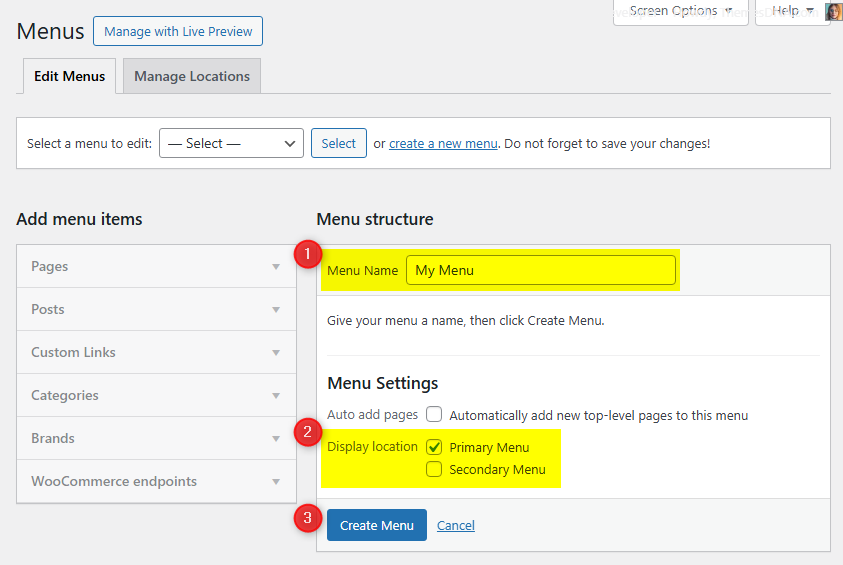
  2. Set up your menus by going to Appearance → Menus. Create a menu and assign it to the available menu location.
  3. Configure widgets by going to Appearance → Widgets. Add widgets to the available widget areas.
  4. Customize by going to Appearance → Customize → Theme Options. Set up your slider, social links, header options, and more.

Theme Features

  • Responsive Design
  • Featured Posts Slider (OWL Carousel)
  • Masonry Grid and Non-Grid Post Summaries Layouts
  • 3 Columns Posts Grid
  • 1 Navigation Menu (Primary)
  • Sticky Sidebar
  • 1 Right Sidebar and 3 Footer Widget Columns
  • Multiple Full-Width Widget Areas
  • 60+ Social Profile Links
  • Custom Logo Support
  • Custom Header Image
  • Custom Background
  • Author Bio Box
  • RTL Language Support
  • Translation Ready
  • Back to Top Button
  • Loading Animation
  • FitVids.JS for Responsive Videos

Theme Installation

Method 1: Install via WordPress Dashboard (Recommended)

  1. Log in to your WordPress Dashboard.
  2. Navigate to Appearance → Themes → Add New.
  3. Search for GridSoul in the search box.
  4. Click Install on the GridSoul theme, then click Activate.

Method 2: Upload via WordPress Dashboard

  1. Download the gridsoul.zip theme file from WordPress.org.
  2. Log in to your WordPress Dashboard.
  3. Navigate to Appearance → Themes → Add New → Upload Theme.
  4. Click Choose File, select the gridsoul.zip file, and click Install Now.
  5. After installation, click Activate.

Method 3: Upload via FTP/File Manager

  1. Download the gridsoul.zip theme file and extract it.
  2. Connect to your server via FTP (FileZilla) or use your hosting File Manager.
  3. Upload the extracted gridsoul folder to /wp-content/themes/.
  4. Go to your WordPress Dashboard → Appearance → Themes and activate GridSoul.

Troubleshooting Installation Issues

  • "The uploaded file exceeds the upload_max_filesize directive" – Your hosting limits file uploads. Increase the limit via php.ini, .htaccess, or contact your host. Alternatively, use FTP.
  • "The package could not be installed. The theme is missing the style.css stylesheet" – You may be uploading the wrong file. Make sure you upload only the gridsoul.zip file.

Import Demo Content

You can import the demo content, widgets, and Customizer settings shown in the GridSoul theme demo.

Manual Demo Import

Step 1: Import Main Site Content

This includes: Posts, pages, menus, media, categories, tags, comments, and custom fields.

  1. Download: XML File
  2. Go to Tools → Import.
  3. Under "WordPress", click Install Now if not installed.
  4. Click Run Importer.
  5. Select the XML file and click Upload file and import.
  6. Check "Download and import file attachments", click Submit.

Step 2: Import Widgets

  1. Install the Widget Importer & Exporter plugin.
  2. Go to Tools → Widget Importer & Exporter.
  3. Copy content from: Widgets .wie File and paste into the box.
  4. Click Import Widgets.

Step 3: Import Customizer Settings

  1. Download: Customizer File
  2. Install the Customizer Export/Import plugin.
  3. Go to Appearance → Customize → Export/Import.
  4. Select the .dat file, check "Download and import image files?", click Import.

Regenerate Thumbnails

If your website already has existing posts with featured images, it's highly recommended to regenerate thumbnails after activating the GridSoul theme. This ensures that all images match the new theme's layout and display sizes.

Regenerating thumbnails is optional if your site is completely new and doesn't have any uploaded images yet.

However, if you imported the demo content, regenerating thumbnails is essential to display images correctly across the site.

  1. Install and activate the Regenerate Thumbnails plugin.
  2. Go to Tools → Regenerate Thumbnails.
  3. Click the "Regenerate Thumbnails for All x Attachments" button to start the process.
  4. Wait until all images are regenerated. This may take a few minutes depending on your media library size.
  5. If you want, you can deactivate and delete the plugin once the process is complete.

This step ensures clean image alignment and sharp visuals throughout your website using the GridSoul theme.

Header Image

The GridSoul theme supports a custom header image that can be displayed at the top of your website, above the navigation menu.

How to Set a Header Image

  1. Go to Appearance → Customize → Theme Options → Header Image.
  2. Click Add new image.
  3. Upload or select an image from your media library.
  4. You can crop the image to the recommended dimensions or skip cropping.
  5. Click Publish to save.

Header Image Customizer Options

You can customize the header image behavior from Appearance → Customize → Theme Options → Header Image:

  • Hide Header Image from Everywhere – Hides the header image on all pages.
  • Remove Link from Header Image – Removes the clickable link from the header image.
  • Hide both Title and Description from Header Image – Hides both the title and description overlay.
  • Hide Title from Header Image – Hides only the title overlay.
  • Hide Description from Header Image – Hides only the description overlay.
  • Add Custom Title/Custom Description to Header Image – Enables custom text overlays.
  • Header Image Custom Title – Enter your custom title text.
  • Header Image Custom Description – Enter your custom description text.
  • Header Image Destination URL – Set a custom URL for when visitors click the header image. Defaults to your homepage.
  • Add a Minimum Height to Header Image on Smaller Screens – Ensures header image visibility on mobile.
  • Header Image Alt Text – Set the alt text for accessibility. Defaults to your site name.

Slider

The GridSoul theme includes a built-in Featured Posts Slider powered by OWL Carousel. The slider displays posts with featured images in a carousel format.

How to Enable the Slider

  1. Go to Appearance → Customize → Theme Options → Slider Options.
  2. Check "Enable Slider".
  3. Configure the slider options as needed (see below).
  4. Click Publish to save.

Important

  • Posts with featured images will display their thumbnails in the slider. Posts without featured images will display a default placeholder image.
  • For best results, use high-quality images with consistent dimensions.

Slider Options

You can configure the slider from Appearance → Customize → Theme Options → Slider Options:

  • Enable Slider – Turn the slider on/off.
  • Show Slider Heading – Show a heading above the slider.
  • Slider Heading – Custom heading text (default: "Featured Posts Slider").
  • Slider Display Location – Choose where the slider appears: Home Page, Static Home Page, Blog Posts Index Page, or Everywhere.
  • Number of Posts on Slider – Number of posts to display (default: 6).
  • Slider Posts Type – Recent Posts, Category Posts, or Tag Posts.
  • Slider Posts Category – Select a category (when "Category Posts" is selected).
  • Slider Posts Tag – Select a tag (when "Tag Posts" is selected).
  • Slider Posts Orderby – Published Date, Modified Date, or Number of Comments.
  • Slider Posts Order – Ascending or Descending.
  • Remove Links from Slider Featured Images
  • Hide Post Categories from Slider
  • Hide Post Titles from Slider
  • Remove Links from Slider Post Titles
  • Limit the Length of Slider Post Titles
  • Maximum Length of Slider Post Titles – Max words (default: 6).
  • Hide Post Authors from Slider
  • Hide Posted Dates from Slider
  • Slider Date Format – Custom date format (default: "F j, Y").
  • Show Post Comments on Slider
  • Hide Post Snippets from Slider
  • Post Snippets Type of Slider – Post Excerpt or Post Content.
  • Post Snippets Length of Slider – Max words for post content snippets (default: 17).
  • Do not Center the Content of Slider
  • Enable Autoplay for Slider
  • Enable "Pause on Mouse Hover" Feature for Slider
  • Slider "Autoplay Interval Timeout" – Autoplay interval in milliseconds (default: 1000).
  • Slider "Autoplay Speed" – Autoplay speed in milliseconds (default: 200).
  • Enable "Loop" Feature for Slider
  • Show Dots Navigation (Pagination) on Slider
  • Hide next/prev Buttons (Navigation) from Slider
  • Enable "Auto Height" Feature in Slider

Widget Areas

The GridSoul theme offers 16 widget areas to help you customize your site layout. You can manage widgets by going to Appearance → Widgets.

# Widget Area Description
1Sidebar 1 WidgetsRight-hand sidebar for your pages/posts.
2Top Full Width (Default HomePage)Full-width widget area at the top of the default homepage.
3Top Full Width (Everywhere)Full-width widget area at the top of every page.
4Above Content (Default HomePage)Widget area above content on the default homepage.
5Above Content (Everywhere)Widget area above content on every page.
6Below Content (Default HomePage)Widget area below content on the default homepage.
7Below Content (Everywhere)Widget area below content on every page.
8Bottom Full Width (Default HomePage)Full-width widget area at the bottom of the default homepage.
9Bottom Full Width (Everywhere)Full-width widget area at the bottom of every page.
10Single Post Bottom WidgetsWidget area at the bottom of single posts.
11Footer Top WidgetsFull-width widget area at the top of the footer.
12Footer 1 WidgetsFirst column in the footer area.
13Footer 2 WidgetsSecond column in the footer area.
14Footer 3 WidgetsThird column in the footer area.
15Footer Bottom WidgetsFull-width widget area at the bottom of the footer.
16404 Page WidgetsWidget area displayed on the 404 error page.

Page Templates

GridSoul includes two custom page templates you can use for full-width layouts without sidebars.

  • Full Width, no sidebar (Page) — Template for pages (template-full-width-page.php)
  • Full Width, no sidebar (Post) — Template for posts (template-full-width-post.php)

How to apply a template

  1. Edit a page or post in the WordPress editor.
  2. In the Page Attributes (or Post Attributes) panel, open the Template dropdown.
  3. Select Full Width, no sidebar and update/publish.

Customizer Theme Options

The GridSoul theme provides a comprehensive set of options accessible through the WordPress Customizer. Go to Appearance → Customize to access all theme options.

The theme options are organized under Appearance → Customize → Theme Options panel, along with the standard WordPress Customizer sections.

10.1 Site Identity Options

Go to Appearance → Customize → Theme Options → Site Identity.

Option ID Option Name Description Control Type Accepted Value Default
custom_logo Logo Upload or select your site logo image. Image Upload Image URL None
gridsoul_options[logo_location] Logo Location Select how to display the site logo with site title and tagline. Select beside-title (Before Site Title and Tagline)
above-title (Above Site Title and Tagline)
above-title
display_title_and_tagline Display Site Title and Tagline Show or hide the site title and tagline in the header. Checkbox true (checked) / false (unchecked) true
blogname Site Title Your site's title displayed in the header and browser tab. Text Any text string Site name set during WordPress installation
blogdescription Tagline Your site's tagline or description displayed below the title. Text Any text string Site description set during WordPress installation
site_icon Site Icon Upload a site icon (favicon). Should be square, at least 512×512 pixels. Image Upload Image URL (square, min 512×512px) None

10.2 Colors Options

Go to Appearance → Customize → Theme Options → Colors.

Option ID Option Name Description Control Type Accepted Value Default
header_textcolor Header Text Color Set the color for header text (site title and tagline). Color Picker Hex color code (e.g., #000000) #000000
background_color Background Color Set the background color for your site. Note: To change background color, you must first remove any background image. Color Picker Hex color code (e.g., #ffffff) #ffffff

10.3 Header Image Options

Go to Appearance → Customize → Theme Options → Header Image.

Option ID Option Name Description Control Type Accepted Value Default
header_image Header Image Upload or select a header image to display at the top of your site. Image Upload Image URL None
gridsoul_options[hide_header_image] Hide Header Image from Everywhere Completely hide the header image on all pages. Checkbox true / false false
gridsoul_options[remove_header_image_link] Remove Link from Header Image Remove the clickable link from the header image. Checkbox true / false false
gridsoul_options[hide_header_image_details] Hide both Title and Description from Header Image Hide both the title and description overlay on the header image. Checkbox true / false false
gridsoul_options[hide_header_image_title] Hide Title from Header Image Hide only the title overlay. No effect if "Hide both Title and Description" is checked. Checkbox true / false false
gridsoul_options[hide_header_image_description] Hide Description from Header Image Hide only the description overlay. No effect if "Hide both Title and Description" is checked. Checkbox true / false false
gridsoul_options[header_image_custom_text] Add Custom Title/Custom Description to Header Image Enable custom text overlays instead of site title and tagline. Checkbox true / false false
gridsoul_options[header_image_custom_title] Header Image Custom Title Enter custom title text to display on the header image. Text Any text string Empty
gridsoul_options[header_image_custom_description] Header Image Custom Description Enter custom description text to display on the header image. Text Any text string Empty
gridsoul_options[header_image_destination] Header Image Destination URL Set a custom URL for when visitors click the header image. Defaults to homepage if empty. Text (URL) Valid URL Empty (links to homepage)
gridsoul_options[header_image_cover] Add a Minimum Height to Header Image on Smaller Screens Ensures header image maintains visibility on mobile devices. Checkbox true / false false
gridsoul_options[header_image_alt_text] Header Image Alt Text Set the alt text for accessibility and SEO. Text Any text string Site name

10.4 Background Image Options

Go to Appearance → Customize → Theme Options → Background Image.

This is a standard WordPress feature. You can upload a background image for your site and configure its display settings.

Option ID Option Name Description Control Type Accepted Value Default
background_image Background Image Upload or select a background image for your site. Image Upload Image URL None
background_preset Preset Quick preset for background image display settings. Select default (Fill Screen)
fill (Fit to Screen)
repeat (Repeat)
custom (Custom)
default
background_position_x Image Position Horizontal position of the background image. Select left
center
right
left
background_size Image Size How the background image is sized. Select auto (Original)
contain (Fit to Window)
cover (Fill Screen)
auto
background_repeat Repeat Background Image Whether and how the background image repeats. Select repeat (Repeat)
repeat-x (Repeat Horizontally)
repeat-y (Repeat Vertically)
no-repeat (No Repeat)
repeat
background_attachment Background Image Attachment Whether the background image scrolls with the page or stays fixed. Select scroll (Scroll with Site)
fixed (Fixed Background)
scroll

10.5 Menu Options

Go to Appearance → Customize → Theme Options → Menu Options.

Option ID Option Name Description Control Type Accepted Value Default
gridsoul_options[primary_menu_text] Primary Menu Mobile Text Customize the text displayed for the primary menu toggle button on mobile devices. Text Any text string Menu
gridsoul_options[disable_primary_menu] Disable Primary Menu Completely hide the primary navigation menu from the site. Checkbox true / false false
gridsoul_options[show_header_search_button] Show Search Button on Primary Menu Display a search button in the primary menu bar. This option has no effect if the primary menu is disabled. Checkbox true / false false

10.6 Header Options

Go to Appearance → Customize → Theme Options → Header Options.

Option ID Option Name Description Control Type Accepted Value Default
gridsoul_options[hide_tagline] Hide Tagline Hide the site tagline from the header area. Checkbox true / false false
gridsoul_options[hide_header_content] Hide Header Content Hide the entire header content area (site title, tagline, and logo). Checkbox true / false false
gridsoul_options[search_box_placeholder_text] Search Box Placeholder Text Customize the placeholder text displayed in the search box. Text Any text string Enter your search keyword...

10.7 Slider Options

Go to Appearance → Customize → Theme Options → Slider Options.

Option ID Option Name Description Control Type Accepted Value Default
gridsoul_options[enable_slider] Enable Slider Turn the featured posts slider on or off. Checkbox true / false false
gridsoul_options[show_slider_heading] Show Slider Heading Display a heading above the slider. Checkbox true / false false
gridsoul_options[slider_heading] Slider Heading Custom heading text displayed above the slider. Text Any text string Featured Posts Slider
gridsoul_options[slider_display] Slider Display Location Choose where the slider appears on your site. Select front-page (Home Page)
front-page-static (Static Home Page)
blog-posts-index (Blog Posts Index Page)
everywhere (Everywhere)
front-page
gridsoul_options[slider_length] Number of Posts on Slider Number of posts to display in the slider. Text (Number) Positive integer 6
gridsoul_options[slider_post_type] Slider Posts Type Select the source for slider posts. Select recentposts (Recent Posts)
catposts (Category Posts)
tagposts (Tag Posts)
recentposts
gridsoul_options[slider_cat] Slider Posts Category Select a category if "Category Posts" is selected. Category Dropdown Category ID 0
gridsoul_options[slider_tag] Slider Posts Tag Select a tag if "Tag Posts" is selected. Tag Dropdown Tag ID 0
gridsoul_options[slider_post_orderby] Slider Posts Orderby How to order the slider posts. Select date (Published Date)
modified (Modified Date)
comment_count (Number of Comments)
date
gridsoul_options[slider_post_order] Slider Posts Order Sort order for slider posts. Select ASC (Ascending)
DESC (Descending)
DESC
gridsoul_options[remove_thumbnail_slider_link] Remove Links from Slider Featured Images Remove clickable links from slider thumbnails. Checkbox true / false false
gridsoul_options[hide_slide_cats] Hide Post Categories from Slider Hide category labels from slider items. Checkbox true / false false
gridsoul_options[hide_post_title_slider] Hide Post Titles from Slider Hide post titles from slider items. Checkbox true / false false
gridsoul_options[remove_post_title_slider_link] Remove Links from Slider Post Titles Remove clickable links from slider post titles. Checkbox true / false false
gridsoul_options[limit_slider_post_titles] Limit the Length of Slider Post Titles Enable word limit for slider post titles. Checkbox true / false false
gridsoul_options[post_title_length_slider] Maximum Length of Slider Post Titles Maximum number of words for slider post titles. Text (Number) Positive integer 6
gridsoul_options[hide_slide_author] Hide Post Authors from Slider Hide author names from slider items. Checkbox true / false false
gridsoul_options[hide_slide_date] Hide Posted Dates from Slider Hide posted dates from slider items. Checkbox true / false false
gridsoul_options[slider_dateformat] Slider Date Format Date format string for slider dates. Text PHP date format (e.g., F j, Y) F j, Y
gridsoul_options[show_slide_comments] Show Post Comments on Slider Show comment count on slider items. Checkbox true / false false
gridsoul_options[hide_post_snippet_slider] Hide Post Snippets from Slider Hide post excerpts/snippets from slider items. Checkbox true / false false
gridsoul_options[snippet_type_slider] Post Snippets Type of Slider Source for post snippets in slider. Select postexcerpt (Post Excerpt)
postcontent (Post Content)
postexcerpt
gridsoul_options[snippet_length_slider] Post Snippets Length of Slider Maximum words for post snippets (used with Post Content type). Text (Number) Positive integer 17
gridsoul_options[no_center_slide_content] Do not Center the Content of Slider Left-align slider content instead of centering. Checkbox true / false false
gridsoul_options[slider_autoplay] Enable Autoplay for Slider Enable automatic slide transitions. Checkbox true / false false
gridsoul_options[slider_autoplayhoverpause] Enable "Pause on Mouse Hover" Pause autoplay when hovering over slider. Requires autoplay enabled. Checkbox true / false false
gridsoul_options[slider_autoplaytimeout] Slider "Autoplay Interval Timeout" Time between slides in milliseconds. Text (Number) Positive integer (milliseconds) 1000
gridsoul_options[slider_autoplayspeed] Slider "Autoplay Speed" Slide transition speed in milliseconds. Text (Number) Positive integer (milliseconds) 200
gridsoul_options[slider_loop] Enable "Loop" Feature for Slider Duplicate first/last slides for continuous loop illusion. Checkbox true / false false
gridsoul_options[show_dots_pagination] Show Dots Navigation (Pagination) on Slider Show dot indicators below the slider. Checkbox true / false false
gridsoul_options[hide_next_prev_navigation] Hide next/prev Buttons (Navigation) from Slider Hide the arrow navigation buttons. Checkbox true / false false
gridsoul_options[enable_autoheight] Enable "Auto Height" Feature in Slider Adjust slider height automatically based on content. Checkbox true / false false

10.8 Posts Summaries Options

Go to Appearance → Customize → Theme Options → Posts Grid Options.

Option ID Option Name Description Control Type Accepted Value Default
gridsoul_options[hide_posts_heading] Hide HomePage Posts Heading Hide the heading above homepage posts. Checkbox true / false false
gridsoul_options[posts_heading] HomePage Posts Heading Custom heading text displayed above posts. Text Any text string Recent Posts
posts_per_page Number of Posts per Page Maximum number of posts displayed on each blog page. Text (Number) Positive integer WordPress Reading settings value
gridsoul_options[post_summaries_style] Post Summaries Style Select the layout style for post summaries. Select grid (Grid Posts)
non-grid (Non-Grid Posts)
grid
gridsoul_options[center_grid_content] Center the Content of Grid Post Summaries Center text content within grid post cards. Checkbox true / false false
gridsoul_options[hide_thumbnail_home] Hide Featured Images from Grid | Non-Grid Posts Summaries Hide featured images from post summaries. Checkbox true / false false
gridsoul_options[hide_default_thumbnail] Hide Default Featured Image from Grid Posts Summaries Hide placeholder image when no featured image is set. Checkbox true / false false
gridsoul_options[featured_nongrid_media_under_post_title] Move Featured Images to the Bottom of Post Titles on Non-Grid Post Summaries Change featured image position in non-grid layouts. Checkbox true / false false
gridsoul_options[nongrid_thumb_style] Featured Images Size of Non-Grid Posts Summaries Thumbnail size for non-grid post summaries. Select gridsoul-805w-430h-image (805:430 Thumbnails)
gridsoul-805w-autoh-image (805:Auto Thumbnails)
full (Original Size)
gridsoul-805w-autoh-image
gridsoul_options[thumbnail_link_home] Featured Images Links Whether thumbnails link to their posts. Select yes
no
yes
gridsoul_options[hide_post_header_home] Hide Post Headers from Non-Grid Posts Summaries Hide post titles and header meta data from non-grid summaries. Checkbox true / false false
gridsoul_options[hide_post_title_home] Hide Post Titles from Grid | Non-Grid Posts Summaries Hide post titles from all post summaries. Checkbox true / false false
gridsoul_options[remove_post_title_link_home] Remove Links of Post Titles from Grid | Non-Grid Posts Summaries Remove clickable links from post titles in summaries. Checkbox true / false false
gridsoul_options[limit_post_titles_home] Limit the Length of Post Titles in Grid Posts Summaries Enable word limit for grid post titles. Checkbox true / false false
gridsoul_options[post_title_length_home] Maximum Length of Post Titles in Grid Posts Summaries Maximum words for grid post titles. Text (Number) Positive integer 6
gridsoul_options[hide_post_author_home] Hide Post Author Names from Grid | Non-Grid Posts Summaries Hide author names from post summaries. Checkbox true / false false
gridsoul_options[hide_posted_date_home] Hide Posted Dates from Grid | Non-Grid Posts Summaries Hide dates from post summaries. Checkbox true / false false
gridsoul_options[show_comments_link_home] Show Comments Links on Grid | Non-Grid Posts Summaries Show comment count links on post summaries. Checkbox true / false false
gridsoul_options[hide_post_categories_home] Hide Post Categories from Grid | Non-Grid Posts Summaries Hide category labels from post summaries. Checkbox true / false false
gridsoul_options[hide_post_tags_home] Hide Post Tags from Non-Grid Posts Summaries Hide tags from non-grid post summaries. Checkbox true / false false
gridsoul_options[hide_post_snippet] Hide Post Snippets from Grid Posts Summaries Hide post excerpts from grid post summaries. Checkbox true / false false
gridsoul_options[grid_snippet_type] Post Snippets Type of Grid Posts Summaries Source for post snippets in grid layout. Select postexcerpt (Post Excerpt)
postcontent (Post Content)
postexcerpt
gridsoul_options[read_more_length] Auto Post Summary Length Number of words in auto-generated post summaries. Text (Number) Positive integer 17

10.9 Post Options

Go to Appearance → Customize → Theme Options → Singular Post Options.

Option ID Option Name Description Control Type Accepted Value Default
gridsoul_options[single_thumb_style] Featured Image Size of Full Post Select the thumbnail size inside single posts. Select gridsoul-805w-430h-image (805:430 Thumbnails)
gridsoul-805w-autoh-image (805:Auto Thumbnails)
full (Original Size)
gridsoul-805w-autoh-image
gridsoul_options[thumbnail_link] Featured Image Link Whether the featured image links to the post. Select yes
no
yes
gridsoul_options[hide_thumbnail] Hide Featured Image from Full Post Hide the featured image on single posts. Checkbox true / false false
gridsoul_options[featured_media_under_post_title] Move Featured Image to Bottom of Full Post Title Display featured image below the post title. Checkbox true / false false
gridsoul_options[auto_width_thumbnail] Do not Stretch Small Featured Image in Full Post Prevent small images from being stretched to full width. Checkbox true / false false
gridsoul_options[hide_post_title] Hide Post Header from Full Post Hide the post header section on single posts. Checkbox true / false false
gridsoul_options[remove_post_title_link] Remove Link from Full Post Title Remove clickable link from post title. Checkbox true / false false
gridsoul_options[hide_post_categories] Hide Post Categories from Full Post Hide category labels on single posts. Checkbox true / false false
gridsoul_options[hide_post_author] Hide Post Author from Full Post Hide author name on single posts. Checkbox true / false false
gridsoul_options[hide_posted_date] Hide Posted Date from Full Post Hide posted date on single posts. Checkbox true / false false
gridsoul_options[hide_comments_link] Hide Comment Link from Full Post Hide comment link in post header. Checkbox true / false false
gridsoul_options[hide_comment_form] Hide Comments/Comment Form from Single Posts Hide the entire comments section. Checkbox true / false false
gridsoul_options[show_post_edit] Show Post Edit Link Show an edit link for logged-in editors. Checkbox true / false false
gridsoul_options[hide_post_tags] Hide Post Tags from Full Post Hide tags on single posts. Checkbox true / false false
gridsoul_options[hide_author_bio_box] Hide Author Bio Box Hide the author bio box below posts. Checkbox true / false false
gridsoul_options[no_underline_content_links] Do not Underline the Links within the Content Remove underline styling from links in post content. Checkbox true / false false

10.10 Posts Navigation Options

Go to Appearance → Customize → Theme Options → Posts Navigation Options.

Option ID Option Name Description Control Type Accepted Value Default
gridsoul_options[hide_post_navigation] Hide Post Navigation from Full Posts Hide previous/next post links on single posts. Checkbox true / false false
gridsoul_options[hide_posts_navigation] Hide Posts Navigation from Home/Archive/Search Pages Hide pagination on blog and archive pages. Checkbox true / false false
gridsoul_options[posts_navigation_type] Posts Navigation Type Select pagination style. Note: WP-PageNavi plugin will override this if activated. Select normalnavi (Normal Navigation)
numberednavi (Numbered Navigation)
numberednavi

10.11 Page Options

Go to Appearance → Customize → Theme Options → Singular Page Options.

Option ID Option Name Description Control Type Accepted Value Default
gridsoul_options[page_thumb_style] Featured Image Size of Single Page Select the thumbnail size inside single pages. Select gridsoul-805w-430h-image (805:430 Thumbnails)
gridsoul-805w-autoh-image (805:Auto Thumbnails)
full (Original Size)
gridsoul-805w-autoh-image
gridsoul_options[thumbnail_link_page] Featured Image Link Whether the featured image links to the page. Select yes
no
yes
gridsoul_options[hide_page_thumbnail] Hide Featured Image from Single Page Hide the featured image on single pages. Checkbox true / false false
gridsoul_options[featured_media_under_page_title] Move Featured Image to Bottom of Page Title Display featured image below the page title. Checkbox true / false false
gridsoul_options[hide_page_header] Hide Page Header from Single Page Hide page title and header meta data from single pages. Checkbox true / false false
gridsoul_options[hide_page_title] Hide Page Title from Single Page Hide the page title on single pages. Checkbox true / false false
gridsoul_options[remove_page_title_link] Remove Link from Single Page Title Remove clickable link from page title. Checkbox true / false false
gridsoul_options[hide_page_date] Hide Posted Date from Single Page Hide posted date on single pages. Checkbox true / false false
gridsoul_options[hide_page_author] Hide Page Author from Single Page Hide author name on single pages. Checkbox true / false false
gridsoul_options[hide_page_comments] Hide Comment Link from Single Page Hide comment link in page header. Checkbox true / false false
gridsoul_options[hide_page_comment_form] Hide Comments/Comment Form from Single Pages Hide the entire comments section. Checkbox true / false false
gridsoul_options[hide_page_edit] Hide Edit Link from Single Page Hide edit link on single pages. Checkbox true / false false
gridsoul_options[hide_static_page_title] Hide Page Header from Static Homepage Hide page header on static front pages. Checkbox true / false false
gridsoul_options[hide_static_page_meta] Hide Page Meta Data from Static Homepage Hide date, author, and comment link on static front pages. Checkbox true / false false

10.14 Search and 404 Pages Options

Go to Appearance → Customize → Theme Options → Search and 404 Pages Options.

Option ID Option Name Description Control Type Accepted Value Default
gridsoul_options[no_search_heading] No Search Results Heading Heading displayed when no search results are found. Text Text string Nothing Found
gridsoul_options[no_search_results] No Search Results Message Message displayed when no search results are found. Textarea Text/HTML string Sorry, but nothing matched your search terms. Please try again with some different keywords.
gridsoul_options[error_404_heading] 404 Error Page Heading Heading displayed on the 404 error page. Text Text string Oops! That page can not be found.
gridsoul_options[error_404_message] Error 404 Message Message displayed on the 404 error page. Textarea Text/HTML string It looks like nothing was found at this location. Maybe try one of the links below or a search?
gridsoul_options[hide_404_search] Hide Search Box from 404 Page Hide the search form on the 404 error page. Checkbox true / false false

10.15 Other Options

Go to Appearance → Customize → Theme Options → Other Options.

Option ID Option Name Description Control Type Accepted Value Default
gridsoul_options[enable_widgets_block_editor] Enable Gutenberg Widget Block Editor Enable the block editor for widget areas. Checkbox true / false false
gridsoul_options[disable_loading_animation] Disable Site Loading Animation Disable the page loading animation effect. Checkbox true / false false
gridsoul_options[disable_fitvids] Disable FitVids.JS Disable fluid width video script. Useful if not using videos or prefer native handling. Checkbox true / false false

Translation & RTL

GridSoul is fully translation-ready and supports Right-to-Left (RTL) languages like Arabic, Hebrew, and Persian out of the box.

🌐 Translating the Theme

The theme includes a gridsoul.pot file located in the /languages folder inside the theme directory. You can use this file to create translations in your own language using any of the following tools:

After translating, save your files as:

  • gridsoul-[language_code].po
  • gridsoul-[language_code].mo

Place them inside the /languages folder in the theme.

↔️ RTL Language Support

GridSoul includes built-in RTL support. If your WordPress site language is set to an RTL language, the theme will automatically adjust layout direction, alignment, and spacing accordingly. No extra setup required.

If you're customizing your site with RTL content, make sure your text widgets, menus, and custom styles are also RTL-compatible for best results.

Performance & SEO Tips

Here are some tips to improve your website's performance and search engine optimization:

  • Use a Caching Plugin: Install a caching plugin like W3 Total Cache, WP Super Cache, or LiteSpeed Cache to improve page load times.
  • Optimize Images: Use an image optimization plugin such as Imagify or EWWW Image Optimizer to reduce image file sizes without losing quality.
  • Use a CDN: A Content Delivery Network (CDN) like Cloudflare can significantly improve load times for visitors around the world.
  • Install an SEO Plugin: Use Yoast SEO or All in One SEO to optimize your content for search engines.
  • Enable GZIP Compression: Most caching plugins offer this, or you can enable it via your .htaccess file.
  • Minimize Plugins: Only use plugins that you actually need. Too many plugins can slow down your site.
  • Keep WordPress Updated: Always keep WordPress core, the GridSoul theme, and all plugins up to date for security and performance.
  • Choose Quality Hosting: A good hosting provider can make a significant difference in your site's performance.

FAQ

How do I set up a static homepage?

Go to Settings → Reading. Under "Your homepage displays", select "A static page". Choose your homepage and posts page from the dropdowns. Click Save Changes.

How do I add a logo?

Go to Appearance → Customize → Theme Options → Site Identity. Click "Select logo" to upload your logo image. You can also choose the logo position (above or beside the site title) from the "Logo Location" option.

How do I enable the slider?

Go to Appearance → Customize → Theme Options → Slider Options. Check "Enable Slider". Posts with featured images will display their thumbnails, while posts without featured images will show a default placeholder image.

How do I change the number of posts displayed?

Go to Appearance → Customize → Theme Options → Posts Grid Options. Change the "Number of Posts per Page" value.

How do I switch between grid and non-grid layout?

Go to Appearance → Customize → Theme Options → Posts Grid Options. Under "Post Summaries Style", choose "Grid Posts" or "Non-Grid Posts".

How do I add social media icons?

Go to Appearance → Customize → Theme Options → Social Buttons Options. Enter the URLs for each social platform you want to display. The corresponding icons will appear automatically in the header.

How do I change the footer copyright text?

Go to Appearance → Customize → Theme Options → Footer Options. Enter your custom text in the "Footer copyright notice" field.

How do I use the full-width page template?

Edit a page, and in the "Page Attributes" section (or the Page settings panel in the block editor), select "Full Width, no sidebar" from the Template dropdown. Update the page.

How do I hide the sidebar?

Use the "Full Width, no sidebar" template on individual pages/posts. This removes the sidebar for that specific page or post.

How do I add widgets to the footer?

Go to Appearance → Widgets. Add widgets to the "Footer 1 Widgets", "Footer 2 Widgets", and "Footer 3 Widgets" areas. The footer has 3 columns.

Troubleshooting

Slider is not showing

Make sure the slider is enabled in Appearance → Customize → Theme Options → Slider Options. Posts with featured images will display their thumbnails, while posts without featured images will show a default placeholder image.

Featured images look blurry or wrong size

After activating the theme, you should regenerate thumbnails using the Regenerate Thumbnails plugin. See the "Regenerate Thumbnails" section above.

Menu is not showing

Go to Appearance → Menus and make sure you have created a menu and assigned it to the "Primary Menu" display location. Also check that "Disable Primary Menu" is not checked in Appearance → Customize → Theme Options → Menu Options.

Social icons are not showing

Go to Appearance → Customize → Theme Options → Social Buttons Options. Make sure you have entered valid URLs for your social profiles and that "Hide Header Social + Login/Logout Buttons" is not checked.

Footer widgets are not showing

Check that "Hide Footer Widgets" is not checked in Appearance → Customize → Theme Options → Footer Options. Also go to Appearance → Widgets and make sure you have added widgets to the footer widget areas.

Theme looks different from the demo

Import the demo content following the instructions in the "Import Demo Content" section. Make sure to import all three components: main content (XML), widgets (WIE), and customizer settings (DAT). Then regenerate thumbnails.

CSS changes not taking effect

Clear your browser cache and any caching plugin cache. If using a CDN, purge the CDN cache as well. You can add custom CSS via Appearance → Customize → Additional CSS.

Support & Licensing

The GridSoul theme is released under the GNU General Public License v2.0 (GPL v2). You can use the theme on unlimited websites and modify the code.

What's included in free support:

  • Help with theme installation and setup
  • Bug fixes and troubleshooting related to the theme
  • Guidance on using built-in theme features

What's not included in free support (but available as paid tasks):

  • Theme customization or resolving third-party plugin conflicts
  • Custom coding or feature implementation requests
  • Performance tuning, SEO setup, or server configuration assistance

If you need help, please contact us. We typically respond within 24-48 hours on working days.

Contact Support

Upgrade to GridSoul PRO

For more features including color options, font options, news ticker, related posts, and much more, consider upgrading to GridSoul PRO.

Changelog

Version 1.0.4

  • Cleanup: Removed obsolete IE polyfills (assets/js/html5shiv*.js, assets/js/respond*.js).

Version 1.0.2

  • Fixed coding issues
  • Theme Customizer updated
  • Many improvements

Version 1.0.1

  • New options added
  • Many improvements
  • Fixed coding issues

Version 1.0.0

  • Initial Release

Date Formats

You can use the following date format values to control how dates appear in various places such as custom widgets, post metadata, news tickers, and more. These formats follow the standard PHP date formatting rules used by WordPress. Refer to the table below to choose a format that best fits your design and content style.

Format KeyExample Output
H:i00:50
g:i a12:50 am
g:i A12:50 AM
g:i:s a12:50:48 am
g:i:s A12:50:48 AM
d.m.y27.11.10
Y.m.d2010.11.27
Y-m-d2010-11-27
Y/m/d2010/11/27
m.d.Y11.27.2010
m-d-Y11-27-2010
m/d/Y11/27/2010
d.m.Y27.11.2010
d-m-Y27-11-2010
d/m/Y27/11/2010
m/d/Y g:i:s a11/27/2010 12:50:48 am
m/d/Y g:i:s A11/27/2010 12:50:48 AM
Y/m/d \a\t g:i a2010/11/27 at 12:50 am
Y/m/d \a\t g:i A2010/11/27 at 12:50 AM
d F27 November
F, YNovember, 2010
F j, YNovember 27, 2010
d M Y27 Nov 2010
M j, YNov 27, 2010
M j, Y @ H:iNov 27, 2010 @ 0:50
l, F j, YSaturday, November 27, 2010
l, F jS, YSaturday, November 27th, 2010