GridLane PRO Documentation

Introduction

GridLane PRO is an elegant and versatile WordPress theme crafted by ThemesDNA, designed specifically for news blogs, portfolio websites, and content-rich online publications. Its clean, responsive grid-style layout offers a modern and visually appealing way to showcase posts or projects, catering to both casual bloggers and professional creators. The theme's design ensures a user-friendly experience without compromising on aesthetics, making it equally suitable for desktops and mobile devices.

The PRO version of GridLane significantly expands on the free edition by offering an extensive array of customization options. Users can choose between CSS float grids or masonry grids and select from 1 to 10 columns for posts grids, allowing complete control over content presentation. It also supports over ten thumbnail sizes, full or boxed layouts, and multiple header/footer styles with configurable widths. Additionally, GridLane PRO includes powerful widgets such as grid and list style featured posts, ads integration between posts, news tickers, and related posts with adjustable options, helping users create dynamic and engaging websites with ease.

GridLane PRO is built with flexibility in mind, providing individual post and page settings via a comprehensive meta box that overrides global options, allowing for tailored layouts on a per-content basis. It supports 60+ social buttons, RTL languages, infinite scroll or load more pagination, and multiple widget areas, including off-canvas sidebars and full-width sections for bespoke integrations. Whether you want a minimalist portfolio or a feature-rich news site, GridLane PRO balances powerful functionality with elegant design to help bring your digital content to life.

You can explore the theme live, purchase it, or view a full homepage screenshot using the buttons below:

Current Theme Version: 1.0.3

Theme Installation

After purchasing the GridLane PRO WordPress Theme, you'll receive a download link via email. Check your email inbox (or spam folder) for the product delivery email. Click the provided download link to download the theme's .zip file to your computer. Follow one of a method given below to install the theme on your website.

Upgrading from the Free GridLane Theme?

GridLane PRO is a separate theme. Whether or not you're currently using the free GridLane theme, you need to install GridLane PRO using one of the methods below.

If you're upgrading from the free version, most of your existing WordPress Customizer settings will remain in place. So you don't need to reconfigure everything from scratch. However, you will need to reupload a few images and reapply specific color settings.

After activating GridLane PRO, go to Appearance → Customize and reupload the following:

  • Site Logo
  • Site Icon (favicon)
  • Header Image
  • Background Image

If you changed below color options in the free version, reapply them in Appearance → Customize → Theme Options → Colors:

  • Header Text Color
  • Background Color

Tip: You can install PRO without deleting the free theme. Use Live Preview to confirm your layout, then click Activate & Publish.

Method 1: Install Using the WordPress Dashboard (Easiest and Fastest)

This is the easiest and fastest method to install this WordPress theme.

  1. Go to "WordPress Dashboard" → "Appearance" → "Themes" and click on "Add New" button.
  2. Click on "Upload Theme" button and choose the zip file you have downloaded.
  3. Click on "Install Now" button.
  4. Activate the theme.
  5. Now go to "Appearance" → "Customize" to configure theme options.

Method 2: Install using cPanel File Manager

In some cases, you may not be able to install a WordPress theme through the WordPress dashboard—especially if the theme's ZIP file exceeds the maximum upload size limit. When this happens, you can install the theme using cPanel's File Manager, which is often simpler than using FTP. Follow the steps below to install your theme via the File Manager in cPanel.

  1. Log in to your cPanel account. Your cPanel URL will be https://yourdomain.com/cpanel or a similar URL.
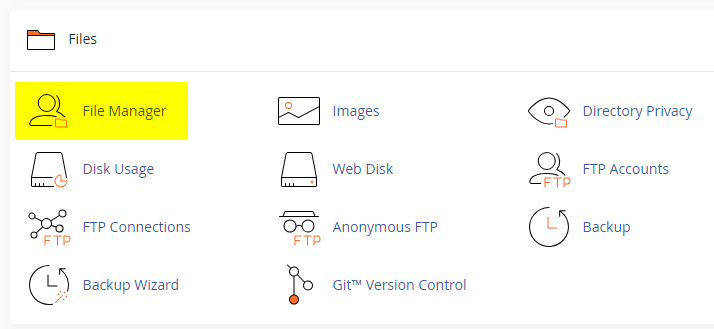
  2. Click on the "File Manager" icon. It's usually under the "Files" section.
  3. You are now in the "File Manager". Open the public_html folder, which is your website's root directory.
  4. Locate the wp-content folder inside "public_html," then open the themes folder inside of it.
  5. In the File Manager interface, click the "Upload" button and choose the theme's .zip file from your local drive.
  6. After it has been uploaded, right-click the .zip file and choose "Extract" or "Unzip".
  7. You can now delete the uploaded .zip file, but it's optional.
  8. Log in to your WordPress dashboard through your web browser.
  9. Go to Appearance → Themes. Now you will see the newly extracted theme.
  10. Make it your active theme by clicking the "Activate" button next to it.

Note: If your hosting provider doesn't offer cPanel, look for a File Manager option in your hosting dashboard (like DirectAdmin, Plesk, or CyberPanel). The process is usually very similar—just find the wp-content/themes folder and upload/extract the theme ZIP file there.

Method 3: Install using FTP

Installing a WordPress theme via FTP is straightforward, though it involves a few more steps compared to using the built-in theme uploader. Here's how to install a WordPress theme using FTP:

  1. Unzip the theme's .zip file you have downloaded.
  2. Connect to your hosting account using an FTP client such as "FileZilla" or "Core FTP".
  3. Navigate to the /wp-content/themes folder in the "Remote site" section.
  4. In the "Local site" section, locate the unzipped theme folder.
  5. Drag and drop the unzipped theme folder from the "Local site" section to the "Remote site" section.
  6. Be patient and let the transfer finish.
  7. Once the transfer is complete, log in to your WordPress dashboard and navigate to Appearance > Themes.
  8. Find the theme you just uploaded and click Activate.

Troubleshooting Tips

  • Didn't receive the download email? Wait 5–10 minutes or check your spam/junk folder. But if you still can not find this email or download link is broken, please inform us. we will send it ASAP.
  • "The uploaded file exceeds the upload_max_filesize directive in php.ini." - If you get this error when following the "Method 1", follow this tutorial: https://themesdna.com/blog/increase-maximum-file-upload-size-wordpress/
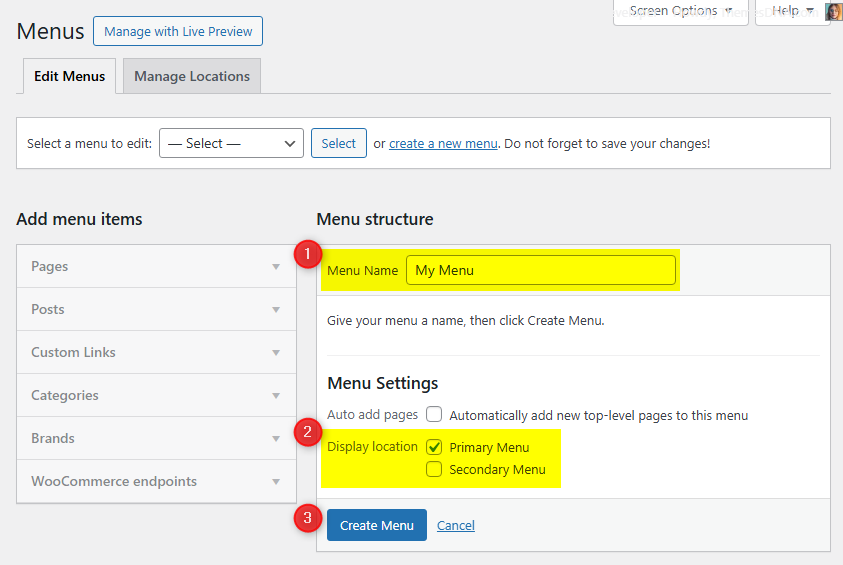
  • My menus disappeared or look different. Go to Appearance → Menus → Manage Locations and reassign your menus to the correct locations.
  • My header text or background color looks different after activating PRO. Reapply your colors in Appearance → Customize → Theme Options → Colors for Header Text Color and Background Color. Then publish.
  • Still can't install the theme? Contact us for help.

Import Demo Content

You can import the demo content, widgets, and Customizer settings shown in the GridLane PRO theme demo using one of the two methods below.

Manual Demo Import

You can also import the content, widgets, and Customizer settings manually by following these three steps:

Step 1: Import Main Site Content

This includes: Posts, pages, menus, media, categories, tags, comments, and custom fields.

  1. Download Content File: Download XML File
  2. Go to Tools → Import.
  3. Under "WordPress", click Install Now if not already installed.
  4. Click Run Importer.
  5. Select the downloaded XML file and click Upload file and import.
  6. Map authors to users, check "Download and import file attachments", and click Submit.

Step 2: Import Widgets

  1. Install and activate the Widget Display Conditions plugin (optional, for visibility control).
  2. Install and activate the Widget Importer & Exporter plugin.
  3. Go to Tools → Widget Importer & Exporter.
  4. Click the "copy and paste" link to open a textarea.
  5. Copy content from: Widgets .wie File and paste into the box.
  6. Click Import Widgets.

Step 3: Import Customizer Settings

  1. Download File: Download Customizer File
  2. Install and activate the Customizer Export/Import plugin.
  3. Go to Appearance → Customize → Export/Import.
  4. Select the downloaded `.dat` file, check "Download and import image files?", and click Import.

Regenerate Thumbnails

If your website already has existing posts with featured images, it's highly recommended to regenerate thumbnails after activating the GridLane PRO theme. This ensures that all images match the new theme's layout and display sizes.

Regenerating thumbnails is optional if your site is completely new and doesn't have any uploaded images yet.

However, if you imported the demo content, regenerating thumbnails is essential to display images correctly across the site.

  1. Install and activate the Regenerate Thumbnails plugin.
  2. Go to Tools → Regenerate Thumbnails.
  3. Click the "Regenerate Thumbnails for All x Attachments" button to start the process.
  4. Wait until all images are regenerated. This may take a few minutes depending on your media library size.
  5. If you want, you can deactivate and delete the plugin once the process is complete.

This step ensures clean image alignment and sharp visuals throughout your website using the GridLane PRO theme.

Header Image

Quick Start Guide

GridLane PRO theme allows users to upload their very own site-wide custom header image with custom title and description to obtain a much more personalized look and feel. Also they can upload an unique header image for each post/page with unique title and description replacing the site-wide header image and its title/description.

There are many header image options in GridLane PRO:

  1. Header image options in Theme Customizer
  2. Header image options in post edit screen
  3. Header image options in page edit screen

How to Add a Header Image?

There are 3 types of header images in this theme:

  1. Site-wide Header Image : Appearance → Customize → Theme Options → Header Image
  2. Header Images of Posts : Post’s Edit Screen → “Post Settings – GridLane PRO” Meta Box → Site Header Image
  3. Header Images of Pages : Page’s Edit Screen → “Page Settings – GridLane PRO” Meta Box → Site Header Image

How to Add a Site-wide Header Image?

Site-wide header image will be displayed everywhere on your website. But if you add a header image to a post/page using settings of that post/page, site-wide header image will be replaced by that header image.

  1. Go to AppearanceCustomizeTheme OptionsHeader Image
  2. Upload your header image using Add new image button.

How to Add a Header Image to a Post?

You can set a different header image for each post.

  1. To set a header image to a post, go to edit screen of that post.
  2. Find the Post Settings - GridLane PRO meta box.
  3. Add your image URL or upload an image using Site Header Image option.

How to Add a Header Image to a Page?

You can set a different header image for each page. To set a header image to a page, go to edit screen of that page. Find the Page Settings - GridLane PRO meta box.
Add your image URL or upload an image using Site Header Image option.

How to Add a Custom Title/Description to Header Image?

By default, the theme displays your website's title as the header image title and the tagline as the header image description. However, you can replace both with custom title and description.

First, you need to enable the display of custom header image title and description sitewide. To do this, go to AppearanceCustomizeTheme OptionsHeader Image and check the option Add Custom Title/Custom Description to Header Image and save settings.

Add a Custom Title/Description to Site-wide Header Image:

  1. Go to AppearanceCustomizeTheme OptionsHeader Image
  2. Add your custom header image title to Header Image Custom Title text field.
  3. Add your custom header image description title to Header Image Custom Description text field.
  4. Save settings.

How to Add a Custom Title/Description to the Header Image of a Post?

You can assign a unique title and description to the header image of each post. These will override the sitewide header image title and description.

  1. Go to the edit screen of that post.
  2. Find the Post Settings - GridLane PRO meta box.
  3. Use Site Header Image Title and Site Header Image Description options for adding a title and a description.
  4. Update the post.

How to Add a Custom Title and Description to the Header Image of a Page?

You can assign a unique title and description to the header image of each page. These will override the sitewide header image title and description.

  1. Go to the edit screen of that page.
  2. Find the Page Settings - GridLane PRO meta box.
  3. Use Site Header Image Title and Site Header Image Description options for adding a title and a description.
  4. Update the page.

How to Hide Title/Description from Header Image?

  1. Go to AppearanceCustomizeTheme OptionsHeader Image.
  2. Check the option Hide both Title and Description from Header Image and save settings.
  3. Save settings.

Note: This option will hide both header image title and header image description sitewide.

News Ticker

The News Ticker in the GridLane PRO theme is a lightweight, eye-catching feature that displays your posts in a smooth, horizontal scrolling format at the top of your site. It's perfect for highlighting breaking news, trending updates, or featured content with a continuous stream of headlines that captures visitors' attention. Fully customizable via the WordPress Theme Customizer, you can easily enable or disable the ticker, set a custom label, define the number of posts to display, and filter content by recent posts, a specific category, a specific tag, or manually entered post IDs. This feature adds a dynamic touch to your website while keeping readers informed of key updates.

How to Configure the News Ticker

You can activate and customize it via the WordPress Theme Customizer.

Step 1: Access the News Ticker Options

  1. Go to your WordPress Dashboard.
  2. Navigate to Appearance → Customize.
  3. Click on Theme Options → News Ticker Options.

Step 2: Enable the News Ticker

Find the option Enable News Ticker and toggle the switch to Yes to activate the news ticker on your site.

Step 3: Configure Ticker Options

👉 Check the complete list of "News Ticker Options" available

Step 4: Save Changes

Once you've configured the settings, click the Publish button at the top of the Customizer to apply the changes.

Tips

  • Use Posts by IDs to curate exactly which headlines appear.
  • Use Tag Posts or Category Posts for automated updates within a topic.
  • Adjust duration and width values for responsiveness and readability.

Custom Widgets

Quick Start Guide

To see available widgets and widget areas please navigate to WordPress DashboardAppearanceWidgets. You can drag and drop widgets into widget areas you like. Widgets page will look like this: GridLane PRO Widgets and Widget Areas

There are 6 custom widgets bundled with the GridLane PRO theme.

  1. GridLane Grid Posts Widget
  2. GridLane List Posts Widget
  3. GridLane Tabbed Widget
  4. GridLane Grid Ads Widget
  5. GridLane Banner Widget
  6. GridLane About and Social Widget

GridLane Grid Posts Widget

This widget displays a customizable grid of posts based on recent posts, a selected category, a selected tag, or specific post IDs. The posts can be sorted by published date, modified date, number of comments, random order, post likes, or post views.

Key Features

  • Highly customizable grid layout with 1-10 column options
  • Multiple post source options (recent, category, tag, specific IDs)
  • Flexible sorting options including custom meta fields (likes/views)
  • AJAX pagination for seamless navigation
  • Masonry layout support for dynamic grid arrangements
  • Customizable thumbnail sizes and aspect ratios
  • Social sharing buttons with multiple styles
  • Typography controls for different text elements
  • Responsive design compatible with various screen sizes

Usage Notes

  • For custom thumbnail sizes, set dimensions in "Appearance" → "Customize" → "Theme Options" → "Posts Summaries Options"
  • Regenerate thumbnails after changing thumbnail styles using a plugin like "Regenerate Thumbnails"
  • Post likes and views require additional functionality to track these metrics
  • AJAX navigation provides smoother user experience but requires JavaScript
  • Masonry layout creates dynamic grid arrangements but may affect performance on large sites
  • Use the "Minimum Height for Post Titles" option to create equal-height grid items

Below is the complete list of options available in the "GridLane Grid Posts Widget":

Option ID Option Name Description Control Type Accepted Value Default
title Title Widget title displayed above the post grid. Text A plain text. GridLane Grid Posts Widget
post_column Choose Posts Columns Style Number of columns in the grid layout. Select

One of the values below:

  • 1 Column
  • 2 Columns
  • 3 Columns
  • 4 Columns
  • 5 Columns
  • 6 Columns
  • 7 Columns
  • 8 Columns
  • 9 Columns
  • 10 Columns
4 Columns
thumb_style Choose Featured Images Size Thumbnail size and aspect ratio used for post images. Select

One of the values below:

  • 100:100 Thumbnails
  • 360:180 Thumbnails
  • 360:216 Thumbnails
  • 360:270 Thumbnails
  • 360:300 Thumbnails
  • 360:360 Thumbnails
  • 360:480 Thumbnails
  • 360:540 Thumbnails
  • 360:Auto Thumbnails
  • 675:360 Thumbnails
  • 675:Auto Thumbnails
  • 880:500 Thumbnails
  • 880:Auto Thumbnails
  • 1218:660 Thumbnails
  • 1218:Auto Thumbnails
  • Original Size
  • Custom Size
360:360 Thumbnails
post_type Choose the Post Type to display Source of posts: recent, category, tag, or specific IDs. Select

One of the values below:

  • Recent Posts
  • Category Posts
  • Tag Posts
  • Posts by IDs
Recent Posts
include_posts Display these posts (if "Post Type" is "Posts by IDs") Include only these specific post IDs. Text A comma-separated list of post IDs without spaces (e.g., 225,346,410) (empty)
featured_cat Select a Category (If post type option is "Category Posts") Selected category (for category-based posts). Select A category from the dropdown list. (empty)
featured_tag Select a Tag (If post type option is "Tag Posts") Selected tag (for tag-based posts). Select A tag from the dropdown list. (empty)
orderby Orderby Sort posts by dates, comments, random, likes, or views. Select

One of the values below:

  • Published Date
  • Modified Date
  • Number of Comments
  • Random
  • Post Likes
  • Post Views
Published Date
order Order Sort posts in ascending (lowest/oldest to highest/newest) or descending (highest/newest to lowest/oldest) order. Select

One of the values below:

  • Ascending order
  • Descending order
Descending order
posts_per_page Number of posts to show Number of posts to display in the grid. Text A positive whole number. 4
snippet_type Post Snippet Type Source for the snippet text (content or excerpt). Select

One of the values below:

  • Post Content
  • Post Excerpt
Post Content
snippet_length Post snippet length (number of words) Number of words to show in the post snippet. Text A positive whole number. 17
dateformat Post Date Format Date format to use for displaying post dates. Text

A date format string.

Check available date formats
F j, Y
exclude_posts Exclude these posts Exclude these specific post IDs from display. Text A comma-separated list of post IDs without spaces (e.g., 8,12,18,20) (empty)
title_height Minimum Height for Post Titles Set a minimum pixel height for post titles to create equal-height grid items. Text A CSS height value with unit (e.g., 50px) (empty)
show_title Display Post Titles? Show post titles in the grid. Checkbox true / false true
title_link Link Post Titles to Their Posts URLs? Make post titles link to their respective posts. Checkbox true / false true
show_thumbnail Display Featured Images? Display post featured images. Checkbox true / false true
show_default_thumbnail Show Default Featured Image? Display default thumbnail if no featured image is set. Checkbox true / false true
thumbnail_link Link Featured Images to Their Posts? Make featured images link to their respective posts. Checkbox true / false true
show_cats Display Post Categories? Display post categories. Checkbox true / false true
show_author Display Post Authors? Display post author name. Checkbox true / false false
show_date Display Post Dates? Display post date. Checkbox true / false true
show_comments Display Number of Comments? Display comment count for posts. Checkbox true / false false
show_likes Display Post Likes? Display post likes count. Checkbox true / false true
show_views Display Post Views? Display post views count. Checkbox true / false true
show_snippet Display Post Snippets? Display post content/excerpt snippets. Checkbox true / false false
show_share Display Share Buttons? Display social sharing buttons. Checkbox true / false true
share_style Share Buttons Style Style of share buttons. Select

One of the values below:

  • Style 1
  • Style 2
Style 2
post_title_font_size Post Titles Font-Size Font size for post titles. Select

Font size from 8px to 72px

16px
post_meta_font_size Post Meta Font-Size Font size for post meta information (author, date, comments). Select

Font size from 8px to 72px

11px
post_cats_font_size Post Categories Font-Size Font size for post categories. Select

Font size from 8px to 72px

11px
post_snippet_font_size Post Snippets Font-Size Font size for post snippets. Select

Font size from 8px to 72px

13px
show_viewall Display View All Button? Display a "View All" button linking to category/tag archive. Checkbox true / false false
viewall_text View All Button Text Text for the "View All" button. Text A plain text. View All
ajax_navigation Show AJAX Navigation? Use AJAX for pagination instead of page reloads. Checkbox true / false true
page_numbers Show Page Numbers when using AJAX Navigation? Display page numbers with AJAX navigation. Checkbox true / false true

GridLane List Posts Widget

This widget displays a list of posts based on recent posts, a selected category, a selected tag, or specific post IDs. The posts can be sorted by number of likes, number of views, number of comments, published date, modified date, or in random order.

Key Features

  • Multiple post sources: Recent posts, category-based, tag-based, or specific post IDs
  • Advanced sorting options including post likes, views, and comments
  • AJAX-powered pagination for seamless browsing
  • Customizable display options for thumbnails, metadata, and snippets
  • Responsive design with customizable font sizes
  • Built-in social sharing buttons
  • Flexible post exclusion and inclusion options

Usage Notes

  • The "Post Likes" and "Post Views" ordering options require corresponding custom fields to be implemented in your theme
  • AJAX navigation provides a smoother user experience but requires JavaScript to be enabled
  • When using "Posts by IDs", ensure the post IDs are valid and separated by commas without spaces
  • The widget automatically handles missing thumbnails by displaying a default image
  • Custom date formats follow WordPress date formatting standards

Below is the complete list of options available in the "GridLane List Posts Widget":

Option ID Option Name Description Control Type Accepted Value Default
title Title Widget title displayed above the post list. Text A plain text. GridLane List Posts Widget
posts_per_page Number of posts to show Number of posts to display per page. Text A positive whole number. 3
post_type Choose the Post Type to display Source of posts: recent, category, tag, or IDs. Select

One of the values below:

  • Recent Posts
  • Category Posts
  • Tag Posts
  • Posts by IDs
Recent Posts
include_posts Display these posts (if Post Type is "Posts by IDs") Include only these post IDs. Text A comma-separated list of post IDs. (e.g., 123,456) (empty)
featured_cat Select a Category (If post type option is "Category Posts") Selected category (for category posts). Select A category name. (empty)
featured_tag Select a Tag (If post type option is "Tag Posts") Selected tag (for tag posts). Select A tag name. (empty)
orderby Orderby Sort posts by dates, likes, views, comments, etc. Select

One of the values below:

  • Published Date
  • Modified Date
  • Number of Comments
  • Random
  • Post Likes
  • Post Views
Published Date
order Order Sort posts in ASC (lowest/oldest to highest/newest) or DESC (highest/newest to lowest/oldest) order. Select

One of the values below:

  • Ascending order
  • Descending order
Descending order
dateformat Post Date Format Date format to use (e.g., Y-m-d). Text

A date format.

Check available date formats
Y-m-d
exclude_posts Exclude these posts Exclude these post IDs. Text A comma-separated list of post IDs. (e.g., 123,456) (empty)
title_link Link Post Titles to Their Posts? Make post titles link to posts. Checkbox true / false true
show_thumbnail Display Post Thumbnail? Display post thumbnails. Checkbox true / false true
thumbnail_link Link Post Thumbnails to Their Posts? Make post thumbnails link to posts. Checkbox true / false true
show_author Display Post Author? Display post author. Checkbox true / false false
show_date Display Post Date? Display post date. Checkbox true / false true
show_comments Display Number of Comments? Display comment count. Checkbox true / false true
show_likes Display Post Likes? Display post likes. Checkbox true / false true
show_views Display Post Views? Display post views. Checkbox true / false true
show_snippet Display Post Snippet? Display post snippet. Checkbox true / false true
snippet_type Post Snippet Type Source for the snippet text. Select

One of the values below:

  • Post Content
  • Post Excerpt
Post Content
snippet_length Post snippet length (number of words) Number of words in snippet. Text A positive whole number. 20
show_sharebtns Display Share Buttons? Display share buttons. Checkbox true / false true
post_title_font_size Post Titles Font-Size Font size for post titles. Select

Font size from 8px to 72px

15px
post_meta_font_size Post Meta Font-Size Font size for post metadata. Select

Font size from 8px to 72px

11px
post_snippet_font_size Post Snippets Font-Size Font size for post snippets. Select

Font size from 8px to 72px

13px
show_viewall Display View All Button? Show a "View All" button for category/tag archives. Checkbox true / false false
viewall_text View All Button Text Text for the "View All" button. Text A plain text. View All
ajax_navigation Show AJAX Navigation? Enable AJAX pagination for smoother browsing. Checkbox true / false true
page_numbers Show Page Numbers when using AJAX Navigation? Display page numbers with AJAX navigation. Checkbox true / false true

GridLane Tabbed Widget

This widget displays three separate tabs (configurable) with posts based on recent posts, category posts, tag posts, or specific post IDs. Each tab can be configured independently with different sorting options including number of likes, number of views, number of comments, published date, modified date, or random order.

Key Features

  • Three independent tabs with customizable names and content
  • Each tab supports different post sources and sorting methods
  • AJAX navigation for seamless tab switching
  • Customizable typography for titles, meta information, and snippets
  • Comprehensive display options for thumbnails, metadata, and snippets
  • Support for post likes and views tracking
  • Share buttons integration

Usage Notes

  • You can enable/disable each tab independently using the checkboxes
  • Each tab can display posts from different sources (recent, category, tag, or specific IDs)
  • AJAX navigation provides smooth transitions between tabs without page reload
  • Font sizes can be customized from 8px to 72px for different text elements
  • When using "Posts by IDs", enter comma-separated IDs without spaces
  • Date format follows WordPress standard formatting codes

Below is the complete list of options available in the "GridLane Tabbed Widget":

Option ID Option Name Description Control Type Accepted Value Default
title Title Widget title displayed above the tabs. Text A plain text. Tabbed Widget
show_tabone Display Tab 1 (Popular Posts) Enable or disable the first tab. Checkbox true / false true
show_tabtwo Display Tab 2 (Recent Posts) Enable or disable the second tab. Checkbox true / false true
show_tabthree Display Tab 3 (Random Posts) Enable or disable the third tab. Checkbox true / false true
tabone_name Tab 1 Name Display name for the first tab. Text A plain text. Popular
tabtwo_name Tab 2 Name Display name for the second tab. Text A plain text. Recent
tabthree_name Tab 3 Name Display name for the third tab. Text A plain text. Random
title_link Link Post Titles to Their Posts? Make post titles link to posts. Checkbox true / false true
show_thumbnail Display Post Thumbnail? Display post thumbnails. Checkbox true / false true
thumbnail_link Link Post Thumbnails to Their Posts? Make post thumbnails link to posts. Checkbox true / false true
show_author Display Post Author? Display post author. Checkbox true / false false
show_date Display Post Date? Display post date. Checkbox true / false true
show_comments Display Number of Comments? Display comment count. Checkbox true / false true
show_likes Display Post Likes? Display post likes. Checkbox true / false true
show_views Display Post Views? Display post views. Checkbox true / false true
show_snippet Display Post Snippet? Display post snippet. Checkbox true / false true
snippet_type Post Snippet Type Source for the snippet text. Select

One of the values below:

  • Post Content
  • Post Excerpt
Post Content
snippet_length Post snippet length (number of words) Number of words in snippet. Text A positive whole number. 20
show_sharebtns Display Share Buttons? Display share buttons. Checkbox true / false true
center_tabs Center Tab Names? Center align the tab names. Checkbox true / false false
post_title_font_size Post Titles Font-Size Font size for post titles. Select 8px to 72px in 1px increments 15px
post_meta_font_size Post Meta Font-Size Font size for post metadata. Select 8px to 72px in 1px increments 11px
post_snippet_font_size Post Snippets Font-Size Font size for post snippets. Select 8px to 72px in 1px increments 13px
ajax_navigation Show AJAX Navigation? Use AJAX for tab navigation. Checkbox true / false true
page_numbers Show Page Numbers when using AJAX Navigation? Display page numbers in AJAX navigation. Checkbox true / false true
dateformat Post Date Format Date format to use (e.g., Y-m-d). Text

A date format.

Check available date formats
Y-m-d
Tab 1 Options
tabone_post_type Choose Tab 1 Post Type to display Source of posts for tab 1. Select

One of the values below:

  • Recent Posts
  • Category Posts
  • Tag Posts
  • Posts by IDs
Recent Posts
tabone_include_posts Display these posts (if Tab 1 "Post Type" is "Posts by IDs") Include only these post IDs for tab 1. Text A comma-separated list of post IDs. (e.g., 225,346,410) (empty)
tabone_featured_cat Select Tab 1 Category (If tab 1 post type option is Category Posts) Selected category for tab 1. Select A category name. (empty)
tabone_featured_tag Select Tab 1 Tag (If tab 1 post type option is Tag Posts) Selected tag for tab 1. Select A tag name. (empty)
tabone_orderby Tab 1 Orderby Sort posts for tab 1. Select

One of the values below:

  • Published Date
  • Modified Date
  • Number of Comments
  • Random
  • Post Likes
  • Post Views
Number of Comments
tabone_order Tab 1 Order Sort order for tab 1 posts. Select

One of the values below:

  • Ascending order
  • Descending order
Descending order
tabone_exclude_posts Exclude these posts from Tab 1 Exclude these post IDs from tab 1. Text A comma-separated list of post IDs. (e.g., 8,12,18) (empty)
tabone_posts_per_page Number of posts to show on Tab 1 Number of posts to display in tab 1. Text A positive whole number. 3
Tab 2 Options
tabtwo_post_type Choose Tab 2 Post Type to display Source of posts for tab 2. Select

One of the values below:

  • Recent Posts
  • Category Posts
  • Tag Posts
  • Posts by IDs
Recent Posts
tabtwo_include_posts Display these posts (if Tab 2 "Post Type" is "Posts by IDs") Include only these post IDs for tab 2. Text A comma-separated list of post IDs. (e.g., 225,346,410) (empty)
tabtwo_featured_cat Select Tab 2 Category (If tab 2 post type option is Category Posts) Selected category for tab 2. Select A category name. (empty)
tabtwo_featured_tag Select Tab 2 Tag (If tab 2 post type option is Tag Posts) Selected tag for tab 2. Select A tag name. (empty)
tabtwo_orderby Tab 2 Orderby Sort posts for tab 2. Select

One of the values below:

  • Published Date
  • Modified Date
  • Number of Comments
  • Random
  • Post Likes
  • Post Views
Published Date
tabtwo_order Tab 2 Order Sort order for tab 2 posts. Select

One of the values below:

  • Ascending order
  • Descending order
Descending order
tabtwo_exclude_posts Exclude these posts from Tab 2 Exclude these post IDs from tab 2. Text A comma-separated list of post IDs. (e.g., 8,12,18) (empty)
tabtwo_posts_per_page Number of posts to show on Tab 2 Number of posts to display in tab 2. Text A positive whole number. 3
Tab 3 Options
tabthree_post_type Choose Tab 3 Post Type to display Source of posts for tab 3. Select

One of the values below:

  • Recent Posts
  • Category Posts
  • Tag Posts
  • Posts by IDs
Recent Posts
tabthree_include_posts Display these posts (if Tab 3 "Post Type" is "Posts by IDs") Include only these post IDs for tab 3. Text A comma-separated list of post IDs. (e.g., 225,346,410) (empty)
tabthree_featured_cat Select Tab 3 Category (If tab 3 post type option is Category Posts) Selected category for tab 3. Select A category name. (empty)
tabthree_featured_tag Select Tab 3 Tag (If tab 3 post type option is Tag Posts) Selected tag for tab 3. Select A tag name. (empty)
tabthree_orderby Tab 3 Orderby Sort posts for tab 3. Select

One of the values below:

  • Published Date
  • Modified Date
  • Number of Comments
  • Random
  • Post Likes
  • Post Views
Random
tabthree_order Tab 3 Order Sort order for tab 3 posts. Select

One of the values below:

  • Ascending order
  • Descending order
Descending order
tabthree_exclude_posts Exclude these posts from Tab 3 Exclude these post IDs from tab 3. Text A comma-separated list of post IDs. (e.g., 8,12,18) (empty)
tabthree_posts_per_page Number of posts to show on Tab 3 Number of posts to display in tab 3. Text A positive whole number. 3

GridLane About and Social Widget

This widget displays an about me section with a profile image, description, and a comprehensive set of social media buttons. The social buttons can be displayed in either normal or round style.

Key Features

  • Display a profile image with custom URL
  • Add a customizable description with HTML support
  • Support for 70+ social media platforms
  • Option to display social buttons in round or normal style
  • Accessibility-friendly with proper ARIA labels
  • Secure URL sanitization and validation

Usage Notes

  • The widget automatically displays only the social media buttons for which URLs are provided
  • For Skype, enter the username only (not the full URL)
  • For email, enter the email address only
  • The description field supports HTML content
  • All URLs open in a new tab with rel="nofollow" for security
  • Font Awesome icons are used for all social media platforms

Below is the complete list of options available in the "GridLane About and Social Widget":

Option ID Option Name Description Control Type Accepted Value Default
title Title Widget title displayed above the content. Text A plain text. About and Social Widget
image Profile Image URL URL of the profile image to display. Text A valid image URL. (empty)
description Description About me description text (supports HTML). Textarea Plain text or HTML content. (empty)
round_buttons Display round social buttons? Toggle between round and normal social button styles. Checkbox true / false false
facebook Facebook URL Facebook profile/page URL. Text A valid URL. (empty)
twitter X URL X (formerly Twitter) profile URL. Text A valid URL. (empty)
threads Threads URL Threads profile URL. Text A valid URL. (empty)
pinterest Pinterest URL Pinterest profile URL. Text A valid URL. (empty)
linkedin Linkedin URL LinkedIn profile URL. Text A valid URL. (empty)
instagram Instagram URL Instagram profile URL. Text A valid URL. (empty)
flickr Flickr URL Flickr profile URL. Text A valid URL. (empty)
youtube Youtube URL YouTube channel URL. Text A valid URL. (empty)
vimeo Vimeo URL Vimeo profile URL. Text A valid URL. (empty)
soundcloud SoundCloud URL SoundCloud profile URL. Text A valid URL. (empty)
messenger Messenger URL Facebook Messenger URL. Text A valid URL. (empty)
whatsapp WhatsApp URL WhatsApp contact URL. Text A valid URL. (empty)
tiktok TikTok URL TikTok profile URL. Text A valid URL. (empty)
lastfm Lastfm URL Last.fm profile URL. Text A valid URL. (empty)
medium Medium URL Medium profile URL. Text A valid URL. (empty)
github Github URL GitHub profile URL. Text A valid URL. (empty)
bitbucket Bitbucket URL Bitbucket profile URL. Text A valid URL. (empty)
tumblr Tumblr URL Tumblr blog URL. Text A valid URL. (empty)
digg Digg URL Digg profile URL. Text A valid URL. (empty)
delicious Delicious URL Delicious profile URL. Text A valid URL. (empty)
stumbleupon Stumbleupon URL StumbleUpon profile URL. Text A valid URL. (empty)
mix Mix URL Mix profile URL. Text A valid URL. (empty)
reddit Reddit URL Reddit profile URL. Text A valid URL. (empty)
dribbble Dribbble URL Dribbble profile URL. Text A valid URL. (empty)
flipboard Flipboard URL Flipboard profile URL. Text A valid URL. (empty)
blogger Blogger URL Blogger blog URL. Text A valid URL. (empty)
etsy Etsy URL Etsy shop URL. Text A valid URL. (empty)
behance Behance URL Behance portfolio URL. Text A valid URL. (empty)
amazon Amazon URL Amazon profile/shop URL. Text A valid URL. (empty)
meetup Meetup URL Meetup profile URL. Text A valid URL. (empty)
mixcloud Mixcloud URL Mixcloud profile URL. Text A valid URL. (empty)
slack Slack URL Slack workspace URL. Text A valid URL. (empty)
snapchat Snapchat URL Snapchat profile URL. Text A valid URL. (empty)
spotify Spotify URL Spotify profile URL. Text A valid URL. (empty)
vk VK URL VK profile URL. Text A valid URL. (empty)
yelp Yelp URL Yelp business URL. Text A valid URL. (empty)
wp WordPress URL WordPress.com blog URL. Text A valid URL. (empty)
twitch Twitch URL Twitch channel URL. Text A valid URL. (empty)
telegram Telegram URL Telegram channel URL. Text A valid URL. (empty)
bandcamp Bandcamp URL Bandcamp artist URL. Text A valid URL. (empty)
quora Quora URL Quora profile URL. Text A valid URL. (empty)
foursquare Foursquare URL Foursquare profile URL. Text A valid URL. (empty)
deviantart DeviantArt URL DeviantArt profile URL. Text A valid URL. (empty)
imdb IMDB URL IMDB profile URL. Text A valid URL. (empty)
codepen Codepen URL CodePen profile URL. Text A valid URL. (empty)
jsfiddle JSFiddle URL JSFiddle profile URL. Text A valid URL. (empty)
stackoverflow Stack Overflow URL Stack Overflow profile URL. Text A valid URL. (empty)
stackexchange Stack Exchange URL Stack Exchange profile URL. Text A valid URL. (empty)
buysellads BuySellAds URL BuySellAds profile URL. Text A valid URL. (empty)
web500px 500px URL 500px profile URL. Text A valid URL. (empty)
ello Ello URL Ello profile URL. Text A valid URL. (empty)
discord Discord URL Discord server URL. Text A valid URL. (empty)
goodreads Goodreads URL Goodreads profile URL. Text A valid URL. (empty)
odnoklassniki Odnoklassniki URL Odnoklassniki profile URL. Text A valid URL. (empty)
houzz Houzz URL Houzz profile URL. Text A valid URL. (empty)
pocket Pocket URL Pocket profile URL. Text A valid URL. (empty)
xing XING URL XING profile URL. Text A valid URL. (empty)
mastodon Mastodon URL Mastodon instance URL. Text A valid URL. (empty)
googleplay Google Play URL Google Play store URL. Text A valid URL. (empty)
slideshare SlideShare URL SlideShare profile URL. Text A valid URL. (empty)
dropbox Dropbox URL Dropbox shared folder URL. Text A valid URL. (empty)
paypal PayPal URL PayPal.me or PayPal donation URL. Text A valid URL. (empty)
viadeo Viadeo URL Viadeo profile URL. Text A valid URL. (empty)
wikipedia Wikipedia URL Wikipedia user page URL. Text A valid URL. (empty)
skype Skype Username Skype username (not URL). Text A Skype username. (empty)
envelope Email Address Email address for contact. Text A valid email address. (empty)
rss RSS Feed URL RSS feed URL. Text A valid RSS feed URL. (empty)

GridLane Grid Ads Widget

This widget allows you to display custom content (advertisements, videos, HTML content, etc.) between posts in the grid layout. It can be positioned at specific locations within your post grid and displayed on various types of pages.

Important: This widget should only be added to the "Grid Ads Widgets" widget area to function properly.

Key Features

  • Insert custom content between posts in grid layout
  • Precise control over ad placement position
  • Flexible display options for different page types
  • Quick toggle to hide/show ads without removing content
  • Responsive design integration

Usage Notes

  • The widget position is determined by the post index in the loop (starting from 0)
  • Ad code should be responsive to ensure proper display across devices
  • Multiple instances can be used with different positions for multiple ads
  • Widget only appears in designated "Grid Ads Widgets" area

Below is the complete list of options available in the "GridLane Grid Ads Widget":

Option ID Option Name Description Control Type Accepted Value Default
hidead Hide Ad Toggle to hide the ad without removing the content. Checkbox true / false false
adcode Responsive Ad code HTML/JavaScript code for the advertisement or custom content. Textarea Any valid HTML/JavaScript code (empty)
adlocation Ad location Position in the post grid where the ad will appear (0-based index). Text A positive whole number 3
display Display ads on Select which pages should display this ad widget. Select

One of the values below:

  • Home Page Only
  • Home Page and Next Pages
  • Category Pages
  • Tag Pages
  • Author Pages
  • All Archive Pages
  • Search Pages
  • Every Posts Page
Every Posts Page

Position Examples

  • Position 0: Ad appears before the first post
  • Position 3: Ad appears after the third post (as fourth item)
  • Position 5: Ad appears after the fifth post (as sixth item)

Widgets Areas

There are 50 widget areas in the GridLane PRO theme.


  1. Header Right Widgets

    This widget area is located on the right side of the header of your web page. You can drag and drop a "Custom HTML" widget into this widget area and add your 728x90 banner ad code into that widget. You need to select "Header Layout" as "Logo + Header Banner" from theme options to display this widget area.

  2. Sidebar 1 Widgets

    This widget area is located on the left-hand side of your web page.

  3. Sidebar 2 Widgets

    This widget area is located on the right-hand side of your web page.

  4. Top Full Width Widgets (Default HomePage)

    This full-width widget area is located after the header of your website. Widgets of this widget area are displayed on the default homepage of your website (when you are showing your latest posts on homepage).

  5. Top Full Width Widgets (Static HomePage)

    This full-width widget area is located after the header of your website. Widgets of this widget area are displayed on the static homepage of your website (when you are using a static page as your homepage).

  6. Top Full Width Widgets (not Static HomePage)

    This full-width widget area is located after the header of your website. Widgets of this widget area are displayed on every page except on static homepage of your website.

  7. Top Full Width Widgets (Single Pages)

    This full-width widget area is located after the header of your website. Widgets of this widget area are displayed on single post of any post type (except attachments and pages) of your website.

  8. Top Full Width Widgets (Singular Pages)

    This full-width widget area is located after the header of your website. Widgets of this widget area are displayed on single post of any post type (including attachments and pages) of your website.

  9. Top Full Width Widgets (Everywhere)

    This full-width widget area is located after the header of your website. Widgets of this widget area are displayed on every page of your website.

  10. Above Content Widgets (Default HomePage)

    This widget area is located at the top of the main content (above posts) of your website. Widgets of this widget area are displayed on the default homepage of your website (when you are showing your latest posts on homepage).

  11. Above Content Widgets (Static HomePage)

    This widget area is located at the top of the main content (above posts) of your website. Widgets of this widget area are displayed on the static homepage of your website (when you are using a static page as your homepage).

  12. Above Content Widgets (not Static HomePage)

    This widget area is located at the top of the main content (above posts) of your website. Widgets of this widget area are displayed on every page except on static homepage of your website.

  13. Above Content Widgets (Single Pages)

    This widget area is located at the top of the main content (above posts) of your website. Widgets of this widget area are displayed on single post of any post type (except attachments and pages) of your website.

  14. Above Content Widgets (Singular Pages)

    This widget area is located at the top of the main content (above posts) of your website. Widgets of this widget area are displayed on single post of any post type (including attachments and pages) of your website.

  15. Above Content Widgets (Everywhere)

    This widget area is located at the top of the main content (above posts) of your website. Widgets of this widget area are displayed on every page of your website.

  16. Top Left Widgets (Default HomePage)

    This widget area is located at the left top of your website. Widgets of this widget area are displayed on the default homepage of your website (when you are showing your latest posts on homepage).

  17. Top Left Widgets (Static HomePage)

    This widget area is located at the left top of your website. Widgets of this widget area are displayed on the static homepage of your website (when you are using a static page as your homepage).

  18. Top Left Widgets (not Static HomePage)

    This widget area is located at the left top of your website. Widgets of this widget area are displayed on every page except on static homepage of your website.

  19. Top Left Widgets (Single Pages)

    This widget area is located at the left top of your website. Widgets of this widget area are displayed on single post of any post type (except attachments and pages) of your website.

  20. Top Left Widgets (Singular Pages)

    This widget area is located at the left top of your website. Widgets of this widget area are displayed on single post of any post type (including attachments and pages) of your website.

  21. Top Left Widgets (Everywhere)

    This widget area is located at the left top of your website. Widgets of this widget area are displayed on every page of your website.

  22. Top Right Widgets (Default HomePage)

    This widget area is located at the right top of your website. Widgets of this widget area are displayed on the default homepage of your website (when you are showing your latest posts on homepage).

  23. Top Right Widgets (Static HomePage)

    This widget area is located at the right top of your website. Widgets of this widget area are displayed on the static homepage of your website (when you are using a static page as your homepage).

  24. Top Right Widgets (not Static HomePage)

    This widget area is located at the right top of your website. Widgets of this widget area are displayed on every page except on static homepage of your website.

  25. Top Right Widgets (Single Pages)

    This widget area is located at the right top of your website. Widgets of this widget area are displayed on single post of any post type (except attachments and pages) of your website.

  26. Top Right Widgets (Singular Pages)

    This widget area is located at the right top of your website. Widgets of this widget area are displayed on single post of any post type (including attachments and pages) of your website.

  27. Top Right Widgets (Everywhere)

    This widget area is located at the right top of your website. Widgets of this widget area are displayed on every page of your website.

  28. Below Content Widgets (Default HomePage)

    This widget area is located at the bottom of the main content (below posts) of your website. Widgets of this widget area are displayed on the default homepage of your website (when you are showing your latest posts on homepage).

  29. Below Content Widgets (Static HomePage)

    This widget area is located at the bottom of the main content (below posts) of your website. Widgets of this widget area are displayed on the static homepage of your website (when you are using a static page as your homepage).

  30. Below Content Widgets (not Static HomePage)

    This widget area is located at the bottom of the main content (below posts) of your website. Widgets of this widget area are displayed on every page except on static homepage of your website.

  31. Below Content Widgets (Single Pages)

    This widget area is located at the bottom of the main content (below posts) of your website. Widgets of this widget area are displayed on single post of any post type (except attachments and pages) of your website.

  32. Below Content Widgets (Singular Pages)

    This widget area is located at the bottom of the main content (below posts) of your website. Widgets of this widget area are displayed on single post of any post type (including attachments and pages) of your website.

  33. Below Content Widgets (Everywhere)

    This widget area is located at the bottom of the main content (below posts) of your website. Widgets of this widget area are displayed on every page of your website.

  34. Bottom Full Width Widgets (Default HomePage)

    This full-width widget area is located before the footer of your website. Widgets of this widget area are displayed on the default homepage of your website (when you are showing your latest posts on homepage).

  35. Bottom Full Width Widgets (Static HomePage)

    This full-width widget area is located before the footer of your website. Widgets of this widget area are displayed on the static homepage of your website (when you are using a static page as your homepage).

  36. Bottom Full Width Widgets (not Static HomePage)

    This full-width widget area is located before the footer of your website. Widgets of this widget area are displayed on every page except on static homepage of your website.

  37. Bottom Full Width Widgets (Single Pages)

    This full-width widget area is located before the footer of your website. Widgets of this widget area are displayed on single post of any post type (except attachments and pages) of your website.

  38. Bottom Full Width Widgets (Singular Pages)

    This full-width widget area is located before the footer of your website. Widgets of this widget area are displayed on single post of any post type (including attachments and pages) of your website.

  39. Bottom Full Width Widgets (Everywhere)

    This full-width widget area is located before the footer of your website. Widgets of this widget area are displayed on every page of your website.

  40. Single Post Bottom Widgets

    This widget area is located at the bottom of single post of any post type (except attachments and pages).

  41. Footer Top Widgets

    This widget area is located on the top of the footer of your website.

  42. Footer 1 Widgets

    This widget area is the column 1 of the footer of your website.

  43. Footer 2 Widgets

    This widget area is the column 2 of the footer of your website.

  44. Footer 3 Widgets

    This widget area is the column 3 of the footer of your website.

  45. Footer 4 Widgets

    This widget area is the column 4 of the footer of your website.

  46. Footer 5 Widgets

    This widget area is the column 5 of the footer of your website.

  47. Footer 6 Widgets

    This widget area is the column 6 of the footer of your website.

  48. Footer Bottom Widgets

    This widget area is located on the bottom of the footer of your website.

  49. 404 Page Widgets

    This widget area is located on the 404(not found) page of your website.

  50. Grid Ads Widgets

    This widget area is used to display content/ads between posts of your posts grid.
    Important: Only add "GridLane Grid Ads Widget" into this widgets area.

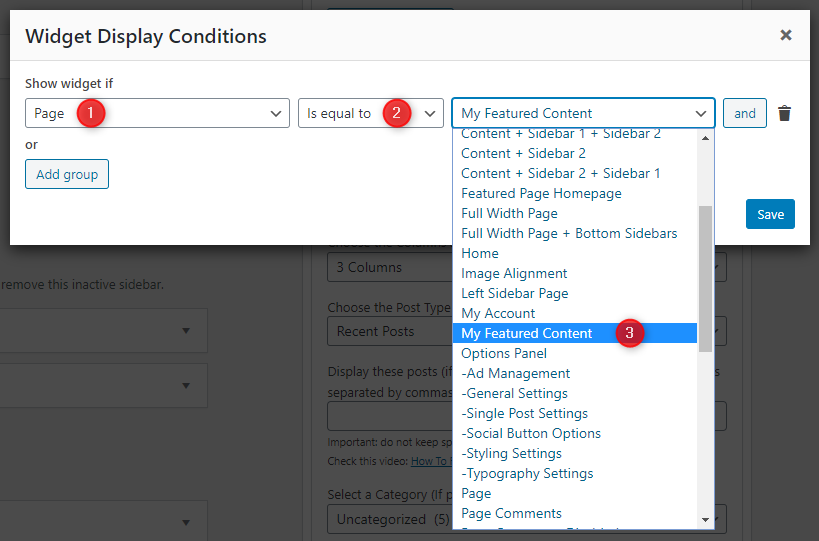
How to Control Widget Visibility by Location

1. If you'd like to display a widget in specific locations only, please begin by installing and activating the Widget Display Conditions or Widget Context plugin.

2. Drag and drop your widget into any of the widget areas below:

  1. Header Right Widgets
  2. Sidebar 1 Widgets
  3. Sidebar 2 Widgets
  4. Top Full Width Widgets (Everywhere)
  5. Bottom Full Width Widgets (Everywhere)
  6. Footer Top Widgets
  7. Footer 1 Widgets
  8. Footer 2 Widgets
  9. Footer 3 Widgets
  10. Footer 4 Widgets
  11. Footer 5 Widgets
  12. Footer 6 Widgets
  13. Footer Bottom Widgets

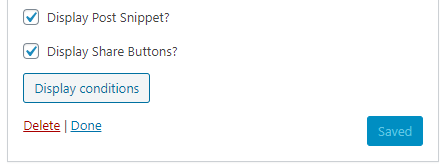
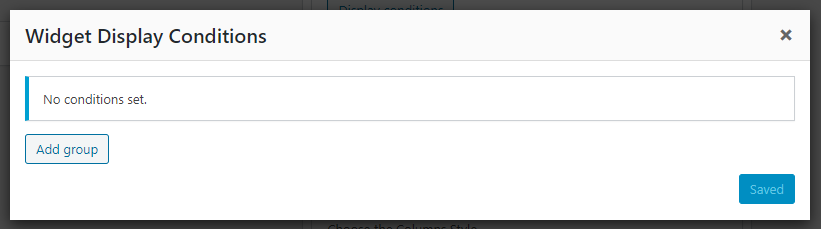
3. If you are using Widget Display Conditions plugin, you will see a button called Display conditions at the bottom of your widget settings. Click on that button.

4. Now click on Add group button.

5. Set your widget display conditions and click save.

Custom Page Templates

GridLane PRO includes 28 custom page and post templates that let you create pages and posts with unique layouts beyond the default design. You can assign these templates when editing any page or post, whether you're using the Classic Editor or the Gutenberg Block Editor.

Special Function Templates

These custom page templates provide specific functionality for common website needs:

  • Featured Content: Displays featured post widgets instead of regular content, perfect for showcasing selected posts.
  • Contact Form: Creates a contact page with a built-in contact form for visitors to reach you.
  • Sitemap: Displays a structured list of your site's pages, categories, and archives for better navigation.
  • Authors: Shows a list of all authors on your site with their profiles and post counts.

Layout Templates

These templates control how content and sidebars are arranged on your pages and posts:

  • "Full Width, no sidebar" (Page): Displays the page content in full width without any sidebars.
  • "Full Width, bottom sidebar" (Page): Displays the page content in full width with a sidebar below it.
  • "Content + Sidebar 1" (Page): Shows the page content on the left and a sidebar on the right.
  • "Sidebar 1 + Content" (Page): Shows a sidebar on the left and the page content on the right.
  • "Content + Sidebar 2" (Page): Shows the page content on the left and a different sidebar on the right.
  • "Sidebar 2 + Content" (Page): Shows a sidebar on the left and the page content on the right.
  • "Content + Sidebar 1 + Sidebar 2" (Page): Shows content on the left, then two sidebars.
  • "Sidebar 1 + Content + Sidebar 2" (Page): Shows sidebar, content, sidebar.
  • "Sidebar 1 + Sidebar 2 + Content" (Page): Shows two sidebars on the left, content on the right.
  • "Content + Sidebar 2 + Sidebar 1" (Page): Shows content, sidebar2, sidebar1.
  • "Sidebar 2 + Content + Sidebar 1" (Page): Shows sidebar2, content, sidebar1.
  • "Sidebar 2 + Sidebar 1 + Content" (Page): Shows two sidebars, content.
  • "Full Width, no sidebar" (Post): Displays the post content in full width without any sidebars.
  • "Full Width, bottom sidebar" (Post): Displays the post content in full width with a sidebar below it.
  • "Content + Sidebar 1" (Post): Shows the post content on the left and a sidebar on the right.
  • "Sidebar 1 + Content" (Post): Shows a sidebar on the left and the post content on the right.
  • "Content + Sidebar 2" (Post): Shows the post content on the left and a different sidebar on the right.
  • "Sidebar 2 + Content" (Post): Shows a sidebar on the left and the post content on the right.
  • "Content + Sidebar 1 + Sidebar 2" (Post): Shows content on the left, then two sidebars.
  • "Sidebar 1 + Content + Sidebar 2" (Post): Shows sidebar, content, sidebar.
  • "Sidebar 1 + Sidebar 2 + Content" (Post): Shows two sidebars on the left, content on the right.
  • "Content + Sidebar 2 + Sidebar 1" (Post): Shows content, sidebar2, sidebar1.
  • "Sidebar 2 + Content + Sidebar 1" (Post): Shows sidebar2, content, sidebar1.
  • "Sidebar 2 + Sidebar 1 + Content" (Post): Shows two sidebars, content.
  • "Featured Content" (Page): Displays featured post widgets instead of the regular page content.
  • "Contact Form" (Page): Adds a simple, built-in contact form for visitors to reach you.
  • "Authors" (Page): Shows a list of all authors on your site with avatars, bios, and post counts.
  • "Sitemap" (Page): Displays a full list of your site’s pages, categories, tags, and archives.

How to Assign a Custom Template:

  1. Go to Pages or PostsAdd New or edit an existing page/post.
  2. Look for the Template option:
    • In Gutenberg: Make sure the right sidebar is visible. Then click the Page or Post tab and scroll down to find the Template option.
    • In Classic Editor: Make sure the Page Attributes or Post Attributes box is enabled via the Screen Options tab at the top right. Then, locate it in the right sidebar and use the Template dropdown.
  3. Select the desired template from the list.
  4. Click Publish or Update to apply the template.

How to Create a Contact Page

GridLane PRO includes a built-in Contact Form template that allows you to easily add a clean and responsive contact form to your site, without needing any additional plugins.

Step 1: Create the Contact Page

  1. Go to WordPress DashboardPagesAdd New.
  2. Give your page a title like Contact Us.
  3. Look for the Template option:
    • In Gutenberg: Make sure the right sidebar is visible. Then click the Page tab and scroll down to find the Template dropdown.
    • In Classic Editor: Make sure the Page Attributes box is enabled via the Screen Options tab at the top right. Then, locate it in the right sidebar and use the Template dropdown.
  4. Select the Contact Form template.
  5. Click Publish.

Step 2: Configure the Contact Form Email Address

To receive messages submitted via the built-in contact form, you must set your email address:

  1. Go to WordPress DashboardAppearanceCustomize.
  2. Open Theme OptionsPage Templates Options.
  3. Enter your preferred email address in the Contact Form Email Address field.
  4. Click Publish to save changes.

Note: If you do not set the Contact Form Email Address in the Customizer, the form will not send emails.

How the Form Works

  • The form includes fields for Name, Email, Subject, and Message.
  • Messages are sent to the email address you set in Page Templates Options.

Spam Protection & Customization

While the built-in form is lightweight and convenient, you can use a plugin like Contact Form 7 if you need advanced form features such as spam protection, file uploads, or conditional fields.

How to Create a Sitemap Page

GridLane PRO includes a built-in Sitemap page template that displays a full, structured list of your site’s content. It includes pages, posts, categories, tags, archives, and authors. This improves user navigation and SEO.

  1. Go to WordPress DashboardPagesAdd New.
  2. Enter a title like Sitemap.
  3. Look for the Template option:
    • In Gutenberg: Make sure the right sidebar is visible. Then click the Page tab and scroll to find the Template dropdown.
    • In Classic Editor: Make sure the Page Attributes box is enabled via the Screen Options tab at the top right. Then locate the Template dropdown in the right sidebar.
  4. Select the Sitemap template.
  5. Click Publish to make the sitemap live.

What’s Included in the Sitemap Page

  • List of all Pages
  • List of all Categories and Tags
  • Monthly Archives
  • List of all Authors with links to their posts

This page is automatically generated and updates as new content is added to your site.

How to Create a Site Authors Page

GridLane PRO includes a built-in Authors page template that displays a list of all users with the Author role or higher. It shows their name, avatar, bio, and social profiles.

Step 1: Create the Authors Page

  1. Go to WordPress DashboardPagesAdd New.
  2. Enter a title like Our Authors or Meet the Team.
  3. Look for the Template option:
    • In Gutenberg: Make sure the right sidebar is visible. Then click the Page tab and scroll down to find the Template dropdown.
    • In Classic Editor: Make sure the Page Attributes box is enabled via the Screen Options tab at the top right. Then, locate it in the right sidebar and use the Template dropdown.
  4. Select the Authors template.
  5. Click Publish.

Step 2: Customize Author Display Settings (Optional)

  1. Go to AppearanceCustomize.
  2. Navigate to Theme OptionsPage Templates Options.
  3. You can toggle the following settings:

    • Hide site administrators from the Authors page.
    • Hide authors with zero posts from the Authors page.
  4. Click Publish to save your changes.

Author Details Displayed

  • Each listed user must have the role of Author, Editor, or Administrator.
  • The template shows each author’s display name, avatar, bio (description), and social profiles.
  • You can set each author's bio under UsersProfileBiographical Info.
  • You can set each author's social links under UsersProfileContact Info.

Customizer Theme Options

To see available WordPress Customizer theme options:

  1. Go to your WordPress Dashboard.
  2. Navigate to Appearance → Customize.
  3. Click on Theme Options.

Site Identity Options

Below is the complete list of Site Identity Options available:

Option ID Option Name Description Control Type Accepted Value Default
custom_logo Logo Image ID of the custom logo uploaded through the Customizer. Media Uploader Integer (attachment ID) 0 (none)
logo_location Logo Location Choose where to display the site logo relative to the site title / tagline. Dropdown

One of the values below:

  • Before Site Title and Tagline
  • Above Site Title and Tagline
Above Site Title and Tagline
blogname Site Title Main title of the website shown in the header, browser-tabs, and search-results. Text A string “My WordPress Site” (installer-set)
blogdescription Tagline Short descriptive sentence (appears next to or below the title when supported by the theme). Text A string “Just another WordPress site”
display_header_text Display Site Title & Tagline Toggles whether the title/tagline are printed on the front-end. When off they remain in the markup for accessibility but are hidden with CSS. Toggle Switch true / false true
site_icon Site Icon (Favicon) Image ID for the favicon/app-icon (512 × 512 px recommended). Used in browser tabs, bookmark tiles and WP mobile app. Media Uploader Integer (attachment ID) 0 (none)

Colors Options

Below is the complete list of Colors Options available:

Option ID Option Name Description Control Type Accepted Value Default
header_text_hover_colorHeader Hover Text ColorPick the Header Hover Text Color.Color PickerHex color code (e.g. #ffffff)#dddddd
body_text_colorMain Text ColorPick the Main Text Color.Color PickerHex color code (e.g. #ffffff)#555555
link_colorMain Link ColorPick the Main Link Color.Color PickerHex color code (e.g. #ffffff)#666666
link_hover_colorMain Link Hover ColorPick the Main Link Hover Color.Color PickerHex color code (e.g. #ffffff)#000000
headings_colorGeneral Headings ColorPick the General Headings Color.Color PickerHex color code (e.g. #ffffff)#111111
header_bg_colorHeader Background ColorPick the Header Background Color.Color PickerHex color code (e.g. #ffffff)#000000
header_bsh_colorHeader Box-Shadow ColorDefault value is: 0 2px 5px rgba(0,0,0,0.5)

To remove this box-shadow, enter value: none
Text InputText string0 2px 5px rgba(0,0,0,0.5)
header_image_title_colorHeader Image Area Title ColorPick the Header Image Area Title Color.Color PickerHex color code (e.g. #ffffff)#ffffff
header_image_title_hover_colorHeader Image Area Title Hover ColorPick the Header Image Area Title Hover Color.Color PickerHex color code (e.g. #ffffff)#ffffff
header_image_desc_colorHeader Image Area Description ColorPick the Header Image Area Description Color.Color PickerHex color code (e.g. #ffffff)#ffffff
primary_menu_colors_textPrimary Menu ColorsSet the primary Menu Colors.Text InputText string(empty)
primary_menu_colorPrimary Menu Link ColorPick the Primary Menu Link Color.Color PickerHex color code (e.g. #ffffff)#ffffff
primary_menu_shadow_colorPrimary Menu Link Shadow ColorPick the Primary Menu Link Shadow Color.Color PickerHex color code (e.g. #ffffff)#000000
primary_menu_hover_colorPrimary Menu Link Hover ColorPick the Primary Menu Link Hover Color.Color PickerHex color code (e.g. #ffffff)#ffffff
primary_menu_hover_bg_colorPrimary Menu Link Hover Background ColorPick the Primary Menu Link Hover Background Color.Color PickerHex color code (e.g. #ffffff)#000000
primary_submenu_one_bg_colorPrimary Sub Menu Background ColorPick the Primary Sub Menu Background Color.Color PickerHex color code (e.g. #ffffff)#333333
primary_submenu_bd_colorPrimary Sub Menu Border ColorPick the Primary Sub Menu Border Color.Color PickerHex color code (e.g. #ffffff)#555555
primary_menu_icon_colorPrimary Responsive Menu Icon ColorPick the Primary Responsive Menu Icon Color.Color PickerHex color code (e.g. #ffffff)#ffffff
secondary_menu_colors_textSecondary Menu ColorsSet the secondary Menu Colors.Text InputText string(empty)
secondary_menu_bg_colorSecondary Menu Background ColorPick the Secondary Menu Background Color.Color PickerHex color code (e.g. #ffffff)#111111
secondary_menu_bd_colorSecondary Menu Border ColorPick the Secondary Menu Border Color.Color PickerHex color code (e.g. #ffffff)#333333
secondary_menu_colorSecondary Menu Link ColorPick the Secondary Menu Link Color.Color PickerHex color code (e.g. #ffffff)#ffffff
secondary_menu_shadow_colorSecondary Menu Link Shadow ColorPick the Secondary Menu Link Shadow Color.Color PickerHex color code (e.g. #ffffff)#000000
secondary_menu_hover_colorSecondary Menu Link Hover ColorPick the Secondary Menu Link Hover Color.Color PickerHex color code (e.g. #ffffff)#dddddd
secondary_menu_hover_bg_colorSecondary Menu Link Hover Background ColorPick the Secondary Menu Link Hover Background Color.Color PickerHex color code (e.g. #ffffff)#000000
secondary_submenu_one_bg_colorSecondary Sub Menu Background ColorPick the Secondary Sub Menu Background Color.Color PickerHex color code (e.g. #ffffff)#222222
secondary_submenu_one_bd_colorSecondary Sub Menu Border ColorPick the Secondary Sub Menu Border Color.Color PickerHex color code (e.g. #ffffff)#444444
secondary_menu_icon_colorSecondary Responsive Menu Icon ColorPick the Secondary Responsive Menu Icon Color.Color PickerHex color code (e.g. #ffffff)#ffffff
news_ticker_colors_textNews Ticker ColorsSet the news Ticker Colors.Text InputText string(empty)
news_ticker_bg_colorNews Ticker Background ColorPick the News Ticker Background Color.Color PickerHex color code (e.g. #ffffff)#dddddd
news_ticker_heading_colorNews Ticker Heading ColorPick the News Ticker Heading Color.Color PickerHex color code (e.g. #ffffff)#ffffff
news_ticker_heading_bg_colorNews Ticker Heading Background ColorPick the News Ticker Heading Background Color.Color PickerHex color code (e.g. #ffffff)#3498db
news_ticker_date_colorNews Ticker Dates Text ColorPick the News Ticker Dates Text Color.Color PickerHex color code (e.g. #ffffff)#ffffff
news_ticker_date_bg_colorNews Ticker Dates Background ColorPick the News Ticker Dates Background Color.Color PickerHex color code (e.g. #ffffff)#222222
news_ticker_text_colorNews Ticker Text ColorPick the News Ticker Text Color.Color PickerHex color code (e.g. #ffffff)#000000
news_ticker_hover_text_colorNews Ticker Hover Text ColorPick the News Ticker Hover Text Color.Color PickerHex color code (e.g. #ffffff)#222222
singular_posts_colors_textSingle Posts ColorsSet the single Posts Colors.Text InputText string(empty)
content_bg_colorSingle Posts Background ColorPick the Single Posts Background Color.Color PickerHex color code (e.g. #ffffff)#ffffff
content_bd_one_colorSingle Posts Border ColorPick the Single Posts Border Color.Color PickerHex color code (e.g. #ffffff)#dddddd
post_title_colorSingle Post Title ColorPick the Single Post Title Color.Color PickerHex color code (e.g. #ffffff)#000000
post_title_shadow_colorSingle Post Title Shadow ColorPick the Single Post Title Shadow Color.Color PickerHex color code (e.g. #ffffff)#ffffff
post_title_hover_colorSingle Post Title Hover ColorPick the Single Post Title Hover Color.Color PickerHex color code (e.g. #ffffff)#333333
post_body_link_colorPost Content Link ColorPick the Post Content Link Color.Color PickerHex color code (e.g. #ffffff)#409BD4
post_body_link_hover_colorPost Content Link Hover ColorPick the Post Content Link Hover Color.Color PickerHex color code (e.g. #ffffff)#08ACD5
post_meta_colorSingle Post Meta ColorPick the Single Post Meta Color.Color PickerHex color code (e.g. #ffffff)#666666
post_meta_hover_colorSingle Post Meta Hover ColorPick the Single Post Meta Hover Color.Color PickerHex color code (e.g. #ffffff)#000000
author_bio_bg_colorAuthor Bio Box Background ColorPick the Author Bio Box Background Color.Color PickerHex color code (e.g. #ffffff)#f2f2f2
author_bio_bd_colorAuthor Bio Box Border 1 ColorPick the Author Bio Box Border 1 Color.Color PickerHex color code (e.g. #ffffff)#dddddd
author_bio_bd_two_colorAuthor Bio Box Border 2 ColorPick the Author Bio Box Border 2 Color.Color PickerHex color code (e.g. #ffffff)#ffffff
author_bio_colorAuthor Bio Box Text ColorPick the Author Bio Box Text Color.Color PickerHex color code (e.g. #ffffff)#555555
author_bio_link_colorAuthor Bio Box Link ColorPick the Author Bio Box Link Color.Color PickerHex color code (e.g. #ffffff)#111111
author_bio_link_hover_colorAuthor Bio Box Link Hover ColorPick the Author Bio Box Link Hover Color.Color PickerHex color code (e.g. #ffffff)#409BD4
list_posts_colors_textList Posts ColorsSet the list Posts Colors.Text InputText string(empty)
list_post_title_colorList Post Title ColorPick the List Post Title Color.Color PickerHex color code (e.g. #ffffff)#000000
list_post_title_hover_colorList Post Title Hover ColorPick the List Post Title Hover Color.Color PickerHex color code (e.g. #ffffff)#333333
list_post_meta_colorList Post Meta ColorPick the List Post Meta Color.Color PickerHex color code (e.g. #ffffff)#3498db
list_post_meta_hover_colorList Post Meta Hover ColorPick the List Post Meta Hover Color.Color PickerHex color code (e.g. #ffffff)#000000
grid_posts_colors_textGrid Posts ColorsSet the grid Posts Colors.Text InputText string(empty)
grid_post_title_colorGrid Post Title ColorPick the Grid Post Title Color.Color PickerHex color code (e.g. #ffffff)#000000
grid_post_title_shadow_colorGrid Post Title Shadow ColorPick the Grid Post Title Shadow Color.Color PickerHex color code (e.g. #ffffff)#ffffff
grid_post_title_hover_colorGrid Post Title Hover ColorPick the Grid Post Title Hover Color.Color PickerHex color code (e.g. #ffffff)#409BD4
grid_post_header_bg_colorGrid Post Likes/Views Data Background ColorDefault value is: rgba(0, 0, 0, 0.6)Text InputText stringrgba(0, 0, 0, 0.6)
grid_post_header_bsh_colorGrid Post Likes/Views Data Box-Shadow ColorDefault value is: 0 2px 5px rgba(0,0,0,0.5)

To remove this box-shadow, enter value: none
Text InputText string0 2px 5px rgba(0,0,0,0.5)
grid_post_meta_colorGrid Post Meta ColorPick the Grid Post Meta Color.Color PickerHex color code (e.g. #ffffff)#3498db
grid_post_meta_hover_colorGrid Post Meta Hover ColorPick the Grid Post Meta Hover Color.Color PickerHex color code (e.g. #ffffff)#000000
grid_postcats_colorGrid Post Categories ColorPick the Grid Post Categories Color.Color PickerHex color code (e.g. #ffffff)#ffffff
grid_postcats_bg_colorGrid Post Categories Background ColorPick the Grid Post Categories Background Color.Color PickerHex color code (e.g. #ffffff)#3498db
grid_postcats_hover_colorGrid Post Categories Hover ColorPick the Grid Post Categories Hover Color.Color PickerHex color code (e.g. #ffffff)#ffffff
grid_postcats_bg_hover_colorGrid Post Categories Hover Background ColorPick the Grid Post Categories Hover Background Color.Color PickerHex color code (e.g. #ffffff)#000000
loadmore_colorAjax Load More Button / Navigation Links ColorPick the Ajax Load More Button / Navigation Links Color.Color PickerHex color code (e.g. #ffffff)#ffffff
loadmore_bg_colorAjax Load More Button / Navigation Links Background ColorPick the Ajax Load More Button / Navigation Links Background Color.Color PickerHex color code (e.g. #ffffff)#333333
loadmore_bd_colorAjax Load More Button / Navigation Links Border ColorPick the Ajax Load More Button / Navigation Links Border Color.Color PickerHex color code (e.g. #ffffff)#555555
loadmore_hover_colorAjax Load More Button / Navigation Links Hover ColorPick the Ajax Load More Button / Navigation Links Hover Color.Color PickerHex color code (e.g. #ffffff)#ffffff
loadmore_bg_hover_colorAjax Load More Button / Navigation Links Hover Background ColorPick the Ajax Load More Button / Navigation Links Hover Background Color.Color PickerHex color code (e.g. #ffffff)#3498db
loadmore_bd_hover_colorAjax Load More Button / Navigation Links Hover Border ColorPick the Ajax Load More Button / Navigation Links Hover Border Color.Color PickerHex color code (e.g. #ffffff)#000000
loading_bg_colorAjax Loading Animation Background ColorPick the Ajax Loading Animation Background Color.Color PickerHex color code (e.g. #ffffff)#0a87db
rposts_colorMini Related Posts Title ColorPick the Mini Related Posts Title Color.Color PickerHex color code (e.g. #ffffff)#000000
rposts_shadow_colorMini Related Posts Title Shadow ColorPick the Mini Related Posts Title Shadow Color.Color PickerHex color code (e.g. #ffffff)#ffffff
rposts_hover_colorMini Related Posts Title Hover ColorPick the Mini Related Posts Title Hover Color.Color PickerHex color code (e.g. #ffffff)#409BD4
pagination_colorPosts Pagination Links ColorPick the Posts Pagination Links Color.Color PickerHex color code (e.g. #ffffff)#444444
pagination_bg_colorPosts Pagination Links Background ColorPick the Posts Pagination Links Background Color.Color PickerHex color code (e.g. #ffffff)#eeeeee
pagination_bd_colorPosts Pagination Links Border ColorPick the Posts Pagination Links Border Color.Color PickerHex color code (e.g. #ffffff)#cccccc
pagination_hover_colorPosts Pagination Links Hover ColorPick the Posts Pagination Links Hover Color.Color PickerHex color code (e.g. #ffffff)#000000
pagination_bg_hover_colorPosts Pagination Links Hover Background ColorPick the Posts Pagination Links Hover Background Color.Color PickerHex color code (e.g. #ffffff)#dddddd
pagination_bd_hover_colorPosts Pagination Links Hover Border ColorPick the Posts Pagination Links Hover Border Color.Color PickerHex color code (e.g. #ffffff)#bbbbbb
likes_colorPost Likes Button / Post Views ColorPick the Post Likes Button / Post Views Color.Color PickerHex color code (e.g. #ffffff)#ffffff
likes_hover_colorPost Likes Button Hover ColorPick the Post Likes Button Hover Color.Color PickerHex color code (e.g. #ffffff)#ff0000
sidebar_colors_textWidgets ColorsSet the widgets Colors.Text InputText string(empty)
sidebar_title_bg_colorWidgets Title Background ColorPick the Widgets Title Background Color.Color PickerHex color code (e.g. #ffffff)#3498db
sidebar_title_colorWidgets Title ColorPick the Widgets Title Color.Color PickerHex color code (e.g. #ffffff)#ffffff
sidebar_link_colorWidgets Link ColorPick the Widgets Link Color.Color PickerHex color code (e.g. #ffffff)#444444
sidebar_link_hover_colorWidgets Link Hover ColorPick the Widgets Link Hover Color.Color PickerHex color code (e.g. #ffffff)#666666
archive_title_colorArchive Page Titles ColorPick the Archive Page Titles Color.Color PickerHex color code (e.g. #ffffff)#000000
archive_title_shadow_colorArchive Page Titles Shadow ColorPick the Archive Page Titles Shadow Color.Color PickerHex color code (e.g. #ffffff)#ffffff
comments_title_colorComments Titles ColorPick the Comments Titles Color.Color PickerHex color code (e.g. #ffffff)#000000
comments_title_shadow_colorComments Titles Shadow ColorPick the Comments Titles Shadow Color.Color PickerHex color code (e.g. #ffffff)#ffffff
tag_cloud_colorTag Cloud Link ColorPick the Tag Cloud Link Color.Color PickerHex color code (e.g. #ffffff)#666666
tag_cloud_bg_colorTag Cloud Link BackgroundPick the tag Cloud Link Background color.Color PickerHex color code (e.g. #ffffff)#eeeeee
tag_cloud_bd_colorTag Cloud Link BorderPick the tag Cloud Link Border color.Color PickerHex color code (e.g. #ffffff)#dddddd
tag_cloud_hover_colorTag Cloud Link Hover ColorPick the Tag Cloud Link Hover Color.Color PickerHex color code (e.g. #ffffff)#000000
tag_cloud_hover_bg_colorTag Cloud Link Hover BackgroundPick the tag Cloud Link Hover Background color.Color PickerHex color code (e.g. #ffffff)#dddddd
tag_cloud_hover_bd_colorTag Cloud Link Hover BorderPick the tag Cloud Link Hover Border color.Color PickerHex color code (e.g. #ffffff)#cccccc
tabnames_colorTabbed Widget Names ColorPick the Tabbed Widget Names Color.Color PickerHex color code (e.g. #ffffff)#ffffff
tabnames_bg_colorTabbed Widget Names Background ColorPick the Tabbed Widget Names Background Color.Color PickerHex color code (e.g. #ffffff)#000000
tabnames_hover_colorTabbed Widget Names Hover ColorPick the Tabbed Widget Names Hover Color.Color PickerHex color code (e.g. #ffffff)#ffffff
tabnames_bg_hover_colorTabbed Widget Names Hover Background ColorPick the Tabbed Widget Names Hover Background Color.Color PickerHex color code (e.g. #ffffff)#3498db
social_colors_textSocial Buttons Area ColorsSet the social Buttons Area Colors.Text InputText string(empty)
social_bg_colorSocial Buttons Area Background ColorPick the Social Buttons Area Background Color.Color PickerHex color code (e.g. #ffffff)#3498db
social_text_colorSocial Buttons Text ColorPick the Social Buttons Text Color.Color PickerHex color code (e.g. #ffffff)#ffffff
footer_colors_textFooter ColorsSet the footer Colors.Text InputText string(empty)
footer_bg_colorFooter Background ColorPick the Footer Background Color.Color PickerHex color code (e.g. #ffffff)#222222
footer_text_colorFooter Text ColorPick the Footer Text Color.Color PickerHex color code (e.g. #ffffff)#eeeeee
footer_link_colorFooter Link ColorPick the Footer Link Color.Color PickerHex color code (e.g. #ffffff)#dddddd
footer_link_hover_colorFooter Link Hover ColorPick the Footer Link Hover Color.Color PickerHex color code (e.g. #ffffff)#ffffff
footer_title_colorFooter Title ColorPick the Footer Title Color.Color PickerHex color code (e.g. #ffffff)#ffffff
footer_title_bd_one_colorFooter Title Border 1 ColorPick the Footer Title Border 1 Color.Color PickerHex color code (e.g. #ffffff)#333333
footer_title_bd_two_colorFooter Title Border 2 ColorPick the Footer Title Border 2 Color.Color PickerHex color code (e.g. #ffffff)#111111
cp_bg_colorCopyrights Background ColorPick the Copyrights Background Color.Color PickerHex color code (e.g. #ffffff)#1e1e1e
cp_bd_colorCopyrights Border ColorPick the Copyrights Border Color.Color PickerHex color code (e.g. #ffffff)#333333
cp_colorCopyrights Text ColorPick the Copyrights Text Color.Color PickerHex color code (e.g. #ffffff)#ecfff1
cp_hover_colorCopyrights Hover Text ColorPick the Copyrights Hover Text Color.Color PickerHex color code (e.g. #ffffff)#ffffff
comment_colors_textComments ColorsSet the comments Colors.Text InputText string(empty)
comment_bd_color_oneComments Border ColorPick the Comments Border Color.Color PickerHex color code (e.g. #ffffff)#eaeaea
comment_bg_color_oneComments Background Color 1Pick the Comments Background Color 1.Color PickerHex color code (e.g. #ffffff)#f5f5f5
comment_bg_color_twoComments Background Color 2Pick the Comments Background Color 2.Color PickerHex color code (e.g. #ffffff)#fbfbfb
comment_meta_colorComments Meta ColorPick the Comments Meta Color.Color PickerHex color code (e.g. #ffffff)#888888
input_colors_textInput Elements ColorsSet the input Elements Colors.Text InputText string(empty)
button_text_colorButton Text ColorPick the Button Text Color.Color PickerHex color code (e.g. #ffffff)#ffffff
button_bg_colorButton Background ColorPick the Button Background Color.Color PickerHex color code (e.g. #ffffff)#333333
button_bd_colorButton Border ColorPick the Button Border Color.Color PickerHex color code (e.g. #ffffff)#e6e6e6
button_hover_bg_colorButton Hover Background ColorPick the Button Hover Background Color.Color PickerHex color code (e.g. #ffffff)#3498db
input_text_colorInput Text ColorPick the Input Text Color.Color PickerHex color code (e.g. #ffffff)#666666
input_bd_colorInput Border ColorPick the Input Border Color.Color PickerHex color code (e.g. #ffffff)#dddddd
input_hover_text_colorInput Hover Text ColorPick the Input Hover Text Color.Color PickerHex color code (e.g. #ffffff)#111111
selected_text_colors_textSelected Text ColorsSet the selected Text Colors.Text InputText string(empty)
selected_text_colorSelected Text ColorPick the Selected Text Color.Color PickerHex color code (e.g. #ffffff)#ffffff
selected_text_bg_colorSelected Text Background ColorPick the Selected Text Background Color.Color PickerHex color code (e.g. #ffffff)#333333
hr_colors_texthr (horizontal rule) tag ColorsSet the hr (horizontal rule) tag Colors.Text InputText string(empty)
hr_bg_colorhr Tag Background ColorPick the hr Tag Background Color.Color PickerHex color code (e.g. #ffffff)#ffffff
hr_bd_top_colorhr Tag Top Border ColorPick the hr Tag Top Border Color.Color PickerHex color code (e.g. #ffffff)#e6e6e6
hr_bd_bottom_colorhr Tag Bottom Border ColorPick the hr Tag Bottom Border Color.Color PickerHex color code (e.g. #ffffff)#f6f6f6
hr_shadow_colorhr Tag Box Shadow ColorPick the hr Tag Box Shadow Color.Color PickerHex color code (e.g. #ffffff)#f2f2f2
pre_colors_textpre Tag ColorsSet the pre Tag Colors.Text InputText string(empty)
pre_bg_colorpre Tag Background ColorPick the pre Tag Background Color.Color PickerHex color code (e.g. #ffffff)#1d1f21
pre_colorpre Tag Text ColorPick the pre Tag Text Color.Color PickerHex color code (e.g. #ffffff)#ffffff
code_colors_textcode Tag ColorsSet the code Tag Colors.Text InputText string(empty)
code_bg_colorcode Tag Background ColorPick the code Tag Background Color.Color PickerHex color code (e.g. #ffffff)#ffffe0
code_colorcode Tag Text ColorPick the code Tag Text Color.Color PickerHex color code (e.g. #ffffff)#222222
disable_color_optionsDisable All Color OptionsIf you check this option, all above colors options will have no effect. Default colors of the theme will be used. It may be help to improve the speed of the site. You can still change colors adding custom CSS to "Additional CSS" area in Customizer.

Note: After activating/deactivating this option, click on "Publish" button to save Customizer options. After that refresh Customizer before doing other changes in Customizer.
Checkboxtrue / falsefalse

Font Options

Below is the complete list of Font Options available:

Option ID Option Name Description Control Type Accepted Value Default
font_subsetsFont SubsetsSelect which font subsets should be supported. If you choose only the languages that you need, you will help prevent slowness on your webpage.Themesdna-Multiple-SelectMixed (depends on setting)(empty)
body_fontsBody Font-FamilyPick a font for body text. Default is Poppins.DropdownA font name selected from the available font name list.Poppins
body_font_sizeBody Font-SizeChoose body font size. Default is 13px.DropdownA font size value (in px) selected from the available font size list.13px
post_snippets_font_sizeGrid Post Snippets Font-SizeChoose grid post snippets font size. Default is 13px.DropdownA font size value (in px) selected from the available font size list.13px
post_body_font_sizeSingle Post Body Font-SizeChoose single post body font size. Default is 13px.DropdownA font size value (in px) selected from the available font size list.13px
body_font_weightBody Font-WeightChoose body font weight. Default is 400.Dropdown
  • 400
  • 500
  • 700
400
body_font_styleBody Font-StyleChoose body font style. Default is normal.Dropdown
  • Normal
  • Italic
Normal
body_line_heightBody Line-HeightEnter body line height. Default is 1.6.Text InputText string1.6
post_snippets_line_heightGrid Post Snippets Line-HeightEnter grid post snippets line height. Default is 1.6.Text InputText string1.6
post_body_line_heightSingle Post Body Line-HeightEnter single post body line height. Default is 1.7.Text InputText string1.7
site_title_fontsSite Title Font-FamilyPick a font for site title. Default is Poppins.DropdownA font name selected from the available font name list.Poppins
site_title_font_sizeSite Title Font-SizeChoose site title font size. Default is 20px.DropdownA font size value (in px) selected from the available font size list.20px
site_title_font_weightSite Title Font-WeightChoose site title font weight. Default is 700.Dropdown
  • 400
  • 500
  • 700
700
site_title_font_styleSite Title Font-StyleChoose site title font style. Default is normal.Dropdown
  • Normal
  • Italic
Normal
site_title_line_heightSite Title Line-HeightEnter site title line height. Default is 1.Text InputText string1
site_title_text_transformSite Title Text TransformSelect the text-transform property value for site title.Dropdown
  • None
  • Capitalize
  • Uppercase
  • Lowercase
  • Initial
  • Inherit
None
site_desc_fontsSite Description Font-FamilyPick a font for site description. Default is Poppins.DropdownA font name selected from the available font name list.Poppins
site_desc_font_sizeSite Description Font-SizeChoose site description font size. Default is 12px.DropdownA font size value (in px) selected from the available font size list.12px
site_desc_font_weightSite Description Font-WeightChoose site description font weight. Default is 400.Dropdown
  • 400
  • 500
  • 700
400
site_desc_font_styleSite Description Font-StyleChoose site description font style. Default is normal.Dropdown
  • Normal
  • Italic
Normal
site_desc_line_heightSite Description Line-HeightEnter site description line height. Default is 1.Text InputText string1
site_desc_text_transformSite Description Text TransformSelect the text-transform property value for site description.Dropdown
  • None
  • Capitalize
  • Uppercase
  • Lowercase
  • Initial
  • Inherit
None
header_image_title_fontsHeader Image Title Font-FamilyPick a font for header image title. Default is Poppins.DropdownA font name selected from the available font name list.Poppins
header_image_title_font_sizeHeader Image Title Font-SizeChoose header image title font size. Default is 20px.DropdownA font size value (in px) selected from the available font size list.20px
header_image_title_font_weightHeader Image Title Font-WeightChoose header image title font weight. Default is 700.Dropdown
  • 400
  • 500
  • 700
700
header_image_title_font_styleHeader Image Title Font-StyleChoose header image title font style. Default is normal.Dropdown
  • Normal
  • Italic
Normal
header_image_title_line_heightHeader Image Title Line-HeightEnter header image title line height. Default is 1.Text InputText string1
header_image_title_text_transformHeader Image Title Text TransformSelect the text-transform property value for header image title.Dropdown
  • None
  • Capitalize
  • Uppercase
  • Lowercase
  • Initial
  • Inherit
None
header_image_desc_fontsHeader Image Description Font-FamilyPick a font for header image description. Default is Poppins.DropdownA font name selected from the available font name list.Poppins
header_image_desc_font_sizeHeader Image Description Font-SizeChoose header image description font size. Default is 13px.DropdownA font size value (in px) selected from the available font size list.13px
header_image_desc_font_weightHeader Image Description Font-WeightChoose header image description font weight. Default is 400.Dropdown
  • 400
  • 500
  • 700
400
header_image_desc_font_styleHeader Image Description Font-StyleChoose header image description font style. Default is normal.Dropdown
  • Normal
  • Italic
Normal
header_image_desc_line_heightHeader Image Description Line-HeightEnter header image description line height. Default is 1.Text InputText string1
header_image_desc_text_transformHeader Image Description Text TransformSelect the text-transform property value for header image description.Dropdown
  • None
  • Capitalize
  • Uppercase
  • Lowercase
  • Initial
  • Inherit
None
primary_menu_fontsPrimary Menu Font-FamilyPick a font for the primary menu. Default is Poppins.DropdownA font name selected from the available font name list.Poppins
primary_menu_font_sizePrimary Menu Font-SizeChoose primary menu font size. Default is 13px.DropdownA font size value (in px) selected from the available font size list.13px
primary_menu_font_weightPrimary Menu Font-WeightChoose primary menu font weight. Default is 400.Dropdown
  • 400
  • 500
  • 700
400
primary_menu_font_stylePrimary Menu Font-StyleChoose primary menu font style. Default is normal.Dropdown
  • Normal
  • Italic
Normal
primary_menu_text_transformPrimary Menu Text TransformSelect the text-transform property value for primary menu.Dropdown
  • None
  • Capitalize
  • Uppercase
  • Lowercase
  • Initial
  • Inherit
None
secondary_menu_fontsSecondary Menu Font-FamilyPick a font for the secondary menu. Default is Poppins.DropdownA font name selected from the available font name list.Poppins
secondary_menu_font_sizeSecondary Menu Font-SizeChoose secondary menu font size. Default is 13px.DropdownA font size value (in px) selected from the available font size list.13px
secondary_menu_font_weightSecondary Menu Font-WeightChoose secondary menu font weight. Default is 500.Dropdown
  • 400
  • 500
  • 700
500
secondary_menu_font_styleSecondary Menu Font-StyleChoose secondary menu font style. Default is normal.Dropdown
  • Normal
  • Italic
Normal
secondary_menu_text_transformSecondary Menu Text TransformSelect the text-transform property value for secondary menu.Dropdown
  • None
  • Capitalize
  • Uppercase
  • Lowercase
  • Initial
  • Inherit
Uppercase
news_ticker_fontsNews Ticker Font-FamilyPick a font for the news ticker. Default is Poppins.DropdownA font name selected from the available font name list.Poppins
news_ticker_font_sizeNews Ticker Font-SizeChoose news ticker font size. Default is 13px.DropdownA font size value (in px) selected from the available font size list.13px
news_ticker_font_weightNews Ticker Font-WeightChoose news ticker font weight. Default is 500.Dropdown
  • 400
  • 500
  • 700
500
news_ticker_font_styleNews Ticker Font-StyleChoose news ticker font style. Default is normal.Dropdown
  • Normal
  • Italic
Normal
news_ticker_text_transformNews Ticker Text TransformSelect the text-transform property value for news ticker.Dropdown
  • None
  • Capitalize
  • Uppercase
  • Lowercase
  • Initial
  • Inherit
None
grid_post_title_fontsGrid Post Titles Font-FamilyPick a font for grid post titles. Default is Poppins.DropdownA font name selected from the available font name list.Poppins
grid_post_title_font_sizeGrid Post Titles Font-SizeChoose grid post titles font size. Default is 16px.DropdownA font size value (in px) selected from the available font size list.16px
grid_post_title_font_weightGrid Post Titles Font-WeightChoose grid post titles font weight. Default is 700.Dropdown
  • 400
  • 500
  • 700
700
grid_post_title_font_styleGrid Post Titles Font-StyleChoose grid post titles font style. Default is normal.Dropdown
  • Normal
  • Italic
Normal
grid_post_title_line_heightGrid Post Titles Line-HeightEnter grid post titles line height. Default is 1.4.Text InputText string1.4
grid_post_title_text_transformGrid Post Titles Text TransformSelect the text-transform property value for grid post titles.Dropdown
  • None
  • Capitalize
  • Uppercase
  • Lowercase
  • Initial
  • Inherit
None
grid_post_meta_fontsGrid Post Meta Font-FamilyPick a font for grid post meta. Default is Poppins.DropdownA font name selected from the available font name list.Poppins
grid_post_meta_font_sizeGrid Post Meta Font-SizeChoose grid post meta font size. Default is 11px.DropdownA font size value (in px) selected from the available font size list.11px
grid_post_meta_font_weightGrid Post Meta Font-WeightChoose grid post meta font weight. Default is 400.Dropdown
  • 400
  • 500
  • 700
400
grid_post_meta_font_styleGrid Post Meta Font-StyleChoose grid post meta font style. Default is normal.Dropdown
  • Normal
  • Italic
Normal
grid_post_meta_text_transformGrid Post Meta Text TransformSelect the text-transform property value for grid post meta.Dropdown
  • None
  • Capitalize
  • Uppercase
  • Lowercase
  • Initial
  • Inherit
None
grid_post_cats_fontsGrid Post Categories Font-FamilyPick a font for grid post categories. Default is Poppins.DropdownA font name selected from the available font name list.Poppins
grid_post_cats_font_sizeGrid Post Categories Font-SizeChoose grid post categories font size. Default is 11px.DropdownA font size value (in px) selected from the available font size list.11px
grid_post_cats_font_weightGrid Post Categories Font-WeightChoose grid post categories font weight. Default is 400.Dropdown
  • 400
  • 500
  • 700
400
grid_post_cats_font_styleGrid Post Categories Font-StyleChoose grid post categories font style. Default is normal.Dropdown
  • Normal
  • Italic
Normal
grid_post_cats_text_transformGrid Post Categories Text TransformSelect the text-transform property value for grid post categories.Dropdown
  • None
  • Capitalize
  • Uppercase
  • Lowercase
  • Initial
  • Inherit
Uppercase
list_post_title_fontsList Post Titles Font-FamilyPick a font for list post titles. Default is Poppins.DropdownA font name selected from the available font name list.Poppins
list_post_title_font_sizeList Post Titles Font-SizeChoose list post titles font size. Default is 16px.DropdownA font size value (in px) selected from the available font size list.16px
list_post_title_font_weightList Post Titles Font-WeightChoose list post titles font weight. Default is 700.Dropdown
  • 400
  • 500
  • 700
700
list_post_title_font_styleList Post Titles Font-StyleChoose list post titles font style. Default is normal.Dropdown
  • Normal
  • Italic
Normal
list_post_title_line_heightList Post Titles Line-HeightEnter list post titles line height. Default is 1.2.Text InputText string1.2
list_post_title_text_transformList Post Titles Text TransformSelect the text-transform property value for list post titles.Dropdown
  • None
  • Capitalize
  • Uppercase
  • Lowercase
  • Initial
  • Inherit
None
list_post_meta_fontsList Post Meta Font-FamilyPick a font for list post meta. Default is Poppins.DropdownA font name selected from the available font name list.Poppins
list_post_meta_font_sizeList Post Meta Font-SizeChoose list post meta font size. Default is 11px.DropdownA font size value (in px) selected from the available font size list.11px
list_post_meta_font_weightList Post Meta Font-WeightChoose list post meta font weight. Default is 400.Dropdown
  • 400
  • 500
  • 700
400
list_post_meta_font_styleList Post Meta Font-StyleChoose list post meta font style. Default is normal.Dropdown
  • Normal
  • Italic
Normal
list_post_meta_text_transformList Post Meta Text TransformSelect the text-transform property value for list post meta.Dropdown
  • None
  • Capitalize
  • Uppercase
  • Lowercase
  • Initial
  • Inherit
None
single_post_title_fontsPost Titles Font-FamilyPick a font for post titles. Default is Poppins.DropdownA font name selected from the available font name list.Poppins
single_post_title_font_sizePost Titles Font-SizeChoose post titles font size. Default is 24px.DropdownA font size value (in px) selected from the available font size list.24px
single_post_title_font_weightPost Titles Font-WeightChoose post titles font weight. Default is 700.Dropdown
  • 400
  • 500
  • 700
700
single_post_title_font_stylePost Titles Font-StyleChoose post titles font style. Default is normal.Dropdown
  • Normal
  • Italic
Normal
single_post_title_line_heightPost Titles Line-HeightEnter post titles line height. Default is 1.2.Text InputText string1.2
single_post_title_text_transformPost Titles Text TransformSelect the text-transform property value for post titles.Dropdown
  • None
  • Capitalize
  • Uppercase
  • Lowercase
  • Initial
  • Inherit
None
single_post_meta_fontsList Post Meta Font-FamilyPick a font for list post meta. Default is Poppins.DropdownA font name selected from the available font name list.Poppins
single_post_meta_font_sizeList Post Meta Font-SizeChoose list post meta font size. Default is 12px.DropdownA font size value (in px) selected from the available font size list.12px
single_post_meta_font_weightList Post Meta Font-WeightChoose list post meta font weight. Default is 400.Dropdown
  • 400
  • 500
  • 700
400
single_post_meta_font_styleList Post Meta Font-StyleChoose list post meta font style. Default is normal.Dropdown
  • Normal
  • Italic
Normal
single_post_meta_text_transformList Post Meta Text TransformSelect the text-transform property value for list post meta.Dropdown
  • None
  • Capitalize
  • Uppercase
  • Lowercase
  • Initial
  • Inherit
None
related_post_title_fontsRelated Post Titles Font-FamilyPick a font for related post titles. Default is Poppins.DropdownA font name selected from the available font name list.Poppins
related_post_title_font_sizeRelated Post Titles Font-SizeChoose related post titles font size. Default is 14px.DropdownA font size value (in px) selected from the available font size list.14px
related_post_title_font_weightRelated Post Titles Font-WeightChoose related post titles font weight. Default is 700.Dropdown
  • 400
  • 500
  • 700
700
related_post_title_font_styleRelated Post Titles Font-StyleChoose related post titles font style. Default is normal.Dropdown
  • Normal
  • Italic
Normal
related_post_title_line_heightRelated Post Titles Line-HeightEnter related post titles line height. Default is 1.2.Text InputText string1.2
related_post_title_text_transformRelated Post Titles Text TransformSelect the text-transform property value for related post titles.Dropdown
  • None
  • Capitalize
  • Uppercase
  • Lowercase
  • Initial
  • Inherit
None
widget_title_fontsMain/Sidebars Widget Titles Font-FamilyPick a font for sidebar widget titles. Default is Poppins.DropdownA font name selected from the available font name list.Poppins
widget_title_font_sizeMain/Sidebars Titles Font-SizeChoose main/sidebar titles font size. Default is 13px.DropdownA font size value (in px) selected from the available font size list.13px
widget_title_font_weightMain/Sidebars Titles Font-WeightChoose main/sidebar titles font weight. Default is 700.Dropdown
  • 400
  • 500
  • 700
700
widget_title_font_styleMain/Sidebars Titles Font-StyleChoose main/sidebar titles font style. Default is normal.Dropdown
  • Normal
  • Italic
Normal
sidebar_title_line_heightMain/Sidebars Titles Line-HeightEnter main/sidebar titles line height. Default is 1.Text InputText string1
widget_title_text_transformMain/Sidebars Titles Text TransformSelect the text-transform property value for main/sidebars titles.Dropdown
  • None
  • Capitalize
  • Uppercase
  • Lowercase
  • Initial
  • Inherit
Uppercase
footer_title_fontsFooter Widget Title Font-FamilyPick a font for footer widget titles. Default is Poppins.DropdownA font name selected from the available font name list.Poppins
footer_title_font_sizeFooter Title Font-SizeChoose footer title font size. Default is 14px.DropdownA font size value (in px) selected from the available font size list.14px
footer_title_font_weightFooter Title Font-WeightChoose footer title font weight. Default is 700.Dropdown
  • 400
  • 500
  • 700
700
footer_title_font_styleFooter Title Font-StyleChoose footer title font style. Default is normal.Dropdown
  • Normal
  • Italic
Normal
footer_title_line_heightFooter Title Line-HeightEnter footer title line height. Default is 1.Text InputText string1
footer_title_text_transformFooter Title Text TransformSelect the text-transform property value for footer title.Dropdown
  • None
  • Capitalize
  • Uppercase
  • Lowercase
  • Initial
  • Inherit
Uppercase
archive_title_fontsArchive Page Titles Font-FamilyPick a font for archive page titles. Default is Poppins.DropdownA font name selected from the available font name list.Poppins
archive_title_font_sizeArchive Page Titles Font-SizeChoose archive page titles font size. Default is 24px.DropdownA font size value (in px) selected from the available font size list.24px
archive_title_font_weightArchive Page Titles Font-WeightChoose archive page titles font weight. Default is 700.Dropdown
  • 400
  • 500
  • 700
700
archive_title_font_styleArchive Page Titles Font-StyleChoose archive page titles font style. Default is normal.Dropdown
  • Normal
  • Italic
Normal
archive_title_line_heightArchive Page Titles Line-HeightEnter archive page titles line height. Default is 1.Text InputText string1
archive_title_text_transformArchive Page Titles Text TransformSelect the text-transform property value for archive page titles.Dropdown
  • None
  • Capitalize
  • Uppercase
  • Lowercase
  • Initial
  • Inherit
None
comments_title_fontsComments Titles Font-FamilyPick a font for comments titles / related posts heading. Default is Poppins.DropdownA font name selected from the available font name list.Poppins
comments_title_font_sizeComments Titles Font-SizeChoose comments titles / related posts heading font size. Default is 18px.DropdownA font size value (in px) selected from the available font size list.18px
comments_title_font_weightComments Titles Font-WeightChoose comments titles / related posts heading font weight. Default is 700.Dropdown
  • 400
  • 500
  • 700
700
comments_title_font_styleComments Titles Font-StyleChoose comments titles / related posts heading font style. Default is normal.Dropdown
  • Normal
  • Italic
Normal
comments_title_line_heightComments Titles Line-HeightEnter comments titles / related posts heading line height. Default is 1.1.Text InputText string1.1
comments_title_text_transformComments Titles Text TransformSelect the text-transform property value for comments titles / related posts heading.Dropdown
  • None
  • Capitalize
  • Uppercase
  • Lowercase
  • Initial
  • Inherit
None
navigation_fontsPosts Navigation Font-FamilyPick a font for posts navigation. Default is Poppins.DropdownA font name selected from the available font name list.Poppins
navigation_font_sizePosts Navigation Font-SizeChoose posts navigation font size. Default is 15px.DropdownA font size value (in px) selected from the available font size list.15px
navigation_font_weightPosts Navigation Font-WeightChoose posts navigation font weight. Default is 700.Dropdown
  • 400
  • 500
  • 700
700
navigation_font_stylePosts Navigation Font-StyleChoose posts navigation font style. Default is normal.Dropdown
  • Normal
  • Italic
Normal
navigation_text_transformPosts Navigation Text TransformSelect the text-transform property value for posts navigation.Dropdown
  • None
  • Capitalize
  • Uppercase
  • Lowercase
  • Initial
  • Inherit
Uppercase
tag_cloud_fontsTag Cloud Widget Font-FamilyPick a font for the tag cloud widget. Default is Poppins.DropdownA font name selected from the available font name list.Poppins
tag_cloud_font_sizeTag Cloud Widget Font-SizeChoose tag cloud widget font size. Default is 11px.DropdownA font size value (in px) selected from the available font size list.11px
tag_cloud_font_weightTag Cloud Widget Font-WeightChoose tag cloud widget font weight. Default is 400.Dropdown
  • 400
  • 500
  • 700
400
tag_cloud_font_styleTag Cloud Widget Font-StyleChoose tag cloud widget font style. Default is normal.Dropdown
  • Normal
  • Italic
Normal
tag_cloud_text_transformTag Cloud Widget Text TransformSelect the text-transform property value for tag cloud widget.Dropdown
  • None
  • Capitalize
  • Uppercase
  • Lowercase
  • Initial
  • Inherit
None
headings_fontsGeneral Headings Font-FamilyPick a font for general headings. Default is Poppins.DropdownA font name selected from the available font name list.Poppins
headings_line_heightGeneral Headings Line-HeightEnter general headings line height. Default is 1.Text InputText string1
headings_text_transformGeneral Headings Text TransformSelect the text-transform property value for general headings.Dropdown
  • None
  • Capitalize
  • Uppercase
  • Lowercase
  • Initial
  • Inherit
None
h1_font_sizeH1 Font-SizeChoose H1 font size. Default is 32px.DropdownA font size value (in px) selected from the available font size list.32px
h1_font_weightH1 Font-WeightChoose H1 font weight. Default is 700.Dropdown
  • 400
  • 500
  • 700
700
h1_font_styleH1 Font-StyleChoose H1 font style. Default is normal.Dropdown
  • Normal
  • Italic
Normal
h2_font_sizeH2 Font-SizeChoose H2 font size. Default is 28px.DropdownA font size value (in px) selected from the available font size list.28px
h2_font_weightH2 Font-WeightChoose H2 font weight. Default is 700.Dropdown
  • 400
  • 500
  • 700
700
h2_font_styleH2 Font-StyleChoose H2 font style. Default is normal.Dropdown
  • Normal
  • Italic
Normal
h3_font_sizeH3 Font-SizeChoose H3 font size. Default is 24px.DropdownA font size value (in px) selected from the available font size list.24px
h3_font_weightH3 Font-WeightChoose H3 font weight. Default is 700.Dropdown
  • 400
  • 500
  • 700
700
h3_font_styleH3 Font-StyleChoose H3 font style. Default is normal.Dropdown
  • Normal
  • Italic
Normal
h4_font_sizeH4 Font-SizeChoose H4 font size. Default is 20px.DropdownA font size value (in px) selected from the available font size list.20px
h4_font_weightH4 Font-WeightChoose H4 font weight. Default is 700.Dropdown
  • 400
  • 500
  • 700
700
h4_font_styleH4 Font-StyleChoose H4 font style. Default is normal.Dropdown
  • Normal
  • Italic
Normal
h5_font_sizeH5 Font-SizeChoose H5 font size. Default is 18px.DropdownA font size value (in px) selected from the available font size list.18px
h5_font_weightH5 Font-WeightChoose H5 font weight. Default is 700.Dropdown
  • 400
  • 500
  • 700
700
h5_font_styleH5 Font-StyleChoose H5 font style. Default is normal.Dropdown
  • Normal
  • Italic
Normal
h6_font_sizeH6 Font-SizeChoose H6 font size. Default is 16px.DropdownA font size value (in px) selected from the available font size list.16px
h6_font_weightH6 Font-WeightChoose H6 font weight. Default is 700.Dropdown
  • 400
  • 500
  • 700
700
h6_font_styleH6 Font-StyleChoose H6 font style. Default is normal.Dropdown
  • Normal
  • Italic
Normal
button_fontsButtons Font-FamilyPick a font for buttons. Default is Poppins.DropdownA font name selected from the available font name list.Poppins
button_font_sizeButtons Font-SizeChoose buttons font size. Default is 13px.DropdownA font size value (in px) selected from the available font size list.13px
button_font_weightButtons Font-WeightChoose buttons font weight. Default is 400.Dropdown
  • 400
  • 500
  • 700
400
button_font_styleButtons Font-StyleChoose buttons font style. Default is normal.Dropdown
  • Normal
  • Italic
Normal
button_text_transformButtons Text TransformSelect the text-transform property value for buttons.Dropdown
  • None
  • Capitalize
  • Uppercase
  • Lowercase
  • Initial
  • Inherit
Uppercase
pre_fontspre/code Tags Font-FamilyPick a font for pre/code tags. Default is Consolas.DropdownA font name selected from the available font name list.Consolas
pre_font_sizepre/code Tags Font-SizeChoose pre/code tags font size. Default is 15px.DropdownA font size value (in px) selected from the available font size list.15px
pre_font_weightpre/code Tags Font-WeightChoose pre/code tags font weight. Default is 400.Dropdown
  • 400
  • 500
  • 700
400
pre_font_stylepre/code Tags Font-StyleChoose pre/code tags font style. Default is normal.Dropdown
  • Normal
  • Italic
Normal
disable_google_fontsDisable Google FontsIf you check this option, theme will stop loading Google fonts. You can select non Google fonts from font options. Check this option if you do not like Google fonts or need to improve the speed of your website.

Note: After activating/deactivating this option, click on "Publish" button to save Customizer options. After that refresh Customizer before doing other changes in Customizer.
Checkboxtrue / falsefalse
disable_font_optionsDisable All Font OptionsIf you check this option, all above fonts options will have no effect. Default fonts of the theme will be used. It may be help to improve the speed of the site. You can still change fonts adding custom CSS to "Additional CSS" area in Customizer.

Note: After activating/deactivating this option, click on "Publish" button to save Customizer options. After that refresh Customizer before doing other changes in Customizer.
Checkboxtrue / falsefalse

Header Image Options

Below is the complete list of Header Image Options available:

Option ID Option Name Description Control Type Accepted Value Default
hide_header_imageHide Header Image from EverywhereTurn on or off hide Header Image from Everywhere.Checkboxtrue / falsefalse
remove_header_image_linkRemove Link from Header ImageTurn on or off remove Link from Header Image.Checkboxtrue / falsefalse
hide_header_image_detailsHide both Title and Description from Header ImageIf you checked this option, header image title and description will be hidden from all screen sizes.Checkboxtrue / falsefalse
hide_header_image_titleHide Title from Header ImageIf you checked this option, header image title will be hidden from all screen sizes. This option has no effect if you have checked the option: "Hide both Title and Description from Header Image"Checkboxtrue / falsefalse
hide_header_image_descriptionHide Description from Header ImageIf you checked this option, header image description will be hidden from all screen sizes. This option has no effect if you have checked the option: "Hide both Title and Description from Header Image"Checkboxtrue / falsefalse
header_image_title_mobileShow Header Image Title on Smaller ScreensThis option has no effect if you have checked any of these options: "Hide both Title and Description from Header Image", "Hide Title from Header Image"Checkboxtrue / falsefalse
header_image_description_mobileShow Header Image Description on Smaller ScreensThis option has no effect if you have checked any of these options: "Hide both Title and Description from Header Image", "Hide Description from Header Image"Checkboxtrue / falsefalse
header_image_custom_textAdd Custom Title/Custom Description to Header ImageTurn on or off add Custom Title/Custom Description to Header Image.Checkboxtrue / falsefalse
header_image_custom_titleHeader Image Custom TitleSet the header Image Custom Title.Text InputText string(empty)
header_image_custom_descriptionHeader Image Custom DescriptionSet the header Image Custom Description.Text InputText string(empty)
header_image_destinationHeader Image Destination URLEnter the URL a visitor should go when he/she click on the header image. If you did not enter a URL below, header image will be linked to the homepage of your website.URL InputValid URL(empty)
header_image_coverAdd a Minimum Height to Header Image on Smaller ScreensTurn on or off add a Minimum Height to Header Image on Smaller Screens.Checkboxtrue / falsefalse
header_image_height_mobileHeader Image Minimum Height on Smaller ScreensEnter the minimum height value for header image height. Default is 200px
Note: This option has no effect until you check "Add a Minimum Height to Header Image on Smaller Screens" option.
Text InputText string200px
header_image_alt_textHeader Image Alt TextSet the header Image Alt Text.Text InputText string(empty)

Header Options

Below is the complete list of Header Options available:

Option ID Option Name Description Control Type Accepted Value Default
hide_taglineHide TaglineTurn on or off hide Tagline.Checkboxtrue / falsefalse
disable_sticky_headerDisable Sticky Feature from HeaderDisable Sticky Feature from HeaderCheckboxtrue / falsefalse
enable_sticky_mobile_headerEnable Sticky Feature on Header for Small Screen SizesEnable Sticky Feature on Header for Small Screen SizesCheckboxtrue / falsefalse
hide_header_contentHide Header ContentTurn on or off hide Header Content.Checkboxtrue / falsefalse
header_paddingHeader PaddingEnter the padding value for header content. Default is 10pxText InputText string10px
header_layoutHeader LayoutSelect the header layout style.Dropdown
  • Logo + Primary Menu
  • Logo + Header Banner
  • Full Width Header
Logo + Primary Menu
header_menu_social_widthsLogo + Primary Menu WidthsWhen you are using Logo + Primary Menu style using above settings, you can change widths of header areas changing the values given below.

Note: (Logo Width + Primary Menu Width) value must be less than 100 to prevent header layout break.
Text InputText string(empty)
logo_widthLogo WidthEnter the width of the title+description area of header(without percentage mark) if you have selected Default Header as Header Layout.
Default is 28 percent.
Text InputText string28
primary_menu_widthPrimary Menu WidthEnter the width of the primary menu area of header(without percentage mark) if you have selected "Logo + Primary Menu" as Header Layout.
Default is 70 percent.
Text InputText string70
header_banner_widthsLogo + Header Banner WidthsWhen you are using Logo + Header Banner style using above settings, you can change widths of header areas changing the values given below.

Note: (Logo Width + Header Banner Width) value must be less than 100 to prevent header layout break.
Text InputText string(empty)
logo_2_widthLogo WidthEnter the width of the title+description area of header(without percentage mark) if you have selected "Logo + Header Banner" as Header Layout.
Default is 40 percent.
Text InputText string40
banner_widthHeader Banner WidthEnter the width of the banner area of header(without percentage mark) if you have selected "Logo + Header Banner" as Header Layout.
Default is 58.4 percent.
Text InputText string58

Layout Options

Below is the complete list of Layout Options available:

Option ID Option Name Description Control Type Accepted Value Default
layout_typeLayout TypeSelect the layout type of your website.Dropdown
  • Boxed
  • Full
Full
site_widthWebsite Width of Non-Singular PagesEnter the width of non-singular pages of your website on the screens larger than 1277px.
Default is 1250px
Text InputText string1250px
site_width_singularWebsite Width of Singular PagesEnter the width of singular pages (single post of any post type - post, attachment, page, custom post types) of your website on the screens larger than 1277px.
Default is 1250px
Text InputText string1250px
singular_layoutSingular Layout StyleSelect your layout style for single post of any post type (post, attachment, page, custom post types).Radio Buttons
  • Sidebar 1 + Content + Sidebar 2
  • Sidebar 2 + Content + Sidebar 1
  • Content + Sidebar 1 + Sidebar 2
  • Content + Sidebar 2 + Sidebar 1
  • Sidebar 1 + Sidebar 2 + Content
  • Sidebar 2 + Sidebar 1 + Content
  • Sidebar 1 + Content
  • Content + Sidebar 1
  • Content + Sidebar 2
  • Sidebar 2 + Content
  • One Column
  • One Column + Bottom Sidebar
Content + Sidebar 1
plural_layoutNon-Singular Layout StyleSelect your non-singular layout style.Radio Buttons
  • Sidebar 1 + Content + Sidebar 2
  • Sidebar 2 + Content + Sidebar 1
  • Content + Sidebar 1 + Sidebar 2
  • Content + Sidebar 2 + Sidebar 1
  • Sidebar 1 + Sidebar 2 + Content
  • Sidebar 2 + Sidebar 1 + Content
  • Sidebar 1 + Content
  • Content + Sidebar 1
  • Content + Sidebar 2
  • Sidebar 2 + Content
  • One Column
  • One Column + Bottom Sidebar
Content + Sidebar 1
three_columns_widths_text3 Columns Layout WidthsWhen you are using a 3 column layout style using above settings, you can change widths of main content and sidebars changing values given below.

Note: (Main Content Width + Sidebar 1 Width + Sidebar 2 Width) value must be less than 100 to prevent layout break.
Text InputText string(empty)
main_content_width_3Main Content Width (3 Columns Layout)Enter the width of the main content(without percentage mark) if you have selected a 3 columns layout as your layout style.
Default is 54 percent.
Text InputText string54
sidebar_one_width_3Sidebar 1 Width (3 Columns Layout)Enter the width of the sidebar 1(without percentage mark) if you have selected a 3 columns layout as your layout style.
Default is 22.8 percent.
Text InputText string22
sidebar_two_width_3Sidebar 2 Width (3 Columns Layout)Enter the width of the sidebar 2(without percentage mark) if you have selected a 3 columns layout as your layout style.
Default is 22.8 percent.
Text InputText string22
two_columns_widths_text2 Columns Layout WidthsWhen you are using a 2 column layout style using above settings, you can change widths of main content and sidebars changing values given below.

Note: (Main Content Width + Sidebar 1 Width) or (Main Content Width + Sidebar 2 Width) value must be less than 100 to prevent layout break.
Text InputText string(empty)
main_content_width_2Main Content Width (2 Columns Layout)Enter the width of the main content(without percentage mark) if you have selected a 2 columns layout as your layout style.
Default is 73 percent.
Text InputText string73
sidebar_one_width_2Sidebar 1 Width (2 Columns Layout)Enter the width of the sidebar 1(without percentage mark) if you have selected a 2 columns layout as your layout style.
Default is 25 percent.
Text InputText string25
sidebar_two_width_2Sidebar 2 Width (2 Columns Layout)Enter the width of the sidebar 2(without percentage mark) if you have selected a 2 columns layout as your layout style.
Default is 25 percent.
Text InputText string25

Menu Options

Below is the complete list of Menu Options available:

Option ID Option Name Description Control Type Accepted Value Default
primary_menu_textPrimary Menu Mobile TextSet the primary Menu Mobile Text.Text InputText string(empty)
disable_primary_menuDisable Primary MenuDisable Primary MenuCheckboxtrue / falsefalse
hide_header_search_buttonHide Header Search ButtonThis option has no effect if you checked the option: "Disable Primary Menu"Checkboxtrue / falsefalse
disable_responsive_primary_menuDisable Responsiveness(Mobile View) from Primary MenuDisable Responsiveness(Mobile View) from Primary MenuCheckboxtrue / falsefalse
secondary_menu_textSecondary Menu Mobile TextSet the secondary Menu Mobile Text.Text InputText string(empty)
disable_secondary_menuDisable Secondary MenuDisable Secondary MenuCheckboxtrue / falsefalse
disable_responsive_secondary_menuDisable Responsiveness(Mobile View) from Secondary MenuDisable Responsiveness(Mobile View) from Secondary MenuCheckboxtrue / falsefalse
secondary_menu_locationSelect Secondary Menu LocationSelect where you want to display secondary menu.Dropdown
  • Before Header
  • After Header
  • Before Footer
  • After Footer
Before Footer
no_center_secondary_menuDo not Center Secondary MenuTurn on or off do not Center Secondary Menu.Checkboxtrue / falsefalse

News Ticker Options

Below is the complete list of News Ticker Options available:

Option ID Option Name Description Control Type Accepted Value Default
enable_news_tickerEnable News TickerEnable News TickerCheckboxtrue / falsefalse
news_ticker_locationSelect News Ticker LocationSelect where you want to display the news ticker.Dropdown
  • Before Header
  • After Header
  • Before Footer
  • After Footer
Before Header
news_ticker_headingNews Ticker HeadingSet the news Ticker Heading.Text InputText string(empty)
news_ticker_lengthNumber of News Ticker PostsEnter the number of posts you need to display in the news ticker area. Default is 5 posts.Number InputInteger5
news_ticker_post_typeNews Ticker Posts TypeSelect a post type to display in news ticker.Dropdown
  • Recent Posts
  • Category Posts
  • Tag Posts
  • Posts by IDs
Recent Posts
news_ticker_include_postsDisplay these Posts on News TickerIf you have selected "News Ticker Posts Type" as "Posts by IDs", then specify post ids separated by commas.
Important: do not keep spaces. Example: 3511,946,559,562,3446
Text InputText string(empty)
news_ticker_post_orderbyNews Ticker Posts OrderbySelect a posts orderby value for news ticker.Dropdown
  • Published Date
  • Modified Date
  • Number of Comments
  • Random
  • Post Likes
  • Post Views
Published Date
news_ticker_post_orderNews Ticker Posts OrderSelect a posts order value for news ticker.Dropdown
  • Ascending order
  • Descending order
Descending order
news_ticker_catNews Ticker Posts CategorySelect a category if Posts Type option is Category PostsNumber InputInteger0
news_ticker_tagNews Ticker Posts TagSelect a tag if Posts Type option is Tag PostsNumber InputInteger0
news_ticker_durationNews Ticker DurationEnter the news ticker duration in milliseconds. Default is 60000.Number InputInteger60000
news_ticker_exclude_postsExclude these posts from News Ticker (specify post ids separated by commas)Important: do not keep spaces. Example: 8,12,18,20Text InputText string(empty)
news_ticker_dateformatNews Ticker Date FormatDefault value: Y-m-d
Check this URL for date formats: Formatting Date and Time
Text InputText stringY-m-d
hide_date_news_tickerHide Dates from News TickerTurn on or off hide Dates from News Ticker.Checkboxtrue / falsefalse

Posts Summaries Options

Below is the complete list of Posts Summaries Options available:

Option ID Option Name Description Control Type Accepted Value Default
hide_posts_homeHide Blog Posts from Home PageTurn on or off hide Blog Posts from Home Page.Checkboxtrue / falsefalse
hide_posts_headingHide HomePage Posts HeadingTurn on or off hide HomePage Posts Heading.Checkboxtrue / falsefalse
posts_headingHomePage Posts HeadingSet the homePage Posts Heading.Text InputText string(empty)
post_summaries_stylePost Summaries StyleSelect the post summaries style for non-singular pages.Dropdown
  • Grid Posts
  • Non-Grid Posts
Grid Posts
post_grid_colsNumber of Columns in Posts GridSelect the number of columns in the post grid for homepage(in desktop view).Dropdown
  • 1 Column
  • 2 Columns
  • 3 Columns
  • 4 Columns
  • 5 Columns
  • 6 Columns
  • 7 Columns
  • 8 Columns
  • 9 Columns
  • 10 Columns
3 Columns
enable_masonryEnable Masonry Feature for Grid Posts SummariesCheck this option to enable JavaScript powered Masonry grid for the whole site.
Note: When Masonry grid is enabled, it works by placing grid posts in optimum locations based on available vertical space, like a mason fitting stones in a wall.
Checkboxtrue / falsefalse
enable_equal_height_grid_itemsEnable Equal Height Grid Post SummariesThis option has no effect if you have checked the option: "Enable Masonry Feature for Grid Posts Summaries"Checkboxtrue / falsefalse
hide_thumbnail_homeHide Featured Images from Grid | Non-Grid Posts SummariesTurn on or off hide Featured Images from Grid | Non-Grid Posts Summaries.Checkboxtrue / falsefalse
hide_default_thumbnailHide Default Featured Image from Grid Posts SummariesThe default thumbnail image is shown when there is no featured image is set.Checkboxtrue / falsefalse
featured_nongrid_media_under_post_titleMove Featured Images to the Bottom of Post Titles on Non-Grid Post SummariesTurn on or off move Featured Images to the Bottom of Post Titles on Non-Grid Post Summaries.Checkboxtrue / falsefalse
grid_thumb_styleFeatured Images Size of Grid Posts SummariesSelect the thumbnail size you need for the post grid.Dropdown
  • 100:100 Thumbnails
  • 360:180 Thumbnails
  • 360:216 Thumbnails
  • 360:270 Thumbnails
  • 360:300 Thumbnails
  • 360:360 Thumbnails
  • 360:480 Thumbnails
  • 360:540 Thumbnails
  • 360:Auto Thumbnails
  • 675:360 Thumbnails
  • 675:Auto Thumbnails
  • 880:500 Thumbnails
  • 880:Auto Thumbnails
  • 1218:660 Thumbnails
  • 1218:Auto Thumbnails
  • Original Size
  • Custom Size
360:360 Thumbnails
grid_image_widthWidth of "Custom Size" ThumbnailEnter the numerical pixel width value of custom size grid thumbnail. Default is 360. This option has no effect until you select "Custom Size" value for "Featured Images Size of Grid Posts" option.Number InputInteger360
grid_image_heightHeight of "Custom Size" ThumbnailEnter the numerical pixel height value of custom size grid thumbnail. Default is 240. This option has no effect until you select "Custom Size" value for "Featured Images Size of Grid Posts" option.Number InputInteger240
thumbnail_link_homeFeatured Images LinksDo you want thumbnails in grid | non-grid posts summaries to be linked to their posts?Dropdown
  • Yes
  • No
Yes
hide_post_header_homeHide Post Headers from Non-Grid Posts SummariesIf you check this option, it will hide both post titles and post header meta data from non-grid posts summaries.Checkboxtrue / falsefalse
hide_post_title_homeHide Post Titles from Grid | Non-Grid Posts SummariesTurn on or off hide Post Titles from Grid | Non-Grid Posts Summaries.Checkboxtrue / falsefalse
remove_post_title_link_homeRemove Links of Post Titles from Grid | Non-Grid Posts SummariesTurn on or off remove Links of Post Titles from Grid | Non-Grid Posts Summaries.Checkboxtrue / falsefalse
minheight_post_title_homeMinimum Height for Grid Posts Summaries TitlesEnter a minimum pixel height value for post titles in the posts grid. for example: 50px
This will help you to get equal height grid items in the posts grid.
Text InputText string(empty)
show_post_author_homeShow Post Author Names on Grid | Non-Grid Posts SummariesTurn on or off show Post Author Names on Grid | Non-Grid Posts Summaries.Checkboxtrue / falsefalse
hide_posted_date_homeHide Posted Dates from Grid | Non-Grid Posts SummariesTurn on or off hide Posted Dates from Grid | Non-Grid Posts Summaries.Checkboxtrue / falsefalse
show_comments_link_homeShow Comment Links on Grid | Non-Grid Posts SummariesTurn on or off show Comment Links on Grid | Non-Grid Posts Summaries.Checkboxtrue / falsefalse
hide_post_categories_homeHide Post Categories from Grid | Non-Grid Posts SummariesTurn on or off hide Post Categories from Grid | Non-Grid Posts Summaries.Checkboxtrue / falsefalse
hide_post_tags_homeHide Post Tags from Non-Grid Posts SummariesTurn on or off hide Post Tags from Non-Grid Posts Summaries.Checkboxtrue / falsefalse
hide_post_snippetHide Post Snippets on Grid Posts SummariesTurn on or off hide Post Snippets on Grid Posts Summaries.Checkboxtrue / falsefalse
read_more_lengthPost Snippets Length of Grid Posts SummariesEnter the number of words need to display in grid post summaries. Default is 17 words.Number InputInteger17

Post Options

Below is the complete list of Post Options available:

Option ID Option Name Description Control Type Accepted Value Default
thumbnail_linkFeatured Image LinkDo you want the featured image in a single post to be linked to its post?Dropdown
  • Yes
  • No
Yes
hide_thumbnailHide Featured Image from Full PostTurn on or off hide Featured Image from Full Post.Checkboxtrue / falsefalse
featured_media_under_post_titleMove Featured Image to Bottom of Full Post TitleTurn on or off move Featured Image to Bottom of Full Post Title.Checkboxtrue / falsefalse
hide_post_breadcrumbsHide Breadcrumbs from Full PostNote: You need to install and activate Yoast SEO plugin to display breadcrumbs.Checkboxtrue / falsefalse
hide_post_headerHide Post Header from Full PostIf you check this option, it will hide post title and post header meta data from full post.Checkboxtrue / falsefalse
hide_post_titleHide Post Title from Full PostTurn on or off hide Post Title from Full Post.Checkboxtrue / falsefalse
remove_post_title_linkRemove Link from Full Post TitleTurn on or off remove Link from Full Post Title.Checkboxtrue / falsefalse
hide_post_categoriesHide Post Categories from Full PostTurn on or off hide Post Categories from Full Post.Checkboxtrue / falsefalse
hide_post_authorHide Post Author from Full PostTurn on or off hide Post Author from Full Post.Checkboxtrue / falsefalse
hide_posted_dateHide Posted Date from Full PostTurn on or off hide Posted Date from Full Post.Checkboxtrue / falsefalse
hide_comments_linkHide Comment Link from Full PostTurn on or off hide Comment Link from Full Post.Checkboxtrue / falsefalse
show_post_editShow Post Edit LinkTurn on or off show Post Edit Link.Checkboxtrue / falsefalse
hide_post_tagsHide Post Tags from Full PostTurn on or off hide Post Tags from Full Post.Checkboxtrue / falsefalse
hide_author_bio_boxHide Author Bio BoxTurn on or off hide Author Bio Box.Checkboxtrue / falsefalse
post_ad_one_codePost Ad 1 CodeThis ad is located under post title.TextareaHTML (balanced tags)(empty)
hide_post_ad_oneHide Post Ad 1Turn on or off hide Post Ad 1.Checkboxtrue / falsefalse
post_ad_two_codePost Ad 2 CodeThis ad is located under post content.TextareaHTML (balanced tags)(empty)
hide_post_ad_twoHide Post Ad 2Turn on or off hide Post Ad 2.Checkboxtrue / falsefalse

Post/Posts Navigation Options

Below is the complete list of Post/Posts Navigation Options available:

Option ID Option Name Description Control Type Accepted Value Default
hide_post_navigationHide Post Navigation from Full PostsTurn on or off hide Post Navigation from Full Posts.Checkboxtrue / falsefalse
hide_post_navigation_thumbnailHide Thumbnails from Advanced Post NavigationTurn on or off hide Thumbnails from Advanced Post Navigation.Checkboxtrue / falsefalse
post_navigation_typePost Navigation TypeSelect post navigation type you need.Dropdown
  • Advanced
  • Normal
Normal
hide_posts_navigationHide Posts Navigation from Home/Archive/Search PagesTurn on or off hide Posts Navigation from Home/Archive/Search Pages.Checkboxtrue / falsefalse
posts_navigation_typePosts Navigation TypeSelect posts navigation type you need. If you activate WP-PageNavi plugin, this navigation will be replaced by WP-PageNavi navigation.Dropdown
  • Normal Navigation
  • Numbered Navigation
  • Load More Button
  • Infinite Scroll
Numbered Navigation
loadmore_button_textLoad More ButtonSet the load More Button.Text InputText string(empty)
loadmore_textLoadMore Button Normal TextEnter a text to display on load more button.Text InputText string(empty)
loading_textLoadMore Button Loading TextEnter a text to display on load more button when posts are loading.Text InputText string(empty)
loadfailed_textLoadMore Button Load Failed TextEnter a text to display on load more button when posts loading failed.Text InputText string(empty)

Page Options

Below is the complete list of Page Options available:

Option ID Option Name Description Control Type Accepted Value Default
thumbnail_link_pageFeatured Image LinkDo you want the featured image in a page to be linked to its page?Dropdown
  • Yes
  • No
Yes
hide_page_thumbnailHide Featured Image from Single PageTurn on or off hide Featured Image from Single Page.Checkboxtrue / falsefalse
featured_media_under_page_titleMove Featured Image to Bottom of Page TitleTurn on or off move Featured Image to Bottom of Page Title.Checkboxtrue / falsefalse
hide_page_headerHide Page Header from Single PageIf you check this option, it will hide page title and page header meta data from single page.Checkboxtrue / falsefalse
hide_page_titleHide Page Title from Single PageTurn on or off hide Page Title from Single Page.Checkboxtrue / falsefalse
remove_page_title_linkRemove Link from Single Page TitleTurn on or off remove Link from Single Page Title.Checkboxtrue / falsefalse
hide_page_dateHide Posted Date from Single PageTurn on or off hide Posted Date from Single Page.Checkboxtrue / falsefalse
hide_page_authorHide Page Author from Single PageTurn on or off hide Page Author from Single Page.Checkboxtrue / falsefalse
hide_page_commentsHide Comment Link from Single PageTurn on or off hide Comment Link from Single Page.Checkboxtrue / falsefalse
hide_page_editHide Edit Link from Single PageTurn on or off hide Edit Link from Single Page.Checkboxtrue / falsefalse
hide_static_page_titleHide Page Header from Static HomepageTurn on or off hide Page Header from Static Homepage.Checkboxtrue / falsefalse
hide_static_page_metaHide Page Meta Data (Page Date, Page Author, Comment Link) from Static HomepageTurn on or off hide Page Meta Data (Page Date, Page Author, Comment Link) from Static Homepage.Checkboxtrue / falsefalse

Share Buttons Options

Below is the complete list of Share Buttons Options available:

Option ID Option Name Description Control Type Accepted Value Default
share_buttons_home_textShare Buttons on Posts SummariesSet the share Buttons on Posts Summaries.Text InputText string(empty)
share_buttons_style_homeShare Buttons Style on Posts SummariesChoose share Buttons Style on Posts Summaries.Dropdown
  • Style 1
  • Style 2
Style 2
hide_share_buttons_homeHide Share Buttons from Posts SummariesTurn on or off hide Share Buttons from Posts Summaries.Checkboxtrue / falsefalse
hide_share_twitter_homeHide X Share Button from Posts SummariesTurn on or off hide X Share Button from Posts Summaries.Checkboxtrue / falsefalse
hide_share_facebook_homeHide Facebook Share Button from Posts SummariesTurn on or off hide Facebook Share Button from Posts Summaries.Checkboxtrue / falsefalse
hide_share_pinterest_homeHide Pinterest Share Button from Posts SummariesTurn on or off hide Pinterest Share Button from Posts Summaries.Checkboxtrue / falsefalse
hide_share_linkedin_homeHide Linkedin Share Button from Posts SummariesTurn on or off hide Linkedin Share Button from Posts Summaries.Checkboxtrue / falsefalse
share_buttons_textShare Buttons on Single PostsSet the share Buttons on Single Posts.Text InputText string(empty)
hide_share_buttonsHide Share Buttons from Single PostsTurn on or off hide Share Buttons from Single Posts.Checkboxtrue / falsefalse
hide_share_textHide Share Text from Single PostsTurn on or off hide Share Text from Single Posts.Checkboxtrue / falsefalse
share_textShare TextSet the share Text.Text InputText string(empty)
hide_share_twitterHide X Share Button from Single PostsTurn on or off hide X Share Button from Single Posts.Checkboxtrue / falsefalse
hide_share_facebookHide Facebook Share Button from Single PostsTurn on or off hide Facebook Share Button from Single Posts.Checkboxtrue / falsefalse
hide_share_pinterestHide Pinterest Share Button from Single PostsTurn on or off hide Pinterest Share Button from Single Posts.Checkboxtrue / falsefalse
hide_share_linkedinHide Linkedin Share Button from Single PostsTurn on or off hide Linkedin Share Button from Single Posts.Checkboxtrue / falsefalse
hide_share_mixHide Mix Share Button from Single PostsTurn on or off hide Mix Share Button from Single Posts.Checkboxtrue / falsefalse
hide_share_redditHide Reddit Share Button from Single PostsTurn on or off hide Reddit Share Button from Single Posts.Checkboxtrue / falsefalse
hide_share_diggHide Digg Share Button from Single PostsTurn on or off hide Digg Share Button from Single Posts.Checkboxtrue / falsefalse
hide_share_vkHide VK Share Button from Single PostsTurn on or off hide VK Share Button from Single Posts.Checkboxtrue / falsefalse
show_share_lineShow LINE Share Button in Single PostsTurn on or off show LINE Share Button in Single Posts.Checkboxtrue / falsefalse
show_share_flipboardShow Flipboard Share Button in Single PostsTurn on or off show Flipboard Share Button in Single Posts.Checkboxtrue / falsefalse
show_share_telegramShow Telegram Share Button in Single PostsTurn on or off show Telegram Share Button in Single Posts.Checkboxtrue / falsefalse
show_share_pocketShow Pocket Share Button in Single PostsTurn on or off show Pocket Share Button in Single Posts.Checkboxtrue / falsefalse
show_share_odnoklassnikiShow OK.RU Share Button in Single PostsTurn on or off show OK.RU Share Button in Single Posts.Checkboxtrue / falsefalse
show_share_whatsappShow WhatsApp Share Button in Single PostsTurn on or off show WhatsApp Share Button in Single Posts.Checkboxtrue / falsefalse
show_share_tumblrShow Tumblr Share Button in Single PostsTurn on or off show Tumblr Share Button in Single Posts.Checkboxtrue / falsefalse
show_share_evernoteShow Evernote Share Button in Single PostsTurn on or off show Evernote Share Button in Single Posts.Checkboxtrue / falsefalse
show_share_wordpressShow WordPress Share Button in Single PostsTurn on or off show WordPress Share Button in Single Posts.Checkboxtrue / falsefalse
show_share_bloggerShow Blogger Share Button in Single PostsTurn on or off show Blogger Share Button in Single Posts.Checkboxtrue / falsefalse
show_share_xingShow XING Share Button in Single PostsTurn on or off show XING Share Button in Single Posts.Checkboxtrue / falsefalse
show_share_skypeShow Skype Share Button in Single PostsTurn on or off show Skype Share Button in Single Posts.Checkboxtrue / falsefalse
show_share_gmailShow Gmail This Button in Single PostsTurn on or off show Gmail This Button in Single Posts.Checkboxtrue / falsefalse
show_share_yahoomailShow Yahoo! Mail This Button in Single PostsTurn on or off show Yahoo! Mail This Button in Single Posts.Checkboxtrue / falsefalse
show_share_emailShow Email This Button in Single PostsTurn on or off show Email This Button in Single Posts.Checkboxtrue / falsefalse
show_share_bufferShow Add to Buffer Button in Single PostsTurn on or off show Add to Buffer Button in Single Posts.Checkboxtrue / falsefalse
show_share_googlebookmarkShow Google Bookmark Button in Single PostsTurn on or off show Google Bookmark Button in Single Posts.Checkboxtrue / falsefalse

Social Links Options

Below is the complete list of Social Links Options available:

Option ID Option Name Description Control Type Accepted Value Default
hide_footer_social_buttonsHide Footer Social + Random + Login/Logout ButtonsIf you checked this option, all buttons will disappear from footer. There is no any effect from these option: "Show Login/Logout Button in Footer", "Show Random Post Button in Footer".Checkboxtrue / falsefalse
show_footer_login_buttonShow Login/Logout Button in FooterThis option has no effect if you checked the option: "Hide Footer Social + Random + Login/Logout Buttons"Checkboxtrue / falsefalse
show_footer_rp_buttonShow Random Post Button in FooterThis option has no effect if you checked the option: "Hide Footer Social + Random + Login/Logout Buttons"Checkboxtrue / falsefalse
twitterlinkX URLEnter the x URL.URL InputValid URL(empty)
facebooklinkFacebook URLEnter the facebook URL.URL InputValid URL(empty)
threadslinkThreads URLEnter the threads URL.URL InputValid URL(empty)
pinterestlinkPinterest URLEnter the pinterest URL.URL InputValid URL(empty)
linkedinlinkLinkedin LinkEnter the linkedin Link.URL InputValid URL(empty)
instagramlinkInstagram LinkEnter the instagram Link.URL InputValid URL(empty)
vklinkVK LinkEnter the vK Link.URL InputValid URL(empty)
flickrlinkFlickr LinkEnter the flickr Link.URL InputValid URL(empty)
youtubelinkYoutube URLEnter the youtube URL.URL InputValid URL(empty)
vimeolinkVimeo URLEnter the vimeo URL.URL InputValid URL(empty)
soundcloudlinkSoundcloud URLEnter the soundcloud URL.URL InputValid URL(empty)
messengerlinkMessenger URLEnter the messenger URL.URL InputValid URL(empty)
whatsapplinkWhatsApp URLEnter the whatsApp URL.URL InputValid URL(empty)
tiktoklinkTikTok URLEnter the tikTok URL.URL InputValid URL(empty)
lastfmlinkLastfm URLEnter the lastfm URL.URL InputValid URL(empty)
mediumlinkMedium URLEnter the medium URL.URL InputValid URL(empty)
githublinkGithub URLEnter the github URL.URL InputValid URL(empty)
bitbucketlinkBitbucket URLEnter the bitbucket URL.URL InputValid URL(empty)
tumblrlinkTumblr URLEnter the tumblr URL.URL InputValid URL(empty)
digglinkDigg URLEnter the digg URL.URL InputValid URL(empty)
deliciouslinkDelicious URLEnter the delicious URL.URL InputValid URL(empty)
stumblelinkStumbleupon URLEnter the stumbleupon URL.URL InputValid URL(empty)
mixlinkMix URLEnter the mix URL.URL InputValid URL(empty)
redditlinkReddit URLEnter the reddit URL.URL InputValid URL(empty)
dribbblelinkDribbble URLEnter the dribbble URL.URL InputValid URL(empty)
flipboardlinkFlipboard URLEnter the flipboard URL.URL InputValid URL(empty)
bloggerlinkBlogger URLEnter the blogger URL.URL InputValid URL(empty)
etsylinkEtsy URLEnter the etsy URL.URL InputValid URL(empty)
behancelinkBehance URLEnter the behance URL.URL InputValid URL(empty)
amazonlinkAmazon URLEnter the amazon URL.URL InputValid URL(empty)
meetuplinkMeetup URLEnter the meetup URL.URL InputValid URL(empty)
mixcloudlinkMixcloud URLEnter the mixcloud URL.URL InputValid URL(empty)
slacklinkSlack URLEnter the slack URL.URL InputValid URL(empty)
snapchatlinkSnapchat URLEnter the snapchat URL.URL InputValid URL(empty)
spotifylinkSpotify URLEnter the spotify URL.URL InputValid URL(empty)
yelplinkYelp URLEnter the yelp URL.URL InputValid URL(empty)
wordpresslinkWordPress URLEnter the wordPress URL.URL InputValid URL(empty)
twitchlinkTwitch URLEnter the twitch URL.URL InputValid URL(empty)
telegramlinkTelegram URLEnter the telegram URL.URL InputValid URL(empty)
bandcamplinkBandcamp URLEnter the bandcamp URL.URL InputValid URL(empty)
quoralinkQuora URLEnter the quora URL.URL InputValid URL(empty)
foursquarelinkFoursquare URLEnter the foursquare URL.URL InputValid URL(empty)
deviantartlinkDeviantArt URLEnter the deviantArt URL.URL InputValid URL(empty)
imdblinkIMDB URLEnter the iMDB URL.URL InputValid URL(empty)
codepenlinkCodepen URLEnter the codepen URL.URL InputValid URL(empty)
jsfiddlelinkJSFiddle URLEnter the jSFiddle URL.URL InputValid URL(empty)
stackoverflowlinkStack Overflow URLEnter the stack Overflow URL.URL InputValid URL(empty)
stackexchangelinkStack Exchange URLEnter the stack Exchange URL.URL InputValid URL(empty)
bsalinkBuySellAds URLEnter the buySellAds URL.URL InputValid URL(empty)
web500pxlink500px URLEnter the 500px URL.URL InputValid URL(empty)
ellolinkEllo URLEnter the ello URL.URL InputValid URL(empty)
discordlinkDiscord URLEnter the discord URL.URL InputValid URL(empty)
goodreadslinkGoodreads URLEnter the goodreads URL.URL InputValid URL(empty)
odnoklassnikilinkOdnoklassniki URLEnter the odnoklassniki URL.URL InputValid URL(empty)
houzzlinkHouzz URLEnter the houzz URL.URL InputValid URL(empty)
pocketlinkPocket URLEnter the pocket URL.URL InputValid URL(empty)
xinglinkXING URLEnter the xING URL.URL InputValid URL(empty)
mastodonlinkMastodon URLEnter the mastodon URL.URL InputValid URL(empty)
googleplaylinkGoogle Play URLEnter the google Play URL.URL InputValid URL(empty)
slidesharelinkSlideShare URLEnter the slideShare URL.URL InputValid URL(empty)
dropboxlinkDropbox URLEnter the dropbox URL.URL InputValid URL(empty)
paypallinkPayPal URLEnter the payPal URL.URL InputValid URL(empty)
viadeolinkViadeo URLEnter the viadeo URL.URL InputValid URL(empty)
wikipedialinkWikipedia URLEnter the wikipedia URL.URL InputValid URL(empty)
skypeusernameSkype UsernameSet the skype Username.Text InputText string(empty)
emailaddressEmail AddressEnter the email Address.Email InputValid email address(empty)
rsslinkRSS Feed URLEnter the rSS Feed URL.URL InputValid URL(empty)

Likes and Views Options

Below is the complete list of Likes and Views Options available:

Option ID Option Name Description Control Type Accepted Value Default
hide_post_likes_homeHide Post Likes from Posts SummariesTurn on or off hide Post Likes from Posts Summaries.Checkboxtrue / falsefalse
hide_post_likesHide Post Likes from Single PostsTurn on or off hide Post Likes from Single Posts.Checkboxtrue / falsefalse
likes_textLikes TextEnter a text to display with likes count. Default text is "Likes".Text InputText string(empty)
post_likes_cookie_lengthPost Likes Cookie LengthThis is the number of seconds a same user needs to wait if he/she is going to like the same post again. Default is 86400 seconds(1 day).Number InputInteger86400
reset_post_likesDelete all previous posts likes by clicking the button below.Set the delete all previous posts likes by clicking the button below..Gridlane-Submit-ButtonMixed (depends on setting)(empty)
hide_post_views_homeHide Post Views from Posts SummariesTurn on or off hide Post Views from Posts Summaries.Checkboxtrue / falsefalse
hide_post_viewsHide Post Views from Single PostsTurn on or off hide Post Views from Single Posts.Checkboxtrue / falsefalse
views_textViews TextEnter a text to display with views count. Default text is "Views".Text InputText string(empty)
post_views_cookie_lengthPost Views Cookie LengthWhen a user visit to a post, it consider as a new post view. This is the number of seconds that user needs to wait since his first visit to that post, to consider his/her another visit to the same post as a new post view. Default is 3600 seconds(1 hour).Number InputInteger3600
reset_post_viewsDelete all previous posts views by clicking the button below.Set the delete all previous posts views by clicking the button below..Gridlane-Submit-ButtonMixed (depends on setting)(empty)

Page Templates Options

Below is the complete list of Page Templates Options available:

Option ID Option Name Description Control Type Accepted Value Default
contact_page_textContact Page ConfigurationFollow these steps to create a contact page with a built-in contact form:Text InputText string(empty)
contact_form_emailContact Form Email AddressWhen a user contacts you using the built-in contact form of the theme, this is your email address to get these messages.Email InputValid email address(empty)
authors_page_textAuthors Page ConfigurationFollow these steps to create a authors page:Text InputText string(empty)
hide_admin_authors_pageHide site administrators from Authors pageTurn on or off hide site administrators from Authors page.Checkboxtrue / falsefalse
hide_noposts_authors_pageHide authors with zero posts from Authors pageTurn on or off hide authors with zero posts from Authors page.Checkboxtrue / falsefalse

Archive Pages Options

Below is the complete list of Archive Pages Options available:

Option ID Option Name Description Control Type Accepted Value Default
hide_cats_titleHide Category Title + Category Description from Category Archive PagesTurn on or off hide Category Title + Category Description from Category Archive Pages.Checkboxtrue / falsefalse
hide_cats_descriptionHide Category Description from Category Archive PagesTurn on or off hide Category Description from Category Archive Pages.Checkboxtrue / falsefalse
hide_category_wordRemove Word "Category:" from Category Archive Pages TitlesTurn on or off remove Word "Category:" from Category Archive Pages Titles.Checkboxtrue / falsefalse
hide_tags_titleHide Tag Title + Tag Description from Tag Archive PagesTurn on or off hide Tag Title + Tag Description from Tag Archive Pages.Checkboxtrue / falsefalse
hide_tags_descriptionHide Tag Description from Tag Archive PagesTurn on or off hide Tag Description from Tag Archive Pages.Checkboxtrue / falsefalse
hide_tag_wordRemove Word "Tag:" from Tag Archive Pages TitlesTurn on or off remove Word "Tag:" from Tag Archive Pages Titles.Checkboxtrue / falsefalse
hide_author_titleHide Author Title + Author Description from Author Archive PagesTurn on or off hide Author Title + Author Description from Author Archive Pages.Checkboxtrue / falsefalse
hide_author_descriptionHide Author Description from Author Archive PagesTurn on or off hide Author Description from Author Archive Pages.Checkboxtrue / falsefalse
hide_author_wordRemove Word "Author:" from Author Archive Pages TitlesTurn on or off remove Word "Author:" from Author Archive Pages Titles.Checkboxtrue / falsefalse
hide_date_titleHide Title from Year/Month/Day Archive PagesTurn on or off hide Title from Year/Month/Day Archive Pages.Checkboxtrue / falsefalse
hide_date_wordRemove Words "Year:"/"Month:"/"Day:" from Year/Month/Day Archive Pages TitlesTurn on or off remove Words "Year:"/"Month:"/"Day:" from Year/Month/Day Archive Pages Titles.Checkboxtrue / falsefalse

Search and 404 Pages Options

Below is the complete list of Search and 404 Pages Options available:

Option ID Option Name Description Control Type Accepted Value Default
no_search_headingNo Search Results HeadingEnter a heading to display when no search results are found.Text InputText string(empty)
no_search_resultsNo Search Results MessageEnter a message to display when no search results are found.TextareaMultiline text(empty)
error_404_heading404 Error Page HeadingEnter the heading for the 404 error page.Text InputText string(empty)
error_404_messageError 404 MessageEnter a message to display on the 404 error page.TextareaMultiline text(empty)
hide_404_searchHide Search Box from 404 PageTurn on or off hide Search Box from 404 Page.Checkboxtrue / falsefalse

Other Options

Below is the complete list of Other Options available:

Option ID Option Name Description Control Type Accepted Value Default
enable_widgets_block_editorEnable Gutenberg Widget Block EditorEnable Gutenberg Widget Block EditorCheckboxtrue / falsefalse
disable_lazy_loadDisable WP Lazy Load FeatureDisable WP Lazy Load FeatureCheckboxtrue / falsefalse
disable_loading_animationDisable Site Loading AnimationDisable Site Loading AnimationCheckboxtrue / falsefalse
disable_sticky_sidebarDisable Sticky Feature from SidebarsDisable Sticky Feature from SidebarsCheckboxtrue / falsefalse
disable_fitvidsDisable FitVids.JSYou can disable fitvids.js script if you are not using videos on your website or if you do not want fluid width videos in your post content.Checkboxtrue / falsefalse
reset_settingsReset all theme options made for this theme to their default values by clicking the button below.Set the reset all theme options made for this theme to their default values by clicking the button below..Gridlane-Submit-ButtonMixed (depends on setting)(empty)
disable_thumbnail_sizes_textDisable Thumbnail SizesYou can disable below thumbnail sizes if you do not wish to use them. You can still select disabled thumbnail sizes thorugh different theme options/widget options, but that thumbnails sizes will not work until you enable them again here.

Important: Do not disable any thumbnail if you have no idea what you doing.

Note: Use Force Regenerate Thumbnails plugin after disabling or enabling thumbnails.
Text InputText string(empty)
disable_1218w_660h_imageDisable 1218:660 ThumbnailDisable 1218:660 ThumbnailCheckboxtrue / falsefalse
disable_880w_500h_imageDisable 880:500 ThumbnailDisable 880:500 ThumbnailCheckboxtrue / falsefalse
disable_675w_360h_imageDisable 675:360 ThumbnailDisable 675:360 ThumbnailCheckboxtrue / falsefalse
disable_360w_540h_imageDisable 360:540 ThumbnailDisable 360:540 ThumbnailCheckboxtrue / falsefalse
disable_360w_480h_imageDisable 360:480 ThumbnailDisable 360:480 ThumbnailCheckboxtrue / falsefalse
disable_360w_300h_imageDisable 360:300 ThumbnailDisable 360:300 ThumbnailCheckboxtrue / falsefalse
disable_360w_216h_imageDisable 360:216 ThumbnailDisable 360:216 ThumbnailCheckboxtrue / falsefalse
disable_360w_180h_imageDisable 360:180 ThumbnailDisable 360:180 ThumbnailCheckboxtrue / falsefalse

Post Settings

The Post Settings - GridLane PRO meta box appears below the editor whenever you add or edit a post. It lets you override many global GridLane PRO options on a per-post basis, making it perfect for custom landing pages, sponsored stories, or any content that needs a special layout.

Note: Leave a control in its default state (unchecked, empty, or set to "No selection") to inherit the value configured in the WordPress Customizer. Any changes made here will apply to the current post only.

Available settings

Option ID Option Name Description Control Type Accepted Value Default

Layout Options

_themesdna_options_site_width_singularWebsite WidthEnter the width of this post on the screens larger than 1277px.TextA pixel value(empty)
_themesdna_options_layout_typeLayout TypeSelect a layout type for this post.Dropdown

One of the values below:

  • Boxed
  • Full
  • No selection
No selection
_themesdna_options_singular_layoutLayout StyleSelect a layout style for this post.Dropdown

One of the values below:

  • Sidebar 1 + Content + Sidebar 2
  • Sidebar 2 + Content + Sidebar 1
  • Content + Sidebar 1 + Sidebar 2
  • Content + Sidebar 2 + Sidebar 1
  • Sidebar 1 + Sidebar 2 + Content
  • Sidebar 2 + Sidebar 1 + Content
  • Sidebar 1 + Content
  • Content + Sidebar 1
  • Content + Sidebar 2
  • Sidebar 2 + Content
  • One Column
  • One Column + Bottom Sidebar
  • No selection
No selection
_themesdna_options_header_layoutHeader StyleSelect site header style.Dropdown

One of the values below:

  • Logo + Primary Menu
  • Logo + Header Banner
  • Full Width Header
  • No selection
No selection
_themesdna_options_footer_grid_colsFooter ColumnsSelect the number of columns in the site footer in desktop view.Dropdown

One of the values below:

  • 1 Column
  • 2 Columns
  • 3 Columns
  • 4 Columns
  • 5 Columns
  • 6 Columns
  • No selection
No selection

Global UI Settings

_themesdna_options_disable_news_tickerDisable News TickerHide the news ticker for this post.Toggletrue / falsefalse
_themesdna_options_hide_header_contentHide Header ContentHide everything inside the header bar (logo, title, navigation) for this post.Toggletrue / falsefalse
_themesdna_options_disable_primary_menuDisable Primary MenuDisable the primary menu for this post.Toggletrue / falsefalse
_themesdna_options_disable_secondary_menuDisable Secondary MenuDisable the secondary menu for this post.Toggletrue / falsefalse
_themesdna_options_disable_responsive_primary_menuDisable Responsiveness(Mobile View) from Primary MenuForces the desktop layout for the primary menu for this post at every screen size.Toggletrue / falsefalse
_themesdna_options_disable_responsive_secondary_menuDisable Responsiveness(Mobile View) from Secondary MenuForces the desktop layout for the secondary menu for this post at every screen size.Toggletrue / falsefalse
_themesdna_options_disable_sticky_headerDisable Sticky Feature from HeaderRemove sticky feature from the site header for this post.Toggletrue / falsefalse
_themesdna_options_disable_sticky_mobile_headerDisable Sticky Feature from Header on Small ScreenRemove sticky feature from the site header on small screens for this post.Toggletrue / falsefalse
_themesdna_options_disable_sticky_sidebarDisable Sticky Feature from SidebarsRemove sticky feature from the sidebars for this post.Toggletrue / falsefalse
_themesdna_options_hide_footer_widgetsHide Footer WidgetsHide the footer widgets area for this post.Toggletrue / falsefalse
_themesdna_options_hide_footer_social_buttonsHide Footer Social + Random + Login/Logout ButtonsRemove every social icon, the random-post link, and the login/logout button from the footer bar for this post.Toggletrue / falsefalse
_themesdna_options_hide_copyright_creditHide Copyright + Theme Designer CreditsRemove both the copyright line and the theme credit from the footer for this post.Toggletrue / falsefalse
_themesdna_options_disable_fitvidsDisable FitVids.JSDisable the FitVids script that automatically resizes embedded videos for this post. Use this if your site doesn't use videos or if you already handle video sizing in another way.Toggletrue / falsefalse
_themesdna_options_disable_backtotopDisable Back to Top ButtonDisable the floating "↑ Back to Top" button for this post.Toggletrue / falsefalse

Header Image Settings

_themesdna_options_hide_header_imageHide Header ImageKeep header image hidden for this post.Toggletrue / falsefalse
_themesdna_options_header_imageSite Header ImageUpload an image or enter a URL to set a header image for this post.File

Supported file formats:

  • .gif
  • .jpg
  • .png
(empty)
_themesdna_options_header_image_destinationSite Header Image Destination URLEnter the URL visitors should be taken to when they click the header image of this post.Text URLA valid URL(empty)
_themesdna_options_remove_header_image_destinationRemove Destination URL from Site Header ImageRemove the link from the header image on this post.Toggletrue / falsefalse
_themesdna_options_header_image_destination_targetOpen Header Image Destination URL in a New Window/TabEnable this option to open the header image link of this post in a new browser tab when clicked.Toggletrue / falsefalse
_themesdna_options_header_image_destination_relAdd rel="nofollow" attribute to Header Image Destination URLAdd a rel="nofollow" attribute to the header image link of this post to prevent search engines from following it.Toggletrue / falsefalse
_themesdna_options_header_image_titleSite Header Image TitleEnter a title for the header image of this post.TextareaPlain text / HTML(empty)
_themesdna_options_header_image_descriptionSite Header Image DescriptionEnter a description for the header image of this post.TextareaPlain text / HTML(empty)
_themesdna_options_header_image_alt_textSite Header Image Alt TextSet the alt text for the site header image of this post to improve accessibility and SEO.TextPlain text(empty)

Full Post View Settings

_themesdna_options_hide_thumbnailHide Featured Image from Full PostHide the featured image in single view for this post.Toggletrue / falsefalse
_themesdna_options_featured_media_under_post_titleMove Featured Image to Bottom of Full Post TitleShows the featured image beneath the post title for this post.Toggletrue / falsefalse
_themesdna_options_hide_post_likesHide Post Likes from Full PostHide post likes in single view for this post.Toggletrue / falsefalse
_themesdna_options_hide_post_viewsHide Post Views from Full PostHide post views in single view for this post.Toggletrue / falsefalse
_themesdna_options_hide_post_categoriesHide Post Categories from Full PostHide post categories in single view for this post.Toggletrue / falsefalse
_themesdna_options_hide_post_breadcrumbsHide Breadcrumbs from Full PostHide the breadcrumbs for this post.Toggletrue / falsefalse
_themesdna_options_hide_post_headerHide Post Header from Full PostCompletely hide the post header area for this post.Toggletrue / falsefalse
_themesdna_options_hide_post_titleHide Post Title from Full PostHide the post title in single view for this post.Toggletrue / falsefalse
_themesdna_options_remove_post_title_linkRemove Link from Full Post TitleUnlink the post title for this post.Toggletrue / falsefalse
_themesdna_options_hide_post_authorHide Post Author from Full PostHide the post author in single view for this post.Toggletrue / falsefalse
_themesdna_options_hide_posted_dateHide Posted Date from Full PostHide the post date in single view for this post.Toggletrue / falsefalse
_themesdna_options_hide_comments_linkHide Comment Link from Full PostHide the comment link in single view for this post.Toggletrue / falsefalse
_themesdna_options_hide_post_tagsHide Post Tags from Full PostHide post tags in single view for this post.Toggletrue / falsefalse
_themesdna_options_hide_share_buttonsHide Share Buttons from Full PostHide share buttons in single view for this post.Toggletrue / falsefalse
_themesdna_options_hide_author_bio_boxHide Author Bio Box from Full PostHide the author bio box for this post.Toggletrue / falsefalse
_themesdna_options_hide_post_editHide Post Edit Link from Full PostHide the post edit link in single view for this post.Toggletrue / falsefalse
_themesdna_options_hide_post_navigationHide Post Navigation from Full PostHide the post navigation for this post.Toggletrue / falsefalse
_themesdna_options_hide_related_postsHide Related Posts from Full PostHide related posts for this post.Toggletrue / falsefalse
_themesdna_options_hide_related_posts_homeHide Related Posts from Posts SummaryHide related posts in posts summary for this post.Toggletrue / falsefalse

Related Posts Settings

_themesdna_options_related_posts_headingRelated Posts HeadingRelated posts heading for this post.TextPlain text(empty)
_themesdna_options_related_posts_idsPosts Ids of Related PostsPosts to display as related posts for this post (enter comma-separated post IDs).Texte.g. 582,1016,1425,3215,3595(empty)
_themesdna_options_related_posts_numberNumber of Related PostsSelect the number of related posts to display for this post.Dropdown

One of the values below:

  • 1 Post
  • 2 Posts
  • ...
  • 27 Posts
  • 28 Posts
  • No selection
No selection
_themesdna_options_related_posts_taxonomyTaxonomy for Related PostsChoose the taxonomy for related posts. This is ignored if the "Posts Ids of Related Posts" option is used.Dropdown

One of the values below:

  • Categories
  • Tags
  • Tags and Categories
  • Same Author
  • No selection
No selection
_themesdna_options_related_posts_orderbyOrderby Value for Related PostsField used to sort the query.Dropdown

One of the values below:

  • Published Date
  • Modified Date
  • Number of Comments
  • Random
  • Post Likes
  • Post Views
  • No selection
No selection
_themesdna_options_related_posts_orderOrder Value for Related PostsAscending or descending sort.Dropdown

One of the values below:

  • Ascending order
  • Descending order
  • No selection
No selection
_themesdna_options_hide_post_likes_relatedHide Post Likes from Related PostsHide post likes in related posts for this post.Toggletrue / falsefalse
_themesdna_options_hide_post_views_relatedHide Post Views from Related PostsHide post views in related posts for this post.Toggletrue / falsefalse
_themesdna_options_hide_share_buttons_relatedHide Share Buttons from Related PostsHide share buttons in related posts for this post.Toggletrue / falsefalse

Ads & Widgets

_themesdna_options_post_ad_one_codePost Ad 1 CodeHTML/JS snippet for the ad displayed below the post title on this post.TextareaAny ad code(empty)
_themesdna_options_hide_post_ad_oneHide Post Ad 1Disable the ad below the post title for this post.Toggletrue / falsefalse
_themesdna_options_post_ad_two_codePost Ad 2 CodeHTML/JS snippet for the ad displayed below the post content on this post.TextareaAny ad code(empty)
_themesdna_options_hide_post_ad_twoHide Post Ad 2Disable the ad below the post content for this post.Toggletrue / falsefalse
_themesdna_options_hide_post_bottom_widgetsHide Post Bottom WidgetsDisable the widget area below this post.Toggletrue / falsefalse

Post Summary Settings

_themesdna_options_hide_thumbnail_homeHide Featured Image from Grid | Non-Grid Post SummaryHide the featured image in grid view for this post.Toggletrue / falsefalse
_themesdna_options_hide_post_likes_homeHide Post Likes from Grid | Non-Grid Post SummaryHide post likes counter in grid view for this post.Toggletrue / falsefalse
_themesdna_options_hide_post_views_homeHide Post Views from Grid | Non-Grid Post SummaryHide post views counter in grid view for this post.Toggletrue / falsefalse
_themesdna_options_hide_post_categories_homeHide Post Categories from Grid | Non-Grid Post SummaryHide post categories in grid view for this post.Toggletrue / falsefalse
_themesdna_options_hide_post_tags_homeHide Post Tags from Non-Grid Post SummaryHide post tags in non-grid post summary for this post.Toggletrue / falsefalse
_themesdna_options_hide_post_header_homeHide Post Header from Non-Grid Post SummaryHide the post header in non-grid post summary for this post.Toggletrue / falsefalse
_themesdna_options_hide_post_title_homeHide Post Title from Grid | Non-Grid Post SummaryHide the post title in grid view for this post.Toggletrue / falsefalse
_themesdna_options_remove_post_title_link_homeRemove Link of Post Title from Grid | Non-Grid Post SummaryUnlink the post title in grid view for this post.Toggletrue / falsefalse
_themesdna_options_hide_post_snippetHide Post Snippet from Grid Post SummaryHide the post snippet in grid view for this post.Toggletrue / falsefalse
_themesdna_options_hide_post_author_homeHide Post Author from Grid | Non-Grid Post SummaryHide the post author in grid view for this post.Toggletrue / falsefalse
_themesdna_options_hide_posted_date_homeHide Posted Date from Grid | Non-Grid Post SummaryHide the post date in grid view for this post.Toggletrue / falsefalse
_themesdna_options_hide_comments_link_homeHide Comment Link from Grid | Non-Grid Post SummaryHide the comment link in grid view for this post.Toggletrue / falsefalse
_themesdna_options_hide_share_buttons_homeHide Share Buttons from Grid | Non-Grid Post SummaryHide share buttons in grid view for this post.Toggletrue / falsefalse

Page Settings

The Page Settings - GridLane PRO meta box appears below the editor whenever you add or edit a page. It lets you override many global GridLane PRO options on a per-page basis, making it perfect for custom landing pages, sponsored stories, or any content that needs a special layout.

Note: Leave a control in its default state (unchecked, empty, or set to "No selection") to inherit the value configured in the WordPress Customizer. Any changes made here will apply to the current page only.

Available settings

Option ID Option Name Description Control Type Accepted Value Default

Layout Options

_themesdna_options_site_width_singular Website Width Enter the width of this page on the screens larger than 1277px. Text A pixel value or % (empty)
_themesdna_options_layout_type Layout Type Select a layout type for this page. Dropdown

One of the values below:

  • Boxed
  • Full
  • No selection
No selection
_themesdna_options_singular_layout Layout Style Select a layout style for this page. Dropdown

One of the values below:

  • Sidebar 1 + Content + Sidebar 2
  • Sidebar 2 + Content + Sidebar 1
  • Content + Sidebar 1 + Sidebar 2
  • Content + Sidebar 2 + Sidebar 1
  • Sidebar 1 + Sidebar 2 + Content
  • Sidebar 2 + Sidebar 1 + Content
  • Sidebar 1 + Content
  • Content + Sidebar 1
  • Content + Sidebar 2
  • Sidebar 2 + Content
  • One Column
  • One Column + Bottom Sidebar
  • No selection
No selection

Global UI Settings

_themesdna_options_header_layout Header Style Select site header style. Dropdown

One of the values below:

  • Logo + Primary Menu
  • Logo + Header Banner
  • Full Width Header
  • No selection
No selection
_themesdna_options_footer_grid_cols Footer Columns Select the number of columns in the site footer in desktop view. Dropdown

One of the values below:

  • 1 Column
  • 2 Columns
  • 3 Columns
  • 4 Columns
  • 5 Columns
  • 6 Columns
  • No selection
No selection
_themesdna_options_disable_news_ticker Disable News Ticker Hide the news ticker for this page. Toggle true / false false
_themesdna_options_hide_header_content Hide Header Content Hide everything inside the header bar (logo, title, navigation) for this page. Toggle true / false false
_themesdna_options_disable_primary_menu Disable Primary Menu Disable the primary menu for this page. Toggle true / false false
_themesdna_options_disable_secondary_menu Disable Secondary Menu Disable the secondary menu for this page. Toggle true / false false
_themesdna_options_disable_responsive_primary_menu Disable Responsiveness(Mobile View) from Primary Menu Forces the desktop layout for the primary menu for this page at every screen size. Toggle true / false false
_themesdna_options_disable_responsive_secondary_menu Disable Responsiveness(Mobile View) from Secondary Menu Forces the desktop layout for the secondary menu for this page at every screen size. Toggle true / false false
_themesdna_options_disable_sticky_header Disable Sticky Feature from Header Remove sticky feature from the site header for this page. Toggle true / false false
_themesdna_options_disable_sticky_mobile_header Disable Sticky Feature from Header on Small Screen Remove sticky feature from the site header on small screens for this page. Toggle true / false false
_themesdna_options_disable_sticky_sidebar Disable Sticky Feature from Sidebars Remove sticky feature from sidebars for this page. Toggle true / false false
_themesdna_options_hide_footer_widgets Hide Footer Widgets Hide the footer widgets area for this page. Toggle true / false false
_themesdna_options_hide_footer_social_buttons Hide Footer Social + Random + Login/Logout Buttons Remove every social icon, the random-post link, and the login/logout button from the footer bar for this page. Toggle true / false false
_themesdna_options_hide_copyright_credit Hide Copyright + Theme Designer Credits Remove both the copyright line and the theme credit from the footer for this page. Toggle true / false false
_themesdna_options_disable_fitvids Disable FitVids.JS Disable the FitVids script that automatically resizes embedded videos for this page. Use this if your site doesn't use videos or if you already handle video sizing in another way. Toggle true / false false
_themesdna_options_disable_backtotop Disable Back to Top Button Disable the floating "↑ Back to Top" button for this page. Toggle true / false false

Header Image Settings

_themesdna_options_hide_header_image Hide Header Image Keep header image hidden for this page. Toggle true / false false
_themesdna_options_header_image Site Header Image Upload an image or enter a URL to set a header image for this page. File

Supported file formats:

  • .gif
  • .jpg
  • .png
(empty)
_themesdna_options_header_image_destination Site Header Image Destination URL Enter the URL visitors should be taken to when they click the header image of this page. Text URL A valid URL (empty)
_themesdna_options_remove_header_image_destination Remove Destination URL from Site Header Image Remove the link from the header image on this page. Toggle true / false false
_themesdna_options_header_image_destination_target Open Header Image Destination URL in a New Window/Tab Enable this option to open the header image link of this page in a new browser tab when clicked. Toggle true / false false
_themesdna_options_header_image_destination_rel Add rel="nofollow" attribute to Header Image Destination URL Add a rel="nofollow" attribute to the header image link of this page to prevent search engines from following it. Toggle true / false false
_themesdna_options_header_image_title Site Header Image Title Enter a title for the header image of this page. Textarea Plain text / HTML (empty)
_themesdna_options_header_image_description Site Header Image Description Enter a description for the header image of this page. Textarea Plain text / HTML (empty)
_themesdna_options_header_image_alt_text Site Header Image Alt Text Set the alt text for the site header image of this page to improve accessibility and SEO. Text Plain text (empty)

Page Content Settings

_themesdna_options_hide_page_thumbnail Hide Featured Image Hide featured image on this page. Toggle true / false false
_themesdna_options_featured_media_under_page_title Move Featured Image to Bottom of Page Title Shows the featured image beneath the page title for this page. Toggle true / false false
_themesdna_options_hide_page_header Hide Page Header Completely hide the page header area for this page. Toggle true / false false
_themesdna_options_hide_page_title Hide Page Header Completely hide the page header area for this page. Toggle true / false false
_themesdna_options_remove_page_title_link Remove Link from Page Title Unlink the page title for this page. Toggle true / false false
_themesdna_options_hide_page_date Hide Posted Date Hide the page publication date for this page Toggle true / false false
_themesdna_options_hide_page_author Hide Page Author Hide the page author for this page. Toggle true / false false
_themesdna_options_hide_page_comments Hide Comment Link Hide the comment link for this page. Toggle true / false false
_themesdna_options_hide_page_edit Hide Edit Link Hide the page edit link for this page. Toggle true / false false

Performance & SEO Tips

To get the best out of GridLane PRO, it's important to optimize your website for both performance and search engines. Below are helpful tips to improve loading speed, user experience, and your site's visibility on search engines and social media:

  • Use Optimized & WebP Images: Compress images using tools like TinyPNG and convert them to WebP format for better performance and smaller file sizes.
  • Enable Caching: Use a caching plugin like WP Super Cache or WP Rocket to reduce load times.
  • Use a CDN: Content Delivery Networks like Cloudflare or BunnyCDN help deliver your website content faster across the globe.
  • Minify CSS & JavaScript: Use a plugin like Autoptimize to reduce file sizes and improve performance.
  • Optimize Fonts: Load Google Fonts asynchronously or host them locally to prevent render-blocking. Or use system fonts for maximum speed.
  • Avoid Unnecessary Plugins: Even though GridLane PRO is performance-optimized, using too many plugins can slow down your site. Only install plugins that are essential for your functionality.
  • Set SEO Titles & Meta Descriptions: Use plugins like Yoast SEO or Rank Math to improve on-page SEO and indexability.
  • Display Correct Thumbnails on Social Media: To ensure your post thumbnails appear properly when sharing on Facebook, X (Twitter), or LinkedIn, install an SEO plugin and enable Open Graph and Twitter Card meta tags. Set a featured image for each post.
  • Enable Lazy Loading: Use WordPress’s built-in lazy loading or plugins like a3 Lazy Load to delay off-screen images and speed up initial page load.
  • Clean the Database: Use plugins like WP-Optimize to remove post revisions, spam comments, and transients.
  • Add Structured Data: Enhance search visibility with schema markup using Rank Math or Yoast's advanced schema tools.

Translation & RTL

GridLane PRO is fully translation-ready and supports Right-to-Left (RTL) languages like Arabic, Hebrew, and Persian out of the box.

🌐 Translating the Theme

The theme includes a gridlane-pro.pot file located in the /languages folder inside the theme directory. You can use this file to create translations in your own language using any of the following tools:

After translating, save your files as:

  • gridlane-pro-[language_code].po
  • gridlane-pro-[language_code].mo

Place them inside the /languages folder in the theme.

↔️ RTL Language Support

GridLane PRO includes built-in RTL support. If your WordPress site language is set to an RTL language, the theme will automatically adjust layout direction, alignment, and spacing accordingly. No extra setup required.

If you're customizing your site with RTL content, make sure your text widgets, menus, and custom styles are also RTL-compatible for best results.

FAQ

In this section, you’ll find quick answers to the most frequently asked questions about using the GridLane PRO theme. These cover common scenarios and settings that often confuse new users. If you can’t find your answer here, you can contact our support team for more help.

Why is my logo/site icon/header image/background image missing after upgrading to PRO?

When switching from the free to PRO version, you need to manually reupload your Site Logo, Header Image, Site Icon, and Background Image via Appearance → Customize.

My menus disappeared after theme activation. What should I do?

Go to Appearance → Menus → Manage Locations and reassign your existing menus to the correct theme locations.

How to activate the "Load More" navigation for posts?

  1. Go to AppearanceCustomizeTheme OptionsPost/Posts Navigation Options.
  2. Under the Posts Navigation Type setting, select Load More Button.
  3. Save your changes, and load more button navigation will be enabled for your post listings.

Note: Also you need to deactivated the "WP-PageNavi plugin" if you are using it.

How to activate the "Infinite Scroll" navigation for posts?

  1. Go to AppearanceCustomizeTheme OptionsPost/Posts Navigation Options.
  2. Under the Posts Navigation Type setting, select Infinite Scroll.
  3. Save your changes, and infinite scrolling will be enabled for your post listings.

Note: Also you need to deactivated the "WP-PageNavi plugin" if you are using it.

How do I reset Customizer settings to default?

Go to AppearanceCustomizeTheme OptionsOther Options, then click the Reset Theme Options button. A confirmation dialog will appear. Confirm the action to reset your WordPress Customizer settings.

Troubleshooting

This section covers common technical problems you may encounter while installing, activating, or customizing the GridLane PRO theme. Each issue includes practical steps you can follow to quickly resolve the problem and get your site running smoothly. If your specific issue isn’t listed, you can always reach out to our support team for assistance.

Post thumbnails are missing when sharing on social media

Install an SEO plugin like Yoast SEO or Rank Math and enable Open Graph tags. Always set a featured image for each post to ensure proper thumbnails appear when sharing.

I get "The uploaded file exceeds the upload_max_filesize directive" error.

This means your hosting has a small file upload limit. Follow this guide to increase it or use cPanel/File Manager to upload the theme.

Support & Licensing

All our WordPress themes, including GridLane PRO, are released under the 100% GPL (General Public License). You can use the theme on unlimited websites and modify the code to suit your needs.

What’s included in free support:

  • Help with theme installation and setup
  • Bug fixes and troubleshooting related to the theme
  • Guidance on using built-in theme features

What’s not included in free support (but available as paid tasks):

  • Theme customization or resolving third-party plugin conflicts
  • Custom coding or feature implementation requests
  • Performance tuning, SEO setup, or server configuration assistance

If you need help or would like to request a paid customization, please contact us. We typically respond within 24–48 hours on working days.

Contact Support

Changelog & Versioning

The following is a log of all updates and changes made to GridLane PRO. We recommend always using the latest version to benefit from improvements and new features.

= Version 1.0.3 =

  • Fixed coding issues

= Version 1.0.2 =

  • Fixed coding issues
  • Theme Customizer updated
  • Many improvements

= Version 1.0.1 =

  • Fixed coding issues
  • Many improvements

= Version 1.0.0 =

  • Initial Release

Date Formats

You can use the following date format values to control how dates appear in various places such as custom widgets, post metadata, news tickers, and more. These formats follow the standard PHP date formatting rules used by WordPress. Refer to the table below to choose a format that best fits your design and content style.

Format KeyExample Output
H:i00:50
g:i a12:50 am
g:i A12:50 AM
g:i:s a12:50:48 am
g:i:s A12:50:48 AM
d.m.y27.11.10
Y.m.d2010.11.27
Y-m-d2010-11-27
Y/m/d2010/11/27
m.d.Y11.27.2010
m-d-Y11-27-2010
m/d/Y11/27/2010
d.m.Y27.11.2010
d-m-Y27-11-2010
d/m/Y27/11/2010
m/d/Y g:i:s a11/27/2010 12:50:48 am
m/d/Y g:i:s A11/27/2010 12:50:48 AM
Y/m/d \a\t g:i a2010/11/27 at 12:50 am
Y/m/d \a\t g:i A2010/11/27 at 12:50 AM
d F27 November
F, YNovember, 2010
F j, YNovember 27, 2010
d M Y27 Nov 2010
M j, YNov 27, 2010
M j, Y @ H:iNov 27, 2010 @ 0:50
l, F j, YSaturday, November 27, 2010
l, F jS, YSaturday, November 27th, 2010