GreatWP PRO supports the built-in WordPress Custom Header. You can set one site-wide header image, and its overlaid title/description come from your site title and tagline.
Header image settings live in: Appearance → Customize → Header Image
GreatWP PRO is a clean, elegant, and highly customizable WordPress magazine blogging theme developed by ThemesDNA. Designed for bloggers, news publishers, and content-rich websites, GreatWP PRO builds on the responsive 2-column foundation of its free counterpart and introduces an extensive range of advanced features.
The theme comes equipped with 10 different post styles for non-singular pages, a featured posts slider powered by Owl Carousel, a news ticker for breaking news or trending updates, and 17 uniquely designed featured posts widgets to create engaging front-page layouts. It supports WooCommerce for e-commerce integration, offers granular control over colors and fonts through a comprehensive WordPress Customizer panel, and includes multiple layout options (Content + Sidebar, Sidebar + Content, One Column) for both singular and non-singular pages.
Additional professional-grade features include sticky menu and sticky sidebar, social buttons in the header area, share buttons on posts, related posts, author bio box, custom page templates for Contact, Sitemap, and Authors pages, 18+ widget areas for flexible widget placement, and full RTL language support.
Current Theme Version: 1.0.5
After purchasing the GreatWP PRO WordPress Theme, you'll receive a download link via email. Check your email inbox (or spam folder) for the product delivery email. Click the provided download link to download the theme's .zip file to your computer. Follow one of a method given below to install the theme on your website.
GreatWP PRO is a separate theme. Whether or not you're currently using the free GreatWP theme, you need to install GreatWP PRO using one of the methods below.
If you're upgrading from the free version, most of your existing WordPress Customizer settings will remain in place. So you don't need to reconfigure everything from scratch. However, you will need to reupload a few images and reapply specific color settings.
After activating GreatWP PRO, go to Appearance → Customize and reupload the following:
If you changed below color options in the free version, reapply them in Appearance → Customize → Theme Options → Colors:
Tip: You can install PRO without deleting the free theme. Use Live Preview to confirm your layout, then click Activate & Publish.
This is the easiest and fastest method to install this WordPress theme.
In some cases, you may not be able to install a WordPress theme through the WordPress dashboard—especially if the theme's ZIP file exceeds the maximum upload size limit. When this happens, you can install the theme using cPanel's File Manager, which is often simpler than using FTP. Follow the steps below to install your theme via the File Manager in cPanel.
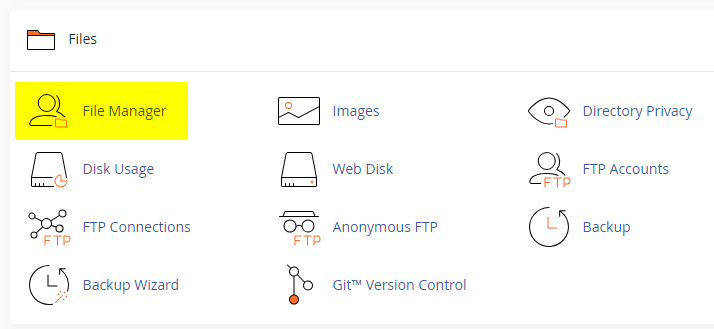
public_html folder, which is your website's root directory.wp-content folder inside "public_html," then open the themes folder inside of it.Note: If your hosting provider doesn't offer cPanel, look for a File Manager option in your hosting dashboard (like DirectAdmin, Plesk, or CyberPanel). The process is usually very similar—just find the wp-content/themes folder and upload/extract the theme ZIP file there.
Installing a WordPress theme via FTP is straightforward, though it involves a few more steps compared to using the built-in theme uploader. Here's how to install a WordPress theme using FTP:
/wp-content/themes folder in the "Remote site" section.You can import the demo content, widgets, and Customizer settings shown in the GreatWP PRO theme demo.
This includes: Posts, pages, menus, media, categories, tags, comments, and custom fields.
If your website already has existing posts with featured images, it's highly recommended to regenerate thumbnails after activating the GreatWP PRO theme. This ensures that all images match the new theme's layout and display sizes.
Regenerating thumbnails is optional if your site is completely new and doesn't have any uploaded images yet.
However, if you imported the demo content, regenerating thumbnails is essential to display images correctly across the site.
This step ensures clean image alignment and sharp visuals throughout your website using the GreatWP PRO theme.
GreatWP PRO supports the built-in WordPress Custom Header. You can set one site-wide header image, and its overlaid title/description come from your site title and tagline.
Header image settings live in: Appearance → Customize → Header Image
Add new image button.Recommended dimensions: 1050 × 200 pixels (flexible height).
This theme includes two Display Locations for menus: Primary Menu and Secondary Menu.
Right after installing the theme, WordPress may display your existing pages as the default menu items in these locations. You can replace them with your own custom menus containing links, categories, pages, and more by following the steps below:
Display location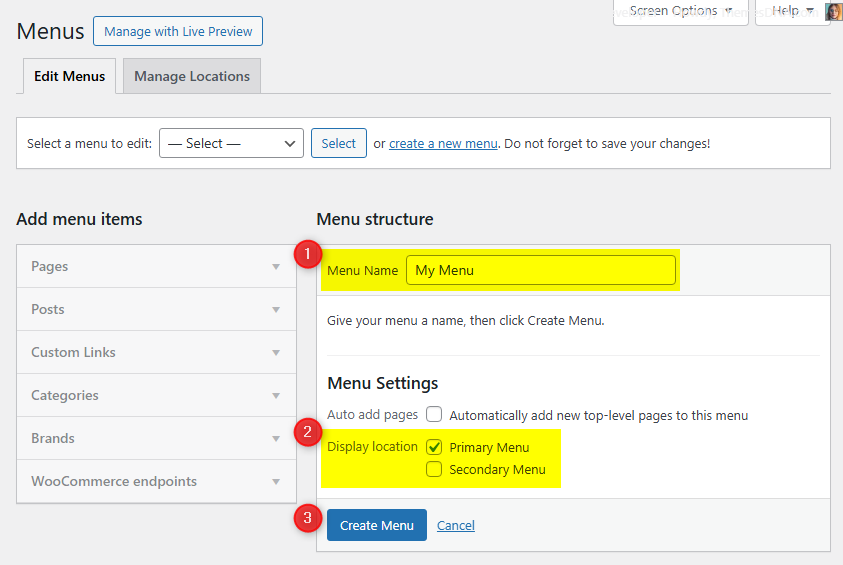
The News Ticker displays posts in a smooth, horizontal scrolling format at the top of your site. Fully customizable via the WordPress Theme Customizer.
See complete list of News Ticker Options
GreatWP PRO includes a built-in posts carousel slider powered by Owl Carousel. It displays featured posts with thumbnails and titles on your homepage.
See complete list of Slider Options
There are 20 custom widgets bundled with the GreatWP PRO theme. Important: To prevent slowing down your site, widgets must be activated individually before use.
GreatWP PRO includes 17 uniquely designed featured posts widgets, each with a different layout style. These widgets display posts based on recent posts, a selected category, a selected tag, or random posts. Posts can be sorted by number of comments (popular), published date, or random order.
| Option ID | Option Name | Description | Control Type | Accepted Value | Default |
|---|---|---|---|---|---|
| title | Title | Heading displayed above the widget. | Text | Any text | Varies by style |
| post_type | Post Source | Select posts to show: recent, popular, random, category, or tag. | Select | recentposts / popularposts / randomposts / catposts / tagposts | recentposts |
| featured_cat | Category | Category to use when post_type = catposts. |
Dropdown | Category ID | Empty |
| featured_tag | Tag | Tag to use when post_type = tagposts. |
Dropdown | Tag ID | Empty |
| number | Number of posts | Posts displayed by the widget. | Number | Positive integer | Varies by style (commonly 5) |
| snippet_length | Snippet Length | Word count for excerpt/snippet. | Number | Positive integer | Varies by style (20–25) |
| show_thumbnail | Display Thumbnail? | Toggle featured image. | Checkbox | true / false | true |
| show_cats | Display Categories? | Show post categories (styles that support it). | Checkbox | true / false | true (style-dependent) |
| show_author | Display Author? | Show author name. | Checkbox | true / false | Varies by style |
| show_date | Display Date? | Show post date. | Checkbox | true / false | true |
| show_comments | Display Comments? | Show comment count. | Checkbox | true / false | true |
| show_snippet | Display Snippet? | Show excerpt below title. | Checkbox | true / false | true |
| show_readmore | Show Read More? | Toggle read-more link (styles that support it). | Checkbox | true / false | false (style-dependent) |
| readmore_text | Read More Text | Label for the read-more link. | Text | Any text | Continue Reading... (style-dependent) |
This widget displays three separate tabs of posts in a tabbed interface. Each tab can be configured independently to display posts based on recent posts, a selected category, a selected tag, or specific post IDs.
| Option ID | Option Name | Description | Control Type | Accepted Value | Default |
|---|---|---|---|---|---|
| title | Title | Heading displayed above the widget. | Text | Any text | Tabbed Widget |
| show_popular_posts | Display Tab 1 (Popular Posts) | Show or hide the first tab. | Checkbox | true / false | true |
| show_recent_posts | Display Tab 2 (Recent Posts) | Show or hide the second tab. | Checkbox | true / false | true |
| show_random_posts | Display Tab 3 (Random Posts) | Show or hide the third tab. | Checkbox | true / false | true |
| tab_one_name | Tab 1 Name | Label for the first tab. | Text | Any text | Popular |
| tab_two_name | Tab 2 Name | Label for the second tab. | Text | Any text | Recent |
| tab_three_name | Tab 3 Name | Label for the third tab. | Text | Any text | Random |
| number | Number of posts to show | Posts displayed per tab. | Number | Positive integer | 3 |
| show_thumbnail | Display Post Thumbnail? | Toggle featured image display. | Checkbox | true / false | true |
| show_author | Display Post Author? | Show author name for each post. | Checkbox | true / false | false |
| show_date | Display Post Date? | Show published date for each post. | Checkbox | true / false | true |
| show_comments | Display Number of Comments? | Show comment count for each post. | Checkbox | true / false | true |
| show_snippet | Display Post Snippet? | Show excerpt text below each post title. | Checkbox | true / false | true |
| snippet_length | Post snippet length (number of words) | Sets word count for the snippet. | Number | Positive integer | 20 |
This widget displays a profile section with an image, description, and social media links.
| Option ID | Option Name | Description | Control Type | Accepted Value | Default |
|---|---|---|---|---|---|
| title | Title | Heading displayed above the widget. | Text | Any text | About Me |
| image | Profile Image URL | Full URL to the profile image. | Text | URL | Empty |
| description | Description | About text; supports HTML. | Textarea | HTML/text | Empty |
| round_buttons | Display round social buttons? | Toggle between round and square social icons. | Checkbox | true / false | false |
| Facebook URL | Link for Facebook icon. | Text | URL | Empty | |
| Twitter URL | Link for Twitter icon. | Text | URL | Empty | |
| googleplus | Google Plus URL | Link for Google Plus icon. | Text | URL | Empty |
| Pinterest URL | Link for Pinterest icon. | Text | URL | Empty | |
| LinkedIn URL | Link for LinkedIn icon. | Text | URL | Empty | |
| Instagram URL | Link for Instagram icon. | Text | URL | Empty | |
| flickr | Flickr URL | Link for Flickr icon. | Text | URL | Empty |
| youtube | YouTube URL | Link for YouTube icon. | Text | URL | Empty |
| vimeo | Vimeo URL | Link for Vimeo icon. | Text | URL | Empty |
| soundcloud | SoundCloud URL | Link for SoundCloud icon. | Text | URL | Empty |
| lastfm | Last.fm URL | Link for Last.fm icon. | Text | URL | Empty |
| github | GitHub URL | Link for GitHub icon. | Text | URL | Empty |
| bitbucket | Bitbucket URL | Link for Bitbucket icon. | Text | URL | Empty |
| tumblr | Tumblr URL | Link for Tumblr icon. | Text | URL | Empty |
| digg | Digg URL | Link for Digg icon. | Text | URL | Empty |
| delicious | Delicious URL | Link for Delicious icon. | Text | URL | Empty |
| stumbleupon | StumbleUpon URL | Link for StumbleUpon icon. | Text | URL | Empty |
| Reddit URL | Link for Reddit icon. | Text | URL | Empty | |
| dribbble | Dribbble URL | Link for Dribbble icon. | Text | URL | Empty |
| behance | Behance URL | Link for Behance icon. | Text | URL | Empty |
| vk | VK URL | Link for VK icon. | Text | URL | Empty |
| codepen | CodePen URL | Link for CodePen icon. | Text | URL | Empty |
| jsfiddle | JSFiddle URL | Link for JSFiddle icon. | Text | URL | Empty |
| stackoverflow | Stack Overflow URL | Link for Stack Overflow icon. | Text | URL | Empty |
| stackexchange | Stack Exchange URL | Link for Stack Exchange icon. | Text | URL | Empty |
| buysellads | BuySellAds URL | Link for BuySellAds icon. | Text | URL | Empty |
| slideshare | SlideShare URL | Link for SlideShare icon. | Text | URL | Empty |
| skype | Skype Username | Username used for Skype link. | Text | Username | Empty |
| envelope | Email Address | Email used for mailto link. | Text | Empty | |
| rss | RSS Feed URL | Link for RSS icon. | Text | URL | Empty |
There are 19 widget areas in the GreatWP PRO theme:
Located in the header. Add a "Custom HTML" widget with your banner ad code.
Main sidebar, located left or right depending on layout setting.
Full-width widget area at the top of the homepage only.
Full-width widget area at the top of single posts only.
Full-width widget area at the top of single posts and pages.
Full-width widget area at the top of every page.
Widget area at the top of the homepage content area.
Widget area at the top of single posts content area.
Widget area at the top of single posts and pages content area.
Widget area at the top of every page's content area.
Widget area at the bottom of the homepage content area.
Widget area at the bottom of single posts content area.
Widget area at the bottom of single posts and pages content area.
Widget area at the bottom of every page's content area.
Located at the bottom of single posts, before comments.
Column 1 of the footer (left).
Column 2 of the footer (middle-left).
Column 3 of the footer (middle-right).
Column 4 of the footer (right).
1. Install and activate Widget Display Conditions or Widget Context plugin.
2. Drag and drop your widget into any "Every Page" widget area or Footer areas.
3. Click the Display conditions button at the bottom of your widget settings.
4. Click Add group and set your display conditions, then save.
GreatWP PRO includes 11 custom page and post templates:
Note: If you do not set the Contact Form Email Address, the form will not send emails.
The sitemap includes all Pages, Categories, Tags, Monthly Archives, and Authors.
Each author's display name, avatar, bio, and social profiles are shown. Set these under Users → Profile.
To access all WordPress Customizer theme options: Go to Appearance → Customize → Theme Options.
Below is the complete list of Site Identity Options available:
| Option ID | Option Name | Description | Control Type | Accepted Value | Default |
|---|---|---|---|---|---|
| custom_logo | Logo | Image ID of the custom logo uploaded through the Customizer. | Media Uploader | Integer (attachment ID) | 0 (none) |
| blogname | Site Title | Main title of the website shown in the header and browser tabs. | Text | A string | "My WordPress Site" |
| blogdescription | Tagline | Short descriptive sentence below the title. | Text | A string | "Just another WordPress site" |
| display_header_text | Display Site Title & Tagline | Toggles whether the title/tagline are printed on the front-end. | Toggle Switch | true / false | true |
| site_icon | Site Icon (Favicon) | Image for the favicon/app-icon (512 × 512 px recommended). | Media Uploader | Integer (attachment ID) | 0 (none) |
Below is the complete list of Colors Options available:
| Option ID | Option Name | Description | Control Type | Accepted Value | Default |
|---|---|---|---|---|---|
| body_text_color | Main Text Color | Body text color. | Color Picker | Hex | #555555 |
| link_color | Main Link Color | Default link color. | Color Picker | Hex | #666666 |
| link_hover_color | Main Link Hover Color | Hover state for links. | Color Picker | Hex | #000000 |
| headings_color | General Headings Color | Headings (H1–H6) color. | Color Picker | Hex | #111111 |
| secondary_menu_bg_color | Secondary Menu Background | Background for secondary menu bar. | Color Picker | Hex | #f8f8f8 |
| secondary_menu_bd_color | Secondary Menu Border | Border under secondary menu. | Color Picker | Hex | #e5e5e5 |
| secondary_menu_color | Secondary Menu Link | Link color in secondary menu. | Color Picker | Hex | #666666 |
| secondary_menu_hover_color | Secondary Menu Link Hover | Hover/active link color. | Color Picker | Hex | #ffffff |
| secondary_menu_hover_bg_color | Secondary Menu Hover Background | Hover/active background. | Color Picker | Hex | #000000 |
| secondary_submenu_one_bg_color | Secondary Submenu Background | Dropdown background. | Color Picker | Hex | #f5f5f5 |
| secondary_submenu_one_bd_color | Secondary Submenu Border | Dropdown border color. | Color Picker | Hex | #e5e5e5 |
| secondary_menu_icon_color | Secondary Responsive Icon | Mobile toggle icon color. | Color Picker | Hex | #000000 |
| header_bg_color | Header Background | Site header background color. | Color Picker | Hex | #ffffff |
| primary_menu_bg_color | Primary Menu Background | Background for primary menu bar. | Color Picker | Hex | #f8f8f8 |
| primary_menu_bd_color | Primary Menu Border | Border for primary menu. | Color Picker | Hex | #e5e5e5 |
| primary_menu_color | Primary Menu Link | Link color in primary menu. | Color Picker | Hex | #555555 |
| primary_menu_hover_color | Primary Menu Link Hover | Hover/active link color. | Color Picker | Hex | #000000 |
| primary_menu_hover_bg_color | Primary Menu Hover Background | Hover/active background. | Color Picker | Hex | #f8f8f8 |
| primary_submenu_one_bg_color | Primary Submenu Background | Dropdown background. | Color Picker | Hex | #f5f5f5 |
| primary_submenu_one_bd_color | Primary Submenu Border | Dropdown border. | Color Picker | Hex | #e5e5e5 |
| primary_submenu_two_bd_color | Primary Submenu Border 2 | Second border layer. | Color Picker | Hex | #ffffff |
| primary_menu_icon_color | Primary Responsive Icon | Mobile toggle icon color. | Color Picker | Hex | #000000 |
| news_ticker_bg_color | News Ticker Background | Ticker bar background. | Color Picker | Hex | #f3f3f3 |
| news_ticker_heading_color | News Ticker Heading | Ticker label text color. | Color Picker | Hex | #ffffff |
| news_ticker_heading_bg_color | News Ticker Heading Background | Ticker label background. | Color Picker | Hex | #666666 |
| news_ticker_text_color | News Ticker Text | Ticker item text color. | Color Picker | Hex | #666666 |
| news_ticker_hover_text_color | News Ticker Hover Text | Hover color for ticker items. | Color Picker | Hex | #000000 |
| widget_post_bg_color | Widgets/Posts Background | Widget/post box background. | Color Picker | Hex | #ffffff |
| widget_post_bd_color | Widgets/Posts Border | Widget/post box border. | Color Picker | Hex | #dddddd |
| mini_post_title_color | Home/Featured Post Title | Featured post title color. | Color Picker | Hex | #000000 |
| post_title_color | Single Post Title | Single post title color. | Color Picker | Hex | #000000 |
| mini_post_title_hover_color | Home/Featured Post Title Hover | Hover color for featured post titles. | Color Picker | Hex | #333333 |
| post_title_hover_color | Single Post Title Hover | Hover color for single post titles. | Color Picker | Hex | #333333 |
| mini_post_title_two_color | Home/Featured Post Title Color 2 | Secondary featured title color. | Color Picker | Hex | #ffffff |
| mini_post_title_two_hover_color | Home/Featured Post Title Hover Color 2 | Secondary featured hover color. | Color Picker | Hex | #ffffff |
| post_body_link_color | Post Content Link Color | Links inside post content. | Color Picker | Hex | #409BD4 |
| post_body_link_hover_color | Post Content Link Hover Color | Hover color for content links. | Color Picker | Hex | #08ACD5 |
| postcats_color | Post Categories Color | Category label text. | Color Picker | Hex | #ffffff |
| postcats_bg_color | Post Categories Background | Category label background. | Color Picker | Hex | #8c2828 |
| postcats_hover_color | Post Categories Hover Color | Hover text for category labels. | Color Picker | Hex | #ffffff |
| postcats_bg_hover_color | Post Categories Hover Background | Hover background for category labels. | Color Picker | Hex | #000000 |
| mini_post_meta_color | Home/Featured Post Meta | Meta text (home/featured). | Color Picker | Hex | #666666 |
| post_meta_color | Single Post Meta | Meta text in single posts. | Color Picker | Hex | #666666 |
| mini_post_meta_hover_color | Home/Featured Meta Hover | Hover color for featured meta links. | Color Picker | Hex | #000000 |
| post_meta_hover_color | Single Post Meta Hover | Hover color for single post meta. | Color Picker | Hex | #000000 |
| mini_post_meta_two_color | Home/Featured Meta Color 2 | Secondary meta color (home/featured). | Color Picker | Hex | #ffffff |
| mini_post_meta_two_hover_color | Home/Featured Meta Hover Color 2 | Secondary meta hover color. | Color Picker | Hex | #ffffff |
| rmore_color | Read More Button Text | Text color for read-more button. | Color Picker | Hex | #666666 |
| rmore_bg_color | Read More Button Background | Background for read-more button. | Color Picker | Hex | #eeeeee |
| rmore_bd_one_color | Read More Button Border 1 | First border color. | Color Picker | Hex | #dddddd |
| rmore_bd_two_color | Read More Button Border 2 | Second border color. | Color Picker | Hex | #f6f6f6 |
| rmore_hover_color | Read More Button Hover Text | Hover text color. | Color Picker | Hex | #ffffff |
| rmore_bg_hover_color | Read More Button Hover Background | Hover background color. | Color Picker | Hex | #000000 |
| sidebar_title_color | Sidebar Title | Widget title color. | Color Picker | Hex | #000000 |
| sidebar_title_bg_color | Sidebar Title Background | Widget title background. | Color Picker | Hex | #eeeeee |
| sidebar_title_bd_one_color | Sidebar Title Border 1 | Primary border color. | Color Picker | Hex | #dddddd |
| sidebar_title_bd_two_color | Sidebar Title Border 2 | Secondary border color. | Color Picker | Hex | #f6f6f6 |
| sidebar_link_color | Sidebar Link | Links in sidebars. | Color Picker | Hex | #444444 |
| sidebar_link_hover_color | Sidebar Link Hover | Hover color for sidebar links. | Color Picker | Hex | #666666 |
| sidebar_list_bd_color | Sidebar List Border | Borders for list items. | Color Picker | Hex | #f1f1f1 |
| tag_cloud_color | Tag Cloud Link | Tag cloud text color. | Color Picker | Hex | #ffffff |
| tag_cloud_bg_color | Tag Cloud Background | Tag cloud background. | Color Picker | Hex | #888888 |
| tag_cloud_hover_color | Tag Cloud Hover | Hover text color. | Color Picker | Hex | #ffffff |
| tag_cloud_hover_bg_color | Tag Cloud Hover Background | Hover background. | Color Picker | Hex | #000000 |
| footer_bg_color | Footer Background | Footer area background. | Color Picker | Hex | #1d1e20 |
| footer_title_color | Footer Title | Footer widget titles. | Color Picker | Hex | #ffffff |
| footer_title_bd_one_color | Footer Title Border One | First border color. | Color Picker | Hex | #333333 |
| footer_title_bd_two_color | Footer Title Border Two | Second border color. | Color Picker | Hex | #000000 |
| footer_text_color | Footer Text | Footer text color. | Color Picker | Hex | #cecece |
| footer_link_color | Footer Link | Footer link color. | Color Picker | Hex | #dbdbdb |
| footer_link_hover_color | Footer Link Hover | Hover color for footer links. | Color Picker | Hex | #ffffff |
| footer_list_bd_color | Footer List Border | Footer list item borders. | Color Picker | Hex | #2d2d2d |
| cp_bg_color | Copyrights Background | Copyright bar background. | Color Picker | Hex | #303436 |
| cp_bd_color | Copyrights Border | Border for copyright area. | Color Picker | Hex | #3D3D3D |
| cp_color | Copyrights Text | Text color in copyright area. | Color Picker | Hex | #ECFFF1 |
| button_text_color | Button Text Color | Button label color. | Color Picker | Hex | #ffffff |
| button_text_shadow_color | Button Text Shadow | Shadow color for button text. | Color Picker | Hex | #000000 |
| button_bg_color | Button Background | Default button background. | Color Picker | Hex | #333333 |
| button_bd_color | Button Border | Button border color. | Color Picker | Hex | #000000 |
| button_hover_bg_color | Button Hover Background | Hover background for buttons. | Color Picker | Hex | #000000 |
| selected_text_color | Selected Text Color | Highlight text color. | Color Picker | Hex | #ffffff |
| selected_text_bg_color | Selected Text Background | Highlight background color. | Color Picker | Hex | #333333 |
| disable_shadow_color | Disable Shadow Color | Turn off global shadow color styles. | Checkbox | true / false | false |
Below is the complete list of Font Options available:
| Option ID | Option Name | Description | Control Type | Accepted Value | Default |
|---|---|---|---|---|---|
| font_subsets | Font Subsets | Select font subsets to load. | Multi-select | latin / latin-ext / cyrillic / cyrillic-ext / greek / greek-ext / vietnamese | latin |
| body_fonts | Body Font-Family | Font family for body text. | Select | Google/system list | Domine |
| body_font_size | Body Font-Size | Body text size. | Select | 8px–72px | 13px |
| body_font_weight | Body Font-Weight | Body text weight. | Select | 400 / 700 | 400 |
| body_font_style | Body Font-Style | Body text style. | Select | normal / italic | normal |
| body_line_height | Body Line-Height | Line-height for body text. | Text | Numeric | 1.6 |
| site_title_fonts | Site Title Font-Family | Font for site title. | Select | Google/system list | Playfair Display |
| site_title_font_size | Site Title Font-Size | Size of site title. | Select | 8px–72px | 22px |
| site_title_font_weight | Site Title Font-Weight | Weight of site title. | Select | 400 / 700 | 700 |
| site_title_font_style | Site Title Font-Style | Style of site title. | Select | normal / italic | normal |
| site_title_line_height | Site Title Line-Height | Line-height of site title. | Text | Numeric | 1 |
| site_desc_fonts | Site Description Font-Family | Font for site tagline. | Select | Google/system list | Domine |
| site_desc_font_size | Site Description Font-Size | Size of tagline text. | Select | 8px–72px | 13px |
| site_desc_font_weight | Site Description Font-Weight | Weight of tagline. | Select | 400 / 700 | 400 |
| site_desc_font_style | Site Description Font-Style | Style of tagline. | Select | normal / italic | normal |
| site_desc_line_height | Site Description Line-Height | Line-height of tagline. | Text | Numeric | 1 |
| primary_menu_fonts | Primary Menu Font-Family | Font for primary menu. | Select | Google/system list | Oswald |
| primary_menu_font_size | Primary Menu Font-Size | Size of primary menu links. | Select | 8px–72px | 13px |
| primary_menu_font_weight | Primary Menu Font-Weight | Weight of primary menu links. | Select | 400 / 700 | 400 |
| primary_menu_font_style | Primary Menu Font-Style | Style of primary menu links. | Select | normal / italic | normal |
| secondary_menu_fonts | Secondary Menu Font-Family | Font for secondary menu. | Select | Google/system list | Oswald |
| secondary_menu_font_size | Secondary Menu Font-Size | Size of secondary menu links. | Select | 8px–72px | 13px |
| secondary_menu_font_weight | Secondary Menu Font-Weight | Weight of secondary menu links. | Select | 400 / 700 | 400 |
| secondary_menu_font_style | Secondary Menu Font-Style | Style of secondary menu links. | Select | normal / italic | normal |
| news_ticker_fonts | News Ticker Font-Family | Font for news ticker. | Select | Google/system list | Oswald |
| news_ticker_font_size | News Ticker Font-Size | Size of news ticker text. | Select | 8px–72px | 13px |
| news_ticker_font_weight | News Ticker Font-Weight | Weight of news ticker text. | Select | 400 / 700 | 400 |
| news_ticker_font_style | News Ticker Font-Style | Style of news ticker text. | Select | normal / italic | normal |
| hpost_title_fonts | Home/Featured Post Title Font-Family | Font for featured post titles. | Select | Google/system list | Playfair Display |
| hpost_title_font_size | Home/Featured Post Title Font-Size | Size for featured post titles. | Select | 8px–72px | 20px |
| hpost_title_font_weight | Home/Featured Post Title Font-Weight | Weight for featured post titles. | Select | 400 / 700 | 700 |
| hpost_title_font_style | Home/Featured Post Title Font-Style | Style for featured post titles. | Select | normal / italic | normal |
| hpost_title_line_height | Home/Featured Post Title Line-Height | Line-height for featured titles. | Text | Numeric | 1.2 |
| hpost_title_sm_fonts | Home/Featured Small Post Title Font-Family | Font for small featured titles. | Select | Google/system list | Playfair Display |
| hpost_title_sm_font_size | Home/Featured Small Post Title Font-Size | Size for small featured titles. | Select | 8px–72px | 16px |
| hpost_title_sm_font_weight | Home/Featured Small Post Title Font-Weight | Weight for small featured titles. | Select | 400 / 700 | 700 |
| hpost_title_sm_font_style | Home/Featured Small Post Title Font-Style | Style for small featured titles. | Select | normal / italic | normal |
| hpost_title_sm_line_height | Home/Featured Small Post Title Line-Height | Line-height for small featured titles. | Text | Numeric | 1.2 |
| hpost_cats_fonts | Home/Featured Post Categories Font-Family | Font for featured post categories. | Select | Google/system list | Oswald |
| hpost_cats_font_size | Home/Featured Post Categories Font-Size | Size for featured categories. | Select | 8px–72px | 12px |
| hpost_cats_font_weight | Home/Featured Post Categories Font-Weight | Weight for featured categories. | Select | 400 / 700 | 400 |
| hpost_cats_font_style | Home/Featured Post Categories Font-Style | Style for featured categories. | Select | normal / italic | normal |
| hpost_meta_fonts | Home/Featured Post Meta Font-Family | Font for featured meta. | Select | Google/system list | Oswald |
| hpost_meta_font_size | Home/Featured Post Meta Font-Size | Size for featured meta. | Select | 8px–72px | 12px |
| hpost_meta_font_weight | Home/Featured Post Meta Font-Weight | Weight for featured meta. | Select | 400 / 700 | 400 |
| hpost_meta_font_style | Home/Featured Post Meta Font-Style | Style for featured meta. | Select | normal / italic | normal |
| read_more_fonts | Read More Button Font-Family | Font for read more buttons. | Select | Google/system list | Oswald |
| read_more_font_size | Read More Button Font-Size | Size for read more buttons. | Select | 8px–72px | 13px |
| read_more_font_weight | Read More Button Font-Weight | Weight for read more buttons. | Select | 400 / 700 | 400 |
| read_more_font_style | Read More Button Font-Style | Style for read more buttons. | Select | normal / italic | normal |
| post_title_fonts | Post Title Font-Family | Font for single post titles. | Select | Google/system list | Playfair Display |
| post_title_font_size | Post Title Font-Size | Size for single post titles. | Select | 8px–72px | 26px |
| post_title_font_weight | Post Title Font-Weight | Weight for single post titles. | Select | 400 / 700 | 700 |
| post_title_font_style | Post Title Font-Style | Style for single post titles. | Select | normal / italic | normal |
| post_title_line_height | Post Title Line-Height | Line-height for single post titles. | Text | Numeric | 1.2 |
| widget_title_fonts | Main/Sidebars Widget Title Font-Family | Font for sidebar widget titles. | Select | Google/system list | Oswald |
| widget_title_font_size | Main/Sidebars Title Font-Size | Size for sidebar widget titles. | Select | 8px–72px | 16px |
| widget_title_font_weight | Main/Sidebars Title Font-Weight | Weight for sidebar widget titles. | Select | 400 / 700 | 400 |
| widget_title_font_style | Main/Sidebars Title Font-Style | Style for sidebar widget titles. | Select | normal / italic | normal |
| sidebar_title_line_height | Main/Sidebars Title Line-Height | Line-height for sidebar titles. | Text | Numeric | 1 |
| footer_title_fonts | Footer Widget Title Font-Family | Font for footer widget titles. | Select | Google/system list | Oswald |
| footer_title_font_size | Footer Title Font-Size | Size for footer widget titles. | Select | 8px–72px | 14px |
| footer_title_font_weight | Footer Title Font-Weight | Weight for footer widget titles. | Select | 400 / 700 | 400 |
| footer_title_font_style | Footer Title Font-Style | Style for footer widget titles. | Select | normal / italic | normal |
| footer_title_line_height | Footer Title Line-Height | Line-height for footer titles. | Text | Numeric | 1 |
| headings_fonts | General Headings Font-Family | Font for headings. | Select | Google/system list | Playfair Display |
| headings_line_height | General Headings Line-Height | Line-height for headings. | Text | Numeric | 1 |
| h1_font_size | H1 Font-Size | H1 size. | Select | 8px–72px | 32px |
| h1_font_weight | H1 Font-Weight | H1 weight. | Select | 400 / 700 | 700 |
| h1_font_style | H1 Font-Style | H1 style. | Select | normal / italic | normal |
| h2_font_size | H2 Font-Size | H2 size. | Select | 8px–72px | 28px |
| h2_font_weight | H2 Font-Weight | H2 weight. | Select | 400 / 700 | 700 |
| h2_font_style | H2 Font-Style | H2 style. | Select | normal / italic | normal |
| h3_font_size | H3 Font-Size | H3 size. | Select | 8px–72px | 24px |
| h3_font_weight | H3 Font-Weight | H3 weight. | Select | 400 / 700 | 700 |
| h3_font_style | H3 Font-Style | H3 style. | Select | normal / italic | normal |
| h4_font_size | H4 Font-Size | H4 size. | Select | 8px–72px | 20px |
| h4_font_weight | H4 Font-Weight | H4 weight. | Select | 400 / 700 | 700 |
| h4_font_style | H4 Font-Style | H4 style. | Select | normal / italic | normal |
| h5_font_size | H5 Font-Size | H5 size. | Select | 8px–72px | 18px |
| h5_font_weight | H5 Font-Weight | H5 weight. | Select | 400 / 700 | 700 |
| h5_font_style | H5 Font-Style | H5 style. | Select | normal / italic | normal |
| h6_font_size | H6 Font-Size | H6 size. | Select | 8px–72px | 16px |
| h6_font_weight | H6 Font-Weight | H6 weight. | Select | 400 / 700 | 700 |
| h6_font_style | H6 Font-Style | H6 style. | Select | normal / italic | normal |
| Option ID | Option Name | Description | Control Type | Accepted Value | Default |
|---|---|---|---|---|---|
| enable_fullwidth_header | Enable Full Width Header | Make the header span the full width of the browser window. | Checkbox | true / false | false |
| hide_header_content | Hide Header Content | Hide the header content area (logo, title, tagline, banner). | Checkbox | true / false | false |
| Option ID | Option Name | Description | Control Type | Accepted Value | Default |
|---|---|---|---|---|---|
| non_singular_layout | Non-Singular Layout Style | Select the layout for home, archive, category, tag, and search pages. | Radio | Sidebar 1 + Content, Content + Sidebar 1, One Column | Content + Sidebar 1 |
| singular_layout | Singular Layout Style | Select the layout for single posts and pages. | Radio | Sidebar 1 + Content, Content + Sidebar 1, One Column | Content + Sidebar 1 |
| show_sidebar_one_column | Show Sidebar in One Column Layout | Display the sidebar below the content in one-column layout. | Checkbox | true / false | false |
| Option ID | Option Name | Description | Control Type | Accepted Value | Default |
|---|---|---|---|---|---|
| enable_news_ticker | Enable News Ticker | Enable or disable the news ticker on the site. | Checkbox | true / false | false |
| news_ticker_heading | News Ticker Heading | Custom heading text for the news ticker label. | Text | A plain text string | Breaking News |
| news_ticker_length | Number of News Ticker Posts | Number of posts to display in the news ticker. | Text | A positive whole number | 5 |
| news_ticker_post_type | News Ticker Posts Type | Select which type of posts to display. | Select | Recent Posts, Popular Posts, Random Posts, Category Posts, Tag Posts | Recent Posts |
| news_ticker_cat | News Ticker Posts Category | Select a category if Posts Type is Category Posts. | Category Dropdown | A category from your WordPress categories | (none) |
| news_ticker_tag | News Ticker Posts Tag | Select a tag if Posts Type is Tag Posts. | Tag Dropdown | A tag from your WordPress tags | (none) |
| news_ticker_duration | News Ticker Duration | Duration of the marquee animation in milliseconds. | Text | A positive whole number | 60000 |
| Option ID | Option Name | Description | Control Type | Accepted Value | Default |
|---|---|---|---|---|---|
| enable_slider | Enable Slider | Enable or disable the posts carousel slider on the homepage. | Checkbox | true / false | false |
| slider_length | Number of Slider Posts | Number of posts to display in the slider. | Text | A positive whole number | 5 |
| slider_post_type | Slider Posts Type | Select which type of posts to display. | Select | Recent Posts, Popular Posts, Random Posts, Category Posts, Tag Posts | Recent Posts |
| slider_cat | Slider Posts Category | Select a category if Posts Type is Category Posts. | Category Dropdown | A category from your WordPress categories | (none) |
| slider_tag | Slider Posts Tag | Select a tag if Posts Type is Tag Posts. | Tag Dropdown | A tag from your WordPress tags | (none) |
| Option ID | Option Name | Description | Control Type | Accepted Value | Default |
|---|---|---|---|---|---|
| hide_posts_heading | Hide HomePage Posts Heading | Hide the heading above the posts list on the homepage. | Checkbox | true / false | false |
| posts_heading | HomePage Posts Heading | Custom heading text for the homepage posts list. | Text | Plain text | Recent Posts |
| thumbnail_link | Thumbnail Link | Link single post thumbnails to their post. | Select | yes / no | yes |
| post_style | Non-Singular Posts Style | Layout for home/category/tag/archive/search posts. | Select | style-1 / style-2 / style-3 / style-4 / style-5 / style-6 / style-8 / style-9 / style-12 / style-13 | style-4 |
| read_more_length | Auto Post Summary Length | Number of words in the auto excerpt. | Text | Positive integer | 25 |
| read_more_text | Read More Text | Custom text for the Read More button. | Text | Plain text | Continue Reading... |
| hide_posted_date_home | Hide Posted Date from Posts Summaries | Hide post dates on list views. | Checkbox | true / false | false |
| hide_posted_date | Hide Posted Date from Single Posts | Hide post dates on single posts. | Checkbox | true / false | false |
| hide_post_author_home | Hide Post Author from Posts Summaries | Hide author names on list views. | Checkbox | true / false | false |
| hide_post_author | Hide Post Author from Single Posts | Hide author names on single posts. | Checkbox | true / false | false |
| hide_post_categories_home | Hide Post Categories from Posts Summaries | Hide categories on list views. | Checkbox | true / false | false |
| hide_post_categories | Hide Post Categories from Single Posts | Hide categories on single posts. | Checkbox | true / false | false |
| hide_post_tags_home | Hide Post Tags from Posts Summaries | Hide tags on list views. | Checkbox | true / false | false |
| hide_post_tags | Hide Post Tags from Single Posts | Hide tags on single posts. | Checkbox | true / false | false |
| hide_comments_link_home | Hide Comment Link from Posts Summaries | Hide comment link on list views. | Checkbox | true / false | false |
| hide_comments_link | Hide Comment Link from Single Posts | Hide comment link on single posts. | Checkbox | true / false | false |
| hide_post_edit | Hide Post Edit Link | Hide edit link (logged-in users). | Checkbox | true / false | false |
| hide_thumbnail | Hide Thumbnails from Every Page | Hide featured images site-wide. | Checkbox | true / false | false |
| hide_thumbnail_single | Hide Thumbnails from Posts/Pages | Hide featured images on single posts/pages. | Checkbox | true / false | false |
| hide_post_snippet | Hide Post Snippet | Hide excerpt/snippet on listings. | Checkbox | true / false | false |
| hide_read_more_button | Hide Read More Button | Hide Read More button on listings. | Checkbox | true / false | false |
| hide_share_buttons_home | Hide Share Buttons from Posts Summaries | Hide share buttons on list views. | Checkbox | true / false | false |
| hide_share_buttons | Hide Share Buttons from Single Posts | Hide share buttons on single posts. | Checkbox | true / false | false |
| hide_author_bio_box | Hide Author Bio Box | Hide author bio box on single posts. | Checkbox | true / false | false |
| hide_related_posts_home | Hide Related Posts from Posts Summaries | Hide related posts block on list views. | Checkbox | true / false | false |
| hide_related_posts | Hide Related Posts from Single Posts | Hide related posts block on single posts. | Checkbox | true / false | false |
| related_posts_heading | Related Posts Heading | Custom heading for related posts. | Text | Plain text | Related Articles |
| related_posts_number | Number of Related Posts | How many related posts to show. | Select | 4 / 8 / 12 / 16 | 4 |
Configure social media profile URLs displayed in the header area. All fields accept a full URL.
| Option ID | Option Name | Description | Control Type | Accepted Value | Default |
|---|---|---|---|---|---|
| hide_header_social_buttons | Hide Header Social Buttons | Hide the social buttons from the header area. | Checkbox | true / false | false |
| twitterlink | Twitter URL | Enter your Twitter/X profile URL. | Text | URL | (empty) |
| facebooklink | Facebook URL | Enter your Facebook profile URL. | Text | URL | (empty) |
| googlelink | Google Plus URL | Enter your Google Plus URL. | Text | URL | (empty) |
| pinterestlink | Pinterest URL | Enter your Pinterest profile URL. | Text | URL | (empty) |
| linkedinlink | LinkedIn URL | Enter your LinkedIn profile URL. | Text | URL | (empty) |
| instagramlink | Instagram URL | Enter your Instagram profile URL. | Text | URL | (empty) |
| vklink | VK URL | Enter your VK profile URL. | Text | URL | (empty) |
| flickrlink | Flickr URL | Enter your Flickr profile URL. | Text | URL | (empty) |
| youtubelink | YouTube URL | Enter your YouTube channel URL. | Text | URL | (empty) |
| vimeolink | Vimeo URL | Enter your Vimeo profile URL. | Text | URL | (empty) |
| soundcloudlink | SoundCloud URL | Enter your SoundCloud profile URL. | Text | URL | (empty) |
| lastfmlink | Last.fm URL | Enter your Last.fm profile URL. | Text | URL | (empty) |
| githublink | GitHub URL | Enter your GitHub profile URL. | Text | URL | (empty) |
| bitbucketlink | Bitbucket URL | Enter your Bitbucket profile URL. | Text | URL | (empty) |
| tumblrlink | Tumblr URL | Enter your Tumblr profile URL. | Text | URL | (empty) |
| digglink | Digg URL | Enter your Digg profile URL. | Text | URL | (empty) |
| deliciouslink | Delicious URL | Enter your Delicious profile URL. | Text | URL | (empty) |
| stumblelink | StumbleUpon URL | Enter your StumbleUpon profile URL. | Text | URL | (empty) |
| redditlink | Reddit URL | Enter your Reddit profile URL. | Text | URL | (empty) |
| dribbblelink | Dribbble URL | Enter your Dribbble profile URL. | Text | URL | (empty) |
| behancelink | Behance URL | Enter your Behance profile URL. | Text | URL | (empty) |
| codepenlink | CodePen URL | Enter your CodePen profile URL. | Text | URL | (empty) |
| jsfiddlelink | JSFiddle URL | Enter your JSFiddle profile URL. | Text | URL | (empty) |
| stackoverflowlink | Stack Overflow URL | Enter your Stack Overflow profile URL. | Text | URL | (empty) |
| stackexchangelink | Stack Exchange URL | Enter your Stack Exchange profile URL. | Text | URL | (empty) |
| bsalink | BuySellAds URL | Enter your BuySellAds profile URL. | Text | URL | (empty) |
| slidesharelink | SlideShare URL | Enter your SlideShare profile URL. | Text | URL | (empty) |
| skypeusername | Skype Username | Enter your Skype username. | Text | Text | (empty) |
| emailaddress | Email Address | Enter your email address. | Text | (empty) | |
| rsslink | RSS Feed URL | Enter your RSS feed URL. | Text | URL | (empty) |
| Option ID | Option Name | Description | Control Type | Accepted Value | Default |
|---|---|---|---|---|---|
| error_404_heading | 404 Error Page Heading | Enter the heading for the 404 error page. | Textarea | Text/HTML | Oops! That page can not be found. |
| error_404_message | Error 404 Message | Enter a message to display on the 404 error page. | Textarea | Text/HTML | It looks like nothing was found at this location. Maybe try one of the links below or a search? |
| Option ID | Option Name | Description | Control Type | Accepted Value | Default |
|---|---|---|---|---|---|
| no_search_heading | No Search Results Heading | Enter a heading to display when no search results are found. | Textarea | Text/HTML | Nothing Found |
| no_search_results | No Search Results Message | Enter a message to display when no search results are found. | Textarea | Text/HTML | Sorry, but nothing matched your search terms. Please try again with some different keywords. |
| Option ID | Option Name | Description | Control Type | Accepted Value | Default |
|---|---|---|---|---|---|
| contact_form_email | Contact Form Email Address | Your email address to receive messages from the built-in contact form. | Text | A valid email address | (empty) |
| Option ID | Option Name | Description | Control Type | Accepted Value | Default |
|---|---|---|---|---|---|
| hide_admin_authors_page | Hide Site Administrators from Authors Page | Hide site administrators from the Authors page template. | Checkbox | true / false | false |
| hide_noposts_authors_page | Hide Authors with Zero Posts | Hide authors with zero posts from the Authors page template. | Checkbox | true / false | false |
To prevent slowing down your site, only activate widgets you are going to use.
| Option ID | Option Name | Description | Control Type | Accepted Value | Default |
|---|---|---|---|---|---|
| enable_fpost_widget_01 | Enable Featured Posts Widget 1 | Activate Featured Posts Widget 1 for use in widget areas. | Checkbox | true / false | false |
| enable_fpost_widget_02 | Enable Featured Posts Widget 2 | Activate Featured Posts Widget 2 for use in widget areas. | Checkbox | true / false | false |
| enable_fpost_widget_03 | Enable Featured Posts Widget 3 | Activate Featured Posts Widget 3 for use in widget areas. | Checkbox | true / false | false |
| enable_fpost_widget_04 | Enable Featured Posts Widget 4 | Activate Featured Posts Widget 4 for use in widget areas. | Checkbox | true / false | false |
| enable_fpost_widget_05 | Enable Featured Posts Widget 5 | Activate Featured Posts Widget 5 for use in widget areas. | Checkbox | true / false | false |
| enable_fpost_widget_06 | Enable Featured Posts Widget 6 | Activate Featured Posts Widget 6 for use in widget areas. | Checkbox | true / false | false |
| enable_fpost_widget_07 | Enable Featured Posts Widget 7 | Activate Featured Posts Widget 7 for use in widget areas. | Checkbox | true / false | false |
| enable_fpost_widget_08 | Enable Featured Posts Widget 8 | Activate Featured Posts Widget 8 for use in widget areas. | Checkbox | true / false | false |
| enable_fpost_widget_09 | Enable Featured Posts Widget 9 | Activate Featured Posts Widget 9 for use in widget areas. | Checkbox | true / false | false |
| enable_fpost_widget_10 | Enable Featured Posts Widget 10 | Activate Featured Posts Widget 10 for use in widget areas. | Checkbox | true / false | false |
| enable_fpost_widget_11 | Enable Featured Posts Widget 11 | Activate Featured Posts Widget 11 for use in widget areas. | Checkbox | true / false | false |
| enable_fpost_widget_12 | Enable Featured Posts Widget 12 | Activate Featured Posts Widget 12 for use in widget areas. | Checkbox | true / false | false |
| enable_fpost_widget_13 | Enable Featured Posts Widget 13 | Activate Featured Posts Widget 13 for use in widget areas. | Checkbox | true / false | false |
| enable_fpost_widget_14 | Enable Featured Posts Widget 14 | Activate Featured Posts Widget 14 for use in widget areas. | Checkbox | true / false | false |
| enable_fpost_widget_15 | Enable Featured Posts Widget 15 | Activate Featured Posts Widget 15 for use in widget areas. | Checkbox | true / false | false |
| enable_fpost_widget_16 | Enable Featured Posts Widget 16 | Activate Featured Posts Widget 16 for use in widget areas. | Checkbox | true / false | false |
| enable_fpost_widget_17 | Enable Featured Posts Widget 17 | Activate Featured Posts Widget 17 for use in widget areas. | Checkbox | true / false | false |
| enable_social_widget | Enable Social Widget | Activate Social Widget for use in widget areas. | Checkbox | true / false | false |
| enable_about_widget | Enable About Me Widget | Activate About Me Widget for use in widget areas. | Checkbox | true / false | false |
| enable_tabbed_widget | Enable Tabbed Widget | Activate Tabbed Widget for use in widget areas. | Checkbox | true / false | false |
| Option ID | Option Name | Description | Control Type | Accepted Value | Default |
|---|---|---|---|---|---|
| enable_widgets_block_editor | Enable Gutenberg Widget Block Editor | Use block-based widget editor instead of classic widgets. | Checkbox | true / false | false |
| disable_sticky_menu | Disable Sticky Menu | Turn off sticky (fixed) menu on desktop. | Checkbox | true / false | false |
| enable_sticky_mobile_menu | Enable Sticky Menu on Small Screen | Keep menu sticky on mobile/small screens. | Checkbox | true / false | false |
| disable_primary_menu | Disable Primary Menu | Hide the primary navigation menu. | Checkbox | true / false | false |
| disable_secondary_menu | Disable Secondary Menu | Hide the secondary navigation menu. | Checkbox | true / false | false |
| disable_sticky_sidebar | Disable Sticky Sidebar | Turn off sticky sidebar behavior. | Checkbox | true / false | false |
| disable_backtotop | Disable Back to Top Button | Hide the Back to Top scroll button. | Checkbox | true / false | false |
Below is the complete list of Reset Options available:
| Option ID | Option Name | Description | Control Type | Accepted Value | Default |
|---|---|---|---|---|---|
| reset_settings | Reset Theme Options | Reset all theme options to default values. | Reset Button | n/a | (triggered on click) |
Follow these best practices to ensure your GreatWP PRO-powered site loads quickly and ranks well in search engines.
GreatWP PRO is fully translation-ready and supports Right-to-Left (RTL) languages like Arabic, Hebrew, and Persian out of the box.
The theme includes a greatwp-pro.pot file located in the /languages folder inside the theme directory. You can use this file to create translations in your own language using any of the following tools:
After translating, save your files as:
greatwp-pro-[language_code].pogreatwp-pro-[language_code].moPlace them inside the /languages folder in the theme.
GreatWP PRO includes built-in RTL support. If your WordPress site language is set to an RTL language, the theme will automatically adjust layout direction, alignment, and spacing accordingly. No extra setup required.
If you're customizing your site with RTL content, make sure your text widgets, menus, and custom styles are also RTL-compatible for best results.
Quick answers to the most frequently asked questions about using the GreatWP PRO theme.
When switching from the free to PRO version, you need to manually reupload your Site Logo, Header Image, Site Icon, and Background Image via Appearance → Customize.
Go to Appearance → Menus → Manage Locations and reassign your existing menus to the correct theme locations.
Go to Appearance → Customize → Theme Options → Reset Settings, then click the Reset Theme Options button. A confirmation dialog will appear. Confirm the action to reset your WordPress Customizer settings.
Common technical problems and their solutions.
Install an SEO plugin like Yoast SEO or Rank Math and enable Open Graph tags. Always set a featured image for each post.
Your hosting has a small file upload limit. Follow this guide to increase it or use cPanel/File Manager to upload the theme.
Make sure the widget is activated first in Appearance → Customize → Theme Options → Custom Widgets, then place it in a widget area via Appearance → Widgets.
Ensure the feature is enabled in the Customizer and that your posts have featured images (for the slider). Also verify the selected category/tag has published posts.
All our WordPress themes, including GreatWP PRO, are released under the 100% GPL (General Public License). You can use the theme on unlimited websites and modify the code to suit your needs.
If you need help or would like to request a paid customization, please contact us. We typically respond within 24–48 hours on working days.
The following is a log of all updates and changes made to GreatWP PRO. We recommend always using the latest version.
You can use the following date format values to control how dates appear in various places such as custom widgets, post metadata, news tickers, and more. These formats follow the standard PHP date formatting rules used by WordPress. Refer to the table below to choose a format that best fits your design and content style.
| Format Key | Example Output |
|---|---|
| H:i | 00:50 |
| g:i a | 12:50 am |
| g:i A | 12:50 AM |
| g:i:s a | 12:50:48 am |
| g:i:s A | 12:50:48 AM |
| d.m.y | 27.11.10 |
| Y.m.d | 2010.11.27 |
| Y-m-d | 2010-11-27 |
| Y/m/d | 2010/11/27 |
| m.d.Y | 11.27.2010 |
| m-d-Y | 11-27-2010 |
| m/d/Y | 11/27/2010 |
| d.m.Y | 27.11.2010 |
| d-m-Y | 27-11-2010 |
| d/m/Y | 27/11/2010 |
| m/d/Y g:i:s a | 11/27/2010 12:50:48 am |
| m/d/Y g:i:s A | 11/27/2010 12:50:48 AM |
| Y/m/d \a\t g:i a | 2010/11/27 at 12:50 am |
| Y/m/d \a\t g:i A | 2010/11/27 at 12:50 AM |
| d F | 27 November |
| F, Y | November, 2010 |
| F j, Y | November 27, 2010 |
| d M Y | 27 Nov 2010 |
| M j, Y | Nov 27, 2010 |
| M j, Y @ H:i | Nov 27, 2010 @ 0:50 |
| l, F j, Y | Saturday, November 27, 2010 |
| l, F jS, Y | Saturday, November 27th, 2010 |
GreatWP Social Widget
This widget displays a collection of social media buttons/links. It supports a wide range of social platforms and uses Font Awesome icons with round or normal button styles.
Usage Notes