FreshWP PRO Documentation

Introduction

FreshWP PRO is a clean and elegant, easy to use, 100% responsive, 3-column blogging theme for WordPress developed by ThemesDNA. Building on the responsive foundation of its free counterpart, FreshWP PRO introduces an extensive range of advanced features that enhance both the aesthetic appeal and functional versatility of your site. With 8 different post styles (Standard, Standard 2, List, List 2, Grid, Grid 2, Full, and Featured), 11 layout options, and 25+ custom page and post templates, this theme accommodates a wide spectrum of content display needs.

The theme comes equipped with 14 custom widgets including 8 different featured posts widget styles, a tabbed widget, recent/popular/random posts widgets, and social/about me widgets. It supports extensive social media integration with social profile links and share buttons for Twitter, Facebook, Pinterest, LinkedIn, Reddit, VK, Telegram, WhatsApp, and many more. FreshWP PRO also offers granular control with comprehensive color options, font options with Google Fonts support, and WooCommerce compatibility for e-commerce functionality.

Additional professional-grade features include sticky menu and sidebars, custom header image, header banner widget area, 4-column footer, author bio boxes, related posts, back-to-top button, numbered pagination via WP-PageNavi support, and translation readiness. The theme supports both Classic and Gutenberg editors seamlessly.

Current Theme Version: 1.0.9

Theme Installation

After purchasing the FreshWP PRO WordPress Theme, you'll receive a download link via email. Check your email inbox (or spam folder) for the product delivery email. Click the provided download link to download the theme's .zip file to your computer. Follow one of a method given below to install the theme on your website.

Upgrading from the Free FreshWP Theme?

FreshWP PRO is a separate theme. Whether or not you're currently using the free FreshWP theme, you need to install FreshWP PRO using one of the methods below.

If you're upgrading from the free version, most of your existing WordPress Customizer settings will remain in place. So you don't need to reconfigure everything from scratch. However, you will need to reupload a few images and reapply specific color settings.

After activating FreshWP PRO, go to Appearance → Customize and reupload the following:

  • Site Logo
  • Site Icon (favicon)
  • Header Image
  • Background Image

If you changed below color options in the free version, reapply them in Appearance → Customize → Theme Options → Colors:

  • Header Text Color
  • Background Color

Tip: You can install PRO without deleting the free theme. Use Live Preview to confirm your layout, then click Activate & Publish.

Method 1: Install Using the WordPress Dashboard (Easiest and Fastest)

This is the easiest and fastest method to install this WordPress theme.

  1. Go to "WordPress Dashboard" → "Appearance" → "Themes" and click on "Add New" button.
  2. Click on "Upload Theme" button and choose the zip file you have downloaded.
  3. Click on "Install Now" button.
  4. Activate the theme.
  5. Now go to "Appearance" → "Customize" to configure theme options.

Method 2: Install using cPanel File Manager

In some cases, you may not be able to install a WordPress theme through the WordPress dashboard—especially if the theme's ZIP file exceeds the maximum upload size limit. When this happens, you can install the theme using cPanel's File Manager, which is often simpler than using FTP. Follow the steps below to install your theme via the File Manager in cPanel.

  1. Log in to your cPanel account. Your cPanel URL will be https://yourdomain.com/cpanel or a similar URL.
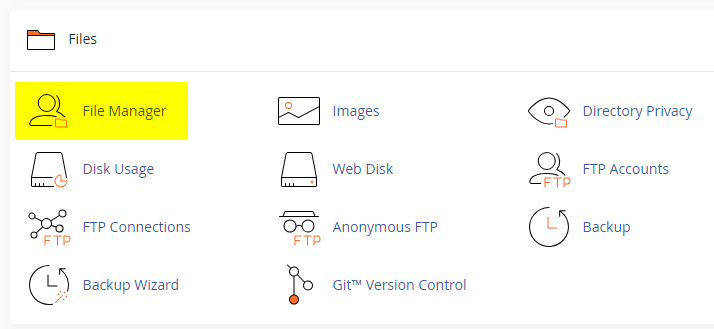
  2. Click on the "File Manager" icon. It's usually under the "Files" section.
  3. You are now in the "File Manager". Open the public_html folder, which is your website's root directory.
  4. Locate the wp-content folder inside "public_html," then open the themes folder inside of it.
  5. In the File Manager interface, click the "Upload" button and choose the theme's .zip file from your local drive.
  6. After it has been uploaded, right-click the .zip file and choose "Extract" or "Unzip".
  7. You can now delete the uploaded .zip file, but it's optional.
  8. Log in to your WordPress dashboard through your web browser.
  9. Go to Appearance → Themes. Now you will see the newly extracted theme.
  10. Make it your active theme by clicking the "Activate" button next to it.

Note: If your hosting provider doesn't offer cPanel, look for a File Manager option in your hosting dashboard (like DirectAdmin, Plesk, or CyberPanel). The process is usually very similar—just find the wp-content/themes folder and upload/extract the theme ZIP file there.

Method 3: Install using FTP

Installing a WordPress theme via FTP is straightforward, though it involves a few more steps compared to using the built-in theme uploader. Here's how to install a WordPress theme using FTP:

  1. Unzip the theme's .zip file you have downloaded.
  2. Connect to your hosting account using an FTP client such as "FileZilla" or "Core FTP".
  3. Navigate to the /wp-content/themes folder in the "Remote site" section.
  4. In the "Local site" section, locate the unzipped theme folder.
  5. Drag and drop the unzipped theme folder from the "Local site" section to the "Remote site" section.
  6. Be patient and let the transfer finish.
  7. Once the transfer is complete, log in to your WordPress dashboard and navigate to Appearance > Themes.
  8. Find the theme you just uploaded and click Activate.

Troubleshooting Tips

  • Didn't receive the download email? Wait 5–10 minutes or check your spam/junk folder. But if you still can not find this email or download link is broken, please inform us. we will send it ASAP.
  • "The uploaded file exceeds the upload_max_filesize directive in php.ini." - If you get this error when following the "Method 1", follow this tutorial: https://themesdna.com/blog/increase-maximum-file-upload-size-wordpress/
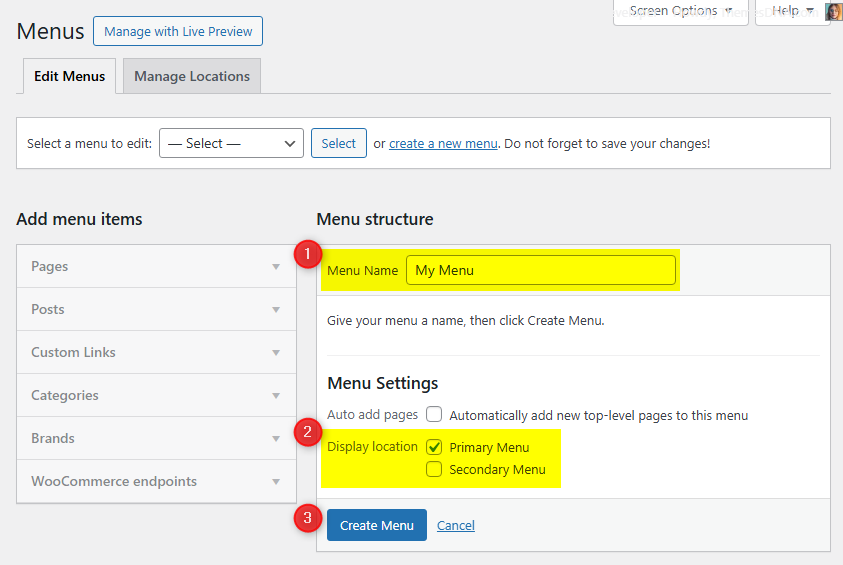
  • My menus disappeared or look different. Go to Appearance → Menus → Manage Locations and reassign your menus to the correct locations.
  • My header text or background color looks different after activating PRO. Reapply your colors in Appearance → Customize → Theme Options → Colors for Header Text Color and Background Color. Then publish.
  • Still can't install the theme? Contact us for help.

Import Demo Content

You can import the demo content, widgets, and Customizer settings shown in the FreshWP PRO theme demo.

Manual Demo Import

Step 1: Import Main Site Content

This includes: Posts, pages, menus, media, categories, tags, comments, and custom fields.

  1. Download: XML File
  2. Go to Tools → Import.
  3. Under "WordPress", click Install Now if not installed.
  4. Click Run Importer.
  5. Select the XML file and click Upload file and import.
  6. Check "Download and import file attachments", click Submit.

Step 2: Import Widgets

  1. Install the Widget Importer & Exporter plugin.
  2. Go to Tools → Widget Importer & Exporter.
  3. Copy content from: Widgets .wie File and paste into the box.
  4. Click Import Widgets.

Step 3: Import Customizer Settings

  1. Download: Customizer File
  2. Install the Customizer Export/Import plugin.
  3. Go to Appearance → Customize → Export/Import.
  4. Select the .dat file, check "Download and import image files?", click Import.

Regenerate Thumbnails

If your website already has existing posts with featured images, it's highly recommended to regenerate thumbnails after activating the FreshWP PRO theme. This ensures that all images match the new theme's layout and display sizes.

Regenerating thumbnails is optional if your site is completely new and doesn't have any uploaded images yet.

However, if you imported the demo content, regenerating thumbnails is essential to display images correctly across the site.

  1. Install and activate the Regenerate Thumbnails plugin.
  2. Go to Tools → Regenerate Thumbnails.
  3. Click the "Regenerate Thumbnails for All x Attachments" button to start the process.
  4. Wait until all images are regenerated. This may take a few minutes depending on your media library size.
  5. If you want, you can deactivate and delete the plugin once the process is complete.

This step ensures clean image alignment and sharp visuals throughout your website using the FreshWP PRO theme.

Header Image

Quick Start Guide

FreshWP PRO theme allows users to upload a site-wide custom header image. The recommended header image dimensions are 1270 × 200 pixels (flexible height).

How to Add a Site-wide Header Image?

  1. Go to AppearanceCustomizeHeader Image
  2. Upload your header image using the Add new image button.
  3. Click Publish to save your changes.

Custom Widgets

Quick Start Guide

To see available widgets and widget areas please navigate to WordPress DashboardAppearanceWidgets. You can drag and drop widgets into widget areas you like.

There are 14 custom widgets bundled with the FreshWP PRO theme:

  1. FreshWP Recent Posts
  2. FreshWP Popular Posts
  3. FreshWP Random Posts
  4. FreshWP Featured Posts – Style 1 through Style 8
  5. FreshWP Tabbed Widget
  6. FreshWP Social Widget
  7. FreshWP About Me Widget

FreshWP Recent Posts Widget

This widget displays recent posts of your website with options to show/hide thumbnails, dates, comment counts, and post snippets.

Option IDOption NameDescriptionControl TypeAccepted ValueDefault
titleTitleWidget title displayed above the post list.TextA plain text.Recent Posts
numberNumber of posts to showNumber of recent posts to display.TextA positive whole number.5
show_thumbnailDisplay Post Thumbnail?Show or hide post thumbnails.Checkboxtrue / falsetrue
show_dateDisplay post date?Show or hide post dates.Checkboxtrue / falsetrue
show_commentsDisplay Number of Comments?Show or hide comment counts.Checkboxtrue / falsetrue
show_snippetDisplay Post Snippet?Show or hide post excerpts.Checkboxtrue / falsetrue

FreshWP Random Posts Widget

This widget displays random posts from your website. Each page load shows different posts.

Option IDOption NameDescriptionControl TypeAccepted ValueDefault
titleTitleWidget title displayed above the post list.TextA plain text.Random Posts
numberNumber of posts to showNumber of random posts to display.TextA positive whole number.5
show_thumbnailDisplay Post Thumbnail?Show or hide post thumbnails.Checkboxtrue / falsetrue
show_dateDisplay post date?Show or hide post dates.Checkboxtrue / falsetrue
show_commentsDisplay Number of Comments?Show or hide comment counts.Checkboxtrue / falsetrue
show_snippetDisplay Post Snippet?Show or hide post excerpts.Checkboxtrue / falsetrue

FreshWP Tabbed Widget

This widget displays up to three tabs of posts in a tabbed interface. The tabs show Popular Posts, Recent Posts, and Random Posts. You can rename each tab and toggle any tab on/off. Post sources are fixed to those three types.

Key Features

  • Three tabs: Popular, Recent, Random (each can be renamed)
  • Enable/disable any tab
  • Controls for number of posts, snippet length, thumbnails, dates, comments, snippets
Option IDOption NameDescriptionControl TypeAccepted ValueDefault
titleTitleWidget title displayed above the tabs.TextA plain text.Tabbed Widget
show_popular_postsDisplay Tab 1 (Popular Posts)Enable or disable the Popular tab.Checkboxtrue / falsetrue
show_recent_postsDisplay Tab 2 (Recent Posts)Enable or disable the Recent tab.Checkboxtrue / falsetrue
show_random_postsDisplay Tab 3 (Random Posts)Enable or disable the Random tab.Checkboxtrue / falsetrue
tab_one_nameTab 1 NameDisplay name for the Popular tab.TextA plain text.Popular
tab_two_nameTab 2 NameDisplay name for the Recent tab.TextA plain text.Recent
tab_three_nameTab 3 NameDisplay name for the Random tab.TextA plain text.Random
numberNumber of posts per tabPosts shown in each tab.TextA positive whole number.3
snippet_lengthPost snippet length (number of words)Words to show in snippets.TextA positive whole number.20
show_thumbnailDisplay Post Thumbnails?Show or hide post thumbnails.Checkboxtrue / falsetrue
show_dateDisplay post date?Show or hide post dates.Checkboxtrue / falsetrue
show_commentsDisplay Number of Comments?Show or hide comment counts.Checkboxtrue / falsetrue
show_snippetDisplay Post Snippet?Show or hide post snippets.Checkboxtrue / falsetrue

FreshWP Social Widget

This widget displays social media profile links with icons. It supports a wide range of social platforms including Facebook, Twitter/X, Threads, Instagram, Pinterest, LinkedIn, YouTube, Vimeo, TikTok, WhatsApp, Telegram, Discord, Mastodon, and many more.

Key Features

  • Supports 50+ social media platforms
  • Uses Font Awesome icons for social media buttons
  • All social links open in new tabs
  • Option for round or normal button style
  • Responsive design

Usage Notes

  • Leave any social media field empty to hide that particular button
  • All social media URLs should be complete links (e.g., https://facebook.com/username)
  • Skype field requires just the username, not a full URL
  • Email field requires a valid email address

FreshWP About Me Widget

This widget displays a profile section with an image, description, and social media links. It's perfect for displaying author information, site owner profiles, or "About" sections in your sidebar or footer.

Key Features

  • Profile image display
  • Customizable description text
  • Integrated social media links with icons
  • Supports 50+ social platforms
  • Round or normal social button styles

Usage Notes

  • For the profile image, provide a direct URL to the image file
  • The description field supports HTML formatting
  • Leave social fields empty to hide those buttons

Widget Areas

There are 11 widget areas in the FreshWP PRO theme. To manage widgets, go to WordPress DashboardAppearanceWidgets.


  1. Header Banner

    This widget area is located on the header of your web page. You can drag and drop a "Custom HTML" widget into this widget area and add your banner ad code into that widget.

  2. Sidebar 1

    This sidebar is located on the left-hand side of your web page (position depends on the chosen layout style).

  3. Sidebar 2

    This sidebar is located on the right-hand side of your web page (position depends on the chosen layout style).

  4. Top Widgets (Home Page Only)

    This widget area is located at the top of the homepage only. Widgets placed here will only appear on the home/blog page.

  5. Top Widgets (Every Page)

    This widget area is located at the top of every page of your website.

  6. Bottom Widgets (Home Page Only)

    This widget area is located at the bottom of the homepage only. Widgets placed here will only appear on the home/blog page.

  7. Bottom Widgets (Every Page)

    This widget area is located at the bottom of every page of your website.

  8. Footer 1

    This widget area is the first column of the 4-column footer of your website.

  9. Footer 2

    This widget area is the second column of the 4-column footer of your website.

  10. Footer 3

    This widget area is the third column of the 4-column footer of your website.

  11. Footer 4

    This widget area is the fourth column of the 4-column footer of your website.

Custom Page Templates

FreshWP PRO includes 25 custom page and post templates that let you create pages and posts with unique layouts beyond the default design. You can assign these templates when editing any page or post, whether you're using the Classic Editor or the Gutenberg Block Editor.

Layout Templates (Pages)

  • "Full Width, no sidebar" (Page): Displays the page content in full width without any sidebars.
  • "Full Width, bottom sidebar" (Page): Displays the page content in full width with a sidebar below it.
  • "Content + Sidebar 1" (Page): Shows the page content on the left and Sidebar 1 on the right.
  • "Sidebar 1 + Content" (Page): Shows Sidebar 1 on the left and the page content on the right.
  • "Content + Sidebar 2" (Page): Shows the page content on the left and Sidebar 2 on the right.
  • "Sidebar 2 + Content" (Page): Shows Sidebar 2 on the left and the page content on the right.
  • "Content + Sidebar 1 + Sidebar 2" (Page): Shows content on the left, then two sidebars.
  • "Sidebar 1 + Content + Sidebar 2" (Page): Shows sidebar, content, sidebar (3-column).
  • "Sidebar 1 + Sidebar 2 + Content" (Page): Shows two sidebars on the left, content on the right.
  • "Content + Sidebar 2 + Sidebar 1" (Page): Shows content, Sidebar 2, Sidebar 1.
  • "Sidebar 2 + Content + Sidebar 1" (Page): Shows Sidebar 2, content, Sidebar 1.
  • "Sidebar 2 + Sidebar 1 + Content" (Page): Shows two sidebars, then content.

Layout Templates (Posts)

  • "Full Width, no sidebar" (Post): Displays the post content in full width without any sidebars.
  • "Full Width, bottom sidebar" (Post): Displays the post content in full width with a sidebar below it.
  • "Content + Sidebar 1" (Post): Shows the post content on the left and Sidebar 1 on the right.
  • "Sidebar 1 + Content" (Post): Shows Sidebar 1 on the left and the post content on the right.
  • "Content + Sidebar 2" (Post): Shows the post content on the left and Sidebar 2 on the right.
  • "Sidebar 2 + Content" (Post): Shows Sidebar 2 on the left and the post content on the right.
  • "Content + Sidebar 1 + Sidebar 2" (Post): Shows content on the left, then two sidebars.
  • "Sidebar 1 + Content + Sidebar 2" (Post): Shows sidebar, content, sidebar (3-column).
  • "Sidebar 1 + Sidebar 2 + Content" (Post): Shows two sidebars on the left, content on the right.
  • "Content + Sidebar 2 + Sidebar 1" (Post): Shows content, Sidebar 2, Sidebar 1.
  • "Sidebar 2 + Content + Sidebar 1" (Post): Shows Sidebar 2, content, Sidebar 1.
  • "Sidebar 2 + Sidebar 1 + Content" (Post): Shows two sidebars, then content.

Special Function Templates

  • "Sitemap" (Page): Displays a structured list of your site's pages, categories, tags, archives, and authors for better navigation.

How to Assign a Custom Template:

  1. Go to Pages or PostsAdd New or edit an existing page/post.
  2. Look for the Template option:
    • In Gutenberg: Make sure the right sidebar is visible. Then click the Page or Post tab and scroll down to find the Template option.
    • In Classic Editor: Make sure the Page Attributes or Post Attributes box is enabled via the Screen Options tab at the top right. Then, locate it in the right sidebar and use the Template dropdown.
  3. Select the desired template from the list.
  4. Click Publish or Update to apply the template.

How to Create a Sitemap Page

FreshWP PRO includes a built-in Sitemap page template that displays a full, structured list of your site's content—including pages, posts, categories, tags, archives, and authors.

  1. Go to WordPress DashboardPagesAdd New.
  2. Enter a title like Sitemap.
  3. Look for the Template option:
    • In Gutenberg: Click the Page tab in the right sidebar and scroll to find the Template dropdown.
    • In Classic Editor: Enable the Page Attributes box via Screen Options, then find the Template dropdown.
  4. Select the Sitemap template.
  5. Click Publish to make the sitemap live.

What's Included in the Sitemap Page

  • List of all Pages
  • List of all Categories and Tags
  • Monthly Archives
  • List of all Authors with links to their posts

This page is automatically generated and updates as new content is added to your site.

Customizer Theme Options

To see available WordPress Customizer theme options:

  1. Go to your WordPress Dashboard.
  2. Navigate to Appearance → Customize.
  3. Click on Theme Options.

Site Identity Options

Below is the complete list of Site Identity Options available:

Option IDOption NameDescriptionControl TypeAccepted ValueDefault
custom_logoLogoImage ID of the custom logo uploaded through the Customizer. Max recommended: 400×90 px (flexible).Media UploaderInteger (attachment ID)0 (none)
blognameSite TitleMain title of the website shown in the header, browser tabs, and search results.TextA string"My WordPress Site"
blogdescriptionTaglineShort descriptive sentence that appears below the title.TextA string"Just another WordPress site"
display_header_textDisplay Site Title & TaglineToggles whether the title/tagline are displayed on the front-end.Toggle Switchtrue / falsetrue
site_iconSite Icon (Favicon)Image for the favicon/app-icon (512 × 512 px recommended).Media UploaderInteger (attachment ID)0 (none)

Colors Options

Below is the complete list of Colors Options available in Appearance → Customize → Theme Options → Colors:

Option IDOption NameDescriptionControl TypeAccepted ValueDefault
header_textcolorHeader Text ColorColor of the site title and description.Color PickerHex color code#333333
background_colorBackground ColorOverall site background color.Color PickerHex color code#e4e0db
body_text_colorMain Text ColorPrimary body text color.Color PickerHex color code#555555
link_colorMain Link ColorDefault link color.Color PickerHex color code#666666
link_hover_colorMain Link Hover ColorHover state for standard links.Color PickerHex color code#000000
headings_colorGeneral Headings ColorColor for headings (H1–H6).Color PickerHex color code#111111
header_bg_colorHeader Background ColorBackground color of the header area.Color PickerHex color code#ffffff
menu_bg_colorMenu Background ColorMain navigation background.Color PickerHex color code#333333
menu_bd_colorMenu Border ColorBorder color for the menu area.Color PickerHex color code#555555
menu_colorMenu Link ColorColor of menu links.Color PickerHex color code#ffffff
menu_hover_colorMenu Link Hover ColorHover color of menu links.Color PickerHex color code#ffffff
menu_hover_bg_colorMenu Link Hover Background ColorBackground on hover for menu links.Color PickerHex color code#000000
submenu_one_bg_colorSub Menu Background ColorDropdown submenu background.Color PickerHex color code#444444
submenu_one_bd_colorSub Menu Border ColorBorder for dropdown submenu.Color PickerHex color code#555555
menu_icon_colorResponsive Menu Icon ColorColor of the mobile menu icon.Color PickerHex color code#ffffff
content_bg_colorPosts/Widgets Background ColorBackground for post and widget boxes.Color PickerHex color code#ffffff
content_bd_colorPosts/Widgets Border ColorBorder color for post/widget boxes.Color PickerHex color code#ececec
content_top_bd_colorPosts/Widgets Top Border ColorTop border color on posts/widgets.Color PickerHex color code#cccccc
post_title_colorPost Title ColorColor of post titles.Color PickerHex color code#000000
post_title_hover_colorPost Title Hover ColorHover color of post titles.Color PickerHex color code#333333
post_body_link_colorPost Content Link ColorLinks inside post content.Color PickerHex color code#409BD4
post_body_link_hover_colorPost Content Link Hover ColorHover color for links inside post content.Color PickerHex color code#08ACD5
postcats_colorPost Categories ColorText color for category labels.Color PickerHex color code#ffffff
postcats_bg_colorPost Categories Background ColorBackground for category labels.Color PickerHex color code#8c2828
postcats_hover_colorPost Categories Hover ColorHover text color for category labels.Color PickerHex color code#ffffff
postcats_bg_hover_colorPost Categories Hover Background ColorHover background for category labels.Color PickerHex color code#000000
post_meta_colorPost Meta ColorMeta text color (date, author, comments).Color PickerHex color code#666666
post_meta_hover_colorPost Meta Hover ColorHover color for post meta links.Color PickerHex color code#000000
rmore_colorRead More Button ColorText color of Read More buttons.Color PickerHex color code#ffffff
rmore_bg_colorRead More Button Background ColorBackground of Read More buttons.Color PickerHex color code#333333
rmore_hover_colorRead More Button Hover ColorHover text color for Read More buttons.Color PickerHex color code#ffffff
rmore_bg_hover_colorRead More Button Hover Background ColorHover background for Read More buttons.Color PickerHex color code#000000
sidebar_title_colorSidebar Title ColorWidget title text in sidebars.Color PickerHex color code#ffffff
sidebar_title_bg_colorSidebar Title Background ColorBackground for sidebar widget titles.Color PickerHex color code#000000
sidebar_text_colorSidebar Text ColorBody text inside sidebar widgets.Color PickerHex color code#333333
sidebar_link_colorSidebar Link ColorLink color inside sidebar widgets.Color PickerHex color code#333333
sidebar_link_hover_colorSidebar Link Hover ColorHover color for sidebar links.Color PickerHex color code#658db5
sidebar_list_bd_colorSidebar List Border ColorBorder color for list items in sidebars.Color PickerHex color code#dddddd
tag_cloud_colorTag Cloud Link ColorText color for tag cloud links.Color PickerHex color code#ffffff
tag_cloud_bg_colorTag Cloud Link BackgroundBackground for tag cloud links.Color PickerHex color code#888888
tag_cloud_hover_colorTag Cloud Link Hover ColorHover text color for tag cloud links.Color PickerHex color code#ffffff
tag_cloud_hover_bg_colorTag Cloud Link Hover BackgroundHover background for tag cloud links.Color PickerHex color code#000000
footer_bg_colorFooter Background ColorMain footer background color.Color PickerHex color code#222222
footer_bd_colorFooter Border ColorFooter border color.Color PickerHex color code#222222
footer_title_colorFooter Title ColorFooter widget title text.Color PickerHex color code#ffffff
footer_title_bg_colorFooter Title Background ColorFooter widget title background/border.Color PickerHex color code#000000
footer_text_colorFooter Text ColorBody text in footer widgets.Color PickerHex color code#ffffff
footer_link_colorFooter Link ColorLink color in footer widgets.Color PickerHex color code#ffffff
footer_link_hover_colorFooter Link Hover ColorHover color for footer links.Color PickerHex color code#dddddd
cp_bg_colorCopyrights Background ColorBackground for the copyright bar.Color PickerHex color code#0D0D0D
cp_bd_colorCopyrights Border ColorBorder color for the copyright bar.Color PickerHex color code#222222
cp_colorCopyrights Text ColorText/link color in the copyright bar.Color PickerHex color code#ffffff

Font Options

Below is the complete list of Font Options available:

Option ID Option Name Description Control Type Accepted Value Default
font_subsetsFont SubsetsSelect supported Google Font subsets.Multi Selectcyrillic, cyrillic-ext, greek, greek-ext, latin, latin-ext, vietnameselatin
body_fontsBody Font-FamilyFont family for body text.SelectFont listDomine
body_font_sizeBody Font-SizeFont size for body text.Select8px–72px13px
body_font_weightBody Font-WeightWeight for body text.Select400, 700400
body_font_styleBody Font-StyleStyle for body text.Selectnormal / italicnormal
body_line_heightBody Line-HeightLine height for body text.TextNumeric (e.g., 1.6)1.6
site_title_fontsSite Title Font-FamilyFont family for site title.SelectFont listPlayfair Display
site_title_font_sizeSite Title Font-SizeFont size for site title.Select8px–72px24px
site_title_font_weightSite Title Font-WeightWeight for site title.Select400, 700700
site_title_font_styleSite Title Font-StyleStyle for site title.Selectnormal / italicnormal
site_title_line_heightSite Title Line-HeightLine height for site title.TextNumeric1
site_desc_fontsSite Description Font-FamilyFont family for site description/tagline.SelectFont listDomine
site_desc_font_sizeSite Description Font-SizeFont size for site description.Select8px–72px13px
site_desc_font_weightSite Description Font-WeightWeight for site description.Select400, 700400
site_desc_font_styleSite Description Font-StyleStyle for site description.Selectnormal / italicnormal
site_desc_line_heightSite Description Line-HeightLine height for site description.TextNumeric1
menu_fontsMenu Font-FamilyFont family for navigation menu.SelectFont listOswald
menu_font_sizeMenu Font-SizeFont size for navigation menu.Select8px–72px13px
menu_font_weightMenu Font-WeightWeight for navigation menu.Select400, 700400
menu_font_styleMenu Font-StyleStyle for navigation menu.Selectnormal / italicnormal
hpost_title_fontsHome/Featured Post Title Font-FamilyFont family for featured post titles.SelectFont listPoppins
hpost_title_font_sizeHome/Featured Post Title Font-SizeFont size for featured post titles.Select8px–72px20px
hpost_title_font_weightHome/Featured Post Title Font-WeightWeight for featured post titles.Select400, 700700
hpost_title_font_styleHome/Featured Post Title Font-StyleStyle for featured post titles.Selectnormal / italicnormal
hpost_title_line_heightHome/Featured Post Title Line-HeightLine height for featured post titles.TextNumeric1.2
hpost_title_sm_fontsHome/Featured Small Post Title Font-FamilyFont family for small featured post titles.SelectFont listPoppins
hpost_title_sm_font_sizeHome/Featured Small Post Title Font-SizeFont size for small featured post titles.Select8px–72px16px
hpost_title_sm_font_weightHome/Featured Small Post Title Font-WeightWeight for small featured post titles.Select400, 700700
hpost_title_sm_font_styleHome/Featured Small Post Title Font-StyleStyle for small featured post titles.Selectnormal / italicnormal
hpost_title_sm_line_heightHome/Featured Small Post Title Line-HeightLine height for small featured post titles.TextNumeric1.2
hpost_cats_fontsHome/Featured Post Categories Font-FamilyFont family for featured post categories.SelectFont listOswald
hpost_cats_font_sizeHome/Featured Post Categories Font-SizeFont size for featured post categories.Select8px–72px12px
hpost_cats_font_weightHome/Featured Post Categories Font-WeightWeight for featured post categories.Select400, 700400
hpost_cats_font_styleHome/Featured Post Categories Font-StyleStyle for featured post categories.Selectnormal / italicnormal
hpost_meta_fontsHome/Featured Post Meta Font-FamilyFont family for featured post meta.SelectFont listOswald
hpost_meta_font_sizeHome/Featured Post Meta Font-SizeFont size for featured post meta.Select8px–72px12px
hpost_meta_font_weightHome/Featured Post Meta Font-WeightWeight for featured post meta.Select400, 700400
hpost_meta_font_styleHome/Featured Post Meta Font-StyleStyle for featured post meta.Selectnormal / italicnormal
read_more_fontsRead More Button Font-FamilyFont family for Read More buttons.SelectFont listOswald
read_more_font_sizeRead More Button Font-SizeFont size for Read More buttons.Select8px–72px12px
read_more_font_weightRead More Button Font-WeightWeight for Read More buttons.Select400, 700400
read_more_font_styleRead More Button Font-StyleStyle for Read More buttons.Selectnormal / italicnormal
post_title_fontsPost Title Font-FamilyFont family for single post titles.SelectFont listOswald
post_title_font_sizePost Title Font-SizeFont size for single post titles.Select8px–72px28px
post_title_font_weightPost Title Font-WeightWeight for single post titles.Select400, 700400
post_title_font_stylePost Title Font-StyleStyle for single post titles.Selectnormal / italicnormal
post_title_line_heightPost Title Line-HeightLine height for single post titles.TextNumeric1.2
widget_title_fontsMain/Sidebar Widget Title Font-FamilyFont family for sidebar widget titles.SelectFont listOswald
widget_title_font_sizeMain/Sidebar Title Font-SizeFont size for sidebar widget titles.Select8px–72px16px
widget_title_font_weightMain/Sidebar Title Font-WeightWeight for sidebar widget titles.Select400, 700400
widget_title_font_styleMain/Sidebar Title Font-StyleStyle for sidebar widget titles.Selectnormal / italicnormal
sidebar_title_line_heightMain/Sidebar Title Line-HeightLine height for sidebar titles.TextNumeric1
footer_title_fontsFooter Widget Title Font-FamilyFont family for footer widget titles.SelectFont listOswald
footer_title_font_sizeFooter Title Font-SizeFont size for footer widget titles.Select8px–72px15px
footer_title_font_weightFooter Title Font-WeightWeight for footer widget titles.Select400, 700400
footer_title_font_styleFooter Title Font-StyleStyle for footer widget titles.Selectnormal / italicnormal
footer_title_line_heightFooter Title Line-HeightLine height for footer widget titles.TextNumeric1
headings_fontsGeneral Headings Font-FamilyFont family for headings (H1–H6).SelectFont listPlayfair Display
headings_line_heightGeneral Headings Line-HeightLine height for headings.TextNumeric1
h1_font_sizeH1 Font-SizeFont size for H1.Select8px–72px32px
h1_font_weightH1 Font-WeightWeight for H1.Select400, 700700
h1_font_styleH1 Font-StyleStyle for H1.Selectnormal / italicnormal
h2_font_sizeH2 Font-SizeFont size for H2.Select8px–72px28px
h2_font_weightH2 Font-WeightWeight for H2.Select400, 700700
h2_font_styleH2 Font-StyleStyle for H2.Selectnormal / italicnormal
h3_font_sizeH3 Font-SizeFont size for H3.Select8px–72px24px
h3_font_weightH3 Font-WeightWeight for H3.Select400, 700700
h3_font_styleH3 Font-StyleStyle for H3.Selectnormal / italicnormal
h4_font_sizeH4 Font-SizeFont size for H4.Select8px–72px20px
h4_font_weightH4 Font-WeightWeight for H4.Select400, 700700
h4_font_styleH4 Font-StyleStyle for H4.Selectnormal / italicnormal
h5_font_sizeH5 Font-SizeFont size for H5.Select8px–72px18px
h5_font_weightH5 Font-WeightWeight for H5.Select400, 700700
h5_font_styleH5 Font-StyleStyle for H5.Selectnormal / italicnormal
h6_font_sizeH6 Font-SizeFont size for H6.Select8px–72px16px
h6_font_weightH6 Font-WeightWeight for H6.Select400, 700700
h6_font_styleH6 Font-StyleStyle for H6.Selectnormal / italicnormal

Header Options

Below is the complete list of Header Options available in Appearance → Customize → Theme Options → Header Options:

Option IDOption NameDescriptionControl TypeAccepted ValueDefault
enable_fullwidth_headerEnable Full Width HeaderMake the header span the full width of the browser window.Checkboxtrue / falsefalse
hide_header_contentHide Header ContentHide all header content (logo, title, tagline, header banner).Checkboxtrue / falsefalse

Layout Options

Below is the complete list of Layout Options available in Appearance → Customize → Theme Options → Layout Options:

Option IDOption NameDescriptionControl TypeAccepted ValueDefault
layout_styleLayout StyleSelect your site-wide layout style.Radio
  • Content + Sidebar 1
  • Content + Sidebar 1 + Sidebar 2
  • Content + Sidebar 2
  • Content + Sidebar 2 + Sidebar 1
  • Sidebar 1 + Content
  • Sidebar 1 + Content + Sidebar 2
  • Sidebar 1 + Sidebar 2 + Content
  • Sidebar 2 + Content
  • Sidebar 2 + Content + Sidebar 1
  • Sidebar 2 + Sidebar 1 + Content
  • Full Width
Sidebar 1 + Content + Sidebar 2
hide_sidebar_one_columnHide Sidebar from Full Width LayoutWhen Full Width layout is selected, hide the sidebar that appears below the content.Checkboxtrue / falsefalse

Post Options

Below is the complete list of Post Options available in Appearance → Customize → Theme Options → Post Options:

Option IDOption NameDescriptionControl TypeAccepted ValueDefault
hide_posts_homeHide Blog Posts from Home PageHide blog posts from the homepage (useful when using widgets only on homepage).Checkboxtrue / falsefalse
posts_headingHomePage Posts HeadingCustom heading displayed above the blog posts on the homepage.TextA stringRecent Posts
thumbnail_linkThumbnail LinkLink single post thumbnails to their post.SelectYes / NoYes
post_styleNon-Singular Posts StyleSelect the post style for home/categories/tags/archive/search-results pages.Select
  • Standard
  • Standard 2
  • List
  • List 2
  • Grid
  • Grid 2
  • Full
  • Featured
List
read_more_lengthAuto Post Summary LengthNumber of words to display in the post summary.TextA positive whole number.25
read_more_textRead More TextCustom text for the "Read More" button.TextA stringContinue Reading...
hide_posted_dateHide Posted DateHide the posted date from posts.Checkboxtrue / falsefalse
hide_post_authorHide Post AuthorHide the post author name.Checkboxtrue / falsefalse
hide_post_categoriesHide Post CategoriesHide post categories.Checkboxtrue / falsefalse
hide_post_tagsHide Post TagsHide post tags.Checkboxtrue / falsefalse
hide_comments_linkHide Comment LinkHide the comment link from posts.Checkboxtrue / falsefalse
hide_post_editHide Post Edit LinkHide the edit link for logged-in users.Checkboxtrue / falsefalse
hide_thumbnailHide Thumbnails from Every PageHide featured image thumbnails globally.Checkboxtrue / falsefalse
hide_thumbnail_singleHide Thumbnails from Posts/PagesHide featured images on single posts and pages only.Checkboxtrue / falsefalse
hide_post_snippetHide Post SnippetHide the post excerpt/snippet on archive pages.Checkboxtrue / falsefalse
hide_read_more_buttonHide Read More ButtonHide the "Read More" button on archive pages.Checkboxtrue / falsefalse
hide_share_buttonsHide Share ButtonsHide share buttons on posts.Checkboxtrue / falsefalse
hide_author_bio_boxHide Author Bio BoxHide the author biography box on single posts.Checkboxtrue / falsefalse
hide_related_postsHide Related PostsHide the related posts section.Checkboxtrue / falsefalse
related_posts_numberNumber of Related PostsChoose how many related posts to display.Select4 / 8 / 12 / 164

Social Links Options

FreshWP PRO allows you to add social media profile links that are displayed in the header/footer area of your site. Configure them in Appearance → Customize → Theme Options → Social Links.

Note: Leave any social profile URL field empty to hide that particular social button. You can also toggle Hide Social Buttons to hide all social buttons from the site at once.

Option ID Option Name Description Control Type Accepted Value Default
hide_social_buttonsHide Social ButtonsToggle to hide all social buttons.Checkboxtrue / falsefalse
twitterlinkTwitter URLProfile URL for Twitter/X.TextURL(empty)
facebooklinkFacebook URLProfile URL for Facebook.TextURL(empty)
threadslinkThreads URLProfile URL for Threads.TextURL(empty)
googlelinkGoogle Plus URLProfile URL for Google Plus.TextURL(empty)
pinterestlinkPinterest URLProfile URL for Pinterest.TextURL(empty)
linkedinlinkLinkedIn URLProfile URL for LinkedIn.TextURL(empty)
instagramlinkInstagram URLProfile URL for Instagram.TextURL(empty)
vklinkVK URLProfile URL for VK.TextURL(empty)
flickrlinkFlickr URLProfile URL for Flickr.TextURL(empty)
youtubelinkYouTube URLChannel/profile URL for YouTube.TextURL(empty)
vimeolinkVimeo URLProfile URL for Vimeo.TextURL(empty)
soundcloudlinkSoundCloud URLProfile URL for SoundCloud.TextURL(empty)
messengerlinkMessenger URLMessenger profile/page URL.TextURL(empty)
whatsapplinkWhatsApp URLWhatsApp link (use full URL).TextURL(empty)
tiktoklinkTikTok URLProfile URL for TikTok.TextURL(empty)
lastfmlinkLast.fm URLProfile URL for Last.fm.TextURL(empty)
mediumlinkMedium URLProfile URL for Medium.TextURL(empty)
githublinkGitHub URLProfile URL for GitHub.TextURL(empty)
bitbucketlinkBitbucket URLProfile URL for Bitbucket.TextURL(empty)
tumblrlinkTumblr URLProfile URL for Tumblr.TextURL(empty)
digglinkDigg URLProfile URL for Digg.TextURL(empty)
deliciouslinkDelicious URLProfile URL for Delicious.TextURL(empty)
stumblelinkStumbleUpon URLProfile URL for StumbleUpon.TextURL(empty)
mixlinkMix URLProfile URL for Mix.TextURL(empty)
redditlinkReddit URLProfile URL for Reddit.TextURL(empty)
dribbblelinkDribbble URLProfile URL for Dribbble.TextURL(empty)
flipboardlinkFlipboard URLProfile URL for Flipboard.TextURL(empty)
bloggerlinkBlogger URLProfile URL for Blogger.TextURL(empty)
etsylinkEtsy URLShop/profile URL for Etsy.TextURL(empty)
behancelinkBehance URLProfile URL for Behance.TextURL(empty)
amazonlinkAmazon URLProfile/store URL for Amazon.TextURL(empty)
meetuplinkMeetup URLProfile/group URL for Meetup.TextURL(empty)
mixcloudlinkMixcloud URLProfile URL for Mixcloud.TextURL(empty)
slacklinkSlack URLWorkspace invite/profile URL.TextURL(empty)
snapchatlinkSnapchat URLProfile URL for Snapchat.TextURL(empty)
spotifylinkSpotify URLProfile URL for Spotify.TextURL(empty)
yelplinkYelp URLProfile/business URL for Yelp.TextURL(empty)
wordpresslinkWordPress URLProfile URL for WordPress.com.TextURL(empty)
twitchlinkTwitch URLChannel URL for Twitch.TextURL(empty)
telegramlinkTelegram URLChannel/profile URL for Telegram.TextURL(empty)
bandcamplinkBandcamp URLProfile URL for Bandcamp.TextURL(empty)
quoralinkQuora URLProfile URL for Quora.TextURL(empty)
foursquarelinkFoursquare URLProfile URL for Foursquare.TextURL(empty)
deviantartlinkDeviantArt URLProfile URL for DeviantArt.TextURL(empty)
imdblinkIMDB URLProfile URL for IMDB.TextURL(empty)
codepenlinkCodePen URLProfile URL for CodePen.TextURL(empty)
jsfiddlelinkJSFiddle URLProfile URL for JSFiddle.TextURL(empty)
stackoverflowlinkStack Overflow URLProfile URL for Stack Overflow.TextURL(empty)
stackexchangelinkStack Exchange URLProfile URL for Stack Exchange.TextURL(empty)
bsalinkBuySellAds URLProfile URL for BuySellAds.TextURL(empty)
web500pxlink500px URLProfile URL for 500px.TextURL(empty)
ellolinkEllo URLProfile URL for Ello.TextURL(empty)
discordlinkDiscord URLServer invite/profile URL for Discord.TextURL(empty)
goodreadslinkGoodreads URLProfile URL for Goodreads.TextURL(empty)
odnoklassnikilinkOdnoklassniki URLProfile URL for Odnoklassniki.TextURL(empty)
houzzlinkHouzz URLProfile URL for Houzz.TextURL(empty)
pocketlinkPocket URLProfile URL for Pocket.TextURL(empty)
xinglinkXING URLProfile URL for XING.TextURL(empty)
mastodonlinkMastodon URLProfile URL for Mastodon (full URL).TextURL(empty)
googleplaylinkGoogle Play URLDeveloper/app URL for Google Play.TextURL(empty)
slidesharelinkSlideShare URLProfile URL for SlideShare.TextURL(empty)
dropboxlinkDropbox URLProfile/link for Dropbox.TextURL(empty)
paypallinkPayPal URLPayment/profile URL for PayPal.TextURL(empty)
viadeolinkViadeo URLProfile URL for Viadeo.TextURL(empty)
wikipedialinkWikipedia URLProfile/page URL for Wikipedia.TextURL(empty)
skypeusernameSkype UsernameUsername for Skype (not a URL).TextUsername(empty)
emailaddressEmail AddressEmail for social icon mailto.TextEmail(empty)
rsslinkRSS Feed URLCustom RSS feed URL.TextURL(empty)

Share Buttons Options

Configure share buttons in Appearance → Customize → Theme Options → Share Buttons. You can individually show or hide each share button type.

Option IDOption NameDescriptionControl TypeAccepted ValueDefault
hide_share_buttonsHide Share Buttons from Single PostsHide all share buttons from single posts.Checkboxtrue / falsefalse
hide_share_textHide Share Text from Single PostsHide the "Share:" label text.Checkboxtrue / falsefalse
share_textShare Text for Single PostsCustom text label for the share buttons section.TextPlain textShare:
hide_share_twitterHide Twitter Share ButtonHide Twitter/X share button.Checkboxtrue / falsefalse
hide_share_facebookHide Facebook Share ButtonHide Facebook share button.Checkboxtrue / falsefalse
hide_share_pinterestHide Pinterest Share ButtonHide Pinterest share button.Checkboxtrue / falsefalse
hide_share_linkedinHide LinkedIn Share ButtonHide LinkedIn share button.Checkboxtrue / falsefalse
hide_share_mixHide Mix Share ButtonHide Mix share button.Checkboxtrue / falsefalse
hide_share_redditHide Reddit Share ButtonHide Reddit share button.Checkboxtrue / falsefalse
hide_share_diggHide Digg Share ButtonHide Digg share button.Checkboxtrue / falsefalse
hide_share_vkHide VK Share ButtonHide VK share button.Checkboxtrue / falsefalse
show_share_lineShow LINE Share ButtonShow LINE share button.Checkboxtrue / falsefalse
show_share_flipboardShow Flipboard Share ButtonShow Flipboard share button.Checkboxtrue / falsefalse
show_share_telegramShow Telegram Share ButtonShow Telegram share button.Checkboxtrue / falsefalse
show_share_pocketShow Pocket Share ButtonShow Pocket share button.Checkboxtrue / falsefalse
show_share_odnoklassnikiShow OK.RU Share ButtonShow OK.RU share button.Checkboxtrue / falsefalse
show_share_whatsappShow WhatsApp Share ButtonShow WhatsApp share button.Checkboxtrue / falsefalse
show_share_tumblrShow Tumblr Share ButtonShow Tumblr share button.Checkboxtrue / falsefalse
show_share_evernoteShow Evernote Share ButtonShow Evernote share button.Checkboxtrue / falsefalse
show_share_wordpressShow WordPress Share ButtonShow WordPress share button.Checkboxtrue / falsefalse
show_share_bloggerShow Blogger Share ButtonShow Blogger share button.Checkboxtrue / falsefalse
show_share_xingShow XING Share ButtonShow XING share button.Checkboxtrue / falsefalse
show_share_skypeShow Skype Share ButtonShow Skype share button.Checkboxtrue / falsefalse
show_share_gmailShow Gmail This ButtonShow Gmail share button.Checkboxtrue / falsefalse
show_share_yahoomailShow Yahoo! Mail This ButtonShow Yahoo! Mail share button.Checkboxtrue / falsefalse
show_share_emailShow Email This ButtonShow Email share button.Checkboxtrue / falsefalse
show_share_bufferShow Add to Buffer ButtonShow Buffer share button.Checkboxtrue / falsefalse
show_share_googlebookmarkShow Google Bookmark ButtonShow Google Bookmark share button.Checkboxtrue / falsefalse

404 Page Options

Below is the complete list of 404 Page Options available in Appearance → Customize → Theme Options → 404 Page:

Option IDOption NameDescriptionControl TypeAccepted ValueDefault
error_404_heading404 Error Page HeadingCustom heading for the 404 error page.TextareaA string (HTML allowed)Oops! That page can not be found.
error_404_messageError 404 MessageCustom message for the 404 error page.TextareaA string (HTML allowed)It looks like nothing was found at this location. Maybe try one of the links below or a search?

Other Options

Below is the complete list of Other Options available in Appearance → Customize → Theme Options → Other Options:

Option IDOption NameDescriptionControl TypeAccepted ValueDefault
disable_sticky_menuDisable Sticky MenuDisable the sticky (fixed) navigation menu on scroll.Checkboxtrue / falsefalse
disable_sticky_sidebarDisable Sticky SidebarDisable the sticky sidebar that follows on scroll.Checkboxtrue / falsefalse
disable_back_to_topDisable Back to Top ButtonDisable the "Back to Top" floating button.Checkboxtrue / falsefalse
enable_widgets_block_editorEnable Gutenberg Widget Block EditorEnable the Gutenberg block-based widget editor instead of the classic widget editor.Checkboxtrue / falsefalse

Reset Options

Below is the complete list of Reset Options available:

Option ID Option Name Description Control Type Accepted Value Default
reset_settingsReset all theme optionsResets all FreshWP PRO Customizer options to their default values when clicked.Reset ButtonAction button(n/a)

Performance & SEO Tips

While the FreshWP PRO theme is built with clean, lightweight code, the overall speed and SEO ranking of your site depends on several factors. Here are some practical tips to help you get the most out of your site:

  • Use a caching plugin – Install a caching plugin like W3 Total Cache, WP Super Cache, or LiteSpeed Cache to serve static pages and reduce server load.
  • Optimize images – Compress your images before uploading using tools like Imagify, Smush, or EWWW Image Optimizer.
  • Use a CDN – A Content Delivery Network like Cloudflare or BunnyCDN can serve your site assets from the nearest location to the visitor.
  • Install an SEO plugin – Use Yoast SEO or Rank Math to optimize your metadata, sitemaps, and on-page SEO.
  • Keep plugins minimal – Only install plugins you truly need. Deactivate and delete unused ones.
  • Choose quality hosting – A reputable managed WordPress host can drastically improve your site's load time.
  • Enable GZIP compression – Most caching plugins handle this, but you can also enable it via your .htaccess file.
  • Set featured images for all posts – This improves both the visual appearance and social media sharing of your content.
  • Use descriptive, keyword-rich titles – Both for your site title/tagline and for individual posts and pages.

Translation & RTL

FreshWP PRO is fully translation-ready and supports Right-to-Left (RTL) languages like Arabic, Hebrew, and Persian out of the box.

🌐 Translating the Theme

The theme includes a freshwp-pro.pot file located in the /languages folder inside the theme directory. You can use this file to create translations in your own language using any of the following tools:

After translating, save your files as:

  • freshwp-pro-[language_code].po
  • freshwp-pro-[language_code].mo

Place them inside the /languages folder in the theme.

↔️ RTL Language Support

FreshWP PRO includes built-in RTL support. If your WordPress site language is set to an RTL language, the theme will automatically adjust layout direction, alignment, and spacing accordingly. No extra setup required.

If you're customizing your site with RTL content, make sure your text widgets, menus, and custom styles are also RTL-compatible for best results.

FAQ

In this section, you'll find quick answers to the most frequently asked questions about using the FreshWP PRO theme. If you can't find your answer here, you can contact our support team for more help.

Why is my logo/site icon/header image/background image missing after upgrading to PRO?

When switching from the free to PRO version, you need to manually reupload your Site Logo, Header Image, Site Icon, and Background Image via Appearance → Customize.

My menus disappeared after theme activation. What should I do?

Go to Appearance → Menus → Manage Locations and reassign your existing menus to the correct theme locations.

How do I change the post style on the homepage?

  1. Go to AppearanceCustomizeTheme OptionsPost Options.
  2. Under the Non-Singular Posts Style setting, select your preferred style (Standard, Standard 2, List, List 2, Grid, Grid 2, Full, or Featured).
  3. Save your changes.

How do I change the layout from 3 columns to 2 columns or full width?

  1. Go to AppearanceCustomizeTheme OptionsLayout Options.
  2. Select your preferred layout style. For 2 columns, choose any option with one sidebar (e.g., "Content + Sidebar 1"). For full width, choose "Full Width".
  3. Save your changes.

How do I add social media links?

  1. Go to AppearanceCustomizeTheme OptionsSocial Links.
  2. Enter your social media profile URLs in the respective fields.
  3. Save your changes.

How do I reset Customizer settings to default?

Go to AppearanceCustomizeTheme OptionsReset Settings, then click the Reset Theme Options button. Confirm when prompted to revert all FreshWP PRO Customizer settings to their defaults.

Troubleshooting

This section covers common technical problems you may encounter while installing, activating, or customizing the FreshWP PRO theme. If your specific issue isn't listed, you can always reach out to our support team for assistance.

Post thumbnails are missing when sharing on social media

Install an SEO plugin like Yoast SEO or Rank Math and enable Open Graph tags. Always set a featured image for each post to ensure proper thumbnails appear when sharing.

I get "The uploaded file exceeds the upload_max_filesize directive" error.

This means your hosting has a small file upload limit. Follow this guide to increase it or use cPanel/File Manager to upload the theme.

Featured images look blurry or cropped incorrectly

This usually happens when the theme's custom image sizes haven't been generated. Install and run the Regenerate Thumbnails plugin to fix this.

Sidebar widgets are not appearing

Make sure you have added widgets to the correct widget area via Appearance → Widgets. Also check that the selected layout style includes sidebars (not "Full Width").

The Gutenberg widget editor is not working properly

By default, FreshWP PRO uses the classic widget editor. If you want to use the Gutenberg block-based widget editor, enable it from Appearance → Customize → Theme Options → Other OptionsEnable Gutenberg Widget Block Editor.

Support & Licensing

All our WordPress themes, including FreshWP PRO, are released under the 100% GPL (General Public License). You can use the theme on unlimited websites and modify the code to suit your needs.

What’s included in free support:

  • Help with theme installation and setup
  • Bug fixes and troubleshooting related to the theme
  • Guidance on using built-in theme features

What’s not included in free support (but available as paid tasks):

  • Theme customization or resolving third-party plugin conflicts
  • Custom coding or feature implementation requests
  • Performance tuning, SEO setup, or server configuration assistance

If you need help or would like to request a paid customization, please contact us. We typically respond within 24–48 hours on working days.

Contact Support

Changelog & Versioning

The following is a log of all updates and changes made to FreshWP. We recommend always using the latest version to benefit from improvements and new features.

= Version 1.0.9 =

  • Fixed coding issues.

= Version 1.0.8 =

  • Fixed coding issues.

= Version 1.0.7 =

  • Fixed coding issues.
  • Theme Customizer updated.
  • Many improvements.

= Version 1.0.6 =

  • Fixed coding issues.
  • Theme Customizer updated.

= Version 1.0.5 =

  • Fixed coding issues.
  • Theme customizer updated.

= Version 1.0.2 =

  • Fixed minor coding issues.
  • Readme file was updated.
  • Theme tags were updated.
  • Screenshot was updated.

= Version 1.0 =

  • Initial Release.

Date Formats

You can use the following date format values to control how dates appear in various places such as custom widgets, post metadata, news tickers, and more. These formats follow the standard PHP date formatting rules used by WordPress. Refer to the table below to choose a format that best fits your design and content style.

Format KeyExample Output
H:i00:50
g:i a12:50 am
g:i A12:50 AM
g:i:s a12:50:48 am
g:i:s A12:50:48 AM
d.m.y27.11.10
Y.m.d2010.11.27
Y-m-d2010-11-27
Y/m/d2010/11/27
m.d.Y11.27.2010
m-d-Y11-27-2010
m/d/Y11/27/2010
d.m.Y27.11.2010
d-m-Y27-11-2010
d/m/Y27/11/2010
m/d/Y g:i:s a11/27/2010 12:50:48 am
m/d/Y g:i:s A11/27/2010 12:50:48 AM
Y/m/d \a\t g:i a2010/11/27 at 12:50 am
Y/m/d \a\t g:i A2010/11/27 at 12:50 AM
d F27 November
F, YNovember, 2010
F j, YNovember 27, 2010
d M Y27 Nov 2010
M j, YNov 27, 2010
M j, Y @ H:iNov 27, 2010 @ 0:50
l, F j, YSaturday, November 27, 2010
l, F jS, YSaturday, November 27th, 2010