EasyWP Documentation

Introduction

EasyWP is a clean and lightweight, easy to use, 3 columns, responsive WordPress blogging theme. It has many theme options to customize various aspects of the theme and has accessibility-ready sticky navigation menu, full-width custom templates for posts/pages, header widget area, left and right sticky sidebars, 4 columns footer, social buttons, post summaries and scroll-top button. The theme is very starter-friendly and easy to set up.

Quick Start Guide

  1. Install & activate the theme via Appearance → Themes → Add New.
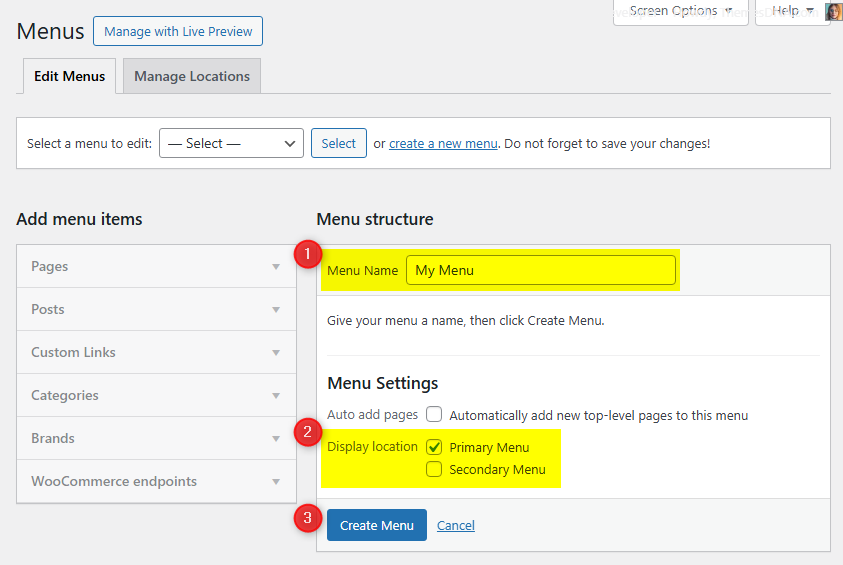
  2. Set up your menus by going to Appearance → Menus. Create a menu and assign it to the available menu location.
  3. Configure widgets by going to Appearance → Widgets. Add widgets to the available widget areas.
  4. Customize by going to Appearance → Customize → Theme Options. Set up your social links, post options, and more.

Theme Features

  • Responsive Design
  • Clean and Lightweight 3-Column Layout
  • Accessibility-Ready Sticky Navigation Menu
  • 1 Navigation Menu (Primary)
  • Left and Right Sticky Sidebars
  • Header Widget Area (for Banners/Ads)
  • 4 Footer Widget Columns
  • 50+ Social Profile Links
  • Custom Logo Support
  • Custom Header Image
  • Custom Background
  • Author Bio Box
  • Full-Width Custom Templates for Posts/Pages
  • Translation Ready
  • Back to Top Button
  • FitVids.JS for Responsive Videos
  • Sticky Sidebars (Theia Sticky Sidebar)
  • WP-PageNavi Support

Theme Installation

Method 1: Install via WordPress Dashboard (Recommended)

  1. Log in to your WordPress Dashboard.
  2. Navigate to Appearance → Themes → Add New.
  3. Search for EasyWP in the search box.
  4. Click Install on the EasyWP theme, then click Activate.

Method 2: Upload via WordPress Dashboard

  1. Download the easywp.zip theme file from WordPress.org.
  2. Log in to your WordPress Dashboard.
  3. Navigate to Appearance → Themes → Add New → Upload Theme.
  4. Click Choose File, select the easywp.zip file, and click Install Now.
  5. After installation, click Activate.

Method 3: Upload via FTP/File Manager

  1. Download the easywp.zip theme file and extract it.
  2. Connect to your server via FTP (FileZilla) or use your hosting File Manager.
  3. Upload the extracted easywp folder to /wp-content/themes/.
  4. Go to your WordPress Dashboard → Appearance → Themes and activate EasyWP.

Troubleshooting Installation Issues

  • "The uploaded file exceeds the upload_max_filesize directive" – Your hosting limits file uploads. Increase the limit via php.ini, .htaccess, or contact your host. Alternatively, use FTP.
  • "The package could not be installed. The theme is missing the style.css stylesheet" – You may be uploading the wrong file. Make sure you upload only the easywp.zip file.

Import Demo Content

You can import the demo content, widgets, and Customizer settings shown in the EasyWP theme demo.

Manual Demo Import

Step 1: Import Main Site Content

This includes: Posts, pages, menus, media, categories, tags, comments, and custom fields.

  1. Download: XML File
  2. Go to Tools → Import.
  3. Under "WordPress", click Install Now if not installed.
  4. Click Run Importer.
  5. Select the XML file and click Upload file and import.
  6. Check "Download and import file attachments", click Submit.

Step 2: Import Widgets

  1. Install the Widget Importer & Exporter plugin.
  2. Go to Tools → Widget Importer & Exporter.
  3. Copy content from: Widgets .wie File and paste into the box.
  4. Click Import Widgets.

Step 3: Import Customizer Settings

  1. Download: Customizer File
  2. Install the Customizer Export/Import plugin.
  3. Go to Appearance → Customize → Export/Import.
  4. Select the .dat file, check "Download and import image files?", click Import.

Regenerate Thumbnails

If your website already has existing posts with featured images, it's highly recommended to regenerate thumbnails after activating the EasyWP theme. This ensures that all images match the new theme's layout and display sizes.

Regenerating thumbnails is optional if your site is completely new and doesn't have any uploaded images yet.

However, if you imported the demo content, regenerating thumbnails is essential to display images correctly across the site.

  1. Install and activate the Regenerate Thumbnails plugin.
  2. Go to Tools → Regenerate Thumbnails.
  3. Click the "Regenerate Thumbnails for All x Attachments" button to start the process.
  4. Wait until all images are regenerated. This may take a few minutes depending on your media library size.
  5. If you want, you can deactivate and delete the plugin once the process is complete.

This step ensures clean image alignment and sharp visuals throughout your website using the EasyWP theme.

Header Image

Use the WordPress Customizer to add or manage the header image that appears at the top of your site. The header image is linked to the homepage by default.

How to add a header image

  1. Go to Appearance → Customize → Header Image.
  2. Click Add new image and choose/upload your image (recommended width: 1146px or larger).
  3. Crop if prompted, then click Publish.

For best results, use an image that is at least 1146 pixels wide. The header image height is flexible and will adapt to the uploaded image.

Widget Areas

There are 7 widget areas in the EasyWP theme. The free version does not bundle custom widgets; use WordPress core widgets or plugins of your choice inside these areas.


  1. Header Banner

    Located on the header of the web page. Ideal for placing banner ads or custom HTML widgets.

  2. Left Sidebar

    Located on the left-hand side of web pages. This sidebar is sticky and remains visible while scrolling.

  3. Right Sidebar

    Located on the right-hand side of web pages. This sidebar is sticky and remains visible while scrolling.

  4. Footer 1

    Footer column 1 (left).

  5. Footer 2

    Footer column 2 (center-left).

  6. Footer 3

    Footer column 3 (center-right).

  7. Footer 4

    Footer column 4 (right).

Page Templates

EasyWP includes two custom page templates you can use for full-width layouts without sidebars.

  • Full Width, no sidebar(s) (Page) — Template for pages (template-full-width-page.php)
  • Full Width, no sidebar(s) (Post) — Template for posts (template-full-width-post.php)

How to apply a template

  1. Edit a page or post in the WordPress editor.
  2. In the Page Attributes (or Post Attributes) panel, open the Template dropdown.
  3. Select Full Width, no sidebar(s) and update/publish.

Use featured images with sufficient width (e.g., 1110px+) for best presentation in full-width layouts.

Customizer Theme Options

To see available WordPress Customizer theme options:

  1. Go to your WordPress Dashboard.
  2. Navigate to Appearance → Customize.
  3. Click on Theme Options.

Site Identity Options

Below is the complete list of Site Identity Options available:

Option ID Option Name Description Control Type Accepted Value Default
custom_logo Logo Image ID of the custom logo uploaded through the Customizer. Media Uploader Integer (attachment ID) 0 (none)
blogname Site Title Main title of the website shown in the header, browser-tabs, and search-results. Text A string "My WordPress Site" (installer-set)
blogdescription Tagline Short descriptive sentence (appears next to or below the title when supported by the theme). Text A string "Just another WordPress site"
display_header_text Display Site Title & Tagline Toggles whether the title/tagline are printed on the front-end. When off they remain in the markup for accessibility but are hidden with CSS. Toggle Switch true / false true
site_icon Site Icon (Favicon) Image ID for the favicon/app-icon (512 × 512 px recommended). Used in browser tabs, bookmark tiles and WP mobile app. Media Uploader Integer (attachment ID) 0 (none)

Colors Options

Below is the complete list of Colors Options available:

Option ID Option Name Description Control Type Accepted Value Default
background_colorBackground ColorPick the site Background Color. To change Background Color, need to remove background image first.Color PickerHex color code (e.g. #ffffff)#eeeeee
header_textcolorHeader Text ColorPick the Header Text Color for the site title and tagline.Color PickerHex color code (e.g. #ffffff)#333333

Header Image Options

Below is the complete list of Header Image Options available:

Option ID Option Name Description Control Type Accepted Value Default
header_imageHeader ImageUpload or select a header image. Suggested width is 1146 pixels.Media UploaderImage URL(none)

Background Image Options

Below is the complete list of Background Image Options available:

Option ID Option Name Description Control Type Accepted Value Default
background_imageBackground ImageUpload or select a background image for the site.Media UploaderImage URL(none)
background_presetPresetChoose a preset for how the background image is displayed.DropdownDefault / Fill Screen / Fit to Screen / Repeat / CustomDefault
background_position_xImage Position (Horizontal)Horizontal position of the background image.RadioLeft / Center / RightLeft
background_position_yImage Position (Vertical)Vertical position of the background image.RadioTop / Center / BottomTop
background_sizeImage SizeHow the background image is sized.DropdownAuto / Contain / CoverAuto
background_repeatRepeat Background ImageWhether the background image repeats.CheckboxRepeat / No RepeatRepeat
background_attachmentScroll with PageWhether the background image scrolls with the page or is fixed.CheckboxScroll / FixedScroll

Post Options

Below is the complete list of Post Options available:

Option IDOption NameDescriptionControl TypeAccepted ValueDefault
hide_entry_metaHide Entry MetaHide all entry meta data (date, author, categories, tags, comments link) from posts.Checkboxtrue / falsefalse
hide_posted_dateHide Posted DateHide the posted date from posts.Checkboxtrue / falsefalse
hide_post_authorHide Post AuthorHide the author name from posts.Checkboxtrue / falsefalse
hide_post_categoriesHide Post CategoriesHide post categories from posts.Checkboxtrue / falsefalse
hide_post_tagsHide Post TagsHide post tags from posts.Checkboxtrue / falsefalse
hide_comments_linkHide Comment LinkHide the comment link from posts.Checkboxtrue / falsefalse
hide_thumbnailHide Thumbnails from Every PageHide featured image thumbnails from all pages.Checkboxtrue / falsefalse
hide_thumbnail_singleHide Thumbnails from Posts/PagesHide featured image thumbnails from single posts and pages.Checkboxtrue / falsefalse
hide_read_more_buttonHide Read More ButtonHide the "Read More" button from post excerpts.Checkboxtrue / falsefalse
thumbnail_linkThumbnail LinkWhether thumbnails should be linked to their post.Dropdown
  • Yes
  • No
Yes
blogpoststylePost ContentShow the whole post content or only show the first few lines (excerpt).Dropdown
  • Show excerpt
  • Show content
Show excerpt
read_more_textRead More TextCustom text for the "Read More" button.TextA stringContinue Reading...
hide_author_bio_boxHide Author Bio BoxHide the author biography box on single posts.Checkboxtrue / falsefalse
hide_post_navigationHide Post NavigationHide the previous/next post navigation on single posts.Checkboxtrue / falsefalse
hide_posts_navigationHide Posts Navigation from Home/Archive/Search PagesHide the posts navigation on listing pages.Checkboxtrue / falsefalse
posts_navigation_typePosts Navigation TypeSelect the type of navigation for post listings. If WP-PageNavi plugin is active, it will replace this navigation.Dropdown
  • Normal Navigation
  • Numbered Navigation
Numbered Navigation

Other Options

Below is the complete list of Other Options available:

Option IDOption NameDescriptionControl TypeAccepted ValueDefault
disable_sticky_menuDisable Sticky MenuDisable the sticky (fixed) primary navigation menu on scroll.Checkboxtrue / falsefalse
enable_sticky_mobile_menuEnable Sticky Menu on Small ScreenEnable the sticky menu on small screen devices (mobile/tablet).Checkboxtrue / falsefalse
disable_primary_menuDisable Primary MenuCompletely disable the primary menu.Checkboxtrue / falsefalse
primary_menu_textPrimary Menu Mobile TextText displayed for the primary menu toggle on mobile devices.TextA stringMenu
disable_backtotopDisable Back to Top ButtonDisable the floating back-to-top button.Checkboxtrue / falsefalse
enable_widgets_block_editorEnable Gutenberg Widget Block EditorEnable the Gutenberg block-based widget editor instead of the classic widget editor.Checkboxtrue / falsefalse
disable_fitvidsDisable FitVids.JSDisable the FitVids.js script for fluid width videos. You can disable fitvids.js script if you do not want fluid width videos in your post content.Checkboxtrue / falsefalse

Translation & RTL

EasyWP is translation-ready. It ships with a POT file for localization but does not include RTL-specific styles.

🌐 Translating the Theme

The theme includes a easywp.pot file located in the /languages folder inside the theme directory. You can use this file to create translations in your own language using any of the following tools:

After translating, save your files as:

  • easywp-[language_code].po
  • easywp-[language_code].mo

Place them inside the /languages folder in the theme.

↔️ RTL Language Support

RTL styles are not bundled with this theme. If you need RTL, add custom CSS or child-theme overrides after enabling an RTL site language.

Performance & SEO Tips

Here are some best practices to improve your site's performance and SEO when using EasyWP:

  • Use a caching plugin — Install W3 Total Cache, WP Super Cache, or LiteSpeed Cache to improve page load times.
  • Optimize images — Use plugins like Imagify or EWWW Image Optimizer to compress images.
  • Use a CDN — A Content Delivery Network (e.g., Cloudflare) serves your content from servers closest to your visitors.
  • Install an SEO plugin — Use Yoast SEO or Rank Math to manage meta tags, sitemaps, and structured data.
  • Keep WordPress updated — Always use the latest versions of WordPress, themes, and plugins.
  • Minimize plugins — Only keep the plugins you actually use.
  • Use quality hosting — A good hosting provider makes a significant difference in performance.
  • Set featured images — Always set a featured image for posts to ensure proper display and when sharing on social media.

FAQ

In this section, you'll find quick answers to the most frequently asked questions about using the EasyWP theme. If you can't find your answer here, you can contact our support team for more help.

My menus disappeared after theme activation. What should I do?

Go to Appearance → Menus → Manage Locations and reassign your existing menus to the correct theme location.

How do I add social media links?

Go to Appearance → Customize → Theme Options → Social Links and enter your profile URLs for each social network.

How do I change the footer copyright text?

Go to Appearance → Customize → Theme Options → Footer and enter your custom text in the Footer Copyright Notice field.

How do I use a static page as my homepage?

  1. Create at least two pages (one for the homepage, one for the blog).
  2. Go to Settings → Reading.
  3. Select A static page under "Your homepage displays".
  4. Choose your homepage and posts page from the dropdowns.
  5. Click Save Changes.

How do I add a numbered posts navigation?

Install and activate the WP-PageNavi plugin. The theme will automatically use the numbered page navigation provided by the plugin.

How do I disable the sticky menu?

Go to Appearance → Customize → Theme Options → Other Options and check Disable Sticky Menu.

Troubleshooting

This section covers common technical problems you may encounter. If your issue isn't listed, reach out to our support team.

Post thumbnails are missing when sharing on social media

Install an SEO plugin like Yoast SEO or Rank Math and enable Open Graph tags. Always set a featured image for each post.

I get "The uploaded file exceeds the upload_max_filesize directive" error

Increase the upload limit via php.ini, .htaccess, or contact your hosting provider. Alternatively, use FTP.

Widgets are not appearing

Go to Appearance → Widgets and make sure widgets are added to the correct widget areas. Consider disabling "Enable Gutenberg Widget Block Editor" in Theme Options → Other Options.

The sidebars are not sticky

The sticky sidebar feature loads when you are not using a Full Width template (page/post) or the 404 page, and only on screens wider than about 1168px. Make sure the sidebar has widgets added; otherwise, there is nothing to stick.

Support & Licensing

The EasyWP theme is released under the GNU General Public License v2.0 (GPL v2). You can use the theme on unlimited websites and modify the code.

What's included in free support:

  • Help with theme installation and setup
  • Bug fixes and troubleshooting related to the theme
  • Guidance on using built-in theme features

What's not included in free support (but available as paid tasks):

  • Theme customization or resolving third-party plugin conflicts
  • Custom coding or feature implementation requests
  • Performance tuning, SEO setup, or server configuration assistance

If you need help, please contact us. We typically respond within 24-48 hours on working days.

Contact Support

Upgrade to EasyWP PRO

For more features including color options, font options, news ticker, related posts, and much more, consider upgrading to EasyWP PRO.

Changelog & Versioning

The following is a log of all updates and changes made to EasyWP. We recommend always using the latest version.

= Version 1.1.3 =

  • Fixed coding issues.

= Version 1.1.2 =

  • Fixed coding issues.
  • Theme Customizer updated.
  • Many improvements.

= Version 1.1.1 =

  • More social buttons added.
  • Font Awesome icons are updated from v4 to v6.
  • New theme options are added.
  • Theme customizer updated.
  • More features are added.
  • Many coding improvements.
  • Fixed coding issues.

= Version 1.1.0 =

  • Fixed coding issues.
  • Theme customizer updated.

= Version 1.0.9 =

  • Unwanted blank lines removed from files.

= Version 1.0.8 =

  • Fixed coding issues.
  • Improved accessibility.
  • Screenshot updated.
  • Customizer updated.
  • Full-width post template is added.
  • More features are added.

= Version 1.0.7 =

  • Screenshot updated.
  • Theme description updated.
  • Fixed minor coding issues.

= Version 1.0.6 =

  • Fixed minor coding issues.

= Version 1.0.5 =

  • Fixed minor coding issues.

= Version 1.0.4 =

  • Fixed minor coding issues.

= Version 1.0.3 =

  • Fixed minor coding issues.

= Version 1.0.2 =

  • Fixed minor coding issues.

= Version 1.0.1 =

  • Theme customizer updated.
  • Screenshot updated.
  • Fixed minor coding issues.

= Version 1.0.0 =

  • Initial Release.

Date Formats

You can use the following date format values to control how dates appear in various places such as custom widgets, post metadata, news tickers, and more. These formats follow the standard PHP date formatting rules used by WordPress. Refer to the table below to choose a format that best fits your design and content style.

Format KeyExample Output
H:i00:50
g:i a12:50 am
g:i A12:50 AM
g:i:s a12:50:48 am
g:i:s A12:50:48 AM
d.m.y27.11.10
Y.m.d2010.11.27
Y-m-d2010-11-27
Y/m/d2010/11/27
m.d.Y11.27.2010
m-d-Y11-27-2010
m/d/Y11/27/2010
d.m.Y27.11.2010
d-m-Y27-11-2010
d/m/Y27/11/2010
m/d/Y g:i:s a11/27/2010 12:50:48 am
m/d/Y g:i:s A11/27/2010 12:50:48 AM
Y/m/d \a\t g:i a2010/11/27 at 12:50 am
Y/m/d \a\t g:i A2010/11/27 at 12:50 AM
d F27 November
F, YNovember, 2010
F j, YNovember 27, 2010
d M Y27 Nov 2010
M j, YNov 27, 2010
M j, Y @ H:iNov 27, 2010 @ 0:50
l, F j, YSaturday, November 27, 2010
l, F jS, YSaturday, November 27th, 2010