BlogWP PRO Documentation

Introduction

BlogWP PRO is a beautiful, responsive, multi-purpose WordPress blogging theme by ThemesDNA. Designed for personal blogs, lifestyle sites, travel journals, and content-rich websites. Features include 10 post styles, 17 featured posts widgets, a featured content area, news ticker, social sharing buttons, 30+ social profile links, WooCommerce support, sticky sidebar/menu, related posts, author bio box, custom page templates, and numerous widget areas.

Built on the Underscores starter theme with clean, well-structured code optimized for performance.

Current Theme Version: 1.0.4

Theme Installation

After purchasing the BlogWP PRO WordPress Theme, you'll receive a download link via email. Check your email inbox (or spam folder) for the product delivery email. Click the provided download link to download the theme's .zip file to your computer. Follow one of a method given below to install the theme on your website.

Upgrading from the Free BlogWP Theme?

BlogWP PRO is a separate theme. Whether or not you're currently using the free BlogWP theme, you need to install BlogWP PRO using one of the methods below.

If you're upgrading from the free version, most of your existing WordPress Customizer settings will remain in place. So you don't need to reconfigure everything from scratch. However, you will need to reupload a few images and reapply specific color settings.

After activating BlogWP PRO, go to Appearance → Customize and reupload the following:

  • Site Logo
  • Site Icon (favicon)
  • Header Image
  • Background Image

If you changed below color options in the free version, reapply them in Appearance → Customize → Theme Options → Colors:

  • Header Text Color
  • Background Color

Tip: You can install PRO without deleting the free theme. Use Live Preview to confirm your layout, then click Activate & Publish.

Method 1: Install Using the WordPress Dashboard (Easiest and Fastest)

This is the easiest and fastest method to install this WordPress theme.

  1. Go to "WordPress Dashboard" → "Appearance" → "Themes" and click on "Add New" button.
  2. Click on "Upload Theme" button and choose the zip file you have downloaded.
  3. Click on "Install Now" button.
  4. Activate the theme.
  5. Now go to "Appearance" → "Customize" to configure theme options.

Method 2: Install using cPanel File Manager

In some cases, you may not be able to install a WordPress theme through the WordPress dashboard—especially if the theme's ZIP file exceeds the maximum upload size limit. When this happens, you can install the theme using cPanel's File Manager, which is often simpler than using FTP. Follow the steps below to install your theme via the File Manager in cPanel.

  1. Log in to your cPanel account. Your cPanel URL will be https://yourdomain.com/cpanel or a similar URL.
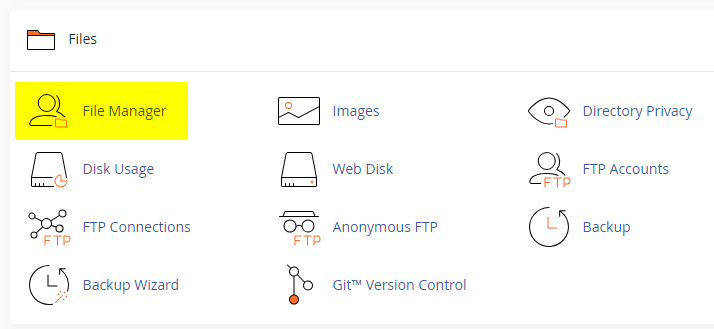
  2. Click on the "File Manager" icon. It's usually under the "Files" section.
  3. You are now in the "File Manager". Open the public_html folder, which is your website's root directory.
  4. Locate the wp-content folder inside "public_html," then open the themes folder inside of it.
  5. In the File Manager interface, click the "Upload" button and choose the theme's .zip file from your local drive.
  6. After it has been uploaded, right-click the .zip file and choose "Extract" or "Unzip".
  7. You can now delete the uploaded .zip file, but it's optional.
  8. Log in to your WordPress dashboard through your web browser.
  9. Go to Appearance → Themes. Now you will see the newly extracted theme.
  10. Make it your active theme by clicking the "Activate" button next to it.

Note: If your hosting provider doesn't offer cPanel, look for a File Manager option in your hosting dashboard (like DirectAdmin, Plesk, or CyberPanel). The process is usually very similar—just find the wp-content/themes folder and upload/extract the theme ZIP file there.

Method 3: Install using FTP

Installing a WordPress theme via FTP is straightforward, though it involves a few more steps compared to using the built-in theme uploader. Here's how to install a WordPress theme using FTP:

  1. Unzip the theme's .zip file you have downloaded.
  2. Connect to your hosting account using an FTP client such as "FileZilla" or "Core FTP".
  3. Navigate to the /wp-content/themes folder in the "Remote site" section.
  4. In the "Local site" section, locate the unzipped theme folder.
  5. Drag and drop the unzipped theme folder from the "Local site" section to the "Remote site" section.
  6. Be patient and let the transfer finish.
  7. Once the transfer is complete, log in to your WordPress dashboard and navigate to Appearance > Themes.
  8. Find the theme you just uploaded and click Activate.

Troubleshooting Tips

  • Didn't receive the download email? Wait 5–10 minutes or check your spam/junk folder. But if you still can not find this email or download link is broken, please inform us. we will send it ASAP.
  • "The uploaded file exceeds the upload_max_filesize directive in php.ini." - If you get this error when following the "Method 1", follow this tutorial: https://themesdna.com/blog/increase-maximum-file-upload-size-wordpress/
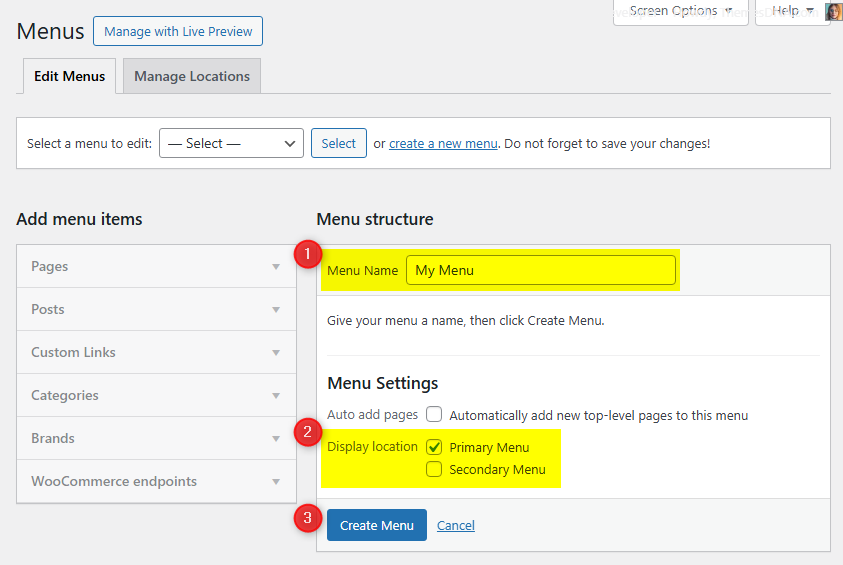
  • My menus disappeared or look different. Go to Appearance → Menus → Manage Locations and reassign your menus to the correct locations.
  • My header text or background color looks different after activating PRO. Reapply your colors in Appearance → Customize → Theme Options → Colors for Header Text Color and Background Color. Then publish.
  • Still can't install the theme? Contact us for help.

Import Demo Content

You can import the demo content, widgets, and Customizer settings shown in the BlogWP PRO theme demo.

Manual Demo Import

Step 1: Import Main Site Content

This includes: Posts, pages, menus, media, categories, tags, comments, and custom fields.

  1. Download: XML File
  2. Go to Tools → Import.
  3. Under "WordPress", click Install Now if not installed.
  4. Click Run Importer.
  5. Select the XML file and click Upload file and import.
  6. Check "Download and import file attachments", click Submit.

Step 2: Import Widgets

  1. Install the Widget Importer & Exporter plugin.
  2. Go to Tools → Widget Importer & Exporter.
  3. Copy content from: Widgets .wie File and paste into the box.
  4. Click Import Widgets.

Step 3: Import Customizer Settings

  1. Download: Customizer File
  2. Install the Customizer Export/Import plugin.
  3. Go to Appearance → Customize → Export/Import.
  4. Select the .dat file, check "Download and import image files?", click Import.

Regenerate Thumbnails

If your website already has existing posts with featured images, it's highly recommended to regenerate thumbnails after activating the BlogWP PRO theme. This ensures that all images match the new theme's layout and display sizes.

Regenerating thumbnails is optional if your site is completely new and doesn't have any uploaded images yet.

However, if you imported the demo content, regenerating thumbnails is essential to display images correctly across the site.

  1. Install and activate the Regenerate Thumbnails plugin.
  2. Go to Tools → Regenerate Thumbnails.
  3. Click the "Regenerate Thumbnails for All x Attachments" button to start the process.
  4. Wait until all images are regenerated. This may take a few minutes depending on your media library size.
  5. If you want, you can deactivate and delete the plugin once the process is complete.

This step ensures clean image alignment and sharp visuals throughout your website using the BlogWP PRO theme.

News Ticker

The News Ticker displays posts in a smooth horizontal scrolling (marquee) format. Perfect for breaking news or trending content.

How to Configure

  1. Go to Appearance → Customize → Theme Options → News Ticker.
  2. Check Enable News Ticker.
  3. Set the heading, number of posts, post source type, category/tag, and duration.
  4. Click Publish.

Post Source Types

  • Recent Posts – Latest posts
  • Popular Posts – Most commented
  • Random Posts – Random order
  • Category Posts – Specific category
  • Tag Posts – Specific tag

See all News Ticker options →

Custom Widgets

Quick Start

BlogWP PRO includes 20 custom widgets. Only activate what you use via Appearance → Customize → Theme Options → Custom Widgets.

How to Activate

  1. Go to Appearance → Customize → Theme Options → Custom Widgets.
  2. Check widgets you want to activate, click Publish.
  3. Go to Appearance → Widgets and drag them into widget areas.

BlogWP Social Widget

Displays social media profile links with Font Awesome icons. Supports 30+ platforms including Twitter/X, Facebook, Pinterest, LinkedIn, Instagram, YouTube, Vimeo, SoundCloud, WhatsApp, TikTok, Medium, GitHub, Reddit, Tumblr, Dribbble, Behance, Telegram, Snapchat, Skype, RSS, Email, and more.

  • Leave any field empty to hide that button
  • All links open in new tabs
  • Responsive design

BlogWP About Me Widget

Displays a profile section with image, name, description, and social media links. Perfect for personal blogs.

  • Profile image upload
  • Custom name and description
  • 30+ social media links
  • Round or normal button styles

BlogWP Tabbed Widget

Three independently configurable tabs of posts in a tabbed interface. Ideal for sidebars.

  • Three tabs with custom names
  • Independent post sources per tab
  • Post thumbnails, titles, author, date, comments
  • Adjustable posts per tab

Widget Areas

There are 19 widget areas in BlogWP PRO:

  1. Header Banner

    In the header area. Add a "Custom HTML" widget with banner ad code. Enable via Theme Options → Header Options → Activate Header Banner.

  2. Sidebar 1

    Main sidebar, displayed on the side of the page.

  3. Top Full Width Widgets (Home Page Only)

    Full-width area at the top of the homepage (first page only).

  4. Top Full Width Widgets (Posts Only)

    Full-width area at the top of single posts.

  5. Top Full Width Widgets (Posts/Pages Only)

    Full-width area at the top of single posts and pages.

  6. Top Full Width Widgets (Every Page)

    Full-width area at the top of every page.

  7. Top Widgets (Home Page Only)

    Above homepage main content.

  8. Top Widgets (Posts Only)

    Above single post main content.

  9. Top Widgets (Posts/Pages Only)

    Above single posts and pages main content.

  10. Top Widgets (Every Page)

    Above main content on every page.

  11. Bottom Widgets (Home Page Only)

    Below homepage main content.

  12. Bottom Widgets (Posts Only)

    Below single post main content.

  13. Bottom Widgets (Posts/Pages Only)

    Below single posts and pages main content.

  14. Bottom Widgets (Every Page)

    Below main content on every page.

  15. Post Bottom Widgets

    At the bottom of single posts, before comments.

  16. Footer 1

    First footer column.

  17. Footer 2

    Second footer column.

  18. Footer 3

    Third footer column.

  19. Footer 4

    Fourth footer column (when Footer Layout is 4 Columns).

How to Control Widget Visibility by Location

Install Widget Display Conditions or Widget Context plugin.

  1. Drag your widget into any "Every Page" widget area or Sidebar/Footer.
  2. Click the Display conditions button at the bottom of the widget.
  3. Click Add group, set conditions, and save.

Custom Page Templates

BlogWP PRO includes 11 custom page and post templates:

Special Function Templates

  • Contact Form (Page) – Built-in contact form.
  • Sitemap (Page) – Structured list of pages, categories, archives.
  • Authors (Page) – List of all authors with profiles.

Layout Templates (Page & Post variants)

  • Full Width, no sidebar (page and post)
  • Full Width, bottom sidebar (page and post)
  • Content + Sidebar 1 (page and post)
  • Sidebar 1 + Content (page and post)

How to Assign a Template

  1. Edit a page or post.
  2. Gutenberg: Find Template in the right sidebar under Page/Post tab.
  3. Classic Editor: Use the Template dropdown in Page/Post Attributes.
  4. Select the template and click Publish or Update.

How to Create a Contact Page

Step 1: Create the Page

  1. Go to Pages → Add New, title it Contact Us.
  2. Select the Contact Form template, click Publish.

Step 2: Configure Email

  1. Go to Appearance → Customize → Theme Options → Contact Page Options.
  2. Enter your email in Contact Form Email Address, click Publish.

Note: The form won't send emails without setting the Contact Form Email Address.

How to Create a Sitemap Page

  1. Go to Pages → Add New, title it Sitemap.
  2. Select the Sitemap template, click Publish.

Includes all pages, categories, tags, monthly archives, and authors.

How to Create a Site Authors Page

  1. Go to Pages → Add New, title it Our Authors.
  2. Select the Authors template, click Publish.

Optionally, go to Theme Options → Authors Page Options to hide administrators or authors with zero posts.

Customizer Theme Options

Access all options via WordPress Dashboard → Appearance → Customize → Theme Options.

Site Identity Options

Option IDOption NameDescriptionControl TypeDefault
custom_logoLogoCustom logo image.Media Uploader(none)
blognameSite TitleMain title of the website.Text"My WordPress Site"
blogdescriptionTaglineShort description below the title.Text"Just another WordPress site"
display_header_textDisplay Site Title & TaglineToggle title/tagline visibility.Toggletrue
site_iconSite Icon (Favicon)512×512 px recommended.Media Uploader(none)

Colors Options

BlogWP PRO offers 70+ color options in Theme Options → Colors. All accept hex color codes.

Option IDOption NameDescriptionControl TypeDefault
body_text_colorMain Text ColorBody text color.Color Picker#555555
link_colorMain Link ColorDefault link color.Color Picker#666666
link_hover_colorMain Link Hover ColorLink hover color.Color Picker#000000
headings_colorGeneral Headings Colorh1–h6 color.Color Picker#111111
social_bar_bg_colorSocial Bar BackgroundSocial icons bar background.Color Picker#eeeeee
social_bar_bd_colorSocial Bar Bottom BorderBottom border color.Color Picker#dddddd
header_bg_colorHeader BackgroundHeader background.Color Picker#ffffff
header_bd_colorHeader Bottom BorderHeader border color.Color Picker#dddddd
primary_menu_bg_colorPrimary Menu BackgroundMenu background.Color Picker#2c9ab7
primary_menu_colorPrimary Menu Link ColorMenu link color.Color Picker#ffffff
primary_menu_hover_colorPrimary Menu Link Hover ColorMenu hover color.Color Picker#ffffff
primary_menu_hover_bg_colorPrimary Menu Link Hover BackgroundHover background.Color Picker#25859e
primary_submenu_one_bg_colorPrimary Submenu BackgroundFirst-level submenu background.Color Picker#2c9ab7
primary_submenu_one_bd_colorPrimary Submenu BorderSubmenu border.Color Picker#1a728a
primary_submenu_two_bd_colorPrimary Submenu Border 2Second border accent.Color Picker#4cb3ce
primary_menu_icon_colorPrimary Responsive Menu IconMobile menu icon color.Color Picker#ffffff
news_ticker_bg_colorNews Ticker BackgroundTicker background.Color Picker#f3f3f3
news_ticker_heading_colorNews Ticker Heading ColorTicker heading text.Color Picker#ffffff
news_ticker_heading_bg_colorNews Ticker Heading BackgroundTicker heading background.Color Picker#666666
news_ticker_text_colorNews Ticker Text ColorTicker item text.Color Picker#666666
news_ticker_hover_text_colorNews Ticker Hover TextTicker hover text.Color Picker#000000
widget_post_bg_colorWidgets/Posts BackgroundWidget and post box background.Color Picker#ffffff
widget_post_bd_colorWidgets/Posts BorderWidget/post border.Color Picker#dddddd
mini_post_title_colorHome/Featured Post Title ColorFeatured widget title.Color Picker#000000
post_title_colorSingle Post Title ColorSingle post title.Color Picker#000000
mini_post_title_hover_colorHome/Featured Post Title HoverFeatured title hover.Color Picker#333333
post_title_hover_colorSingle Post Title HoverSingle title hover.Color Picker#333333
mini_post_title_two_colorHome/Featured Post Title Color 2Alternate title color.Color Picker#ffffff
mini_post_title_two_hover_colorHome/Featured Post Title Hover Color 2Alternate hover color.Color Picker#ffffff
post_body_link_colorPost Content Link ColorLinks in content.Color Picker#409BD4
post_body_link_hover_colorPost Content Link HoverContent link hover.Color Picker#08ACD5
postcats_colorPost Categories ColorCategory label color.Color Picker#ffffff
postcats_bg_colorPost Categories BackgroundCategory background.Color Picker#2c9ab7
postcats_hover_colorPost Categories Hover ColorCategory hover text.Color Picker#ffffff
postcats_bg_hover_colorPost Categories Hover BackgroundCategory hover background.Color Picker#000000
mini_post_meta_colorHome/Featured Post Meta ColorMeta text color.Color Picker#666666
post_meta_colorSingle Post Meta ColorMeta text color.Color Picker#666666
mini_post_meta_hover_colorHome/Featured Post Meta HoverMeta hover color.Color Picker#000000
post_meta_hover_colorSingle Post Meta HoverMeta hover color.Color Picker#000000
mini_post_meta_two_colorHome/Featured Post Meta Color 2Alternate meta color.Color Picker#ffffff
mini_post_meta_two_hover_colorHome/Featured Post Meta Hover Color 2Alternate meta hover.Color Picker#ffffff
rmore_colorRead More Button ColorButton text.Color Picker#ffffff
rmore_bg_colorRead More Button BackgroundButton background.Color Picker#333333
rmore_bd_one_colorRead More Button Border 1Border color 1.Color Picker#333333
rmore_bd_two_colorRead More Button Border 2Border color 2.Color Picker#333333
rmore_hover_colorRead More Button Hover ColorHover text.Color Picker#ffffff
rmore_bg_hover_colorRead More Button Hover BackgroundHover background.Color Picker#000000
sidebar_title_colorSidebar Title ColorSidebar title text.Color Picker#000000
sidebar_title_bg_colorSidebar Title BackgroundSidebar title background.Color Picker#e2e2e2
sidebar_title_bd_one_colorSidebar Title Border 1Border color 1.Color Picker#dddddd
sidebar_title_bd_two_colorSidebar Title Border 2Border color 2.Color Picker#f2f2f2
sidebar_link_colorSidebar Link ColorSidebar link text.Color Picker#444444
sidebar_link_hover_colorSidebar Link Hover ColorSidebar link hover.Color Picker#666666
sidebar_list_bd_colorSidebar List Border ColorList border.Color Picker#f1f1f1
tag_cloud_colorTag Cloud Link ColorTag cloud text.Color Picker#ffffff
tag_cloud_bg_colorTag Cloud BackgroundTag cloud background.Color Picker#888888
tag_cloud_hover_colorTag Cloud Hover ColorTag cloud hover text.Color Picker#ffffff
tag_cloud_hover_bg_colorTag Cloud Hover BackgroundTag cloud hover background.Color Picker#000000
footer_bg_colorFooter BackgroundFooter background.Color Picker#1d1e20
footer_title_colorFooter Title ColorFooter widget titles.Color Picker#ffffff
footer_title_bd_one_colorFooter Title Border OneFooter title border.Color Picker#333333
footer_title_bd_two_colorFooter Title Border TwoFooter title border.Color Picker#000000
footer_text_colorFooter Text ColorFooter text.Color Picker#cecece
footer_link_colorFooter Link ColorFooter link.Color Picker#dbdbdb
footer_link_hover_colorFooter Link Hover ColorFooter link hover.Color Picker#ffffff
footer_list_bd_colorFooter List Border ColorFooter list border.Color Picker#2d2d2d
cp_bg_colorCopyright Background ColorCopyright bar background.Color Picker#303436
cp_bd_colorCopyright Border ColorCopyright bar border.Color Picker#3D3D3D
cp_colorCopyright Text ColorCopyright text.Color Picker#ECFFF1
button_text_colorButton Text ColorButtons text color.Color Picker#ffffff
button_text_shadow_colorButton Text Shadow ColorText shadow color.Color Picker#000000
button_bg_colorButton Background ColorButtons background.Color Picker#333333
button_bd_colorButton Border ColorButtons border.Color Picker#000000
button_hover_bg_colorButton Hover BackgroundButtons hover background.Color Picker#000000
selected_text_colorSelected Text ColorColor of highlighted text.Color Picker#ffffff
selected_text_bg_colorSelected Text BackgroundBackground of highlighted text.Color Picker#333333
disable_shadow_colorDisable Shadow ColorRemove default shadows.Checkboxfalse

Options above cover header, menus, ticker, posts, widgets, footer, buttons, selections, and shadows.

Font Options

100+ font options via Theme Options → Font Options. Supports Google Fonts and system fonts.

  • Body Fonts – family, size, weight, style, line-height
  • Headings Fonts – family, line-height, individual h1–h6 size/weight/style
  • Site Title Fonts – family, size, weight, style, line-height
  • Site Description Fonts – family, size, weight, style, line-height
  • Primary Menu Fonts – family, size, weight, style
  • Secondary Menu Fonts – family, size, weight, style
  • News Ticker Fonts – family, size, weight, style
  • Post Title Fonts – family, size, weight, style, line-height
  • Widget Title Fonts – family, size, weight, style, line-height
  • Footer Title Fonts – family, size, weight, style, line-height
  • Featured Posts Widget Title Fonts (Small & Large)
  • Featured Posts Widget Categories & Meta Fonts
  • Read More Button Fonts
Option ID Option Name Description Control Type Accepted Value Default
font_subsetsFont SubsetsSelect font subsets to load.Multi SelectLatin, Latin-Ext, Cyrillic, Cyrillic-Ext, Greek, Greek-Ext, VietnameseLatin
body_fontsBody Font-FamilyFont family for body text.SelectGoogle/System font listDomine
body_font_sizeBody Font-SizeBody text size.Select8px–72px13px
body_font_weightBody Font-WeightBody font weight.Select400, 700400
body_font_styleBody Font-StyleBody font style.Selectnormal, italicnormal
body_line_heightBody Line-HeightBody line height.TextNumber1.6
site_title_fontsSite Title Font-FamilyFont family for site title.SelectGoogle/System font listPlayfair Display
site_title_font_sizeSite Title Font-SizeSite title size.Select8px–72px22px
site_title_font_weightSite Title Font-WeightSite title weight.Select400, 700700
site_title_font_styleSite Title Font-StyleSite title style.Selectnormal, italicnormal
site_title_line_heightSite Title Line-HeightSite title line height.TextNumber1
site_desc_fontsSite Description Font-FamilyFont family for site description.SelectGoogle/System font listDomine
site_desc_font_sizeSite Description Font-SizeSite description size.Select8px–72px13px
site_desc_font_weightSite Description Font-WeightSite description weight.Select400, 700400
site_desc_font_styleSite Description Font-StyleSite description style.Selectnormal, italicnormal
site_desc_line_heightSite Description Line-HeightSite description line height.TextNumber1
primary_menu_fontsPrimary Menu Font-FamilyFont for primary menu.SelectGoogle/System font listOswald
primary_menu_font_sizePrimary Menu Font-SizePrimary menu size.Select8px–72px13px
primary_menu_font_weightPrimary Menu Font-WeightPrimary menu weight.Select400, 700400
primary_menu_font_stylePrimary Menu Font-StylePrimary menu style.Selectnormal, italicnormal
secondary_menu_fontsSecondary Menu Font-FamilyFont for secondary menu.SelectGoogle/System font listOswald
secondary_menu_font_sizeSecondary Menu Font-SizeSecondary menu size.Select8px–72px13px
secondary_menu_font_weightSecondary Menu Font-WeightSecondary menu weight.Select400, 700400
secondary_menu_font_styleSecondary Menu Font-StyleSecondary menu style.Selectnormal, italicnormal
news_ticker_fontsNews Ticker Font-FamilyFont for ticker.SelectGoogle/System font listOswald
news_ticker_font_sizeNews Ticker Font-SizeTicker size.Select8px–72px13px
news_ticker_font_weightNews Ticker Font-WeightTicker weight.Select400, 700400
news_ticker_font_styleNews Ticker Font-StyleTicker style.Selectnormal, italicnormal
hpost_title_fontsHome/Featured Post Title Font-FamilyFeatured post title font.SelectGoogle/System font listPlayfair Display
hpost_title_font_sizeHome/Featured Post Title SizeFeatured title size.Select8px–72px18px
hpost_title_font_weightHome/Featured Post Title WeightFeatured title weight.Select400, 700700
hpost_title_font_styleHome/Featured Post Title StyleFeatured title style.Selectnormal, italicnormal
hpost_title_line_heightHome/Featured Post Title Line-HeightFeatured title line height.TextNumber1.2
hpost_title_sm_fontsHome/Featured Small Title Font-FamilySmall featured post title font.SelectGoogle/System font listPlayfair Display
hpost_title_sm_font_sizeHome/Featured Small Title SizeSmall title size.Select8px–72px16px
hpost_title_sm_font_weightHome/Featured Small Title WeightSmall title weight.Select400, 700700
hpost_title_sm_font_styleHome/Featured Small Title StyleSmall title style.Selectnormal, italicnormal
hpost_title_sm_line_heightHome/Featured Small Title Line-HeightSmall title line height.TextNumber1.2
hpost_cats_fontsHome/Featured Categories Font-FamilyCategories label font.SelectGoogle/System font listOswald
hpost_cats_font_sizeHome/Featured Categories SizeCategories label size.Select8px–72px12px
hpost_cats_font_weightHome/Featured Categories WeightCategories label weight.Select400, 700400
hpost_cats_font_styleHome/Featured Categories StyleCategories label style.Selectnormal, italicnormal
hpost_meta_fontsHome/Featured Meta Font-FamilyMeta info font.SelectGoogle/System font listOswald
hpost_meta_font_sizeHome/Featured Meta SizeMeta font size.Select8px–72px12px
hpost_meta_font_weightHome/Featured Meta WeightMeta weight.Select400, 700400
hpost_meta_font_styleHome/Featured Meta StyleMeta style.Selectnormal, italicnormal
read_more_fontsRead More Button Font-FamilyRead more button font.SelectGoogle/System font listOswald
read_more_font_sizeRead More Button Font-SizeRead more size.Select8px–72px13px
read_more_font_weightRead More Button Font-WeightRead more weight.Select400, 700400
read_more_font_styleRead More Button Font-StyleRead more style.Selectnormal, italicnormal
post_title_fontsPost Title Font-FamilySingle post title font.SelectGoogle/System font listPlayfair Display
post_title_font_sizePost Title Font-SizePost title size.Select8px–72px26px
post_title_font_weightPost Title Font-WeightPost title weight.Select400, 700700
post_title_font_stylePost Title Font-StylePost title style.Selectnormal, italicnormal
post_title_line_heightPost Title Line-HeightPost title line height.TextNumber1.2
widget_title_fontsWidget Title Font-FamilySidebar widget title font.SelectGoogle/System font listOswald
widget_title_font_sizeWidget Title Font-SizeWidget title size.Select8px–72px16px
widget_title_font_weightWidget Title Font-WeightWidget title weight.Select400, 700400
widget_title_font_styleWidget Title Font-StyleWidget title style.Selectnormal, italicnormal
sidebar_title_line_heightWidget Title Line-HeightWidget title line height.TextNumber1
footer_title_fontsFooter Widget Title Font-FamilyFooter widget title font.SelectGoogle/System font listOswald
footer_title_font_sizeFooter Title Font-SizeFooter title size.Select8px–72px14px
footer_title_font_weightFooter Title Font-WeightFooter title weight.Select400, 700400
footer_title_font_styleFooter Title Font-StyleFooter title style.Selectnormal, italicnormal
footer_title_line_heightFooter Title Line-HeightFooter title line height.TextNumber1
headings_fontsGeneral Headings Font-FamilyFont for headings.SelectGoogle/System font listPlayfair Display
headings_line_heightHeadings Line-HeightLine height for headings.TextNumber1
h1_font_sizeH1 Font-SizeH1 size.Select8px–72px32px
h1_font_weightH1 Font-WeightH1 weight.Select400, 700700
h1_font_styleH1 Font-StyleH1 style.Selectnormal, italicnormal
h2_font_sizeH2 Font-SizeH2 size.Select8px–72px28px
h2_font_weightH2 Font-WeightH2 weight.Select400, 700700
h2_font_styleH2 Font-StyleH2 style.Selectnormal, italicnormal
h3_font_sizeH3 Font-SizeH3 size.Select8px–72px24px
h3_font_weightH3 Font-WeightH3 weight.Select400, 700700
h3_font_styleH3 Font-StyleH3 style.Selectnormal, italicnormal
h4_font_sizeH4 Font-SizeH4 size.Select8px–72px20px
h4_font_weightH4 Font-WeightH4 weight.Select400, 700700
h4_font_styleH4 Font-StyleH4 style.Selectnormal, italicnormal
h5_font_sizeH5 Font-SizeH5 size.Select8px–72px18px
h5_font_weightH5 Font-WeightH5 weight.Select400, 700700
h5_font_styleH5 Font-StyleH5 style.Selectnormal, italicnormal
h6_font_sizeH6 Font-SizeH6 size.Select8px–72px16px
h6_font_weightH6 Font-WeightH6 weight.Select400, 700700
h6_font_styleH6 Font-StyleH6 style.Selectnormal, italicnormal

Layout Options

Configure in Theme Options → Layout Options.

Option IDOption NameDescriptionControl TypeDefault
non_singular_layoutNon-Singular LayoutLayout for homepage, archive, category, tag, search.RadioContent + Sidebar 1
singular_layoutSingular LayoutLayout for single posts and pages.RadioContent + Sidebar 1
show_sidebar_one_columnShow Sidebar in One ColumnDisplay sidebar below content in one-column layout.Checkboxfalse

Layout choices: Sidebar 1 + Content, Content + Sidebar 1, One Column.

Header Options

Configure in Theme Options → Header Options.

Option IDOption NameDescriptionControl TypeDefault
activate_header_bannerActivate Header BannerEnable Header Banner widget area.Checkboxfalse
hide_header_contentHide Header ContentHide the header content area.Checkboxfalse

News Ticker Options

Configure in Theme Options → News Ticker.

Option IDOption NameDescriptionControl TypeDefault
enable_news_tickerEnable News TickerToggle the news ticker.Checkboxfalse
news_ticker_headingHeadingCustom ticker label.TextBreaking News
news_ticker_lengthNumber of PostsPosts to display.Text5
news_ticker_post_typePosts TypeSource: Recent, Popular, Random, Category, Tag.SelectRecent Posts
news_ticker_catCategoryCategory for Category Posts type.Category Dropdown(none)
news_ticker_tagTagTag for Tag Posts type.Tag Dropdown(none)
news_ticker_durationDuration (ms)Marquee scroll duration.Text60000

Post Options

Configure in Theme Options → Post Options.

Option IDOption NameDescriptionControl TypeDefault
hide_posts_headingHide HomePage Posts HeadingHide "Recent Posts" heading.Checkboxfalse
posts_headingHomePage Posts HeadingCustom heading text.TextRecent Posts
thumbnail_linkThumbnail LinkWhether thumbnails link to posts.SelectYes
post_styleNon-Singular Posts StylePost style for home/archive/search.SelectStyle 5
read_more_lengthAuto Post Summary LengthWords in auto summary.Text20
read_more_textRead More TextCustom read more text.TextContinue Reading...
hide_posted_date_homeHide Date from Posts SummariesHide date from post lists.Checkboxfalse
hide_posted_dateHide Date from Single PostsHide date on single posts.Checkboxfalse
hide_post_author_homeHide Author from Posts SummariesHide author from post lists.Checkboxfalse
hide_post_authorHide Author from Single PostsHide author on single posts.Checkboxfalse
hide_post_categories_homeHide Categories from Posts SummariesHide categories from lists.Checkboxfalse
hide_post_categoriesHide Categories from Single PostsHide categories on singles.Checkboxfalse
hide_post_tags_homeHide Tags from Posts SummariesHide tags from lists.Checkboxfalse
hide_post_tagsHide Tags from Single PostsHide tags on singles.Checkboxfalse
hide_comments_link_homeHide Comment Link from Posts SummariesHide comment count from lists.Checkboxfalse
hide_comments_linkHide Comment Link from Single PostsHide comment count on singles.Checkboxfalse
hide_post_editHide Post Edit LinkHide edit link for logged-in users.Checkboxfalse
hide_thumbnailHide Thumbnails from Every PageHide featured images everywhere.Checkboxfalse
hide_thumbnail_singleHide Thumbnails from Posts/PagesHide featured images on singles.Checkboxfalse
hide_post_snippetHide Post SnippetHide excerpts from lists.Checkboxfalse
hide_read_more_buttonHide Read More ButtonRemove read more button.Checkboxfalse
hide_share_buttons_homeHide Share Buttons from Posts SummariesHide share buttons on lists.Checkboxfalse
hide_share_buttonsHide Share Buttons from Single PostsHide share buttons on singles.Checkboxfalse
hide_author_bio_boxHide Author Bio BoxHide bio on single posts.Checkboxfalse
hide_related_posts_homeHide Related Posts from Posts SummariesHide related posts on lists.Checkboxfalse
hide_related_postsHide Related Posts from Single PostsHide related posts on singles.Checkboxfalse
related_posts_headingRelated Posts HeadingHeading for related posts.TextRelated Articles
related_posts_numberNumber of Related PostsPosts to display (4/8/12/16).Select4 Posts

Social Links Options

Configure in Theme Options → Social Links. These appear in the header social bar.

Option IDOption NameDescriptionControl TypeDefault
hide_header_social_buttonsHide Header Social ButtonsHide social buttons in header bar.Checkboxfalse
twitterlinkTwitter URLTwitter profile URL.Text(empty)
facebooklinkFacebook URLFacebook profile URL.Text(empty)
googlelinkGoogle Plus URLGoogle Plus URL.Text(empty)
pinterestlinkPinterest URLPinterest profile URL.Text(empty)
linkedinlinkLinkedIn URLLinkedIn profile URL.Text(empty)
instagramlinkInstagram URLInstagram profile URL.Text(empty)
vklinkVK URLVK profile URL.Text(empty)
flickrlinkFlickr URLFlickr profile URL.Text(empty)
youtubelinkYouTube URLYouTube channel URL.Text(empty)
vimeolinkVimeo URLVimeo profile URL.Text(empty)
soundcloudlinkSoundCloud URLSoundCloud profile URL.Text(empty)
lastfmlinkLast.fm URLLast.fm profile URL.Text(empty)
githublinkGitHub URLGitHub profile URL.Text(empty)
bitbucketlinkBitbucket URLBitbucket profile URL.Text(empty)
tumblrlinkTumblr URLTumblr profile URL.Text(empty)
digglinkDigg URLDigg profile URL.Text(empty)
deliciouslinkDelicious URLDelicious profile URL.Text(empty)
stumblelinkStumbleUpon URLStumbleUpon profile URL.Text(empty)
redditlinkReddit URLReddit profile URL.Text(empty)
dribbblelinkDribbble URLDribbble profile URL.Text(empty)
behancelinkBehance URLBehance profile URL.Text(empty)
codepenlinkCodepen URLCodepen profile URL.Text(empty)
jsfiddlelinkJSFiddle URLJSFiddle profile URL.Text(empty)
stackoverflowlinkStack Overflow URLStack Overflow profile URL.Text(empty)
stackexchangelinkStack Exchange URLStack Exchange profile URL.Text(empty)
bsalinkBuySellAds URLBuySellAds profile URL.Text(empty)
slidesharelinkSlideShare URLSlideShare profile URL.Text(empty)
skypeusernameSkype UsernameSkype username.Text(empty)
emailaddressEmail AddressEmail (mailto: protocol).Text(empty)
rsslinkRSS Feed URLRSS feed URL.Text(empty)

404 Page Options

Configure in Theme Options → 404 Page Options.

Option IDOption NameDescriptionControl TypeDefault
error_404_heading404 HeadingCustom heading.TextareaOops! That page can not be found.
error_404_message404 MessageCustom message.TextareaIt looks like nothing was found at this location. Maybe try one of the links below or a search?

Contact Page Options

Configure in Theme Options → Contact Page Options.

Option IDOption NameDescriptionControl TypeDefault
contact_form_emailContact Form EmailEmail to receive form submissions.Text(empty)

Important: Set this email for the contact form to work.

Authors Page Options

Configure in Theme Options → Authors Page Options.

Option IDOption NameDescriptionControl TypeDefault
hide_admin_authors_pageHide AdministratorsHide admins from Authors page.Checkboxfalse
hide_noposts_authors_pageHide Zero-Post AuthorsHide authors with no posts.Checkboxfalse

Other Options

Configure in Theme Options → Other Options.

Option IDOption NameDescriptionControl TypeDefault
enable_widgets_block_editorEnable Gutenberg Widget Block EditorUse block-based widget editor.Checkboxfalse
disable_sticky_menuDisable Sticky MenuTurn off sticky primary menu.Checkboxfalse
enable_sticky_mobile_menuEnable Sticky Menu on Small ScreenSticky menu on mobile.Checkboxfalse
disable_primary_menuDisable Primary MenuHide primary menu.Checkboxfalse
disable_sticky_sidebarDisable Sticky SidebarTurn off sticky sidebar.Checkboxfalse
disable_backtotopDisable Back to Top ButtonHide back-to-top button.Checkboxfalse

Performance & SEO Tips

  • Use a Caching Plugin – Install WP Super Cache, W3 Total Cache, or LiteSpeed Cache.
  • Optimize Images – Use Imagify, EWWW Image Optimizer, or ShortPixel.
  • Use an SEO Plugin – Install Yoast SEO or All in One SEO.
  • Use a CDNCloudflare serves your site faster worldwide.
  • Keep WordPress Updated – Always use the latest WordPress, themes, and plugins.
  • Choose Quality Hosting – A reliable host makes a significant difference.
  • Minify CSS and JS – Use Autoptimize.
  • Only Activate Widgets You Need – Inactive widgets have zero performance impact.
  • Limit Plugins – Only install plugins you actually need.
  • Use Lazy Loading – Enable lazy loading for images.

Translation & RTL

BlogWP PRO is fully translation-ready and supports Right-to-Left (RTL) languages like Arabic, Hebrew, and Persian out of the box.

🌐 Translating the Theme

The theme includes a blogwp-pro.pot file located in the /languages folder inside the theme directory. You can use this file to create translations in your own language using any of the following tools:

After translating, save your files as:

  • blogwp-pro-[language_code].po
  • blogwp-pro-[language_code].mo

Place them inside the /languages folder in the theme.

↔️ RTL Language Support

BlogWP PRO includes built-in RTL support. If your WordPress site language is set to an RTL language, the theme will automatically adjust layout direction, alignment, and spacing accordingly. No extra setup required.

If you're customizing your site with RTL content, make sure your text widgets, menus, and custom styles are also RTL-compatible for best results.

FAQ

How do I install BlogWP PRO?

Go to Appearance → Themes → Add New → Upload Theme, select the .zip file, and click Install Now. See the Installation section.

How do I set up the homepage like the demo?

Import demo content as described in Import Demo Content, or manually configure widgets, menus, and Customizer settings.

How do I change the layout?

Go to Theme Options → Layout Options to switch between Content + Sidebar, Sidebar + Content, and One Column.

How do I change colors and fonts?

Theme Options → Colors for 70+ color options, and Font Options for 100+ font options.

How do I add social media links?

Theme Options → Social Links. Enable "Show Social Buttons in Header" and enter your profile URLs.

How do I enable share buttons on posts?

Theme Options → Post Options → check "Enable Share Buttons". Supports Twitter, Facebook, Pinterest, LinkedIn, Reddit, Digg, VK.

How do I add a contact form?

Create a new page with the "Contact Form" template and set the email in Theme Options → Contact Page Options. See Contact Page.

Is BlogWP PRO compatible with WooCommerce?

Yes, it includes built-in WooCommerce support.

Does it support the Gutenberg editor?

Yes, fully compatible with both Gutenberg Block Editor and Classic Editor.

How do I enable the news ticker?

Theme Options → News Ticker → check "Enable News Ticker". See News Ticker.

How do I change footer columns?

Theme Options → Footer Options → change "Footer Layout".

Can I use custom widgets without slowing my site?

Yes. Only activate widgets you use via Theme Options → Custom Widgets. Inactive widgets have zero impact.

How do I get numbered post navigation?

Install WP-PageNavi, then set "Posts Navigation Type" to "Numbered" in Theme Options → Post Options.
Troubleshooting

Theme installation fails

If you get "upload_max_filesize" error, increase your PHP upload limit. See this tutorial. Or install via cPanel / FTP.

Images look blurry or misaligned

Regenerate thumbnails after activating the theme.

Menus are missing or look wrong

Go to Appearance → Menus → Manage Locations and reassign menus to the correct locations.

Header image not showing

Ensure you have uploaded a header image in Appearance → Customize → Header Image and clicked Publish.

News ticker not displaying

Check that Enable News Ticker is checked in Theme Options → News Ticker and that you have published posts matching the selected source type.

Featured content area is empty

Make sure Enable Featured Content is checked and you have posts matching the selected source type (recent, category, tag, etc.).

Custom widgets not appearing in Widgets screen

Activate them first in Theme Options → Custom Widgets. Only activated widgets appear in Appearance → Widgets.

Contact form not sending emails

Set the Contact Form Email Address in Theme Options → Contact Page Options. Also check your hosting's email delivery and spam filters.

White screen or PHP errors after activation

Check that you are running PHP 7.4+ and WordPress 5.0+. Deactivate other themes/plugins to check for conflicts.

Still having issues?

Contact ThemesDNA Support

Support & Licensing

All our WordPress themes, including BlogWP PRO, are released under the 100% GPL (General Public License). You can use the theme on unlimited websites and modify the code to suit your needs.

What’s included in free support:

  • Help with theme installation and setup
  • Bug fixes and troubleshooting related to the theme
  • Guidance on using built-in theme features

What’s not included in free support (but available as paid tasks):

  • Theme customization or resolving third-party plugin conflicts
  • Custom coding or feature implementation requests
  • Performance tuning, SEO setup, or server configuration assistance

If you need help or would like to request a paid customization, please contact us. We typically respond within 24–48 hours on working days.

Contact Support

Changelog

Version 1.0.4

  • No notes provided in changelog

Version 1.0.3

  • Fixed coding issues
  • Many improvements

Version 1.0.2

  • Fixed coding issues
  • Customizer updated

Version 1.0.0

  • Initial release

Date Formats

You can use the following date format values to control how dates appear in various places such as custom widgets, post metadata, news tickers, and more. These formats follow the standard PHP date formatting rules used by WordPress. Refer to the table below to choose a format that best fits your design and content style.

Format KeyExample Output
H:i00:50
g:i a12:50 am
g:i A12:50 AM
g:i:s a12:50:48 am
g:i:s A12:50:48 AM
d.m.y27.11.10
Y.m.d2010.11.27
Y-m-d2010-11-27
Y/m/d2010/11/27
m.d.Y11.27.2010
m-d-Y11-27-2010
m/d/Y11/27/2010
d.m.Y27.11.2010
d-m-Y27-11-2010
d/m/Y27/11/2010
m/d/Y g:i:s a11/27/2010 12:50:48 am
m/d/Y g:i:s A11/27/2010 12:50:48 AM
Y/m/d \a\t g:i a2010/11/27 at 12:50 am
Y/m/d \a\t g:i A2010/11/27 at 12:50 AM
d F27 November
F, YNovember, 2010
F j, YNovember 27, 2010
d M Y27 Nov 2010
M j, YNov 27, 2010
M j, Y @ H:iNov 27, 2010 @ 0:50
l, F j, YSaturday, November 27, 2010
l, F jS, YSaturday, November 27th, 2010