BestWP PRO Documentation

Introduction

BestWP PRO is an attractive, fully responsive, 3-column magazine blogging theme for WordPress developed by ThemesDNA. Building on the solid foundation of its free counterpart, BestWP PRO introduces a comprehensive range of advanced features that enhance both the aesthetic appeal and functional versatility of your site. With 10 different post styles, 11 layout options (including 3-column, 2-column, and single-column variations), and 3 header styles, this theme accommodates a wide spectrum of content display needs.

The theme comes equipped with dynamic elements such as a featured posts slider, news ticker, and 17 Ajax-powered featured post widgets plus a tabbed widget, enabling engaging and interactive front-end presentations. It supports social sharing integrations with share buttons and social links, plus full translation readiness to cater to global audiences. BestWP PRO also offers granular control with multiple header and footer layout options, and customizable color and font schemes through an extensive WordPress Customizer panel.

Additional professional-grade features include sticky sidebars, sticky menus, WooCommerce support, related posts, author bio boxes, a built-in contact form template, a sitemap template, a site authors template, and over 20 widget areas that enhance widget organization and placement. The theme supports both Classic and Gutenberg editors seamlessly while offering a rich assortment of custom page and post templates for specialized content types.

Theme Installation

After purchasing the BestWP PRO WordPress Theme, you'll receive a download link via email. Check your email inbox (or spam folder) for the product delivery email. Click the provided download link to download the theme's .zip file to your computer. Follow one of a method given below to install the theme on your website.

Upgrading from the Free BestWP Theme?

BestWP PRO is a separate theme. Whether or not you're currently using the free BestWP theme, you need to install BestWP PRO using one of the methods below.

If you're upgrading from the free version, most of your existing WordPress Customizer settings will remain in place. So you don't need to reconfigure everything from scratch. However, you will need to reupload a few images and reapply specific color settings.

After activating BestWP PRO, go to Appearance → Customize and reupload the following:

  • Site Logo
  • Site Icon (favicon)
  • Header Image
  • Background Image

If you changed below color options in the free version, reapply them in Appearance → Customize → Theme Options → Colors:

  • Header Text Color
  • Background Color

Tip: You can install PRO without deleting the free theme. Use Live Preview to confirm your layout, then click Activate & Publish.

Method 1: Install Using the WordPress Dashboard (Easiest and Fastest)

This is the easiest and fastest method to install this WordPress theme.

  1. Go to "WordPress Dashboard" → "Appearance" → "Themes" and click on "Add New" button.
  2. Click on "Upload Theme" button and choose the zip file you have downloaded.
  3. Click on "Install Now" button.
  4. Activate the theme.
  5. Now go to "Appearance" → "Customize" to configure theme options.

Method 2: Install using cPanel File Manager

In some cases, you may not be able to install a WordPress theme through the WordPress dashboard—especially if the theme's ZIP file exceeds the maximum upload size limit. When this happens, you can install the theme using cPanel's File Manager, which is often simpler than using FTP. Follow the steps below to install your theme via the File Manager in cPanel.

  1. Log in to your cPanel account. Your cPanel URL will be https://yourdomain.com/cpanel or a similar URL.
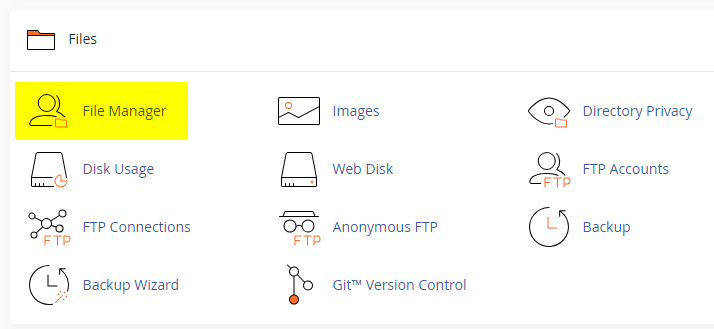
  2. Click on the "File Manager" icon. It's usually under the "Files" section.
  3. You are now in the "File Manager". Open the public_html folder, which is your website's root directory.
  4. Locate the wp-content folder inside "public_html," then open the themes folder inside of it.
  5. In the File Manager interface, click the "Upload" button and choose the theme's .zip file from your local drive.
  6. After it has been uploaded, right-click the .zip file and choose "Extract" or "Unzip".
  7. You can now delete the uploaded .zip file, but it's optional.
  8. Log in to your WordPress dashboard through your web browser.
  9. Go to Appearance → Themes. Now you will see the newly extracted theme.
  10. Make it your active theme by clicking the "Activate" button next to it.

Note: If your hosting provider doesn't offer cPanel, look for a File Manager option in your hosting dashboard (like DirectAdmin, Plesk, or CyberPanel). The process is usually very similar—just find the wp-content/themes folder and upload/extract the theme ZIP file there.

Method 3: Install using FTP

Installing a WordPress theme via FTP is straightforward, though it involves a few more steps compared to using the built-in theme uploader. Here's how to install a WordPress theme using FTP:

  1. Unzip the theme's .zip file you have downloaded.
  2. Connect to your hosting account using an FTP client such as "FileZilla" or "Core FTP".
  3. Navigate to the /wp-content/themes folder in the "Remote site" section.
  4. In the "Local site" section, locate the unzipped theme folder.
  5. Drag and drop the unzipped theme folder from the "Local site" section to the "Remote site" section.
  6. Be patient and let the transfer finish.
  7. Once the transfer is complete, log in to your WordPress dashboard and navigate to Appearance > Themes.
  8. Find the theme you just uploaded and click Activate.

Troubleshooting Tips

  • Didn't receive the download email? Wait 5–10 minutes or check your spam/junk folder. But if you still can not find this email or download link is broken, please inform us. we will send it ASAP.
  • "The uploaded file exceeds the upload_max_filesize directive in php.ini." - If you get this error when following the "Method 1", follow this tutorial: https://themesdna.com/blog/increase-maximum-file-upload-size-wordpress/
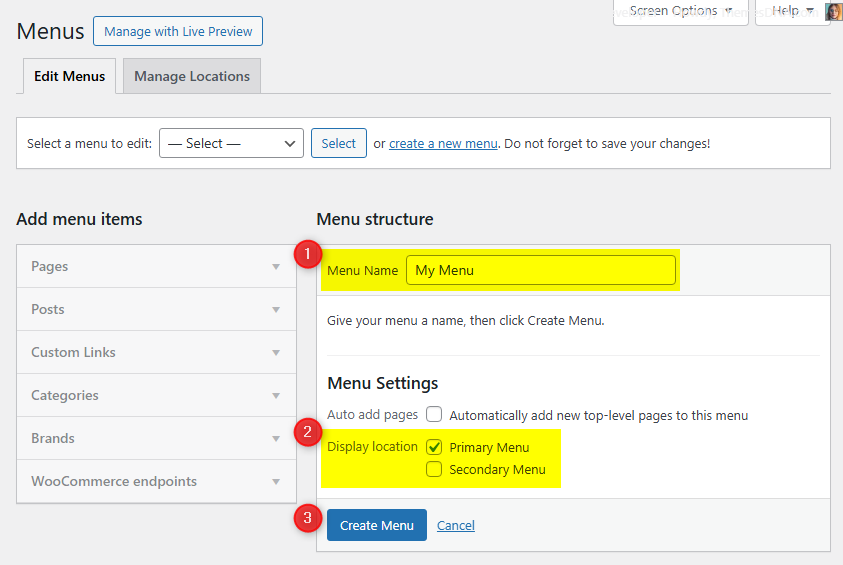
  • My menus disappeared or look different. Go to Appearance → Menus → Manage Locations and reassign your menus to the correct locations.
  • My header text or background color looks different after activating PRO. Reapply your colors in Appearance → Customize → Theme Options → Colors for Header Text Color and Background Color. Then publish.
  • Still can't install the theme? Contact us for help.

Import Demo Content

You can import the demo content, widgets, and Customizer settings shown in the BestWP PRO theme demo.

Manual Demo Import

Step 1: Import Main Site Content

This includes: Posts, pages, menus, media, categories, tags, comments, and custom fields.

  1. Download: XML File
  2. Go to Tools → Import.
  3. Under "WordPress", click Install Now if not installed.
  4. Click Run Importer.
  5. Select the XML file and click Upload file and import.
  6. Check "Download and import file attachments", click Submit.

Step 2: Import Widgets

  1. Install the Widget Importer & Exporter plugin.
  2. Go to Tools → Widget Importer & Exporter.
  3. Copy content from: Widgets .wie File and paste into the box.
  4. Click Import Widgets.

Step 3: Import Customizer Settings

  1. Download: Customizer File
  2. Install the Customizer Export/Import plugin.
  3. Go to Appearance → Customize → Export/Import.
  4. Select the .dat file, check "Download and import image files?", click Import.

Regenerate Thumbnails

If your website already has existing posts with featured images, it's highly recommended to regenerate thumbnails after activating the BestWP PRO theme. This ensures that all images match the new theme's layout and display sizes.

Regenerating thumbnails is optional if your site is completely new and doesn't have any uploaded images yet.

However, if you imported the demo content, regenerating thumbnails is essential to display images correctly across the site.

  1. Install and activate the Regenerate Thumbnails plugin.
  2. Go to Tools → Regenerate Thumbnails.
  3. Click the "Regenerate Thumbnails for All x Attachments" button to start the process.
  4. Wait until all images are regenerated. This may take a few minutes depending on your media library size.
  5. If you want, you can deactivate and delete the plugin once the process is complete.

This step ensures clean image alignment and sharp visuals throughout your website using the BestWP PRO theme.

Header Image

Quick Start Guide

BestWP PRO supports the native WordPress header image feature for a site-wide banner. Recommended size: 1920 × 375px (flex-height enabled).

Path: Appearance → Customize → Header Image.

How to Add a Header Image?

  1. Go to Appearance → Customize → Header Image.
  2. Click Add new image, upload/select an image, crop if prompted, then click Publish.

News Ticker

The News Ticker displays your posts in a smooth, horizontal scrolling format. It's perfect for highlighting breaking news, trending updates, or featured content. Fully customizable via the WordPress Theme Customizer.

Step 1: Access the News Ticker Options

  1. Go to WordPress Dashboard → Appearance → Customize.
  2. Click on Theme Options → News Ticker.

Step 2: Enable the News Ticker

Check the Enable News Ticker checkbox.

Step 3: Configure Ticker Options

Check the complete list of "News Ticker Options" available

Step 4: Save Changes

Click the Publish button to apply the changes.

Tips

  • Use Category Posts or Tag Posts for automated updates within a topic.
  • Use Popular Posts for highlighting your most commented content.
  • Adjust duration values for readability.
  • Choose between Header or Footer placement.

Slider

The Slider displays your posts in a beautiful carousel format at the top of your homepage. It's perfect for showcasing featured content, trending stories, or handpicked posts.

Step 1: Access Slider Options

  1. Go to WordPress Dashboard → Appearance → Customize.
  2. Click on Theme Options → Slider.

Step 2: Enable the Slider

Check the Enable Slider checkbox.

Step 3: Configure Slider Options

Check the complete list of "Slider Options" available

Step 4: Save Changes

Click the Publish button to apply the changes.

Tips

  • Make sure your posts have featured images set.
  • Use Category Posts or Tag Posts for curated slider content.
  • You can hide slide post categories, author, date, and comments individually.

Custom Widgets

Quick Start Guide

To see available widgets and widget areas navigate to WordPress Dashboard → Appearance → Widgets. There are up to 20 custom widgets bundled with BestWP PRO. Each widget must be enabled individually from Appearance → Customize → Theme Options → Custom Widgets Options before it appears in the widgets list.

  1. BestWP Featured Posts Widget 1 through 17 (17 unique featured post display styles)
  2. BestWP Tabbed Widget
  3. BestWP About Widget
  4. BestWP Social Widget
  5. BestWP Banner Widget (use Custom HTML widget for ads)

BestWP Tabbed Widget

This widget displays three separate tabs of posts in a tabbed interface. Each tab can be configured independently to display posts based on recent posts, a selected category, a selected tag, or specific post IDs.

Key Features

  • Three independently configurable tabs with different content sources
  • Multiple sorting options
  • Customizable display elements (thumbnails, titles, metadata, snippets)
  • Font size controls for different text elements
  • Share buttons integration
  • Responsive tabbed interface

How to Enable

  1. Go to Appearance → Customize → Theme Options → Custom Widgets Options.
  2. Check Enable Tabbed Widget.
  3. Click Publish, then go to Appearance → Widgets to use it.

Widget Options

  • Title (text)
  • Show/Hide tabs: Popular, Recent, Random (checkboxes)
  • Tab names for each tab (text)
  • Number of posts (integer)
  • Toggles: Display Thumbnail, Display Author, Display Date, Display Number of Comments, Display Post Snippet
  • Post snippet length (integer, words)

BestWP About and Social Widget

This widget displays a profile section with an image, description, and extensive social media links. It supports over 70 different social platforms with customizable button styles (round or normal).

Key Features

  • Displays a profile image and customizable description
  • Supports over 70 different social media platforms
  • Option to display round or normal social buttons
  • All social links open in new tabs with nofollow attribute
  • Uses Font Awesome icons for social media buttons
  • Responsive design that works on all devices

How to Enable

  1. Go to Appearance → Customize → Theme Options → Custom Widgets Options.
  2. Check Enable About Widget.
  3. Click Publish, then go to Appearance → Widgets to use it.

Usage Notes

  • For the profile image, provide a direct URL to the image file
  • The description field supports HTML formatting
  • Leave any social media field empty to hide that particular button
  • All social media URLs should be complete links (e.g., https://facebook.com/username)

Widget Options

  • Title (text)
  • Profile Image URL (text)
  • Description (textarea, HTML allowed)
  • Round social buttons (checkbox)
  • Social URLs: Facebook, Twitter/X, Google+, Pinterest, LinkedIn, Instagram, Flickr, YouTube, Vimeo, SoundCloud, Last.fm, GitHub, Bitbucket, Tumblr, Digg, Delicious, StumbleUpon, Reddit, Dribbble, Behance, VK, CodePen, JSFiddle, Stack Overflow, Stack Exchange, BuySellAds, SlideShare, Skype, Email, RSS (enter URLs; leave blank to hide)

BestWP Social Widget

A dedicated social media links widget that displays social media buttons in your sidebar or any widget area. It supports over 70 social platforms with customizable button styles.

How to Enable

  1. Go to Appearance → Customize → Theme Options → Custom Widgets Options.
  2. Check Enable Social Widget.
  3. Click Publish, then go to Appearance → Widgets to use it.

Widget Options

  • Title (text)
  • Round buttons (checkbox)
  • Social URLs: same set as the About widget (enter URLs; leave blank to hide)

Widget Areas

There are 20 widget areas in the BestWP PRO theme.


  1. Header Banner

    Located on the header. Drag a "Custom HTML" widget here and add your 728×90 banner ad code. Select "Header Layout" as "Header + Banner" from theme options to display this widget area.

  2. Sidebar 1

    Normally located on the left-hand side of your web page.

  3. Sidebar 2

    Normally located on the right-hand side of your web page.

  4. Top Full Width Widgets (Home Page Only)

    Full-width widget area at the top of homepage.

  5. Top Full Width Widgets (Posts Only)

    Full-width widget area at the top of single post.

  6. Top Full Width Widgets (Posts/Pages Only)

    Full-width widget area at the top of single post/page.

  7. Top Full Width Widgets (Every Page)

    Full-width widget area at the top of every page.

  8. Top Widgets (Home Page Only)

    Widget area at the top of homepage.

  9. Top Widgets (Posts Only)

    Widget area at the top of single post.

  10. Top Widgets (Posts/Pages Only)

    Widget area at the top of single post/page.

  11. Top Widgets (Every Page)

    Widget area at the top of every page.

  12. Bottom Widgets (Home Page Only)

    Widget area at the bottom of homepage.

  13. Bottom Widgets (Posts Only)

    Widget area at the bottom of single post.

  14. Bottom Widgets (Posts/Pages Only)

    Widget area at the bottom of single post/page.

  15. Bottom Widgets (Every Page)

    Widget area at the bottom of every page.

  16. Post Bottom Widgets

    Located at the bottom of single post, before the comments.

  17. Footer 1

    Column 1 of the footer (left).

  18. Footer 2

    Column 2 of the footer.

  19. Footer 3

    Column 3 of the footer.

  20. Footer 4

    Column 4 of the footer (right).

How to Control Widget Visibility by Location

If you'd like to display a widget in specific locations only, install and activate the Widget Display Conditions or Widget Context plugin.

You will see a Display conditions button at the bottom of your widget settings. Click on that button, then click Add group to set your widget display conditions and save.

Custom Page Templates

BestWP PRO includes 27 custom page and post templates that let you create pages and posts with unique layouts beyond the default design.

Special Function Templates

  • Contact Form: Creates a contact page with a built-in contact form.
  • Sitemap: Displays a structured list of your site's pages, categories, and archives.
  • Authors: Shows a list of all authors on your site with their profiles and post counts.

Layout Templates

These templates control how content and sidebars are arranged. Available for both pages and posts:

  • "Full Width, no sidebar" – Content in full width without sidebars.
  • "Full Width, bottom sidebar" – Full width content with sidebar below.
  • "Content + Sidebar 1" – Content left, Sidebar 1 right.
  • "Sidebar 1 + Content" – Sidebar 1 left, Content right.
  • "Content + Sidebar 2" – Content left, Sidebar 2 right.
  • "Sidebar 2 + Content" – Sidebar 2 left, Content right.
  • "Content + Sidebar 1 + Sidebar 2" – Content, then two sidebars.
  • "Sidebar 1 + Content + Sidebar 2" – Sidebar, content, sidebar.
  • "Sidebar 1 + Sidebar 2 + Content" – Two sidebars left, content right.
  • "Content + Sidebar 2 + Sidebar 1" – Content, sidebar2, sidebar1.
  • "Sidebar 2 + Content + Sidebar 1" – Sidebar2, content, sidebar1.
  • "Sidebar 2 + Sidebar 1 + Content" – Two sidebars, content.

How to Assign a Custom Template

  1. Go to Pages or PostsAdd New or edit an existing page/post.
  2. Look for the Template option in the right sidebar.
  3. Select the desired template from the list.
  4. Click Publish or Update.

How to Create a Contact Page

BestWP PRO includes a built-in Contact Form template.

Step 1: Create the Contact Page

  1. Go to Pages → Add New.
  2. Give your page a title like Contact Us.
  3. Select the Contact Form template.
  4. Click Publish.

Step 2: Configure the Contact Form Email Address

  1. Go to Appearance → Customize.
  2. Open Theme Options → Contact Page Options.
  3. Enter your preferred email address in the Contact Form Email Address field.
  4. Click Publish to save.

Note: If you do not set the Contact Form Email Address, the form will not send emails.

How to Create a Sitemap Page

BestWP PRO includes a built-in Sitemap page template that displays a structured list of your site's content.

  1. Go to Pages → Add New.
  2. Enter a title like Sitemap.
  3. Select the Sitemap template.
  4. Click Publish.

What's Included

  • List of all Pages
  • List of all Categories and Tags
  • Monthly Archives
  • List of all Authors

How to Create a Site Authors Page

BestWP PRO includes a built-in Authors page template.

Step 1: Create the Authors Page

  1. Go to Pages → Add New.
  2. Enter a title like Our Authors.
  3. Select the Authors template.
  4. Click Publish.

Step 2: Customize Author Display Settings (Optional)

  1. Go to Appearance → Customize → Theme Options → Authors Page Options.
  2. Toggle Hide site administrators or Hide authors with zero posts as desired.
  3. Click Publish to save.

Author Details Displayed

  • Each listed user must have the role of Author, Editor, or Administrator.
  • The template shows each author's display name, avatar, bio, and social profiles.
  • Set author bios under Users → Profile → Biographical Info.

Customizer Theme Options

To see available WordPress Customizer theme options:

  1. Go to your WordPress Dashboard.
  2. Navigate to Appearance → Customize.
  3. Click on Theme Options.

Colors Options

Below is the complete list of Colors Options available (Customizer → Colors panel):

Option IDOption NameDescriptionControl TypeDefault
body_text_colorMain Text ColorBody text color.Color#555555
link_colorMain Link ColorDefault link color.Color#666666
link_hover_colorMain Link Hover ColorLink hover color.Color#000000
headings_colorGeneral Headings ColorHeadings text.Color#111111
secondary_menu_bg_colorSecondary Menu BackgroundSecondary (top) menu background.Color#f8f8f8
secondary_menu_bd_colorSecondary Menu BorderSecondary menu border.Color#e5e5e5
secondary_menu_colorSecondary Menu LinkSecondary menu links.Color#666666
secondary_menu_shadow_colorSecondary Menu Link ShadowSecondary menu link shadow.Color#ffffff
secondary_menu_hover_colorSecondary Menu HoverSecondary menu link hover text.Color#000000
secondary_menu_hover_bg_colorSecondary Menu Hover BackgroundSecondary menu link hover background.Color#eeeeee
secondary_submenu_one_bg_colorSecondary Sub Menu BackgroundDropdown background.Color#f5f5f5
secondary_submenu_one_bd_colorSecondary Sub Menu BorderDropdown border.Color#e5e5e5
secondary_menu_icon_colorSecondary Responsive Menu IconMobile icon color.Color#000000
header_bg_colorHeader BackgroundHeader background color.Color#ffffff
primary_menu_bg_colorPrimary Menu BackgroundMain nav background.Color#333333
primary_menu_bd_colorPrimary Menu BorderMain nav border.Color#E03F00
primary_menu_colorPrimary Menu LinkMain nav links.Color#ffffff
primary_menu_shadow_colorPrimary Menu Link ShadowMain nav link shadow.Color#000000
primary_menu_hover_colorPrimary Menu HoverMain nav link hover text.Color#ffffff
primary_menu_hover_bg_colorPrimary Menu Hover BackgroundMain nav link hover background.Color#E03F00
primary_submenu_one_bg_colorPrimary Sub Menu BackgroundMain nav dropdown background.Color#444444
primary_submenu_one_bd_colorPrimary Sub Menu Border 1Main nav dropdown border.Color#222222
primary_submenu_two_bd_colorPrimary Sub Menu Border 2Main nav dropdown border 2.Color#383838
primary_submenu_three_bd_colorPrimary Sub Menu Border 3Main nav dropdown border 3.Color#666666
primary_menu_icon_colorPrimary Responsive Menu IconMain nav mobile icon color.Color#ffffff
news_ticker_bg_colorNews Ticker BackgroundTicker background.Color#444444
news_ticker_heading_colorNews Ticker Heading ColorTicker heading text.Color#ffffff
news_ticker_heading_bg_colorNews Ticker Heading BackgroundTicker heading background.Color#E03F00
news_ticker_date_colorNews Ticker Dates ColorTicker date text.Color#ffffff
news_ticker_date_bg_colorNews Ticker Dates BackgroundTicker date background.Color#333333
news_ticker_text_colorNews Ticker Text ColorTicker text.Color#dddddd
news_ticker_hover_text_colorNews Ticker Hover Text ColorTicker hover text.Color#ffffff
mini_post_title_colorHome/Featured Post Title ColorFeatured/home titles.Color#000000
post_title_colorSingle Post Title ColorSingle post title.Color#000000
mini_post_title_hover_colorHome/Featured Post Title Hover ColorFeatured/home title hover.Color#333333
post_title_hover_colorSingle Post Title Hover ColorSingle post title hover.Color#333333
mini_post_title_two_colorHome/Featured Post Title Color 2Secondary featured title.Color#ffffff
mini_post_title_two_hover_colorHome/Featured Post Title Hover Color 2Secondary featured title hover.Color#ffffff
post_body_link_colorPost Content Link ColorLinks inside posts.Color#409BD4
post_body_link_hover_colorPost Content Link Hover ColorPost link hover.Color#08ACD5
postcats_colorPost Categories ColorCategory label text.Color#ffffff
postcats_bg_colorPost Categories BackgroundCategory label background.Color#2386b7
postcats_hover_colorPost Categories Hover ColorCategory label hover text.Color#ffffff
postcats_bg_hover_colorPost Categories Hover BackgroundCategory label hover background.Color#000000
mini_post_meta_colorHome/Featured Post Meta ColorMeta text.Color#666666
post_meta_colorSingle Post Meta ColorMeta text on single posts.Color#666666
mini_post_meta_hover_colorHome/Featured Post Meta Hover ColorMeta hover text.Color#000000
post_meta_hover_colorSingle Post Meta Hover ColorMeta hover text on single posts.Color#000000
mini_post_meta_two_colorHome/Featured Post Meta Color 2Secondary meta color.Color#ffffff
mini_post_meta_two_hover_colorHome/Featured Post Meta Hover Color 2Secondary meta hover.Color#ffffff
rmore_colorRead More Button ColorRead more button text color.Color#ffffff
rmore_bg_colorRead More Button Background ColorRead more button background.Color#a3a3a3
rmore_hover_colorRead More Button Hover ColorRead more button hover text.Color#ffffff
rmore_bg_hover_colorRead More Button Hover Background ColorRead more button hover background.Color#000000
sidebar_widget_bg_colorSidebar Widgets BackgroundSidebar widget background.Color#ffffff
sidebar_widget_bd_colorSidebar Widgets Border 1Sidebar widget border.Color#dddddd
sidebar_widget_bd_two_colorSidebar Widgets Border 2Sidebar widget secondary border.Color#ffffff
sidebar_title_colorSidebar Title ColorSidebar widget title text.Color#ffffff
sidebar_title_bg_one_colorSidebar Title Background Color 1Primary sidebar title background.Color#dddddd
sidebar_title_bg_two_colorSidebar Title Background Color 2Secondary sidebar title background.Color#333333
sidebar_link_colorSidebar Link ColorSidebar link text.Color#444444
sidebar_link_hover_colorSidebar Link Hover ColorSidebar link hover text.Color#666666
tag_cloud_colorTag Cloud Link ColorTag cloud text color.Color#ffffff
tag_cloud_bg_colorTag Cloud Link BackgroundTag cloud background.Color#888888
tag_cloud_hover_colorTag Cloud Link Hover ColorTag cloud hover text.Color#ffffff
tag_cloud_hover_bg_colorTag Cloud Link Hover BackgroundTag cloud hover background.Color#000000
footer_bg_colorFooter Background ColorFooter background.Color#292929
footer_title_colorFooter Title ColorFooter widget title text.Color#ffffff
footer_title_bd_one_colorFooter Title Border One ColorFooter widget title border 1.Color#333333
footer_title_bd_two_colorFooter Title Border Two ColorFooter widget title border 2.Color#1f1f1f
footer_text_colorFooter Text ColorFooter text color.Color#cecece
footer_link_colorFooter Link ColorFooter link text.Color#dbdbdb
footer_link_hover_colorFooter Link Hover ColorFooter link hover text.Color#ffffff
cp_bg_colorCopyrights Background ColorFooter copyrights background.Color#232425
cp_bd_colorCopyrights Border ColorFooter copyrights border.Color#383737
cp_colorCopyrights Text ColorFooter copyrights text.Color#ECFFF1
button_text_colorButton Text ColorButton text color.Color#333333
button_text_shadow_colorButton Text Shadow ColorButton text shadow.Color#ffffff
button_bg_colorButton Background ColorButton background.Color#f5f5f5
button_bd_colorButton Border ColorButton border.Color#e6e6e6
button_hover_bg_colorButton Hover Background ColorButton hover background.Color#f5f5f5
selected_text_colorSelected Text ColorHighlighted text color.Color#ffffff
selected_text_bg_colorSelected Text Background ColorHighlighted text background.Color#333333
disable_shadow_colorDisable Shadow ColorDisable shadow color outputs.Checkboxfalse

Font Options

Below is the complete list of Font Options available:

Option ID Option Name Description Control Type Accepted Value Default
font_subsetsFont SubsetsSelect supported subsets.Multiple Selectcyrillic, cyrillic-ext, greek, greek-ext, latin, latin-ext, vietnameselatin
body_fontsBody Font-FamilyPick font for body text.SelectFont listDomine
body_font_sizeBody Font-SizeChoose body font size.Select8px–72px13px
body_font_weightBody Font-WeightChoose body font weight.Select400, 700400
body_font_styleBody Font-StyleChoose body font style.Selectnormal, italicnormal
body_line_heightBody Line-HeightEnter body line height.TextNumeric (e.g. 1.6)1.6
site_title_fontsSite Title Font-FamilyPick font for site title.SelectFont listPlayfair Display
site_title_font_sizeSite Title Font-SizeChoose site title font size.Select8px–72px24px
site_title_font_weightSite Title Font-WeightChoose site title font weight.Select400, 700700
site_title_font_styleSite Title Font-StyleChoose site title font style.Selectnormal, italicnormal
site_title_line_heightSite Title Line-HeightEnter site title line height.TextNumeric1
site_desc_fontsSite Description Font-FamilyPick font for site tagline.SelectFont listDomine
site_desc_font_sizeSite Description Font-SizeChoose site description font size.Select8px–72px13px
site_desc_font_weightSite Description Font-WeightChoose site description font weight.Select400, 700400
site_desc_font_styleSite Description Font-StyleChoose site description font style.Selectnormal, italicnormal
site_desc_line_heightSite Description Line-HeightEnter site description line height.TextNumeric1
primary_menu_fontsPrimary Menu Font-FamilyPick font for primary menu.SelectFont listOswald
primary_menu_font_sizePrimary Menu Font-SizeChoose primary menu font size.Select8px–72px13px
primary_menu_font_weightPrimary Menu Font-WeightChoose primary menu font weight.Select400, 700400
primary_menu_font_stylePrimary Menu Font-StyleChoose primary menu font style.Selectnormal, italicnormal
secondary_menu_fontsSecondary Menu Font-FamilyPick font for secondary menu.SelectFont listPatua One
secondary_menu_font_sizeSecondary Menu Font-SizeChoose secondary menu font size.Select8px–72px13px
secondary_menu_font_weightSecondary Menu Font-WeightChoose secondary menu font weight.Select400, 700400
secondary_menu_font_styleSecondary Menu Font-StyleChoose secondary menu font style.Selectnormal, italicnormal
news_ticker_fontsNews Ticker Font-FamilyPick font for news ticker.SelectFont listPatua One
news_ticker_font_sizeNews Ticker Font-SizeChoose news ticker font size.Select8px–72px13px
news_ticker_font_weightNews Ticker Font-WeightChoose news ticker font weight.Select400, 700400
news_ticker_font_styleNews Ticker Font-StyleChoose news ticker font style.Selectnormal, italicnormal
hpost_title_fontsHome/Featured Post Title Font-FamilyPick font for featured post titles.SelectFont listPlayfair Display
hpost_title_font_sizeHome/Featured Post Title Font-SizeChoose featured post title font size.Select8px–72px20px
hpost_title_font_weightHome/Featured Post Title Font-WeightChoose featured post title font weight.Select400, 700700
hpost_title_font_styleHome/Featured Post Title Font-StyleChoose featured post title font style.Selectnormal, italicnormal
hpost_title_line_heightHome/Featured Post Title Line-HeightEnter featured post title line height.TextNumeric1.2
hpost_title_sm_fontsHome/Featured Small Post Title Font-FamilyPick font for small featured post titles.SelectFont listPlayfair Display
hpost_title_sm_font_sizeHome/Featured Small Post Title Font-SizeChoose small featured post title font size.Select8px–72px16px
hpost_title_sm_font_weightHome/Featured Small Post Title Font-WeightChoose small featured post title font weight.Select400, 700700
hpost_title_sm_font_styleHome/Featured Small Post Title Font-StyleChoose small featured post title font style.Selectnormal, italicnormal
hpost_title_sm_line_heightHome/Featured Small Post Title Line-HeightEnter small featured post title line height.TextNumeric1.2
hpost_cats_fontsHome/Featured Post Categories Font-FamilyPick font for featured categories.SelectFont listOswald
hpost_cats_font_sizeHome/Featured Post Categories Font-SizeChoose featured categories font size.Select8px–72px12px
hpost_cats_font_weightHome/Featured Post Categories Font-WeightChoose featured categories font weight.Select400, 700400
hpost_cats_font_styleHome/Featured Post Categories Font-StyleChoose featured categories font style.Selectnormal, italicnormal
hpost_meta_fontsHome/Featured Post Meta Font-FamilyPick font for featured meta.SelectFont listOswald
hpost_meta_font_sizeHome/Featured Post Meta Font-SizeChoose featured meta font size.Select8px–72px12px
hpost_meta_font_weightHome/Featured Post Meta Font-WeightChoose featured meta font weight.Select400, 700400
hpost_meta_font_styleHome/Featured Post Meta Font-StyleChoose featured meta font style.Selectnormal, italicnormal
read_more_fontsRead More Button Font-FamilyPick font for read more buttons.SelectFont listOswald
read_more_font_sizeRead More Button Font-SizeChoose read more button font size.Select8px–72px13px
read_more_font_weightRead More Button Font-WeightChoose read more button font weight.Select400, 700400
read_more_font_styleRead More Button Font-StyleChoose read more button font style.Selectnormal, italicnormal
post_title_fontsPost Title Font-FamilyPick font for post titles.SelectFont listPlayfair Display
post_title_font_sizePost Title Font-SizeChoose post title font size.Select8px–72px26px
post_title_font_weightPost Title Font-WeightChoose post title font weight.Select400, 700700
post_title_font_stylePost Title Font-StyleChoose post title font style.Selectnormal, italicnormal
post_title_line_heightPost Title Line-HeightEnter post title line height.TextNumeric1.2
widget_title_fontsMain/Sidebars Widget Title Font-FamilyPick font for widget titles.SelectFont listOswald
widget_title_font_sizeMain/Sidebars Widget Title Font-SizeChoose widget title font size.Select8px–72px14px
widget_title_font_weightMain/Sidebars Widget Title Font-WeightChoose widget title font weight.Select400, 700400
widget_title_font_styleMain/Sidebars Widget Title Font-StyleChoose widget title font style.Selectnormal, italicnormal
sidebar_title_line_heightMain/Sidebars Title Line-HeightEnter widget title line height.TextNumeric1
footer_title_fontsFooter Widget Title Font-FamilyPick font for footer widget titles.SelectFont listOswald
footer_title_font_sizeFooter Title Font-SizeChoose footer title font size.Select8px–72px14px
footer_title_font_weightFooter Title Font-WeightChoose footer title font weight.Select400, 700400
footer_title_font_styleFooter Title Font-StyleChoose footer title font style.Selectnormal, italicnormal
footer_title_line_heightFooter Title Line-HeightEnter footer title line height.TextNumeric1
headings_fontsGeneral Headings Font-FamilyPick font for headings.SelectFont listPlayfair Display
headings_line_heightGeneral Headings Line-HeightEnter general headings line height.TextNumeric1
h1_font_sizeH1 Font-SizeChoose H1 font size.Select8px–72px32px
h1_font_weightH1 Font-WeightChoose H1 font weight.Select400, 700700
h1_font_styleH1 Font-StyleChoose H1 font style.Selectnormal, italicnormal
h2_font_sizeH2 Font-SizeChoose H2 font size.Select8px–72px28px
h2_font_weightH2 Font-WeightChoose H2 font weight.Select400, 700700
h2_font_styleH2 Font-StyleChoose H2 font style.Selectnormal, italicnormal
h3_font_sizeH3 Font-SizeChoose H3 font size.Select8px–72px24px
h3_font_weightH3 Font-WeightChoose H3 font weight.Select400, 700700
h3_font_styleH3 Font-StyleChoose H3 font style.Selectnormal, italicnormal
h4_font_sizeH4 Font-SizeChoose H4 font size.Select8px–72px20px
h4_font_weightH4 Font-WeightChoose H4 font weight.Select400, 700700
h4_font_styleH4 Font-StyleChoose H4 font style.Selectnormal, italicnormal
h5_font_sizeH5 Font-SizeChoose H5 font size.Select8px–72px18px
h5_font_weightH5 Font-WeightChoose H5 font weight.Select400, 700700
h5_font_styleH5 Font-StyleChoose H5 font style.Selectnormal, italicnormal
h6_font_sizeH6 Font-SizeChoose H6 font size.Select8px–72px16px
h6_font_weightH6 Font-WeightChoose H6 font weight.Select400, 700700
h6_font_styleH6 Font-StyleChoose H6 font style.Selectnormal, italicnormal

Layout Options

Below is the complete list of Layout Options available:

Option IDOption NameDescriptionControl TypeAccepted ValueDefault
layout_styleLayout StyleSelect your layout style.Radio
  • Sidebar 1 + Content + Sidebar 2
  • Sidebar 2 + Content + Sidebar 1
  • Content + Sidebar 1 + Sidebar 2
  • Content + Sidebar 2 + Sidebar 1
  • Sidebar 1 + Sidebar 2 + Content
  • Sidebar 2 + Sidebar 1 + Content
  • Sidebar 1 + Content
  • Content + Sidebar 1
  • Content + Sidebar 2
  • Sidebar 2 + Content
  • One Column
Content + Sidebar 1 + Sidebar 2
hide_sidebar_one_columnHide Sidebar from One Column LayoutHide sidebar when using the one column layout.Checkboxtrue / falsefalse

Header Options

Below is the complete list of Header Options available:

Option IDOption NameDescriptionControl TypeAccepted ValueDefault
header_layoutHeader LayoutSelect the header layout style.Select
  • Header + Banner
  • Header + Search Box
  • Full Width Header
Header + Banner
hide_header_contentHide Header ContentHide the header content area.Checkboxtrue / falsefalse

Slider Options

Below is the complete list of Slider Options available:

Option IDOption NameDescriptionControl TypeAccepted ValueDefault
enable_sliderEnable SliderEnable or disable the featured posts slider.Checkboxtrue / falsefalse
slider_lengthNumber of Slider PostsNumber of posts to display in the slider.TextA positive whole number.5
slider_post_typeSlider Posts TypeSelect a post type to display in the slider.Select
  • Recent Posts
  • Popular Posts
  • Random Posts
  • Category Posts
  • Tag Posts
Recent Posts
slider_catSlider Posts CategorySelect a category if Posts Type is Category Posts.Category DropdownA category from your WordPress categories.(none)
slider_tagSlider Posts TagSelect a tag if Posts Type is Tag Posts.Tag DropdownA tag from your WordPress tags.(none)
hide_slide_catsHide Slide Post CategoriesHide post categories from slider slides.Checkboxtrue / falsefalse
hide_slide_authorHide Slide Post AuthorHide post author from slider slides.Checkboxtrue / falsefalse
hide_slide_dateHide Slide Post DateHide post date from slider slides.Checkboxtrue / falsefalse
hide_slide_commentsHide Slide Post CommentsHide comment count from slider slides.Checkboxtrue / falsefalse

News Ticker Options

Below is the complete list of News Ticker Options available:

Option IDOption NameDescriptionControl TypeAccepted ValueDefault
enable_news_tickerEnable News TickerEnable or disable the news ticker.Checkboxtrue / falsefalse
news_ticker_headingNews Ticker HeadingCustom heading text for the news ticker.TextA plain text.Breaking News
news_ticker_lengthNumber of News Ticker PostsNumber of posts to display in the news ticker.TextA positive whole number.5
news_ticker_post_typeNews Ticker Posts TypeSelect a post type to display in the news ticker.Select
  • Recent Posts
  • Popular Posts
  • Random Posts
  • Category Posts
  • Tag Posts
Recent Posts
news_ticker_catNews Ticker Posts CategorySelect a category if Posts Type is Category Posts.Category DropdownA category from your WordPress categories.(none)
news_ticker_tagNews Ticker Posts TagSelect a tag if Posts Type is Tag Posts.Tag DropdownA tag from your WordPress tags.(none)
news_ticker_durationDurationDuration in milliseconds of the marquee.TextA positive whole number.60000
news_ticker_locationNews Ticker LocationSelect the location of the news ticker.Select
  • Header
  • Footer
Header

Post Options

Below is the complete list of Post Options available:

Option IDOption NameDescriptionControl TypeAccepted ValueDefault
hide_posts_headingHide HomePage Posts HeadingToggle visibility of homepage posts heading.Checkboxtrue/falsefalse
posts_headingHomePage Posts HeadingText shown above homepage posts.TextTextRecent Posts
thumbnail_linkThumbnail LinkLink single post thumbnail to its post.Selectyes, noyes
post_styleNon-Singular Posts StyleLayout style for home/categories/tags/archive/search.Selectstyle-1, style-2, style-3, style-4, style-5, style-6, style-8, style-9, style-12, style-13style-4
read_more_lengthAuto Post Summary LengthWord count for automatic excerpts.TextNumber25
read_more_textRead More TextLabel for read more links/buttons.TextTextContinue Reading
hide_posted_date_homeHide Posted Date from Posts SummariesRemove date on archives/home.Checkboxtrue/falsefalse
hide_posted_dateHide Posted Date from Single PostsRemove date on single posts.Checkboxtrue/falsefalse
hide_post_author_homeHide Post Author from Posts SummariesRemove author on archives/home.Checkboxtrue/falsefalse
hide_post_authorHide Post Author from Single PostsRemove author on single posts.Checkboxtrue/falsefalse
hide_post_categories_homeHide Post Categories from Posts SummariesRemove categories on archives/home.Checkboxtrue/falsefalse
hide_post_categoriesHide Post Categories from Single PostsRemove categories on single posts.Checkboxtrue/falsefalse
hide_post_tags_homeHide Post Tags from Posts SummariesRemove tags on archives/home.Checkboxtrue/falsefalse
hide_post_tagsHide Post Tags from Single PostsRemove tags on single posts.Checkboxtrue/falsefalse
hide_comments_link_homeHide Comment Link from Posts SummariesRemove comment count link on archives/home.Checkboxtrue/falsefalse
hide_comments_linkHide Comment Link from Single PostsRemove comment link on single posts.Checkboxtrue/falsefalse
hide_post_editHide Post Edit LinkHide edit link for logged-in editors.Checkboxtrue/falsefalse
hide_thumbnailHide Thumbnails from Every PageDisable featured images globally.Checkboxtrue/falsefalse
hide_thumbnail_singleHide Thumbnails from Posts/PagesDisable featured images on single posts/pages.Checkboxtrue/falsefalse
hide_post_snippetHide Post SnippetHide excerpt/snippet text.Checkboxtrue/falsefalse
hide_read_more_buttonHide Read More ButtonHide read more buttons on lists.Checkboxtrue/falsefalse
hide_share_buttons_homeHide Share Buttons from Posts SummariesRemove share buttons on archives/home.Checkboxtrue/falsefalse
hide_share_buttonsHide Share Buttons from Single PostsRemove share buttons on single posts.Checkboxtrue/falsefalse
hide_author_bio_boxHide Author Bio BoxHide author bio on single posts.Checkboxtrue/falsefalse
hide_related_posts_homeHide Related Posts from Posts SummariesHide related posts on archives/home.Checkboxtrue/falsefalse
hide_related_postsHide Related Posts from Single PostsHide related posts on single posts.Checkboxtrue/falsefalse
related_posts_headingRelated Posts HeadingHeading text above related posts.TextTextRelated Articles
related_posts_numberNumber of Related PostsChoose how many related posts to show.Select4, 8, 12, 164

Social Links Options

Manage header social buttons and URLs used throughout the theme.

Option IDOption NameDescriptionControl TypeDefault
hide_header_social_buttonsHide Header Social ButtonsHide social buttons from the header area.Checkboxfalse
twitterlinkTwitter URLHeader/social profile link to Twitter/X.Text(empty)
facebooklinkFacebook URLHeader/social profile link to Facebook.Text(empty)
googlelinkGoogle Plus URLHeader/social profile link to Google Plus.Text(empty)
pinterestlinkPinterest URLHeader/social profile link to Pinterest.Text(empty)
linkedinlinkLinkedIn URLHeader/social profile link to LinkedIn.Text(empty)
instagramlinkInstagram URLHeader/social profile link to Instagram.Text(empty)
vklinkVK URLHeader/social profile link to VK.Text(empty)
flickrlinkFlickr URLHeader/social profile link to Flickr.Text(empty)
youtubelinkYouTube URLHeader/social profile link to YouTube.Text(empty)
vimeolinkVimeo URLHeader/social profile link to Vimeo.Text(empty)
soundcloudlinkSoundCloud URLHeader/social profile link to SoundCloud.Text(empty)
lastfmlinkLast.fm URLHeader/social profile link to Last.fm.Text(empty)
githublinkGitHub URLHeader/social profile link to GitHub.Text(empty)
bitbucketlinkBitbucket URLHeader/social profile link to Bitbucket.Text(empty)
tumblrlinkTumblr URLHeader/social profile link to Tumblr.Text(empty)
digglinkDigg URLHeader/social profile link to Digg.Text(empty)
deliciouslinkDelicious URLHeader/social profile link to Delicious.Text(empty)
stumbleuponlinkStumbleUpon URLHeader/social profile link to StumbleUpon.Text(empty)
redditlinkReddit URLHeader/social profile link to Reddit.Text(empty)
dribbblelinkDribbble URLHeader/social profile link to Dribbble.Text(empty)
behancelinkBehance URLHeader/social profile link to Behance.Text(empty)
whatsapplinkWhatsApp URLHeader/social profile link to WhatsApp.Text(empty)
skypelinkSkype URLHeader/social profile link to Skype.Text(empty)
wechatlinkWeChat URLHeader/social profile link to WeChat.Text(empty)
tiktoklinkTikTok URLHeader/social profile link to TikTok.Text(empty)
snapchatlinkSnapchat URLHeader/social profile link to Snapchat.Text(empty)
mixcloudlinkMixcloud URLHeader/social profile link to Mixcloud.Text(empty)
mastodonlinkMastodon URLHeader/social profile link to Mastodon.Text(empty)
threadslinkThreads URLHeader/social profile link to Threads.Text(empty)
newsletterlinkEmail / Newsletter URLHeader/social profile link to mailto/subscription.Text(empty)
phonelinkPhone LinkHeader/social profile phone (tel: link).Text(empty)
rsslinkRSS URLHeader/social profile RSS feed link.Text(empty)

Note: Any URL left blank will hide that social icon. Additional legacy services present in the theme follow the same pattern.

404 Page Options

Option IDOption NameDescriptionControl TypeDefault
error_404_heading404 Error Page HeadingHeading displayed on the 404 page.TextareaOops! That page can not be found.
error_404_messageError 404 MessageMessage displayed on the 404 page.TextareaIt looks like nothing was found at this location...

Contact Page Options

Below is the complete list of Contact Page Options available:

Option IDOption NameDescriptionControl TypeAccepted ValueDefault
(static instructions)Contact Page ConfigurationSteps to assign the Contact Form page template.Static text
contact_form_emailContact Form Email AddressEmail that receives submissions from the built-in contact form.TextValid email(empty)

Authors Page Options

Option IDOption NameDescriptionControl TypeDefault
(static instructions)Authors Page ConfigurationSteps to assign the Authors template.Static text
hide_admin_authors_pageHide site administrators from Authors pageExclude admin users.Checkboxfalse
hide_noposts_authors_pageHide authors with zero postsExclude authors without posts.Checkboxfalse

Other Options

Below is the complete list of Other Options available:

Option IDOption NameDescriptionControl TypeAccepted ValueDefault
enable_widgets_block_editorEnable Gutenberg Widget Block EditorEnable the Gutenberg-based widget block editor.Checkboxtrue / falsefalse
disable_sticky_menuDisable Sticky MenuDisable the sticky navigation menu.Checkboxtrue / falsefalse
enable_sticky_mobile_menuEnable Sticky Mobile MenuEnable sticky menu on mobile devices.Checkboxtrue / falsefalse
disable_primary_menuDisable Primary MenuDisable the primary navigation menu.Checkboxtrue / falsefalse
disable_secondary_menuDisable Secondary MenuDisable the secondary navigation menu.Checkboxtrue / falsefalse
disable_sticky_sidebarDisable Sticky SidebarDisable the sticky sidebar feature.Checkboxtrue / falsefalse
disable_backtotopDisable Back to Top ButtonDisable the back-to-top floating button.Checkboxtrue / falsefalse

Reset Settings

Reset all theme options back to their defaults.

Option IDOption NameDescriptionControl TypeDefault
reset_settingsReset Theme OptionsReset all Customizer settings for BestWP PRO to default values.Reset Button(n/a)

Performance & SEO Tips

To get the best out of BestWP PRO, it's important to optimize your website for both performance and search engines. Below are helpful tips:

  • Use Optimized & WebP Images: Compress images using tools like TinyPNG and convert them to WebP format for better performance.
  • Enable Caching: Use a caching plugin like WP Super Cache or WP Rocket to reduce load times.
  • Use a CDN: Content Delivery Networks like Cloudflare or BunnyCDN help deliver content faster globally.
  • Minify CSS & JavaScript: Use a plugin like Autoptimize to reduce file sizes.
  • Optimize Fonts: Load Google Fonts asynchronously or host them locally to prevent render-blocking. Or use system fonts for maximum speed.
  • Avoid Unnecessary Plugins: Even though BestWP PRO is performance-optimized, using too many plugins can slow down your site.
  • Set SEO Titles & Meta Descriptions: Use plugins like Yoast SEO or Rank Math to improve on-page SEO.
  • Display Correct Thumbnails on Social Media: Install an SEO plugin and enable Open Graph and Twitter Card meta tags. Set a featured image for each post.
  • Enable Lazy Loading: Use WordPress's built-in lazy loading or plugins like a3 Lazy Load.
  • Clean the Database: Use plugins like WP-Optimize to remove post revisions, spam comments, and transients.
  • Add Structured Data: Enhance search visibility with schema markup using Rank Math or Yoast's advanced schema tools.

Translation & RTL

BestWP PRO is fully translation-ready and supports Right-to-Left (RTL) languages like Arabic, Hebrew, and Persian out of the box.

🌐 Translating the Theme

The theme includes a bestwp-pro.pot file located in the /languages folder inside the theme directory. You can use this file to create translations in your own language using any of the following tools:

After translating, save your files as:

  • bestwp-pro-[language_code].po
  • bestwp-pro-[language_code].mo

Place them inside the /languages folder in the theme.

↔️ RTL Language Support

BestWP PRO includes built-in RTL support. If your WordPress site language is set to an RTL language, the theme will automatically adjust layout direction, alignment, and spacing accordingly. No extra setup required.

If you're customizing your site with RTL content, make sure your text widgets, menus, and custom styles are also RTL-compatible for best results.

FAQ

In this section, you'll find quick answers to the most frequently asked questions about using the BestWP PRO theme. If you can't find your answer here, you can contact our support team for more help.

Why is my logo/site icon/header image/background image missing after upgrading to PRO?

When switching from the free to PRO version, you need to manually reupload your Site Logo, Header Image, Site Icon, and Background Image via Appearance → Customize.

My menus disappeared after theme activation. What should I do?

Go to Appearance → Menus → Manage Locations and reassign your existing menus to the correct theme locations.

How do I reset Customizer settings to default?

Go to Appearance → Customize → Theme Options → Other Options, then click the Reset Theme Options button. A confirmation dialog will appear. Confirm the action to reset your WordPress Customizer settings.

Troubleshooting

This section covers common technical problems you may encounter while installing, activating, or customizing the BestWP PRO theme. If your specific issue isn't listed, you can always reach out to our support team for assistance.

Post thumbnails are missing when sharing on social media

Install an SEO plugin like Yoast SEO or Rank Math and enable Open Graph tags. Always set a featured image for each post to ensure proper thumbnails appear when sharing.

I get "The uploaded file exceeds the upload_max_filesize directive" error.

This means your hosting has a small file upload limit. Follow this guide to increase it or use cPanel/File Manager to upload the theme.

Support & Licensing

All our WordPress themes, including BestWP PRO, are released under the 100% GPL (General Public License). You can use the theme on unlimited websites and modify the code to suit your needs.

What's included in free support:

  • Help with theme installation and setup
  • Bug fixes and troubleshooting related to the theme
  • Guidance on using built-in theme features

What's not included in free support (but available as paid tasks):

  • Theme customization or resolving third-party plugin conflicts
  • Custom coding or feature implementation requests
  • Performance tuning, SEO setup, or server configuration assistance

If you need help or would like to request a paid customization, please contact us. We typically respond within 24–48 hours on working days.

Contact Support

Changelog & Versioning

The following is a log of all updates and changes made to BestWP. We recommend always using the latest version to benefit from improvements and new features.

= Version 1.0.5 =

  • Fixed coding issues.
  • Customizer updated.
  • Many improvements.

= Version 1.0.4 =

  • Fixed coding issues.
  • Many improvements.

= Version 1.0.3 =

  • Fixed coding issues.
  • Customizer updated.

= Version 1.0.0 =

  • Initial Release.

Date Formats

You can use the following date format values to control how dates appear in various places such as custom widgets, post metadata, news tickers, and more. These formats follow the standard PHP date formatting rules used by WordPress.

Format KeyExample Output
H:i00:50
g:i a12:50 am
g:i A12:50 AM
g:i:s a12:50:48 am
g:i:s A12:50:48 AM
d.m.y27.11.10
Y.m.d2010.11.27
Y-m-d2010-11-27
Y/m/d2010/11/27
m.d.Y11.27.2010
m-d-Y11-27-2010
m/d/Y11/27/2010
d.m.Y27.11.2010
d-m-Y27-11-2010
d/m/Y27/11/2010
m/d/Y g:i:s a11/27/2010 12:50:48 am
m/d/Y g:i:s A11/27/2010 12:50:48 AM
Y/m/d \a\t g:i a2010/11/27 at 12:50 am
Y/m/d \a\t g:i A2010/11/27 at 12:50 AM
d F27 November
F, YNovember, 2010
F j, YNovember 27, 2010
d M Y27 Nov 2010
M j, YNov 27, 2010
M j, Y @ H:iNov 27, 2010 @ 0:50
l, F j, YSaturday, November 27, 2010
l, F jS, YSaturday, November 27th, 2010